- Create a data product.
- Set a timeliness SLA on a data product.
- Set a freshness SLA on a data product.
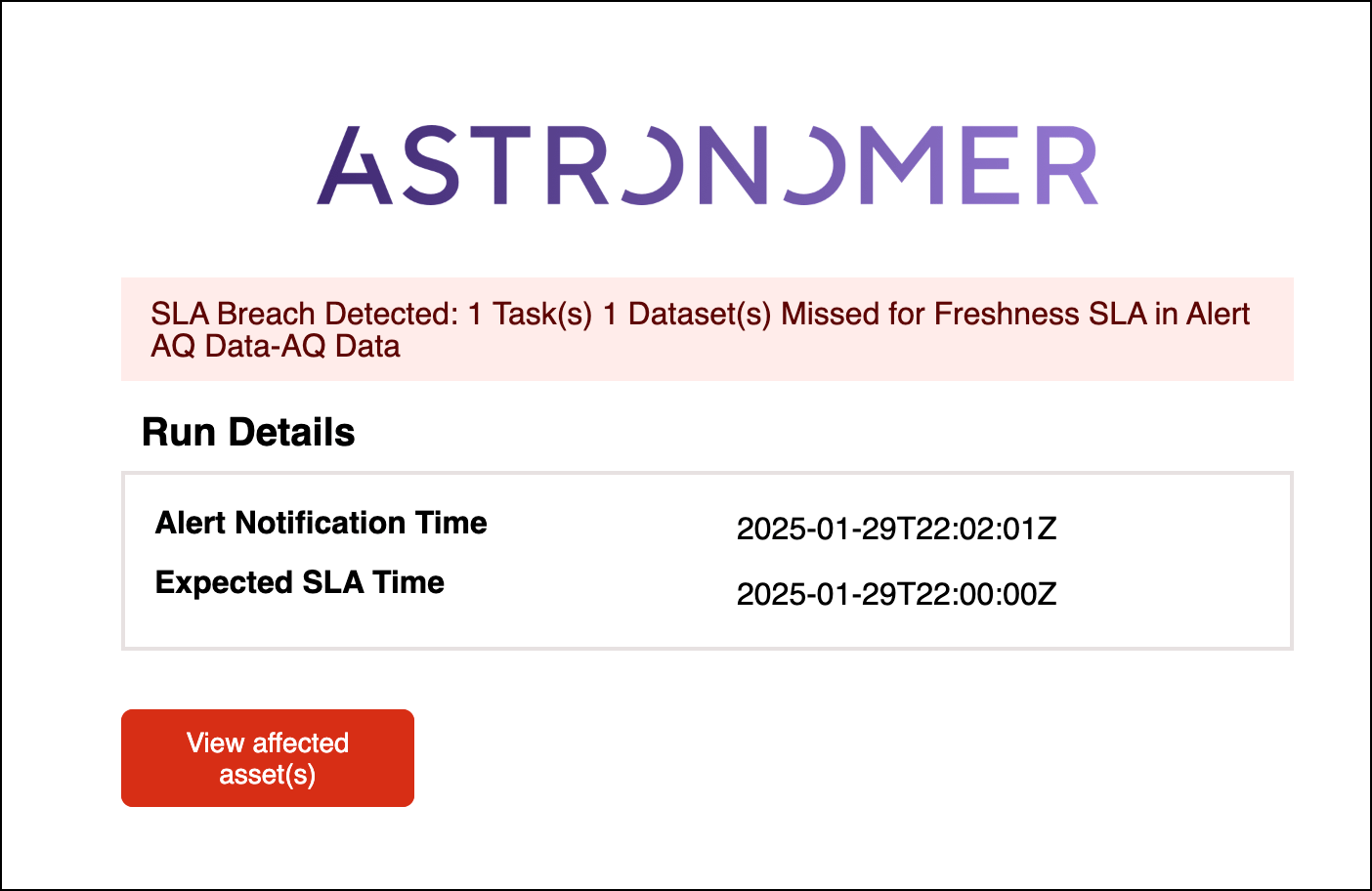
- Create an alert in case of an SLA not being met.
Time to complete
This quickstart takes approximately 45 minutes to complete.Assumed knowledge
To get the most out of this tutorial, make sure you have an understanding of:- Basic Airflow concepts. See Introduction to Apache Airflow.
- Basic observability concepts like data products and SLAs.
- Basics knowledge of how to navigate the Astro Observe UI.
Prerequisites
- An Astro account with access to Astro Observe. Astro customers can request access to Astro Observe.
- A GitHub account with permission to authorize GitHub Apps. If you don’t have a GitHub account, you can create one for free on the GitHub website.
Step 1: Set up your Astro deployment
- Sign in to your Astro account.
-
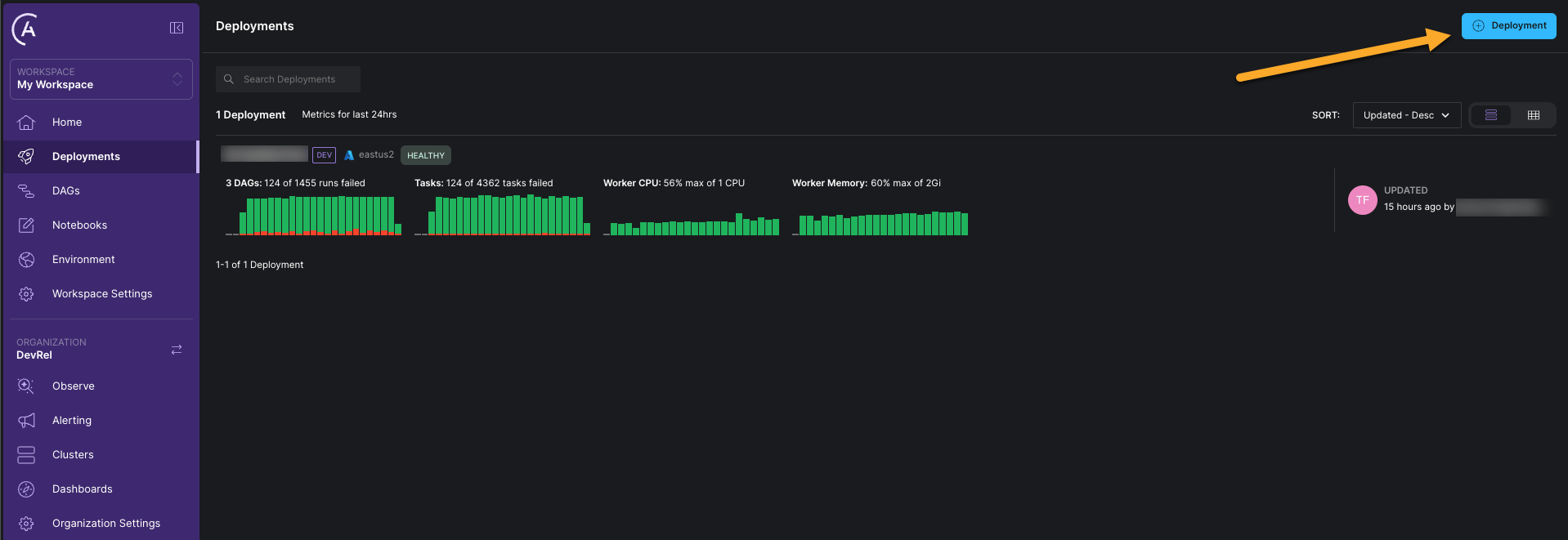
Click + Deployment to create a new deployment using default settings.
-
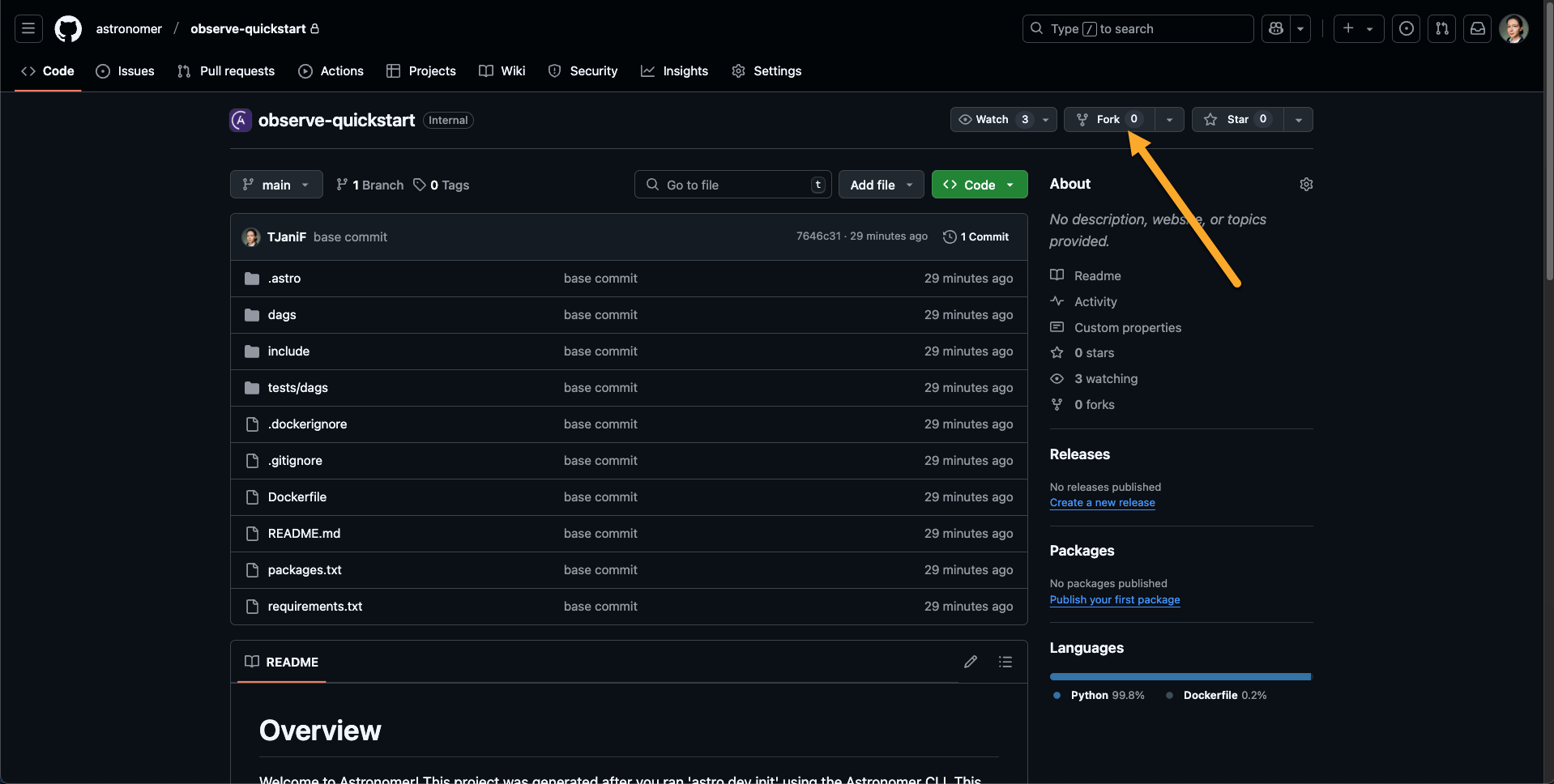
Fork the Observe Quickstart GitHub repository to your GitHub account.
-
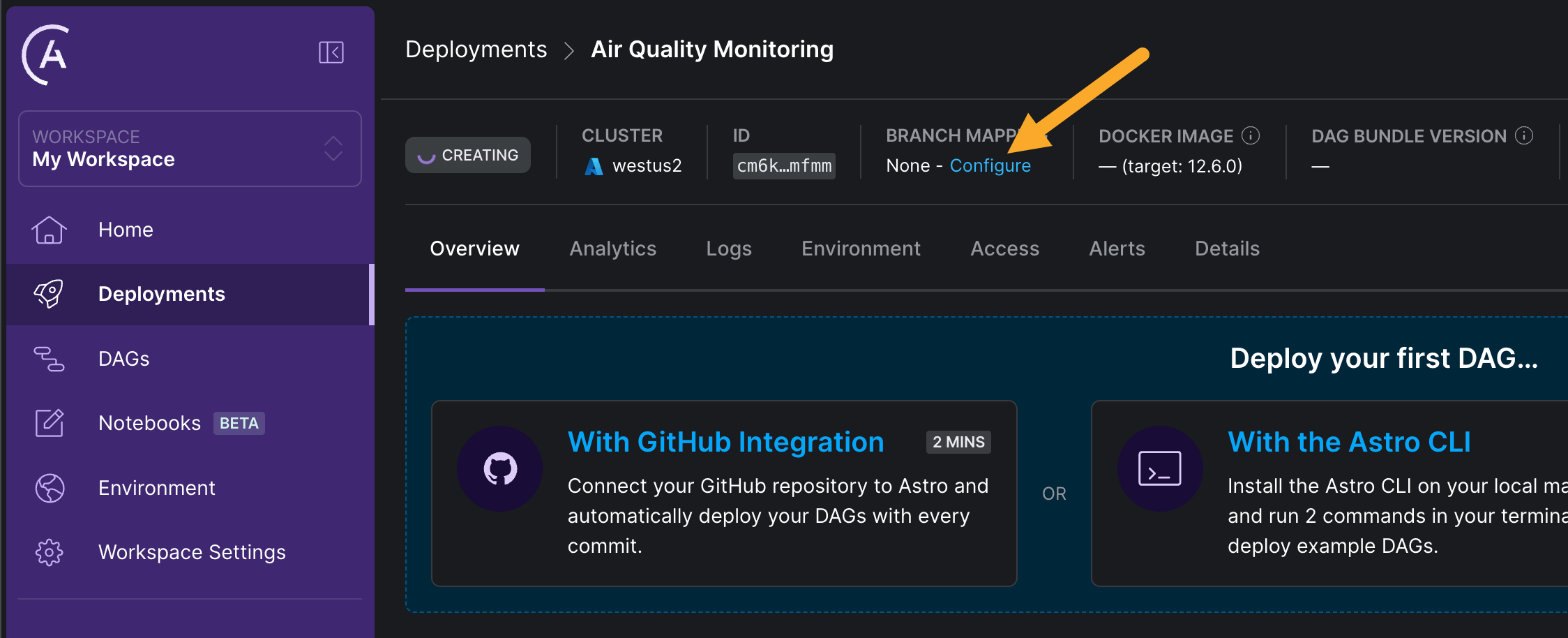
In the Astro UI, go to your newly created deployment and click Configure in the BRANCH MAPPING section to map the deployment to a branch in your forked repository, see Deploy code with the Astro GitHub integration
-
Click Connect Repository and go through the steps in the UI to connect your forked repository to the deployment. Note that your GitHub Account needs to have the necessary permissions to authorize GitHub Apps. Make sure to select Use an existing repository and select your forked repository in the dropdown. You don’t need to provide an Astro project path, since the project is at the root of the repository. Click Connect Repository to connect the repository to your Astro organization.
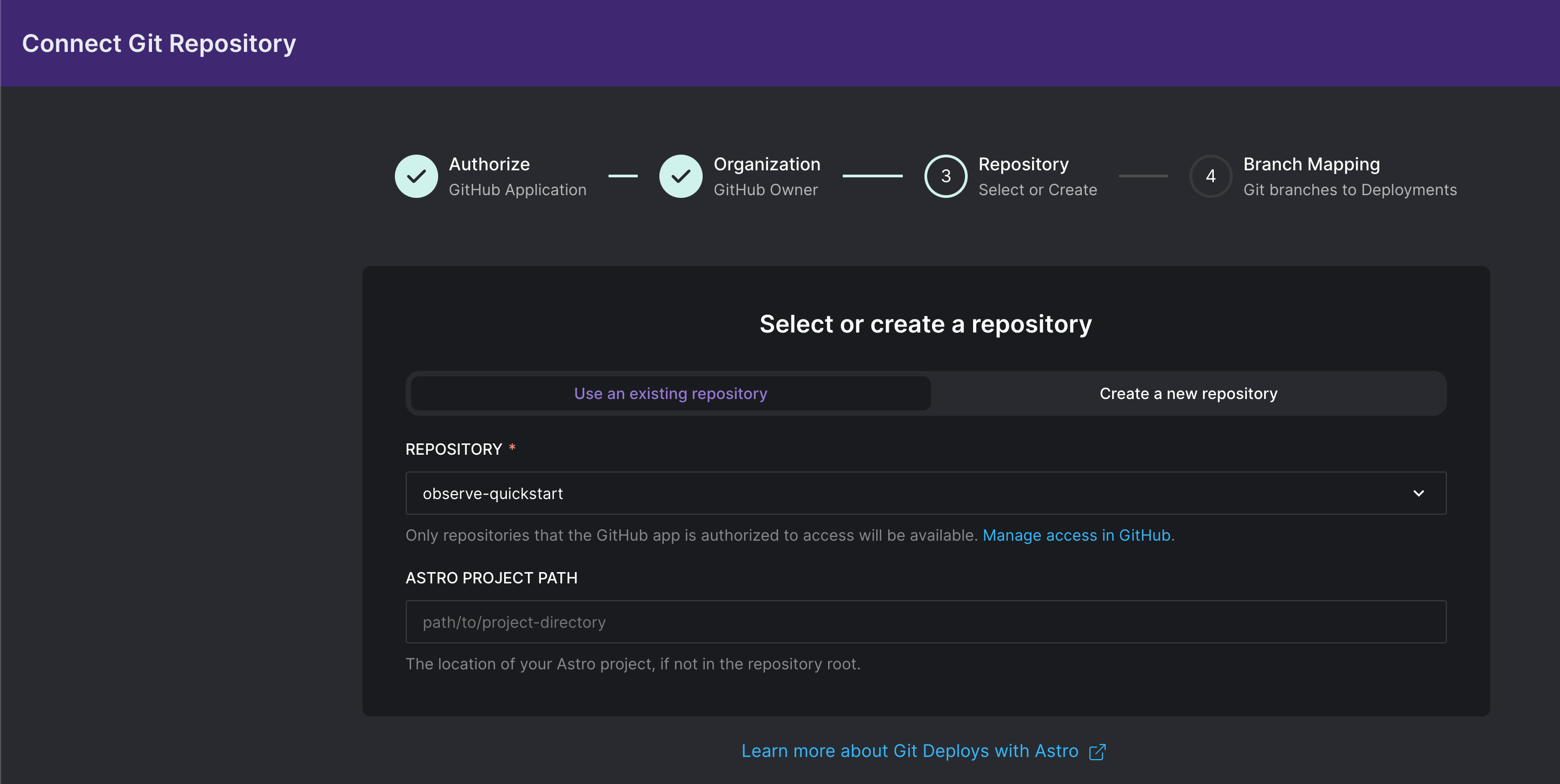
-
Select the
mainbranch as the Branch and map it to your empty Deployment. Click Update Mappings to save the changes.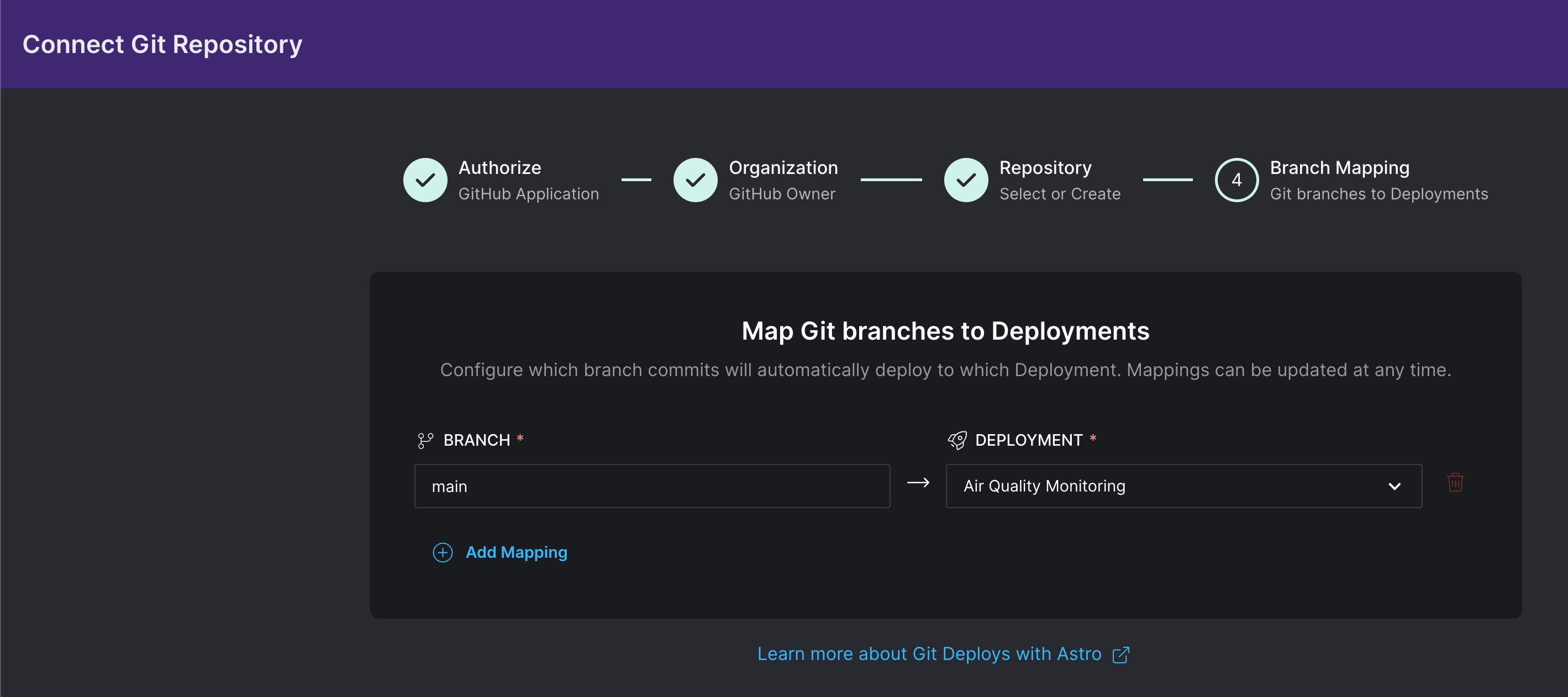
-
To deploy the code currently on the main branch of the mapped repository, click the … button in the top right corner, and then click Trigger Git Deploy…. Any subsequent commits to the mapped branch will automatically trigger code deployment. You can verify that deploying was successful through the Deploy History of your Astro Deployment, which should show 2 Deploys with a green checkmark as their status. This process may take a few minutes.
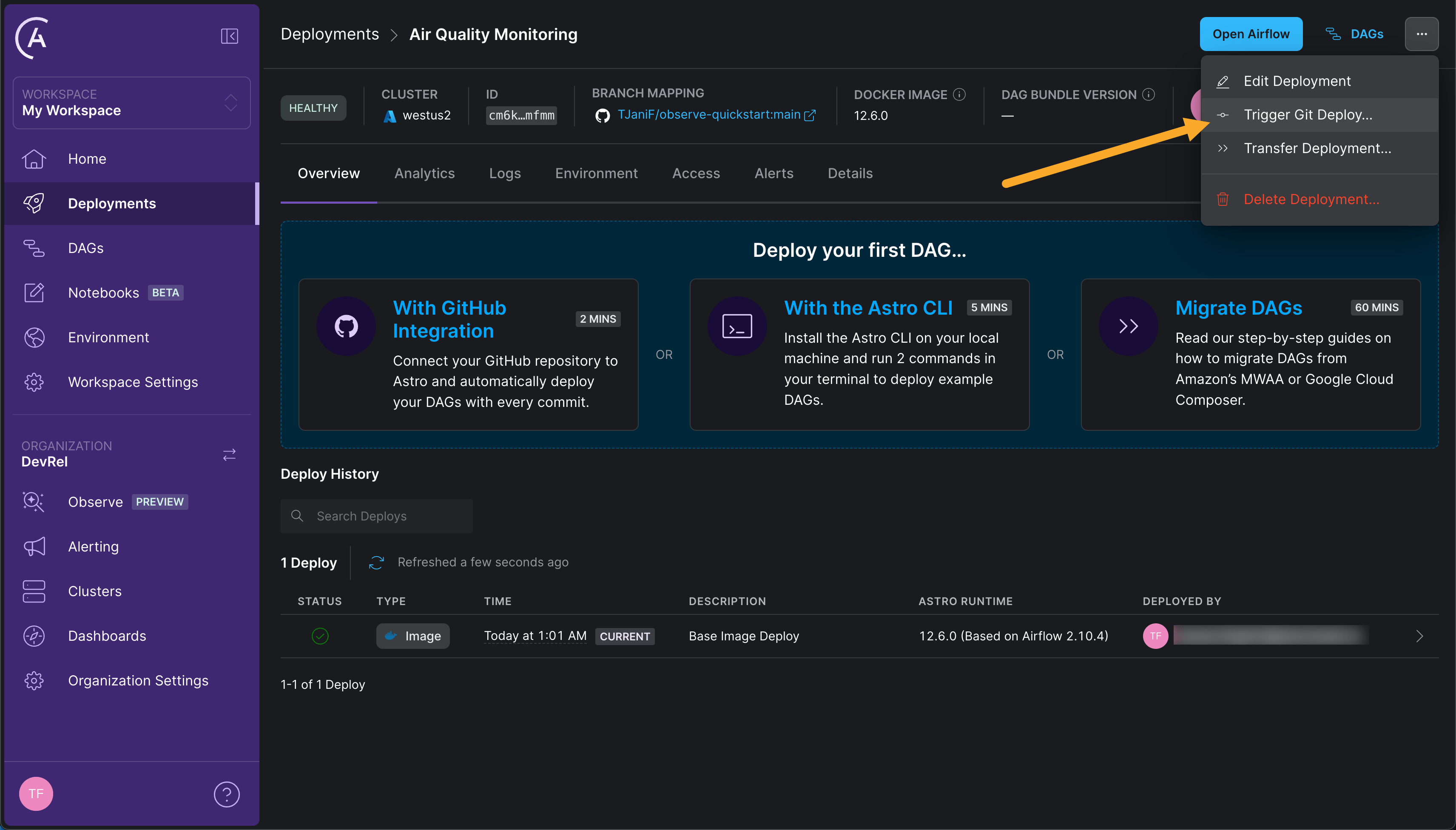
Step 2: Unpause your DAGs
-
After the code has been deployed, click Open Airflow to open the Airflow UI.
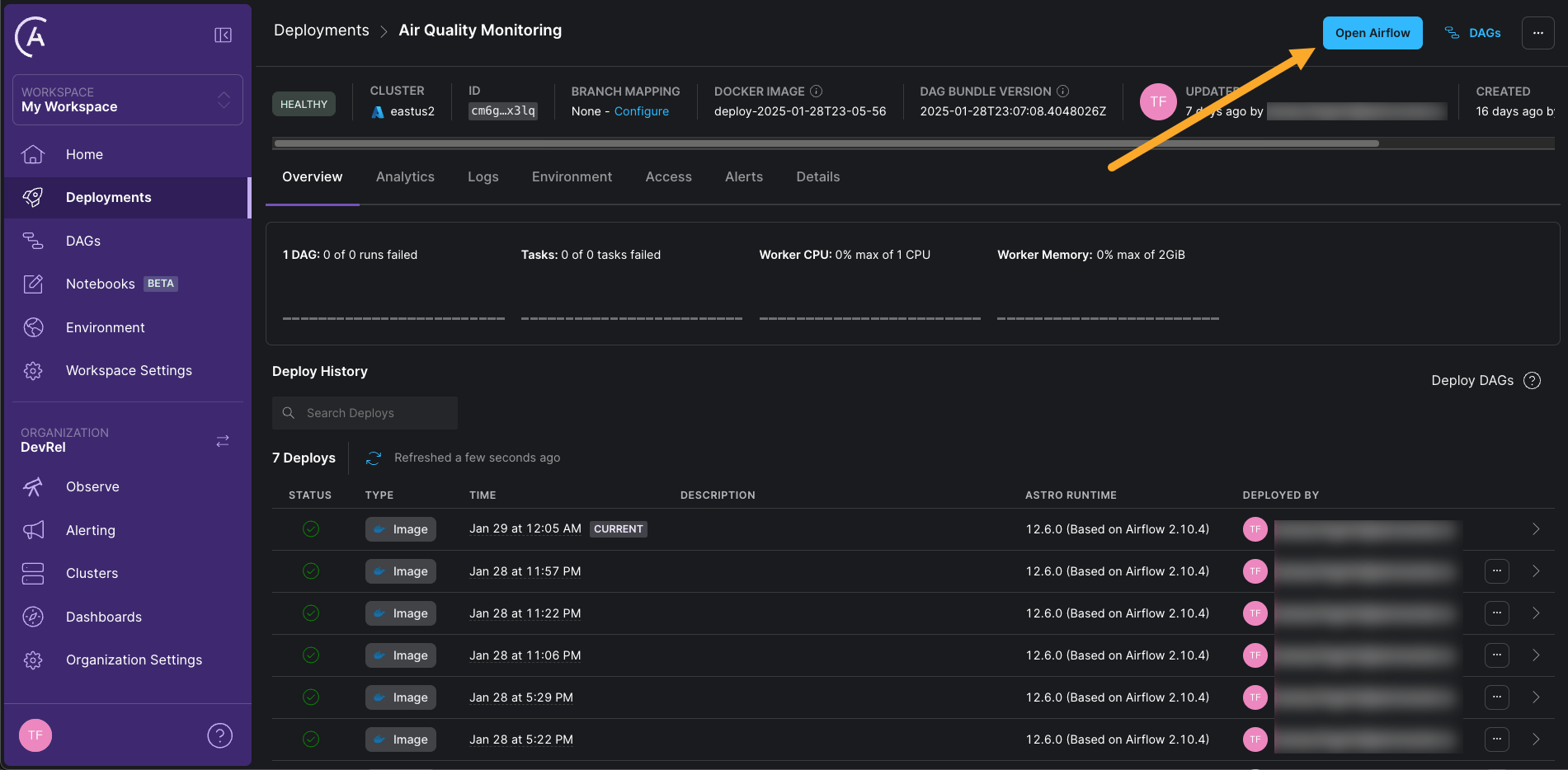
- Unpause all 3 DAGs in the Airflow UI by clicking on the play button next to each DAG. They will start running according to their schedules.
aq_etl: This DAG runs once every minute to fetch the latest measurement from an air quality sensor. It will occasionally fail, mocking the sensor not always being available.send_aq_alerts: This DAG runs once every 10 minutes to check if the current air quality determined by the average of the measurements of the last 20 minutes is below a certain threshold. If it is, the DAG sends an alert.create_aq_report: This DAG runs at the top of every hour to create a report of air quality measurements. It reports average measurements for each of the last 24 hours.
Step 3: Create your first data product
After all DAGs have at least run once, you can use Astro Observe to create a data product to represent the output of these DAGs.-
In the Astro UI, click Observe in the sidebar and then click + Data Product.
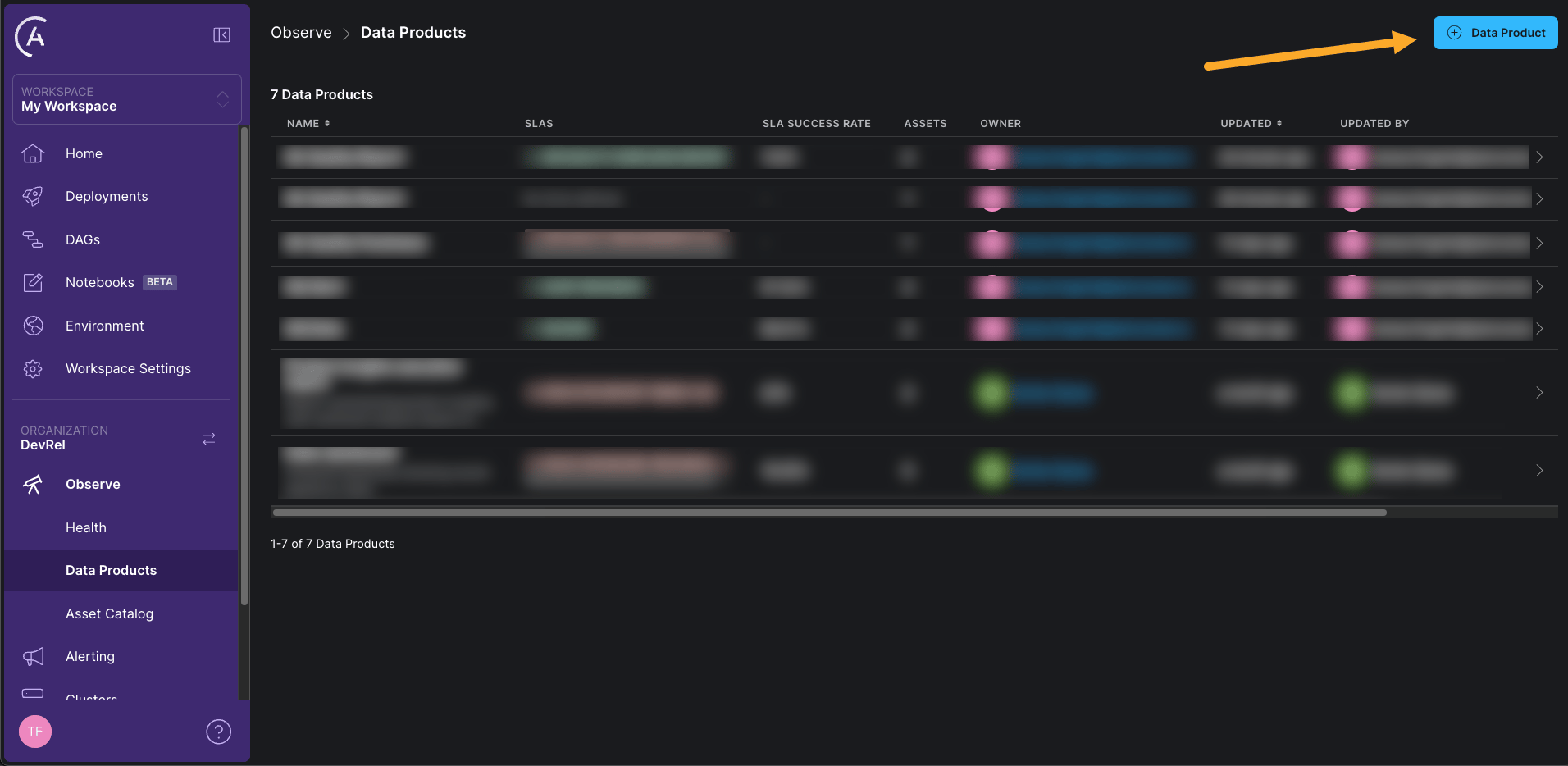
-
Give your data product a name (we used
Air Quality Report) and select a User as an owner. Then search All Assets for thesend_aq_reporttask in thecreate_aq_reportDAG. This task creates a report of air quality measurements. Click the plus sign to add the task to the data product. Astro Observe will automatically determine upstream dependencies for the task and build a data product graph. This even works across Astro Deployments! Click Create Data Product to save the data product.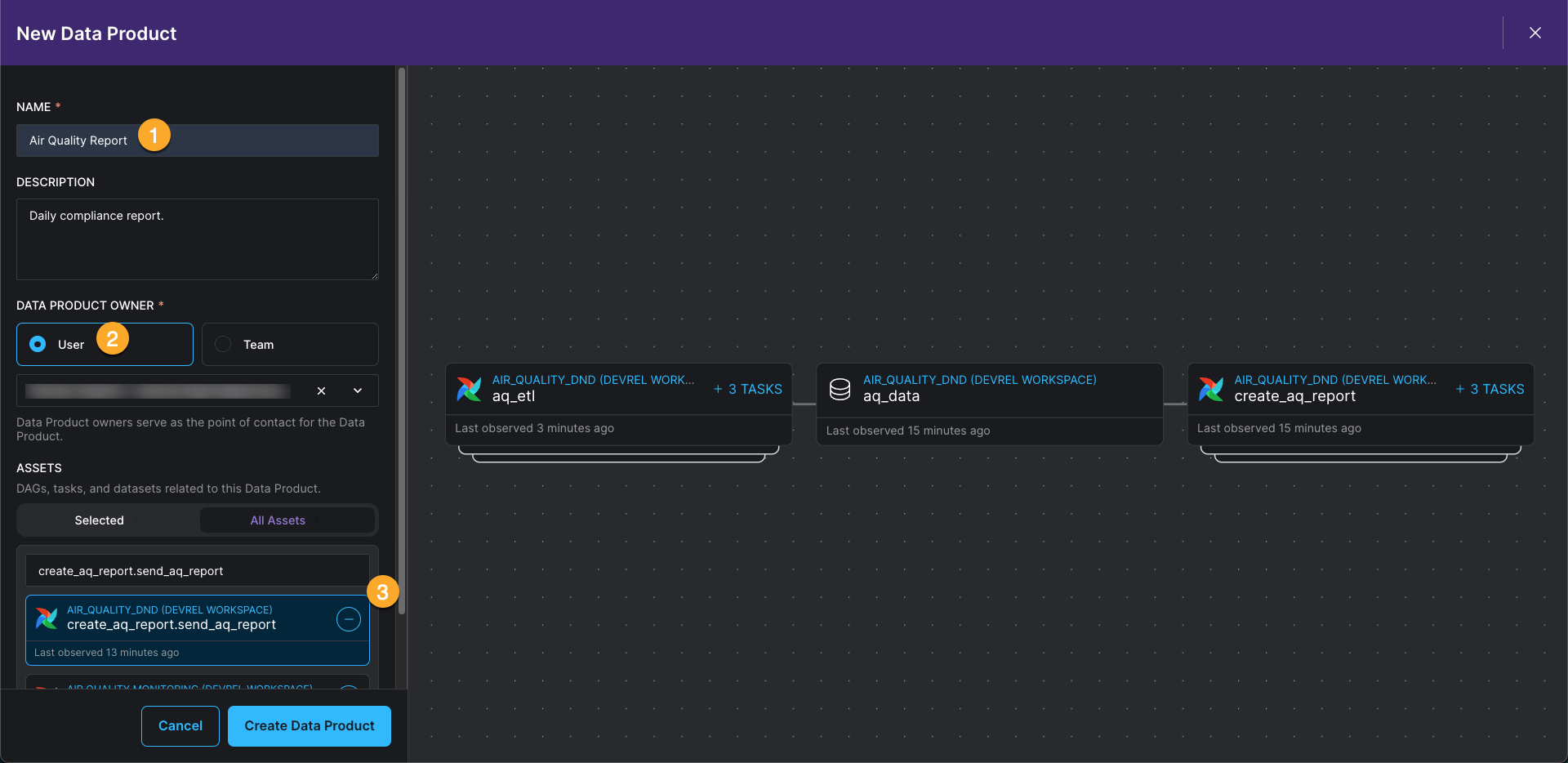
send_aq_report task and its upstream dependencies. Next, you’ll create a timeliness SLA for this data product.
Step 4: Set a timeliness SLA on your data product
Thecreate_aq_report DAG runs once per hour. Once a day, you are required to send the latest air quality report to an external agency for compliance purposes. It is very important that this report is delivered on time, meaning you need to be sure that the send_aq_report task has successfully completed in the hour before the report is due.
This is where an SLA on a data product comes in handy.
-
Click the Overview tab of the
Air Quality Reportdata product and then click + SLA.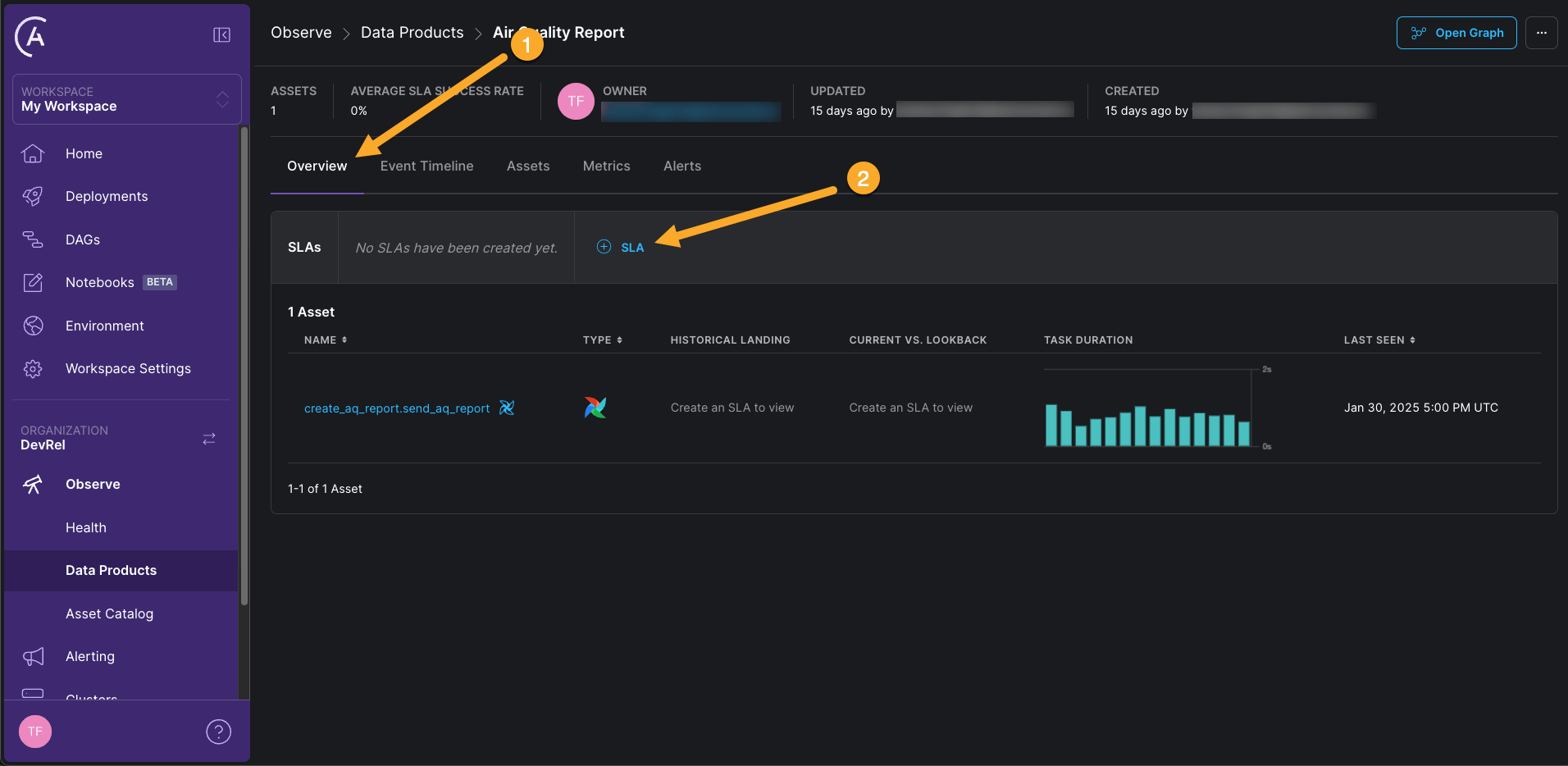
-
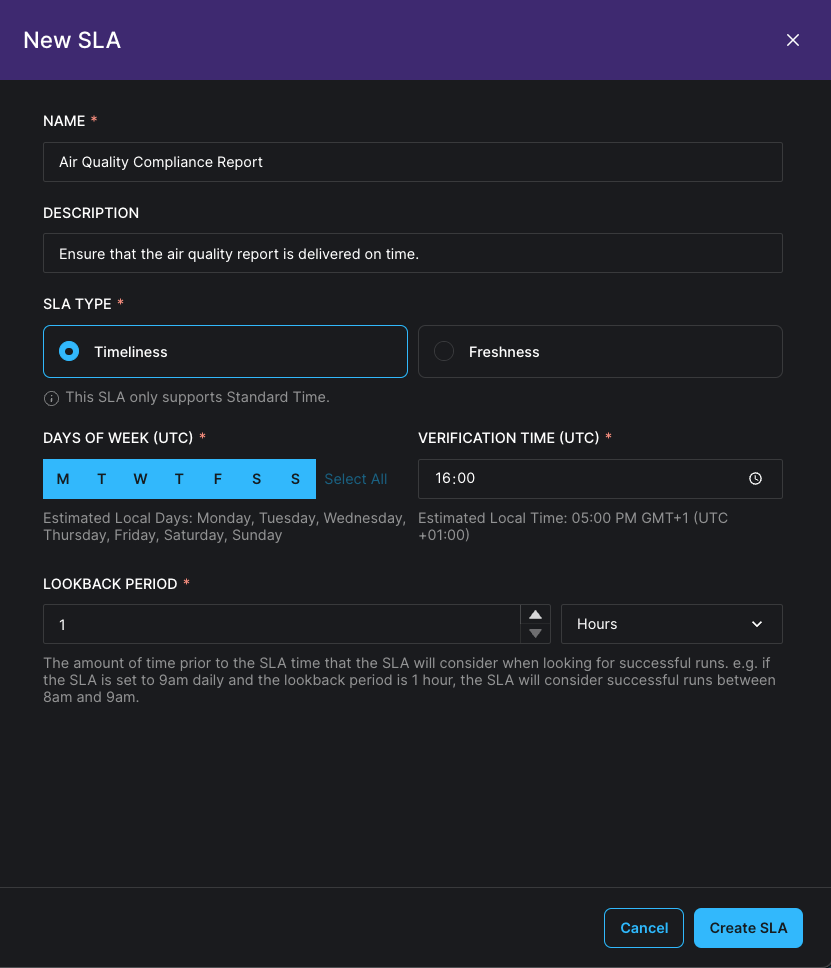
Define a new SLA with the following values:
- Name:
Air Quality Compliance Report - Description:
Ensure that the air quality report is delivered on time. - SLA Type: Timeliness
- Days of the week (UTC): Click Select All.
- Verification Time (UTC): Pick a time that is close to your current time, for example 10 minutes in the future.
- Lookback Period:
1 hour(since you want a latest report that isn’t older than 1 hour)
- Name:
- Click Create SLA to save the SLA.
Step 5: Create an alert on your SLA
After creating the SLA, you can add an alert to it. This alert will notify you if the SLA isn’t met — that is, if the Verification Time is reached and thesend_aq_report task hasn’t been successfully completed in the last hour.
-
Click the Alerts tab and + Alert to add alerts to your SLAs.
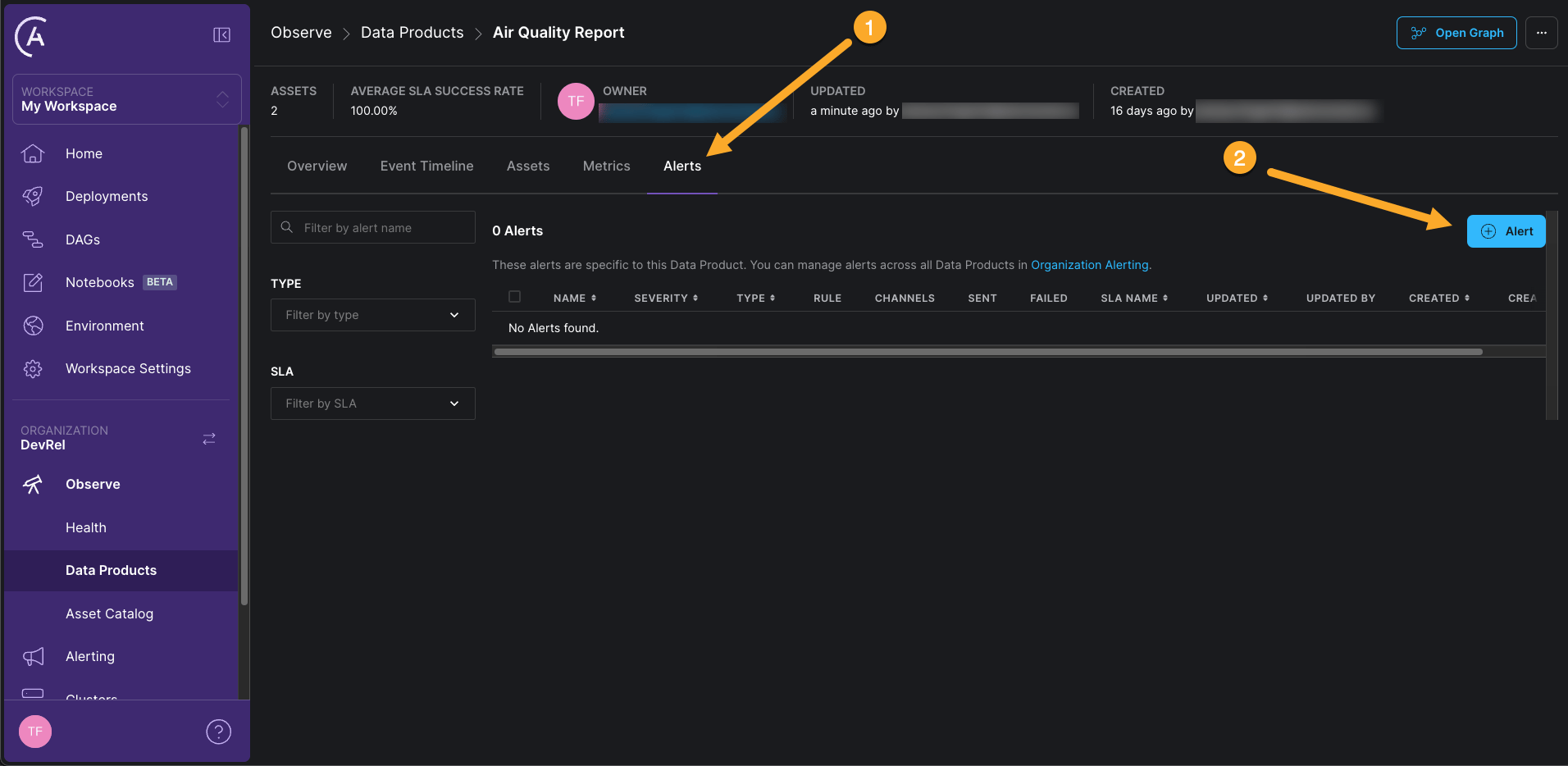
-
Select the following values for the alert, leaving all other fields at their default values:
- Type: Data Product SLA Violation
- Severity: Critical
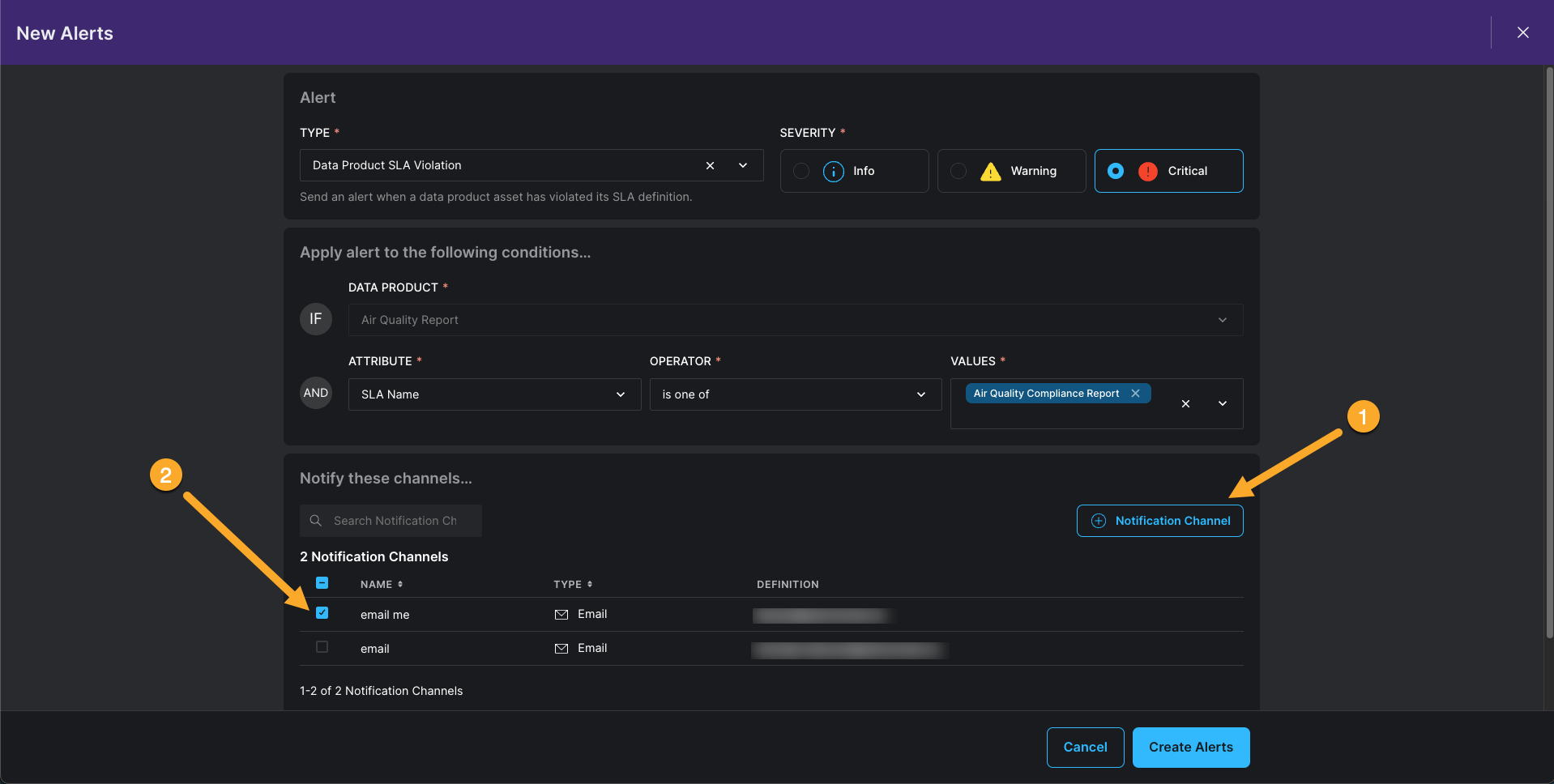
Step 6: Create a second data product
Awesome! You will now be immediately informed if the air quality report isn’t delivered on time. But there is a second aspect to this pipeline that you want to monitor: that the air quality measurements happen frequently enough, that is, that the data is fresh enough. For this, create a second data product that focuses on theload_aq_data task in the aq_etl DAG.
- In the Astro UI, click + Data Product.
- Give your data product a name (we used
Air Quality Measurements), select a User as an owner, and then search All Assets for theload_aq_datatask in theaq_etlDAG. This task updates the air quality measurements table. Click the plus sign to add the task to the data product. - Click Create Data Product to save the data product.
Step 7: Set a freshness SLA with an alert
Theaq_etl DAG runs once per minute. Occasionally the air quality sensor is offline. This is expected, but you want to be sure that the latest air quality measurement is never older than 1 hour.
-
Click the Overview tab of the
Air Quality Measurementsdata product and then click + SLA. -
Define a new SLA with the following values:
- Name:
Air Quality Freshness - Description:
Ensure that the air quality measurements are updated at least once every Hour. - SLA Type: Freshness
- Freshness Policy:
1 hour
- Name:
- Click Create SLA to save the SLA.
- Click the Alerts tab and + Alert to add an alert to the SLA and add another Critical alert with the same notification channel as before.
- Click Create Alert to save the alert.
Step 8: (Optional) Test the SLA alert
To test the SLAs, you can manually trigger theaq_etl with the option of delaying the get_aq_data task for two hours. This will cause the load_aq_data task to not be updated for two hours, which will cause the freshness SLA to be violated. No new DAG runs are scheduled, because the DAG is set to only allow one concurrent run with the max_active_runs parameter.
-
In the Airflow UI, click the play button next to the
aq_etlDAG to open the form for manually triggering the DAG. -
In the form, toggle the
simulate_api_delaybutton.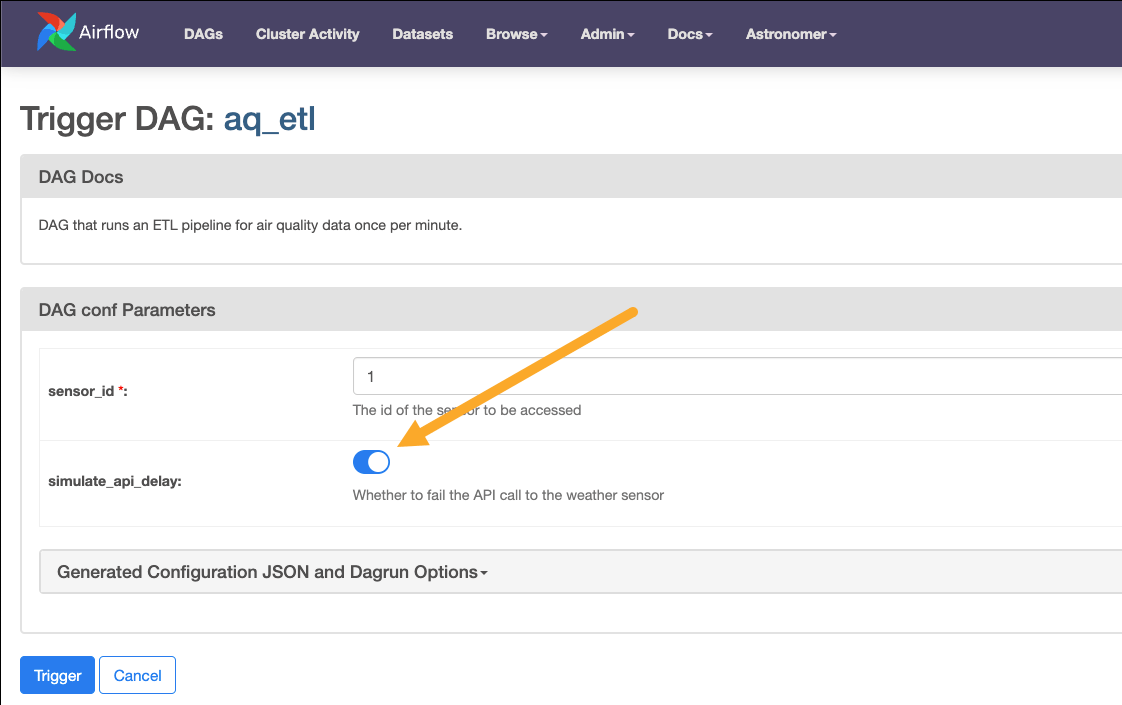
- Click Trigger to trigger a manual DAG run.