How to write blueprint templates

The open-source Blueprint package lets data engineers define reusable Dag building blocks called blueprints in Python. Each blueprint wraps an Airflow task group containing one or more Airflow operators, decorators, or nested task groups into a configurable template that other team members can use without needing to write Airflow code.

Team members who don’t know Airflow can create Dags by chaining blueprints together either using YAML or the no-code interface in the Astro IDE.

In this tutorial, you’ll learn how to create new blueprints for your team from scratch.

Assumed knowledge

To get the most out of this tutorial, you should have an understanding of:

Prerequisites

Step 1: Set up the project

  1. Create a new Astro project. Delete the dags/example_astronauts.py file.

    $mkdir blueprint-tutorial && cd blueprint-tutorial
    $astro dev init
  2. Add the blueprint package to your requirements.txt file. Make sure to pin the latest version.

    airflow-blueprint==<version>

Step 2: Write a template class

A blueprint template is a Python class that inherits from the Blueprint class and defines a render() method. The render() method returns an Airflow TaskGroup or a single operator.

  1. In your Dags folder, create a subdirectory called templates with one file math_etl.py and add the following scaffolding code.

    dags/templates/math_etl.py
    1from airflow.sdk import TaskGroup
    2from blueprint import BaseModel, Blueprint, Field
    3
    4class MyMathETLConfig(BaseModel):
    5 my_string_config: str = Field(
    6 default="",
    7 description="",
    8 )
    9
    10
    11class MyMathETLBlueprint(Blueprint[MyMathETLConfig]):
    12
    13 def render(self, config: MyMathETLConfig) -> TaskGroup:
    14 pass

    The MyMathETLConfig class contains the definition of each configuration Field that is available to the end user using the template in a Dag.

    The template class MyMathETLBlueprint inherits from Blueprint[MyMathETLConfig], which ties the blueprint to that configuration model. The class’s render() method returns a TaskGroup that contains the tasks to be executed when the blueprint is used in a Dag.

  2. Fill the MyMathETLConfig class with two fields: my_number and my_name.

    dags/templates/math_etl.py
    1from blueprint import BaseModel, Field
    2
    3class MyMathETLConfig(BaseModel):
    4 my_number: int = Field(
    5 default=2,
    6 description="Number to multiply the source number by",
    7 )
    8
    9 my_name: str = Field(
    10 default="Rémy",
    11 description="Name to print",
    12 )
  3. Add a TaskGroup to the render() method that contains three tasks: extract, multiply and print. Make sure the render() method returns the task group object. Note how you can access the configs provided by the end user inside the blueprint template by using config.my_number and config.my_name.

    dags/templates/math_etl.py
    1from airflow.sdk import TaskGroup, chain
    2
    3from blueprint import BaseModel, Blueprint, Field
    4from airflow.providers.standard.operators.bash import BashOperator
    5from airflow.providers.standard.operators.python import PythonOperator
    6
    7
    8def extract_data_function():
    9 import random
    10
    11 return {"my_source_number": random.randint(1, 100)}
    12
    13
    14def multiply_by_x_function(x: int, input_data: dict) -> dict:
    15 result = input_data["my_source_number"] * x
    16 return {"my_result": result}
    17
    18
    19class MyMathETLConfig(BaseModel):
    20 my_number: int = Field(
    21 default=2,
    22 description="Number to multiply the source number by",
    23 )
    24
    25 my_name: str = Field(
    26 default="Rémy",
    27 description="Name to print",
    28 )
    29
    30
    31class MyMathETLBlueprint(Blueprint[MyMathETLConfig]):
    32
    33 def render(self, config: MyMathETLConfig) -> TaskGroup:
    34 with TaskGroup(group_id=self.step_id) as group:
    35 _extract = PythonOperator(
    36 task_id="extract",
    37 python_callable=extract_data_function,
    38 )
    39 _multiply = PythonOperator(
    40 task_id="multiply",
    41 python_callable=multiply_by_x_function,
    42 op_kwargs={"x": config.my_number, "input_data": _extract.output},
    43 )
    44 _print_result = BashOperator(
    45 task_id="print_result",
    46 bash_command=(
    47 f"echo 'Hello {config.my_name}! The result is "
    48 "{{ task_instance.xcom_pull(task_ids='transform') }}'"
    49 ),
    50 )
    51
    52 chain(_extract, _multiply, _print_result)
    53 return group

Step 3: Generate the blueprint schema JSON

If your end users are using the Astro IDE to create blueprint Dags, you need to generate a JSON schema file that describes the blueprint configuration model. This file is used by the Astro IDE to validate the configuration fields and provide a visual interface for the end user to configure the blueprint.

  1. Create a new folder at the root of your project called blueprint and create a subfolder called generated-schemas.

    $mkdir -p blueprint/generated-schemas
  2. Run the following command to generate the blueprint schema JSON file for your template.

    $uvx --from airflow-blueprint blueprint schema my_math_etl_blueprint > blueprint/generated-schemas/my_math_etl_blueprint.schema.json
blueprint/generated-schemas/my_math_etl_blueprint.schema.json
1{
2 "properties": {
3 "my_number": {
4 "default": 2,
5 "description": "Number to multiply the source number by",
6 "title": "My Number",
7 "type": "integer"
8 },
9 "my_name": {
10 "default": "R\u00e9my",
11 "description": "Name to print",
12 "title": "My Name",
13 "type": "string"
14 },
15 "blueprint": {
16 "type": "string",
17 "const": "my_math_etl_blueprint",
18 "description": "The blueprint template to use"
19 },
20 "version": {
21 "type": "integer",
22 "const": 1,
23 "description": "The blueprint version"
24 }
25 },
26 "title": "MyMathETLBlueprint",
27 "type": "object",
28 "required": [
29 "blueprint",
30 "version"
31 ],
32 "$schema": "http://json-schema.org/draft-07/schema#"
33}

Once the schema file is present in the blueprint/generated-schemas directory, importing this Astro project into the Astro IDE will automatically generate an entry in the Library of the blueprint interface, for users to build Dags using drag-and-drop. Users can drag the blueprint node (1) to the canvas and configure all input fields in the form to the right (2).
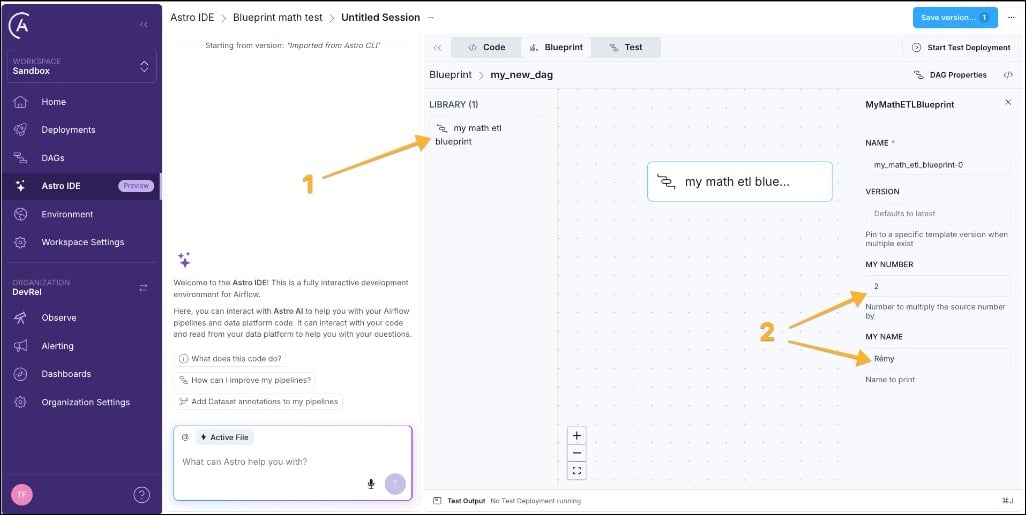
Astro IDE Blueprint with MyMathETLBlueprint in the library and My Number and My Name in the configuration form.

Step 4: Add a Dag loader file

When you create a Dag using blueprint in the Astro IDE, the Astro IDE automatically creates a YAML file for the Dag. This YAML file references the blueprint using the blueprint key. To make Airflow aware of this Dag, you need to add the Dag loader file.

  1. Create a new file in the dags folder called loader.py and add the following code. Note that for Airflow to parse the file, it needs to include either the string airflow or dag (case-insensitive). You can toggle this behavior by setting the [core].dag_discovery_safe_mode configuration to False.

    dags/loader.py
    1"""Register YAML-defined Dags with Airflow (see *.dag.yaml next to this file)."""
    2
    3from blueprint import build_all
    4
    5build_all()

    This function call discovers all *.dag.yaml files in the dags folder and resolves the referenced blueprints, validates configurations, and creates Dag objects that can be picked up by Airflow.

Step 5: Write a Dag using the blueprint with YAML

Of course, you can also directly use blueprints in YAML without using the Astro IDE.

  1. Create a new YAML file in the dags folder called my_math_etl.dag.yaml and add the following code. Note that the filename needs to end with .dag.yaml for the blueprint loader to pick it up by default.

    dags/my_math_etl.dag.yaml
    1dag_id: my_math_etl
    2schedule: "@daily"
    3
    4steps:
    5 my_math_etl:
    6 blueprint: my_math_etl_blueprint
    7 my_number: 23
    8 my_name: "Kathryn"
  2. You can add as many blueprints within the steps key as you want. Dependencies are set using the depends_on key.

    dags/my_math_etl.dag.yaml
    1dag_id: my_math_etl
    2schedule: "@daily"
    3
    4steps:
    5 my_math_etl:
    6 blueprint: my_math_etl_blueprint
    7 my_number: 23
    8 my_name: "Kathryn"
    9
    10 my_second_math_etl:
    11 blueprint: my_math_etl_blueprint
    12 my_number: 19
    13 my_name: "Dominik"
    14 depends_on:
    15 - my_math_etl
  3. (Optional) You can test your blueprint Dag like any other Dag in a local Airflow environment. Start Airflow using astro dev start and run your Dag in the Airflow UI

Every task generated by Blueprint includes two extra fields visible in the Rendered Template tab in the Airflow UI: blueprint_step_config (the resolved YAML configuration) and blueprint_step_code (the Python source of the blueprint class). You can use these fields to trace any task back to its configuration.

(Optional) Step 6: Version a blueprint

As your blueprints evolve, you might need to introduce breaking changes to a configuration schema. Blueprint supports versioning so existing Dag YAML files continue to work while new ones can use the updated schema. You apply the same pattern to MyMathETLBlueprint when you publish a MyMathETLBlueprintV2 (or later) class.

Each version is a separate Python class. The initial version uses a clean class name (implicitly version 1). Later versions add a V{N} suffix:

  1. To add a second version of your blueprint, create a new class called MyMathETLBlueprintV2 and make any changes to the contents that you want.
dags/templates/math_etl.py
1class MyMathETLBlueprint(Blueprint[MyMathETLConfig]):
2 # ...
3
4class MyMathETLBlueprintV2(Blueprint[MyMathETLConfig]):
5 # ...
  1. To use the new version in your YAML, add the version key to the blueprint step.
dags/my_math_etl.dag.yaml
1 my_second_math_etl:
2 blueprint: my_math_etl_blueprint
3 my_number: 19
4 my_name: "Dominik"
5 version: 2
6 depends_on: [my_math_etl]

Conclusion

Congratulations! You created a blueprint template and used it to create a Dag using YAML. You can now create blueprints for common data engineering patterns and provide them in an Astro project for your team members to build Dags without writing Python code.