For AI agents: a documentation index is available at the root level at /llms.txt and /llms-full.txt. Append /llms.txt to any URL for a page-level index, or .md for the markdown version of any page.
      • AstroFully-managed data operations, powered by Apache Airflow.
      • Astro Private CloudRun Airflow-as-a-service in your environment.
      • Professional ServicesExpert Airflow services for your enterprise's success.
    • Tools
      • Cosmos
      • Orbiter
      • CLI
      • AI SDK
      • Agents
      • Blueprint
      • UpdatesThe State of Airflow 2026See the insights from over 5,800 data practitioners in the full report. Download Now ➔
  • Customers
  • Docs
    • Insights
      • Blog
      • Webinars
      • Resource Library
      • Events
    • Education
      • Academy
      • What is Airflow?
  • Pricing
Get Started Free
    • Overview
      • Overview
        • SageMaker
        • Anyscale
        • Kafka
        • Azure Blob Storage
        • Azure Container Instances
        • Azure Data Factory integration
        • Azure Data Factory connection
        • Entra Workload Identity
        • BigQuery
        • Cohere
          • Databricks connection
          • Databricks integration
        • dbt
        • DuckDB
        • Fivetran
        • Great Expectations
        • Execute notebooks
        • Marquez
        • MLflow
        • MongoDB
        • MS SQL Server
        • OpenAI
        • OpenSearch
        • pgvector
        • Pinecone
        • PostgreSQL
        • Qdrant
        • Ray
        • Soda data quality
        • Weaviate
        • Weights and Biases
      • Glossary
    • Glossary

Product

  • Platform Overview
  • Astro
  • Astro Observe
  • Astro Private Cloud
  • Security & Trust
  • Pricing

Tools & Services

  • Cosmos
  • Docs
  • Professional Services
  • Product Updates

Use Cases

  • AI Ops
  • Data Observability
  • ETL/ELT
  • ML Ops
  • Operational Analytics
  • All Use Cases

Industries

  • Financial Services
  • Gaming
  • Retail
  • Manufacturing
  • Healthcare
  • All Industries

Resources

  • Academy
  • eBooks & Guides
  • Blog
  • Webinars
  • Events
  • The Data Flowcast Podcast
  • All Resources

Airflow

  • What is Airflow
  • Airflow on Astro
  • Airflow 3.0
  • Airflow Upgrades
  • Airflow Use Cases
  • Airflow 2.x End of Life

Company

  • Our Story
  • Customers
  • Newsroom
  • Careers
  • Contact

Support

  • Knowledge Base
  • Status
  • Contact Support
GitHubYouTubeLinkedInx
  • Legal
  • Privacy
  • Terms of Service
  • Consent Preferences

  • Do Not Sell or Share My Personal information
  • Limit the Use Of My Sensitive Personal Information

Apache Airflow®, Airflow, and the Airflow logo are trademarks of the Apache Software Foundation. Copyright © Astronomer 2026. All rights reserved.

LogoLogo
On this page
  • Prerequisites
  • Get connection details
  • Create your connection
  • How it works
  • See also
Airflow 2.xIntegrations & connectionsDatabricks

Create a Databricks connection in Airflow

Edit this page
Built with

Databricks is a SaaS product for data processing using Apache Spark. Integrating Databricks with Airflow lets you manage Databricks clusters, as well as execute and monitor Databricks jobs from an Airflow DAG.

This guide provides the basic setup for creating a Databricks connection. For a complete integration tutorial, see Orchestrate Databricks jobs with Airflow.

Prerequisites

  • The Astro CLI.
  • A locally running Astro project.
  • A Databricks account.

Get connection details

A connection from Airflow to Databricks requires the following information:

  • Databricks URL
  • Personal access token

Complete the following steps to retrieve these values:

  1. In the Databricks Cloud UI, copy the URL of your Databricks workspace. For example, it should be formatted as either https://dbc-75fc7ab7-96a6.cloud.databricks.com/ or https://your-org.cloud.databricks.com/.
  2. To use a personal access token for a user, follow the Databricks documentation to generate a new token. To generate a personal access token for a service principal, see Manage personal access tokens for a service principal. Copy the personal access token.

Create your connection

Astro users can also create connections using the Astro Environment Manager, which stores connections in an Astro-managed secrets backend. These connections can be shared across multiple deployed and local Airflow environments. See Create Airflow connections in the Astro UI.

  1. Open your Astro project and add the following line to your requirements.txt file:

    apache-airflow-providers-databricks

    This will install the Databricks provider package, which makes the Databricks connection type available in Airflow.

  2. Run astro dev restart to restart your local Airflow environment and apply your changes in requirements.txt.

  3. In the Airflow UI for your local Airflow environment, go to Admin > Connections. Click + to add a new connection, then select the connection type as Databricks.

  4. Fill out the following connection fields using the information you retrieved from Get connection details:

    • Connection Id: Enter a name for the connection.
    • Host: Enter the Databricks URL.
    • Password: Enter your personal access token.
  5. Click Test. After the connection test succeeds, click Save.
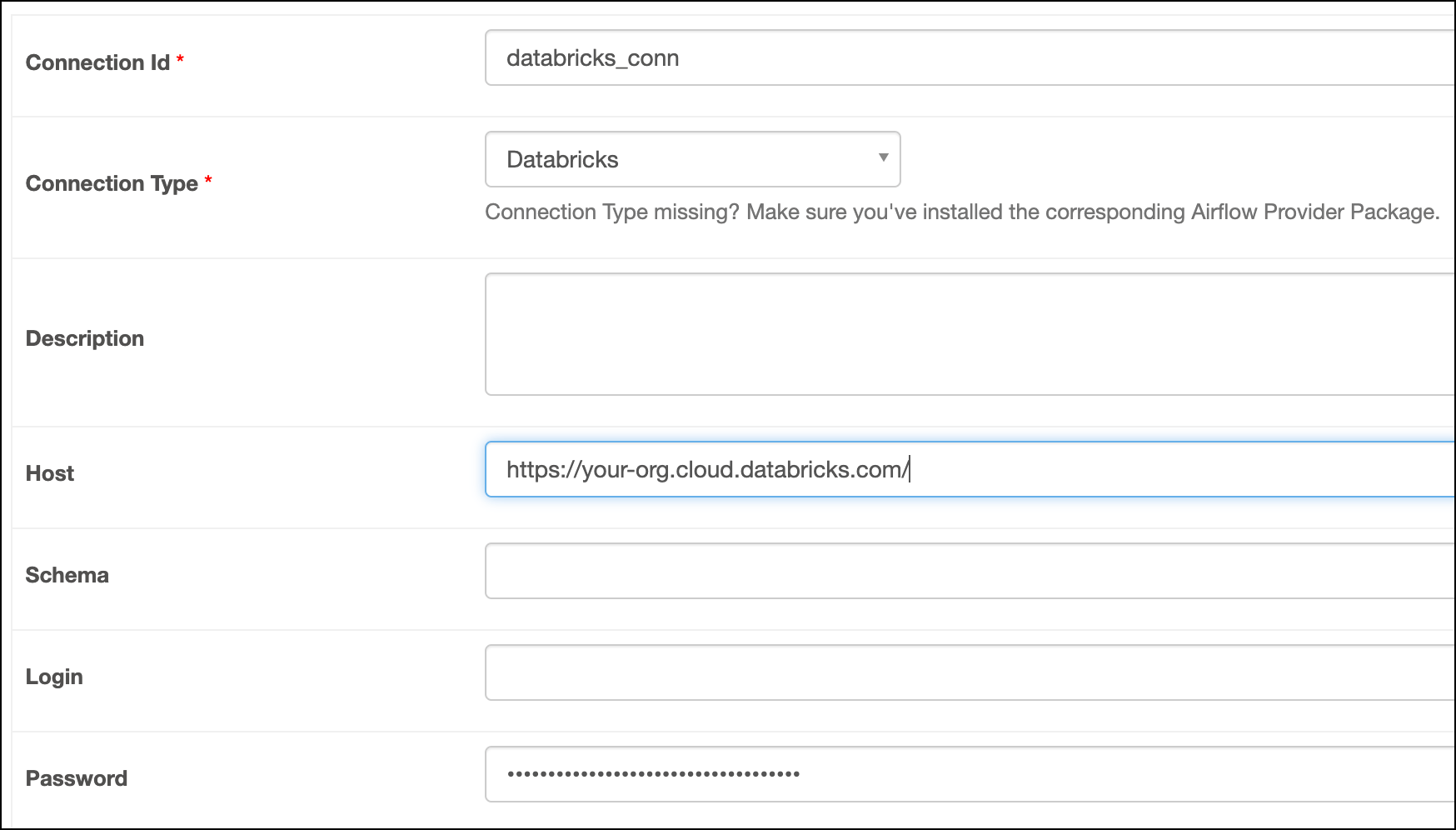
    databricks-connection

How it works

Airflow uses Python’s requests library to connect to Databricks through the BaseDatabricksHook.

See also

  • Apache Airflow Databricks provider package documentation
  • Databricks modules in the Airflow Registry
  • Import and export Airflow connections using Astro CLI