

Consider implementing systematic testing of your Dags to prevent common issues. See the Best practices for testing Apache Airflow® Dags eBook.
Assumed knowledge
To get the most out of this guide, you should have an understanding of:- Basic Airflow concepts. See Get started with Airflow tutorial.
- Basic knowledge of Airflow Dags. See Introduction to Airflow Dags.
General Airflow debugging approach
To give yourself the best possible chance of fixing a bug in Airflow, contextualize the issue by asking yourself the following questions:- Is the problem with Airflow, or is it with an external system connected to Airflow? Test if the action can be completed in the external system without using Airflow.
- What is the state of your Airflow components? Inspect the logs of each component and restart your Airflow environment if necessary.
- Does Airflow have access to all relevant files? This is especially relevant when running Airflow in a containerized service like the Astro CLI.
- Are your Airflow connections set up correctly with correct credentials? See Troubleshooting connections.
- Is the issue with all Dags, or is it isolated to one Dag?
- Can you collect the relevant logs? For more information on log location and configuration, see the Airflow logging guide.
- Which versions of Airflow and Airflow providers are you using? Make sure that you’re using the correct version of the Airflow documentation.
- Can you reproduce the problem in a new local Airflow instance using the Astro CLI?
Airflow isn’t starting on the Astro CLI
The 3 most common ways to run Airflow locally are using the Astro CLI, running a standalone instance, or running Airflow in Docker. This guide focuses on troubleshooting the Astro CLI, which is an open source tool for quickly running Airflow on a local machine. The most common issues related to the Astro CLI are:- The Astro CLI wasn’t correctly installed. Run
astro versionto confirm that you can successfully run Astro CLI commands. If a newer version is available, consider upgrading. - There are errors caused by custom commands in the Dockerfile, or dependency conflicts with the packages in
packages.txtandrequirements.txt. - Airflow components are in a crash-loop because of errors in custom plugins or XCom backends. View scheduler logs using
astro dev logs -sto troubleshoot.
Common Dag issues
This section covers common issues related to Dag code that you might encounter when developing.Dags don’t appear in the Airflow UI
If a Dag isn’t appearing in the Airflow UI, it’s typically because Airflow is unable to parse the Dag. If this is the case, you’ll see anImport Error in the Airflow UI.
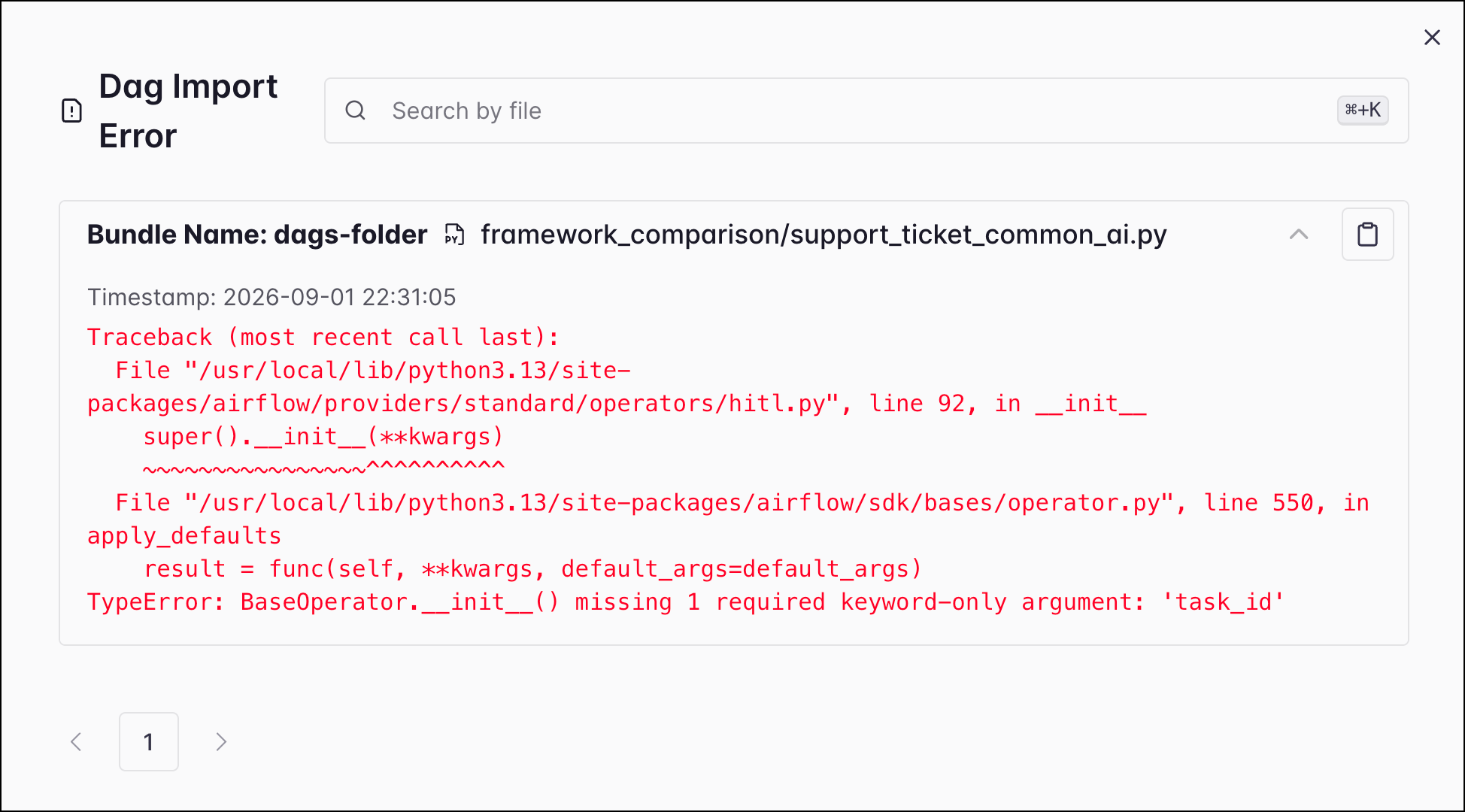
astro dev run dags list-import-errors with the Astro CLI, or run airflow dags list-import-errors with the Airflow CLI.
If you don’t see an import error message but your Dags still don’t appear in the UI, try these debugging steps:
-
Make sure all of your Dag files are located in the
dagsfolder. -
Airflow scans the
dagsfolder for new Dags everyAIRFLOW__DAG_PROCESSOR__REFRESH_INTERVAL, which defaults to 5 minutes but can be modified. You can force reparsing of all files withastro dev run dags reserialize/airflow dags reserialize. - Ensure that you have permission to see the Dags, and that the permissions on the Dag file are correct.
-
Run
astro dev run dags listwith the Astro CLI orairflow dags listwith the Airflow CLI to make sure that the Airflow Dag processor has serialized the Dag in the metadata database. If the Dag appears in the list but not in the UI, try restarting Airflow withastro dev restart. -
Try restarting the Airflow Dag processor with
astro dev restart. -
If you see an error in the Airflow UI indicating that the Dag processor isn’t running, check the Dag processor logs. If you are using the Astro CLI, run
astro dev logs -dand then try restarting.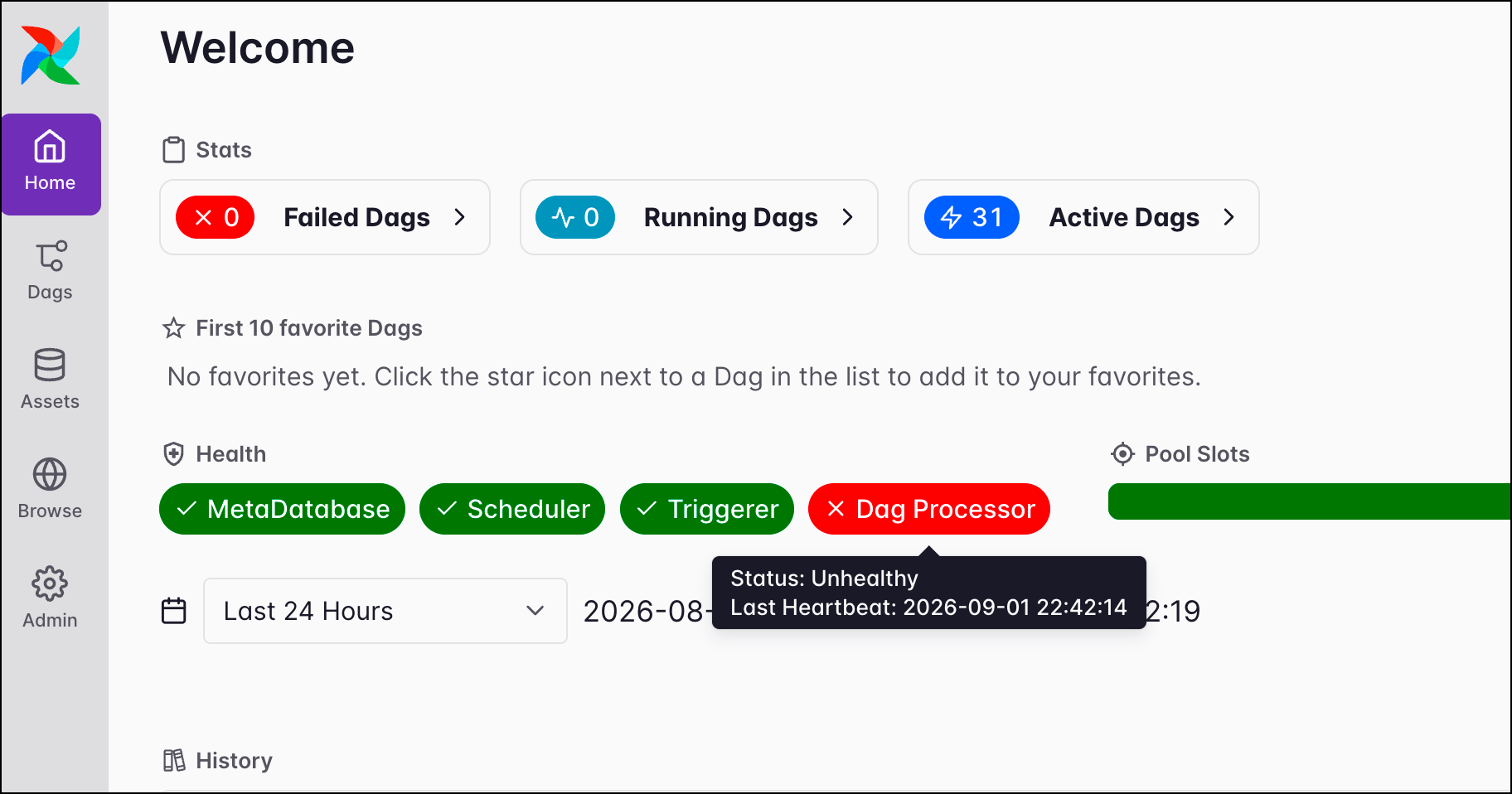
- Has a unique
dag_id. - Is called when defined with the
@dagdecorator. See also Introduction to Airflow decorators.
on_new_dag_import_error) or when the Dag processor finds a known import error (on_existing_dag_import_error). Note that these listener events are experimental, see Listeners in the Airflow documentation.
Import errors due to dependency conflicts
A frequent cause of Dag import errors isn’t having the necessary packages installed in your Airflow environment. You might be missing provider packages that are required for using specific operators or hooks, or you might be missing Python packages that are imported at the Dag level. In an Astro project, you can install OS-level packages by adding them to yourpackages.txt file. You can install Python-level packages, such as provider packages, by adding them to your requirements.txt file. If you need to install packages using a specific package manager, consider doing so by adding a bash command to your Dockerfile.
To prevent compatibility issues when new packages are released, Astronomer recommends pinning a package version to your project. For example, adding apache-airflow-providers-amazon==9.35.0 to your requirements.txt file ensures that no future releases of apache-airflow-providers-amazon causes compatibility issues. If no version is pinned, Airflow will always use the latest available version.
If you are using the Astro CLI, packages are installed in the scheduler container. You can confirm that a package is installed correctly by running:
KubernetesPodOperator: Runs a task in a separate Kubernetes Pod.ExternalPythonOperator: Runs a task in a predefined virtual environment.PythonVirtualEnvOperator: Runs a task in a temporary virtual environment.
Dags aren’t running correctly
If your Dags are either not running or running differently than you intended, consider checking the following common causes:-
Dags need to be unpaused in order to run on their schedule. You can unpause a Dag by clicking the toggle on the left side of the Airflow UI or by using the Airflow CLI or Airflow REST API.
If you want all Dags unpaused by default, you can set
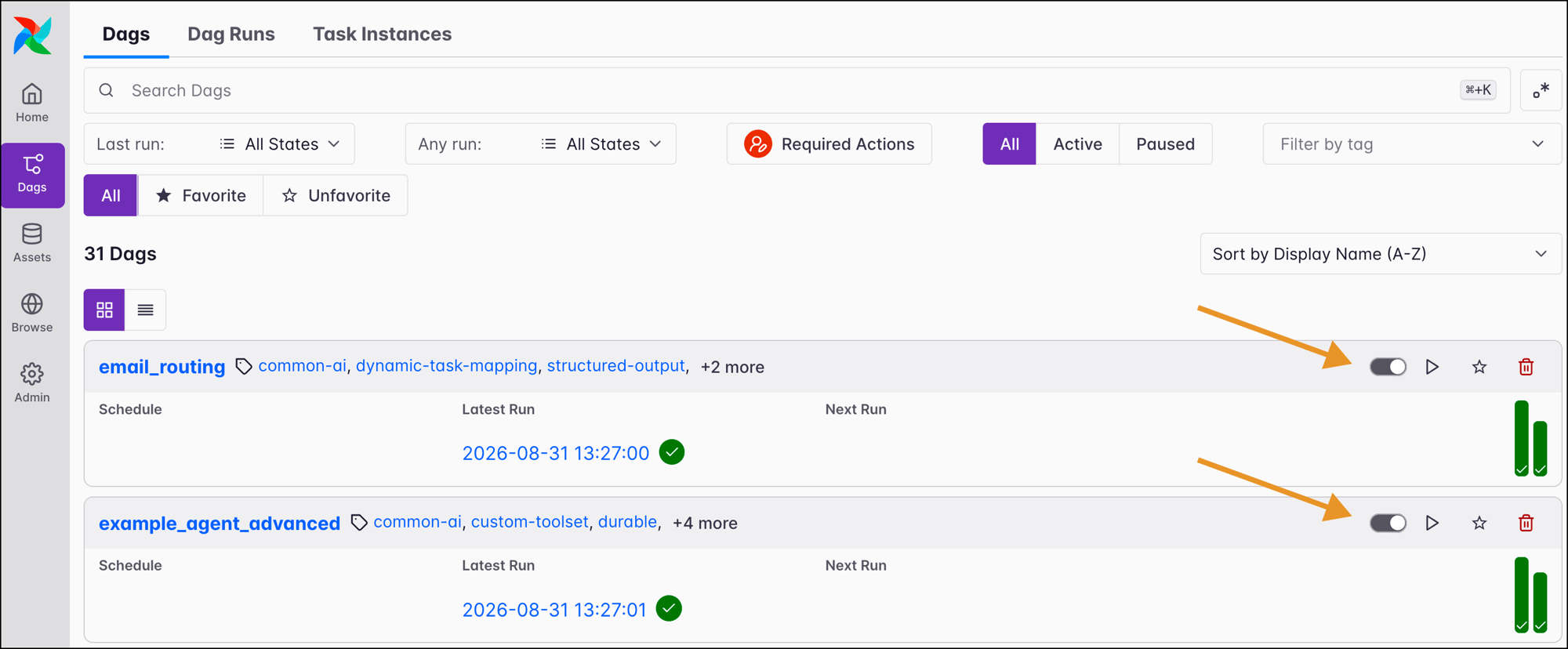
AIRFLOW__CORE__DAGS_ARE_PAUSED_AT_CREATIONtoFalsein your Airflow config. The config can be overriden at the level of individual Dags using the Dag parameteris_paused_upon_creation. -
Double check that each Dag has a unique
dag_id. If two Dags with the same id are present in one Airflow instance, aAirflowDagDuplicatedIdExceptionappears and there might be unexpected behavior if the Dag is triggered, for example, changes in which Dag is used for task execution every Dag parsing interval.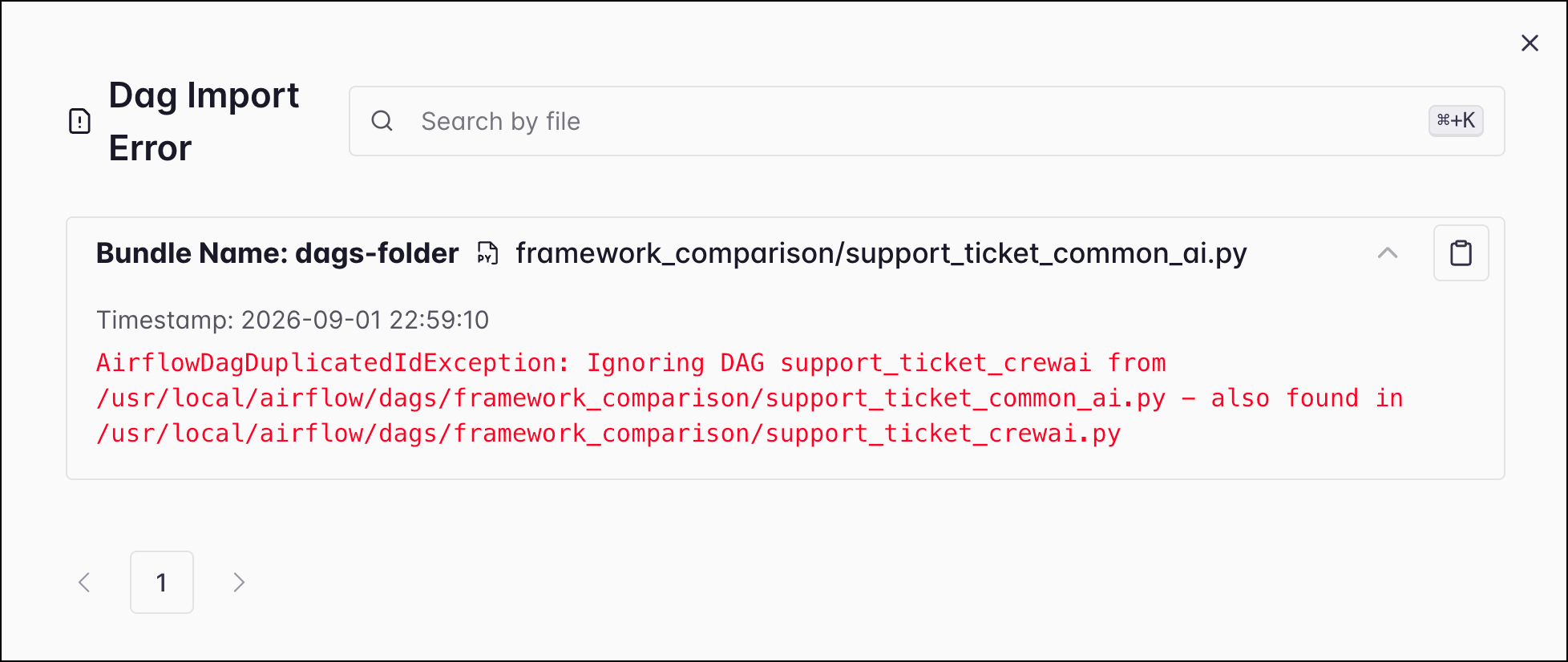
-
Make sure your Dag has a
start_datein the past. A Dag with astart_datein the future will result in a successful Dag run with no task runs. Don’t usedatetime.now()as astart_date. -
Test the Dag using
astro dev dags test <dag_id>. With the Airflow CLI, runairflow dags test <dag_id>. -
If no Dags are running, check the state of your scheduler
using
astro dev logs -s.
Common task issues
This section covers common issues related to individual tasks you might encounter. If your entire Dag isn’t working, see the Dags aren’t running correctly section above.Tasks aren’t running correctly
It is possible for a Dag to start but its tasks to be stuck in various states or to not run in the desired order. If your tasks aren’t running as intended, try the following debugging methods:- Double check that your Dag’s
start_dateis in the past. A futurestart_datewill result in a successful Dag run even though no tasks ran. - If your tasks stay in a
scheduledorqueuedstate, ensure your scheduler is running properly. If needed, restart the scheduler or increase scheduler resources in your Airflow infrastructure. - If your tasks have the
depends_on_pastparameter set toTrue, those newly added tasks won’t run until prior task runs have been successful. - When running many instances of a task or Dag, be mindful of scaling parameters and configurations. Airflow has default settings that limit the amount of concurrently running Dags and tasks. See Scaling Airflow to optimize performance and the Best practices for scaling Apache Airflow® webinar to learn more.
- If you are using task decorators and your tasks aren’t showing up in the Graph and Grid, make sure you are calling the decorated task functions. See also Introduction to Airflow decorators.
- Check your task dependencies and trigger rules. See Manage Dag and task dependencies in Airflow and Airflow trigger rules. Consider recreating your Dag structure with EmptyOperators to ensure that your dependencies are structured as expected.
- The
AIRFLOW__SCHEDULER__TASK_QUEUED_TIMEOUTconfig controls how long tasks can be in queued state before they are either retried or marked as failed. The default is 600 seconds.
Tasks are failing
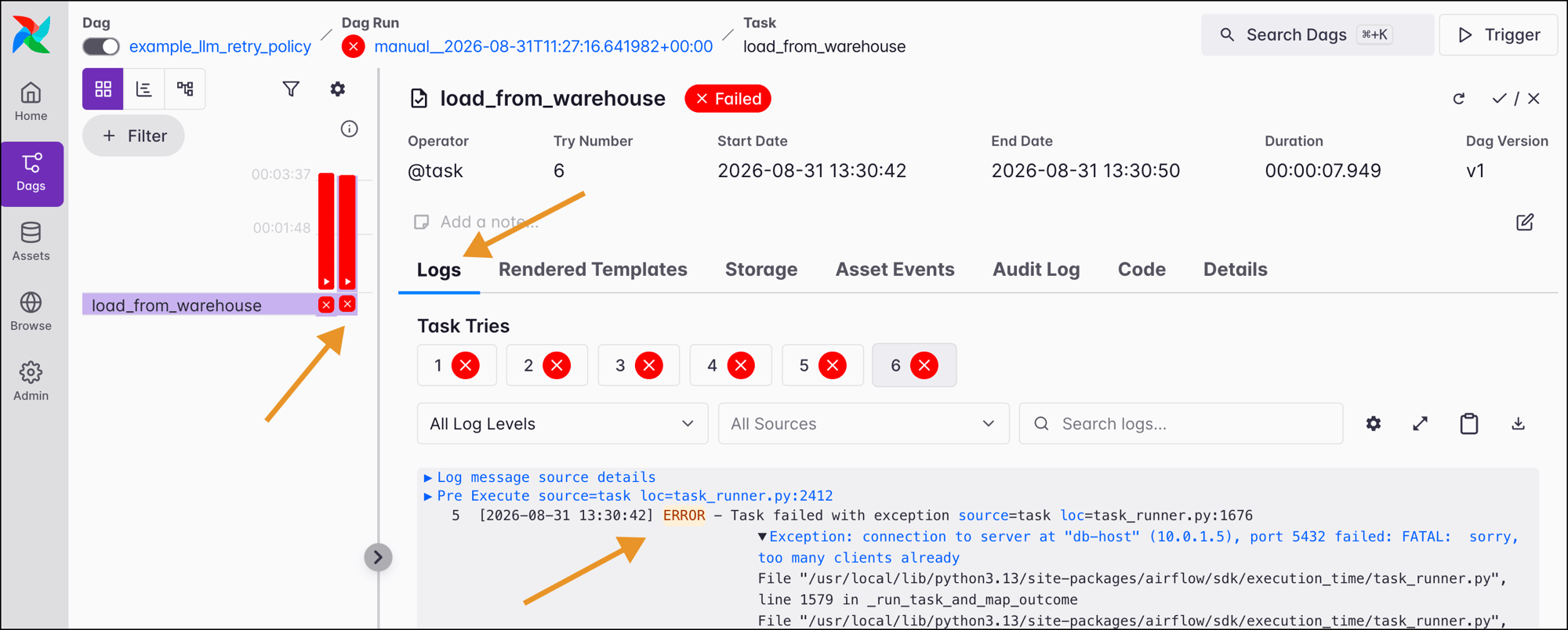
Most task failure issues fall into one of 3 categories:- Issues with operator parameter inputs.
- Issues within the operator.
- Issues in an external system.
Task exited with return code Negsignal.SIGKILL, OOM or containing a -9 error code are often caused by a lack of memory on your Airflow worker. Increase the RAM in the worker handling the task, for example by assigning it to a bigger worker queue.
After resolving your issue you may want to rerun your Dags or tasks, see Rerunning Dags.
Issues with dynamically mapped tasks
Dynamic task mapping is a powerful feature that allows you to dynamically adjust the number of tasks at runtime based on changing input parameters. It is also possible to dynamically map over task groups. Possible causes of issues when working with dynamically mapped tasks include:- You didn’t provide a keyword argument to the
.expand()function. - When using
.expand_kwargs(), you didn’t provide mapped parameters in the form of aList(Dict). - You tried to map over an empty list, which causes the mapped task to be skipped.
- You exceeded the limit for how many mapped task instances you can create. This limit depends on the Airflow core config
AIRFLOW__CORE__MAX_MAP_LENGTHand is 1024 by default. Exceeding the limit will fail the task upstream of your dynamically mapped task. - The number of mapped task instances of a specific task that can run in parallel across all runs of a given Dag depend on the task level parameter
max_active_tis_per_dag. - Not all parameters are mappable. If a parameter doesn’t support mapping you will see an import error.
@task decorators. Once the structure works as intended, you can start adding your tasks. Refer to the Create dynamic Airflow tasks guide for code examples.
Missing logs
When you check your task logs to debug a failure, you may not see any logs. On the log page in the Airflow UI, you may see a spinning wheel, or you may just see a blank file. Generally, logs fail to appear when a process dies in your scheduler or worker and communication is lost. The following are some debugging steps you can try:- Try rerunning the task by clearing the task instance to see if the logs appear during the rerun.
- Increase the [
AIRFLOW__API__LOG_FETCH_TIMEOUT_SEC] config to greater than the 5 second default. This config controls how long the API server waits for the initial handshake when fetching logs from the workers, and having extra time here can sometimes resolve issues. - Increase the resources available to your workers (if using the Astro or Celery executor) or scheduler (if using the local executor).
- If you’re using the Kubernetes executor and a task fails very quickly (in less than 15 seconds), the pod running the task spins down before the API server has had a chance to collect the logs from the pod. If possible, try building in some wait time to your task depending on which operator you’re using. If that isn’t possible, try to diagnose what could be causing a near-immediate failure in your task. This is often related to either lack of resources or an error in the task configuration.
- Increase the CPU or memory on the worker handling the task.
- Ensure that your logs are retained until you need to access them. If you are an Astronomer customer see our documentation on how to View logs.
- Check your scheduler and API server logs for any errors that might indicate why your task logs aren’t appearing.
- If you are writing to local storage on your worker, it is possible to exceed the disk space of a worker, which cases the worker pod to be evicted with no logs visible. This can be resolved by increasing the ephemeral storage space available in your worker queue settings.
Troubleshooting connections
Typically, Airflow connections are needed to allow Airflow to communicate with external systems. Most hooks and operators have aconn_id or similar parameter to which you can provide a connection ID string. Because of this, improperly defined connections are one of the most common issues Airflow users have to debug.
While the specific error associated with a poorly defined connection can vary widely, you will typically see a message with “connection” in your task logs. If you haven’t defined a connection, you’ll see a message such as 'connection_abc' is not defined.
The following are some debugging steps you can try:
- Review Manage connections in Apache Airflow to learn how connections work.
- Make sure you have the necessary provider packages installed to be able to use a specific connection type.
- Change the
<external tool>_defaultconnection to use your connection details or define a new connection with a different name and pass the new name to the hook or operator. - Define connections using Airflow environment variables instead of adding them in the Airflow UI. Make sure you’re not defining the same connection in multiple places. If you do, the environment variable takes precedence.
- Test if your credentials work when used in a direct API call to the external tool.
- Read the provider documentation in the Airflow Registry to access the Apache Airflow documentation for the provider. Most commonly used providers will have documentation on each of their associated connection types. For example, you can find information on how to set up different connections to Azure in the Azure provider docs.
- Check the documentation of the external tool you are connecting to and see if it offers guidance on how to authenticate.
- View the source code of the hook that is being used by your operator.
I need more help
The information provided here should help you resolve the most common issues. If your issue wasn’t covered in this guide, try the following resources:- Use Otto, Astronomer’s data engineering AI agent to help you debug.
- If you are an Astronomer customer you can contact our customer support.
- Join the Apache Airflow Slack and open a thread in
#newbie-questionsor#troubleshooting. The Airflow slack is the best place to get answers to more complex Airflow specific questions. - If you found a bug in Airflow or one of its core providers, open an issue in the Airflow GitHub repository. For bugs in Astronomer open source tools open an issue in the relevant Astronomer repository.
- Post your question to Stack Overflow, tagged with
airflowand other relevant tools you are using. Using Stack Overflow is ideal when you are unsure which tool is causing the error, since experts for different tools will be able to see your question.
- Your method for running Airflow (Astro CLI, standalone, Docker, managed services).
- Your Airflow version and the version of relevant providers.
- The full error with the error trace if applicable.
- The full code of the Dag causing the error if applicable.
- What you are trying to accomplish in as much detail as possible.
- What you changed in your environment when the problem started.