For AI agents: a documentation index is available at the root level at /llms.txt and /llms-full.txt. Append /llms.txt to any URL for a page-level index, or .md for the markdown version of any page.
      • AstroFully-managed data operations, powered by Apache Airflow.
      • Astro Private CloudRun Airflow-as-a-service in your environment.
      • Professional ServicesExpert Airflow services for your enterprise's success.
    • Tools
      • Cosmos
      • Orbiter
      • CLI
      • AI SDK
      • Agents
      • Blueprint
      • UpdatesThe State of Airflow 2026See the insights from over 5,800 data practitioners in the full report. Download Now ➔
  • Customers
  • Docs
    • Insights
      • Blog
      • Webinars
      • Resource Library
      • Events
    • Education
      • Academy
      • What is Airflow?
  • Pricing
Get Started Free
    • Overview
      • Overview
          • DAG factory
          • PyCharm local development
          • VS Code local development
          • Object storage tutorial
          • SQL data quality
          • Custom Airflow UI docs tutorial
          • Operator extra link tutorial
          • Cloud IDE tutorial
          • ETL datasets
      • Glossary
    • Glossary

Product

  • Platform Overview
  • Astro
  • Astro Observe
  • Astro Private Cloud
  • Security & Trust
  • Pricing

Tools & Services

  • Cosmos
  • Docs
  • Professional Services
  • Product Updates

Use Cases

  • AI Ops
  • Data Observability
  • ETL/ELT
  • ML Ops
  • Operational Analytics
  • All Use Cases

Industries

  • Financial Services
  • Gaming
  • Retail
  • Manufacturing
  • Healthcare
  • All Industries

Resources

  • Academy
  • eBooks & Guides
  • Blog
  • Webinars
  • Events
  • The Data Flowcast Podcast
  • All Resources

Airflow

  • What is Airflow
  • Airflow on Astro
  • Airflow 3.0
  • Airflow Upgrades
  • Airflow Use Cases
  • Airflow 2.x End of Life

Company

  • Our Story
  • Customers
  • Newsroom
  • Careers
  • Contact

Support

  • Knowledge Base
  • Status
  • Contact Support
GitHubYouTubeLinkedInx
  • Legal
  • Privacy
  • Terms of Service
  • Consent Preferences

  • Do Not Sell or Share My Personal information
  • Limit the Use Of My Sensitive Personal Information

Apache Airflow®, Airflow, and the Airflow logo are trademarks of the Apache Software Foundation. Copyright © Astronomer 2026. All rights reserved.

LogoLogo
On this page
  • Time to complete
  • Assumed knowledge
  • Prerequisites
  • Step 1: Create an Astro project
  • Step 2: Create a new DAG
  • Step 3: Add docs to your DAG
  • Step 4: Add docs to a task
  • Step 5: Add notes to a task instance and DAG run
  • Conclusion
Airflow 2.xTutorialsWrite DAGs

Create DAG documentation in Apache Airflow

Edit this page
Built with

One of the more powerful and lesser-known features of Airflow is that you can create Markdown-based DAG documentation that appears in the Airflow UI

DAG Docs Intro Example

After you complete this tutorial, you’ll be able to:

  • Add custom doc strings to an Airflow DAG.
  • Add custom doc strings to an Airflow task.

Time to complete

This tutorial takes approximately 15 minutes to complete.

Assumed knowledge

  • Basic Airflow concepts. See Introduction to Apache Airflow.
  • Basic Python. See the Python Documentation.

Prerequisites

  • The Astro CLI.

Step 1: Create an Astro project

To run Airflow locally, you first need to create an Astro project.

  1. Create a new directory for your Astro project:

    1mkdir <your-astro-project-name> && cd <your-astro-project-name>
  2. Run the following Astro CLI command to initialize an Astro project in the directory:

    1astro dev init
  3. To enable raw HTML in your Markdown DAG descriptions, add the following Airflow config environment variable to your .env file. This will allow you to use HTML in your DAG descriptions. If you don’t want to enable this setting due to security concerns you will still be able to use Markdown in your DAG descriptions and the HTML shown in this tutorial will be displayed as raw content.

    AIRFLOW__WEBSERVER__ALLOW_RAW_HTML_DESCRIPTIONS=True
  4. Start your Airflow instance by running:

    1astro dev start

Step 2: Create a new DAG

  1. In your dags folder, create a file named docs_example_dag.py.

  2. Copy and paste one of the following DAGs based on which coding style you’re most comfortable with.

Taskflowapi
1from airflow.decorators import task, dag
2from pendulum import datetime
3@dag(
4 start_date=datetime(2022,11,1),
5 schedule="@daily",
6 catchup=False
7)
8def docs_example_dag():
9
10 @task
11 def tell_me_what_to_do():
12 response = requests.get("https://bored-api.appbrewery.com/random")
13 return response.json()["activity"]
14
15 tell_me_what_to_do()
16
17docs_example_dag()
Traditional
1from airflow.models.dag import DAG
2from airflow.operators.python import PythonOperator
3from pendulum import datetime
4def query_api():
5 response = requests.get("https://bored-api.appbrewery.com/random")
6 return response.json()["activity"]
7
8with DAG(
9 dag_id="docs_example_dag",
10 start_date=datetime(2022,11,1),
11 schedule=None,
12 catchup=False,
13):
14
15 tell_me_what_to_do = PythonOperator(
16 task_id="tell_me_what_to_do",
17 python_callable=query_api,
18 )

This DAG has one task called tell_me_what_to_do, which queries an API that provides a random activity for the day and prints it to the logs.

Step 3: Add docs to your DAG

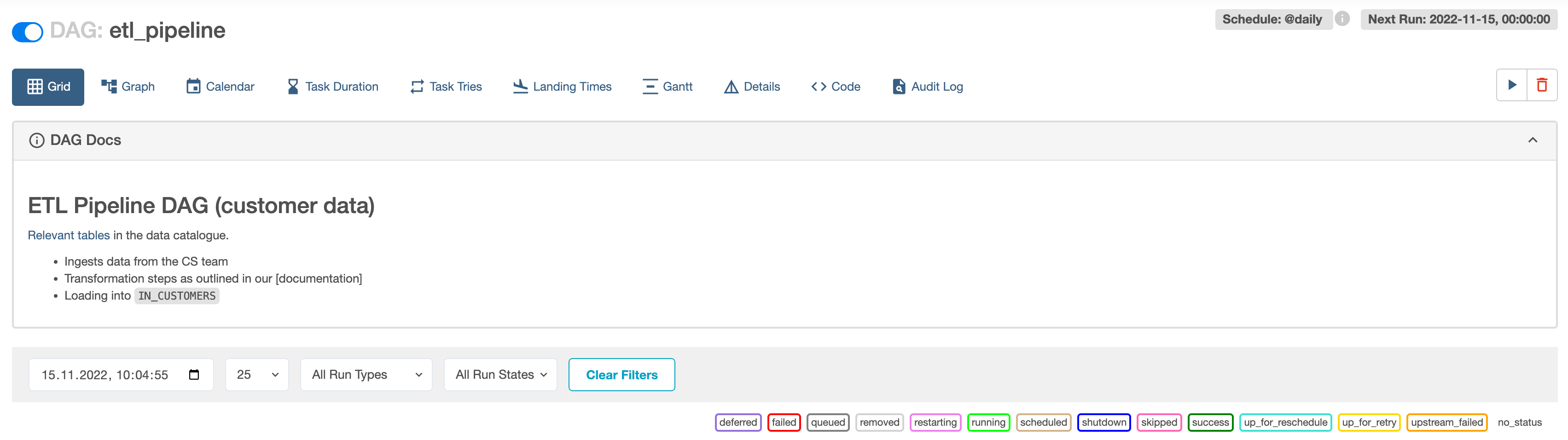
You can add Markdown-based documentation to your DAGs that will render in the Grid, Graph and Calendar pages of the Airflow UI.

  1. In your docs_example_dag.py file, add the following doc string above the definition of your DAG:

    1doc_md_DAG = """
    2### The Activity DAG
    3
    4This DAG will help me decide what to do today. It uses the [BoredAPI](https://bored-api.appbrewery.com/random) to do so.
    5
    6Before I get to do the activity I will have to:
    7
    8- Clean up the kitchen.
    9- Check on my pipelines.
    10- Water the plants.
    11
    12Here are some happy plants:
    13
    14<img src="https://www.publicdomainpictures.net/pictures/80000/velka/succulent-roses-echeveria.jpg" alt="plants" width="300"/>
    15"""

    This doc string is written in Markdown. It includes a title, a link to an external website, a bulleted list, as well as an image which has been formatted using HTML. To learn more about Markdown, see The Markdown Guide.

  2. Add the documentation to your DAG by passing doc_md_DAG to the doc_md parameter of your DAG class as shown in the code snippet below:

Taskflowapi
1@dag(
2 start_date=datetime(2022,11,1),
3 schedule="@daily",
4 catchup=False,
5 doc_md=doc_md_DAG
6)
7def docs_example_dag():
Traditional
1with DAG(
2 dag_id="docs_example_dag",
3 start_date=datetime(2022,11,1),
4 schedule="@daily",
5 catchup=False,
6 doc_md=doc_md_DAG
7):
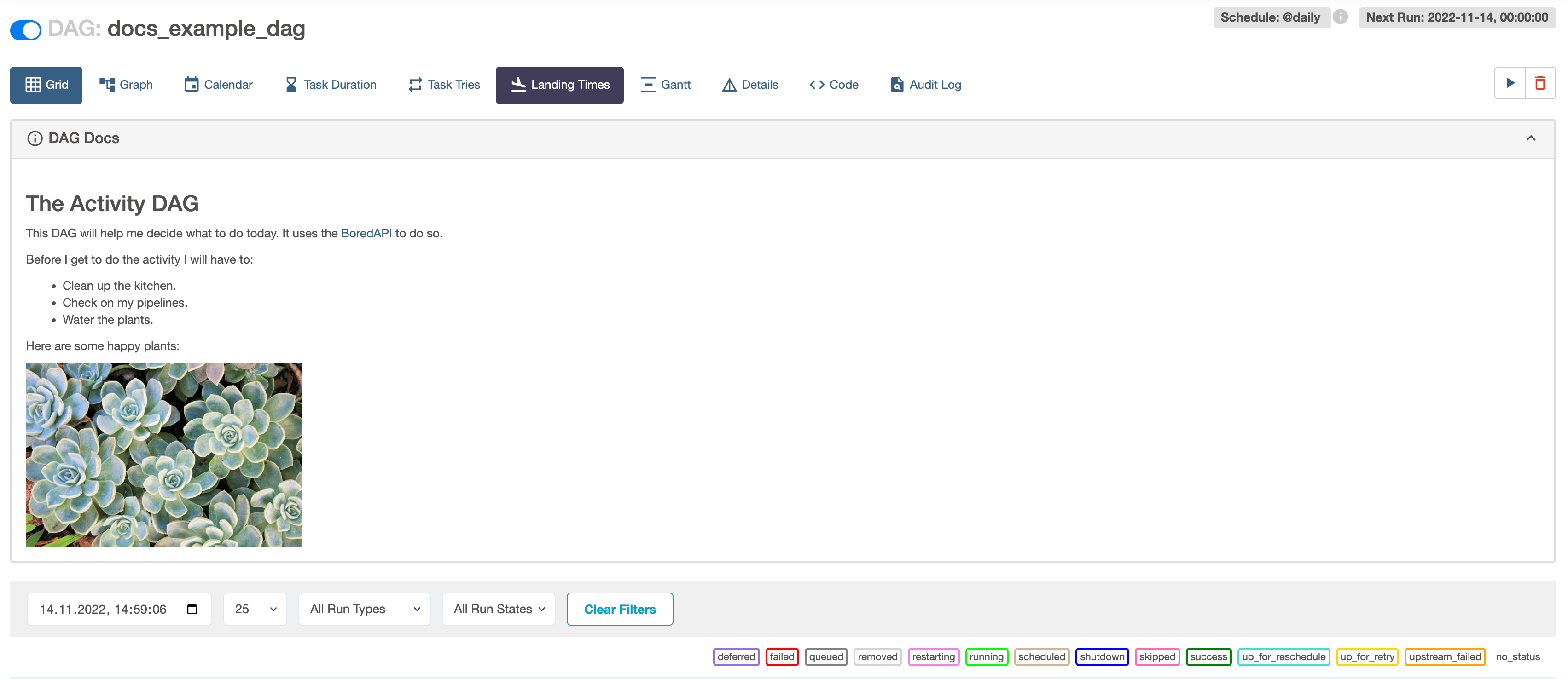
  1. Go to the Grid view and click on the DAG Docs banner to view the rendered documentation.
    DAG Docs

Airflow will automatically pick up a doc string written directly beneath the definition of the DAG context and add it as DAG Docs. Additionally, using with DAG(): lets you pass the filepath of a markdown file to the doc_md parameter. This can be useful if you want to add the same documentation to several of your DAGs.

Step 4: Add docs to a task

You can also add docs to specific Airflow tasks using Markdown, Monospace, JSON, YAML or reStructuredText. Note that only Markdown will be rendered and other formats will be displayed as rich content.

To add documentation to your task, follow these steps:

  1. Add the following code with a string in Markdown format:

    1doc_md_task = """
    2
    3### Purpose of this task
    4
    5This task **boldly** suggests a daily activity.
    6"""
  2. Add the following code with a string written in monospace format:

    1doc_monospace_task = """
    2If you don't like the suggested activity you can always just go to the park instead.
    3"""
  3. Add the following code with a string in JSON format:

    1doc_json_task = """
    2{
    3 "previous_suggestions": {
    4 "go to the gym": ["frequency": 2, "rating": 8],
    5 "mow your lawn": ["frequency": 1, "rating": 2],
    6 "read a book": ["frequency": 3, "rating": 10],
    7 }
    8}
    9"""
  4. Add the following code with a string written in YAML format:

    1doc_yaml_task = """
    2clothes_to_wear: sports
    3gear: |
    4 - climbing: true
    5 - swimming: false
    6"""
  5. Add the following code containing reStructuredText:

    1doc_rst_task = """
    2===========
    3This feature is pretty neat
    4===========
    5
    6* there are many ways to add docs
    7* luckily Airflow supports a lot of them
    8
    9.. note:: `Learn more about rst here! <https://gdal.org/contributing/rst_style.html#>`__
    10"""
  6. Create a task definition as shown in the following snippet. The task definition includes parameters for specifying each of the documentation strings you created. Pick the coding style you’re most comfortable with.

Taskflowapi
1@task(
2 doc_md=doc_md_task,
3 doc=doc_monospace_task,
4 doc_json=doc_json_task,
5 doc_yaml=doc_yaml_task,
6 doc_rst=doc_rst_task
7)
8def tell_me_what_to_do():
9 response = requests.get("https://bored-api.appbrewery.com/random")
10 return response.json()["activity"]
11
12tell_me_what_to_do()
Traditional
1tell_me_what_to_do = PythonOperator(
2 task_id="tell_me_what_to_do",
3 python_callable=query_api,
4 doc_md=doc_md_task,
5 doc=doc_monospace_task,
6 doc_json=doc_json_task,
7 doc_yaml=doc_yaml_task,
8 doc_rst=doc_rst_task
9)
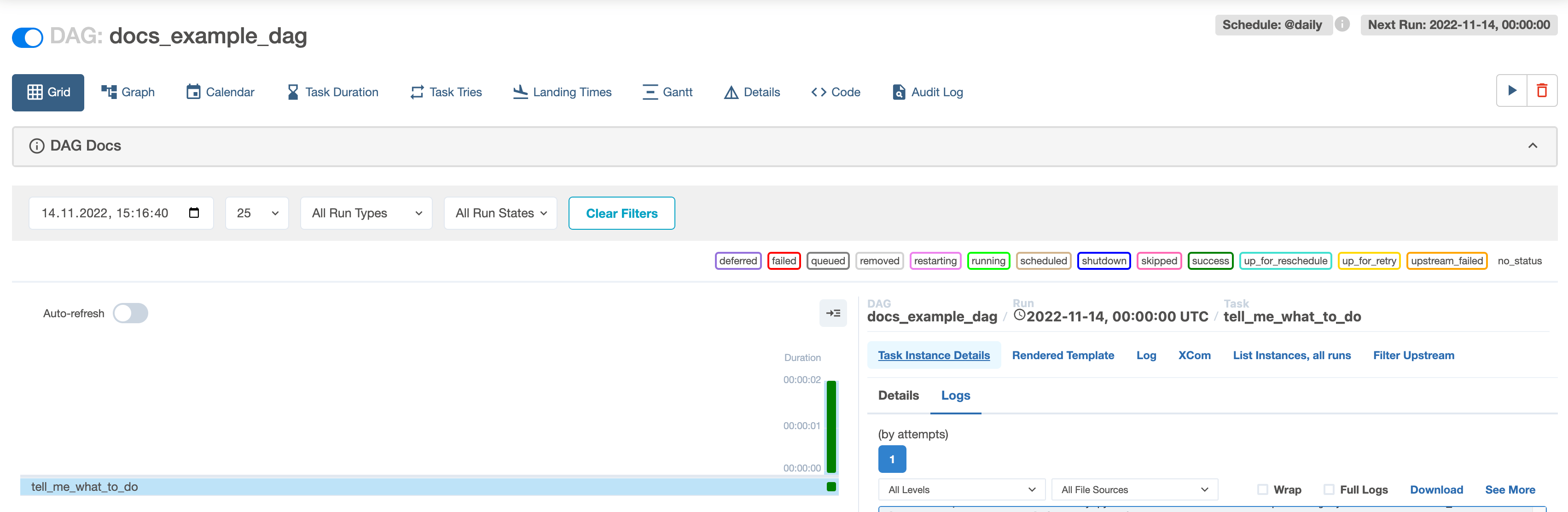
  1. Go to the Airflow UI and run your DAG.

  2. In the Grid view, click on the green square for your task instance.

  3. Click on Task Instance Details.

    Task Instance Details

  4. See the docs under their respective attribute:
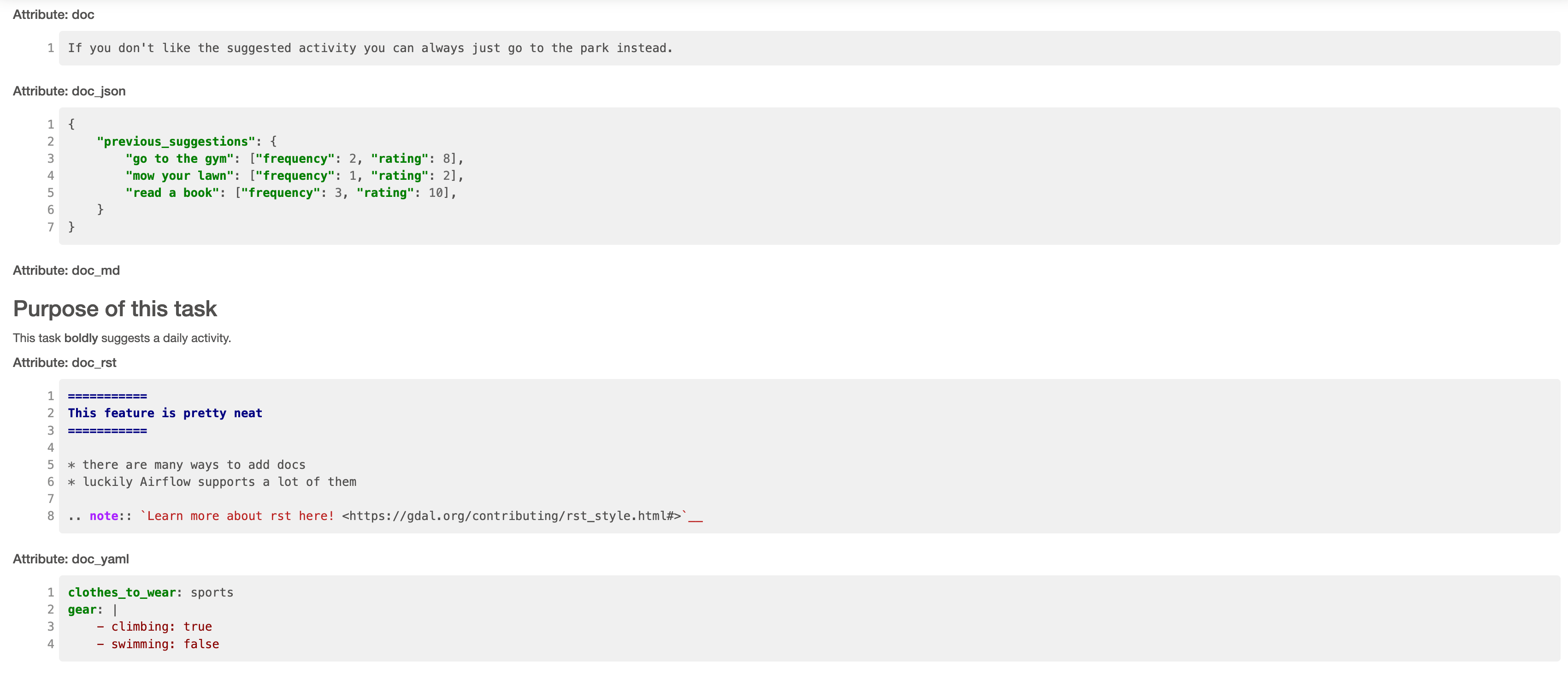
    All Task Docs

In Airflow 2.10+, task docs provided to doc_md or as a doc string in a @task decorated task are rendered in the task details in the Airflow UI.
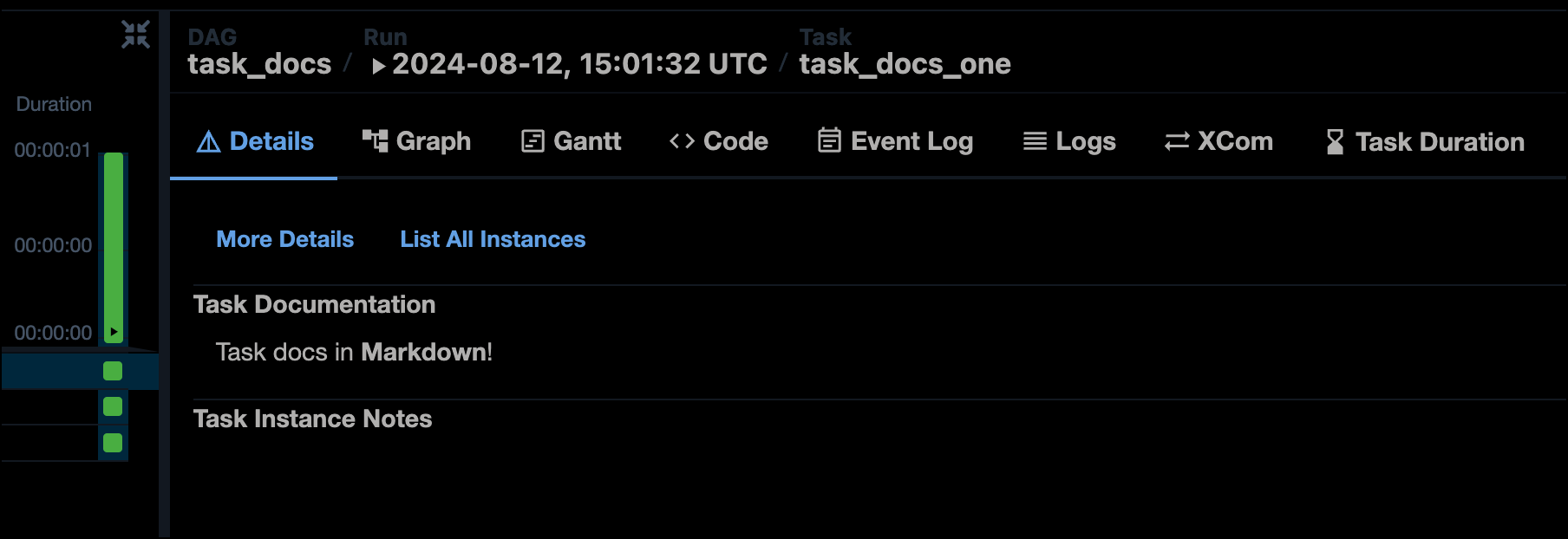
Task docs rendered in the Airflow 2.10 UI

Step 5: Add notes to a task instance and DAG run

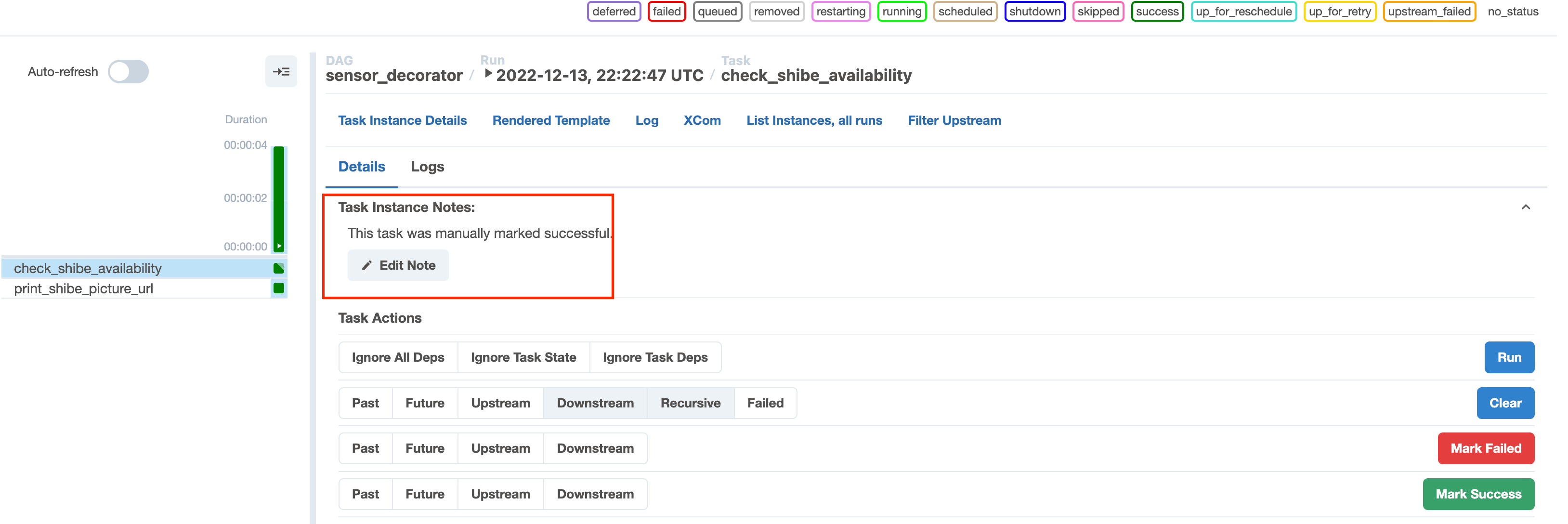
You can add notes to task instances and DAG runs from the Grid view in the Airflow UI. This feature is useful if you need to share contextual information about a DAG or task run with your team, such as why a specific run failed.

  1. Go to the Grid View of the docs_example_dag DAG you created in Step 2.

  2. Select a task instance or DAG run.

  3. Click Details > Task Instance Notes or DAG Run notes > Add Note.

  4. Write a note and click Save Note.

Add task note

Conclusion

Congratulations! You now know how to add fancy documentation to both your DAGs and your Airflow tasks.