

Additional improvements
- You can now configure OneLogin and Ping Identity as identity providers on Astro.
- Workspace Members can now view Workspace settings in the Astro UI.
-
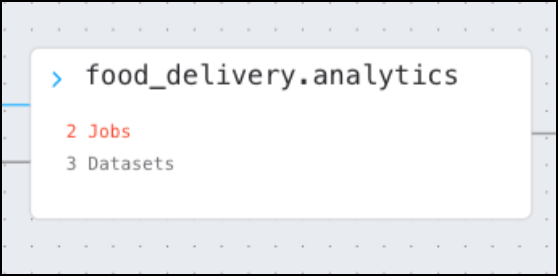
Node groups that are collapsed in the lineage graph in the Astro UI now show only the total number of connected Jobs and Datasets, instead of listing each job and dataset. This makes the lineage graph easier to navigate.
Bug fixes
- Fixed an issue where the lineage UI did not show dataset metrics when a dataset had no column-level metrics.
- Fixed an issue where some instances of a dataset’s name were inconsistent in the lineage UI.
Improvements to the Cloud IDE
The Cloud IDE includes several new features which improve dag authoring and testing:- There is a new Commit button in the Astro UI that is separate from the Configuring GitHub menu.
- The default CI/CD pipeline included in the Cloud IDE project supports dag-only deploys. Deploying dag changes to Astro using the CI/CD pipeline is now significantly faster.
- The Configure GitHub menu in the Astro UI now includes a Clone Repo settings menu. Enabling this option makes other files in your GitHub repository, such as helper functions in the
includefolder of your project, accessible when you run dags in the Cloud IDE. - You can now explicitly mark upstream dependencies for a task cell from the cell’s configuration menu.
Support for n2 worker types on GCP
You can now configure worker queues with the followingn2 worker types on Google Cloud Platform (GCP) clusters:n2-standard-4n2-standard-8n2-standard-16n2-highmem-4n2-highmem-8n2-highmem-16n2-highcpu-4n2-highcpu-8n2-highcpu-16
Additional improvements
- In the Clusters tab of the Astro UI, you can now click a cluster entry to see details about the cluster configuration, including which Worker Types are enabled for the cluster.
- The Deployment details page in the Astro UI now includes an ID pane. A Deployment ID is required when you deploy code using a CI/CD process.
- The OpenLineage URL for your Organization is now available on the Settings page in the Astro UI. An OpenLineage URL is required to integrate data lineage from some external systems.
- Workspaces are now sorted alphabetically in the Astro UI.
- In Astro CLI version 1.8.0 or later, running
astro deploywith an empty or missingdagsfolder does not erase or override existing dags. Instead, the directory is excluded from the build and push process to Astro. This lets you manage your dags and project files in separate repositories when using dag-only deploys.
Bug fixes
- Fixed an issue where Astro temporarily stored dags for dag-only deploys in a new directory named
/usr/local/airflow/dags/current, which could cause import errors in user code. - Fixed an issue where task runs triggered in the Cloud IDE did not have access to project environment variables.
- Fixed an issue where Deployment metrics for memory usage were not always accurate.
Additional improvements
- In the Astro UI, the People page now shows the IDs of users belonging to your Organization.
- In the Astro UI, the Deployments page now shows the user or API key that most recently updated each Deployment and when they updated it.
Bug fixes
- Availability zone (AZ) rebalancing has been disabled for worker node pools on AWS clusters. This change should result in fewer zombie tasks and less volatility across workers. AZ rebalancing is enabled for other system components on Astro.
- The Updated at field for a transferred Deployment now displays the correct time.
astro deploy --dagsnow handles deferrable tasks correctly.
Deploy only dags with astro deploy -—dags
Using Astro CLI 1.7, you can run astro deploy -—dags to push only the dags directory of your Astro project to a Deployment on Astro. This is an additional option to astro deploy that makes for a faster development experience and gives you more flexibility in how you configure CI/CD processes.For more information, see Astro CLI 1.7 or Deploy dags only. For example CI/CD workflows with this feature enabled, see CI/CD.Improved data lineage interface
The Lineage tab has new features and is better integrated into the Astro UI.
- The process for comparing runs uses a simpler interface and provides more information about the runs you’re comparing.
- Names for UI elements have been updated to more clearly represent Airflow resources. For example, jobs is now runs, and the Explore tab is now Runs.
- Lineage graphs include new colors and animations to show the flow of data as it moves between runs and datasets.
Transfer a Deployment
You can now transfer a Deployment from one Workspace to another in your Organization. This feature is helpful if you need to change the group of users that have access to a Deployment, or if you create a Deployment in the wrong Workspace.See Transfer a Deployment to another Workspace.Additional improvements
- The Kubernetes API is no longer exposed to the public internet on AWS data planes. The allowlist is limited to control plane IPs. New clusters will be created with this configuration, while all existing clusters will be updated by end of next week.
Introducing the Astro Cloud IDE, a new Airflow development experience
Astronomer is excited to introduce the Astro Cloud IDE, which is a notebook-inspired development environment for writing, running, and deploying data pipelines. Now you can develop an entire Airflow project, including dags, dependencies, and connections entirely within the Astro UI.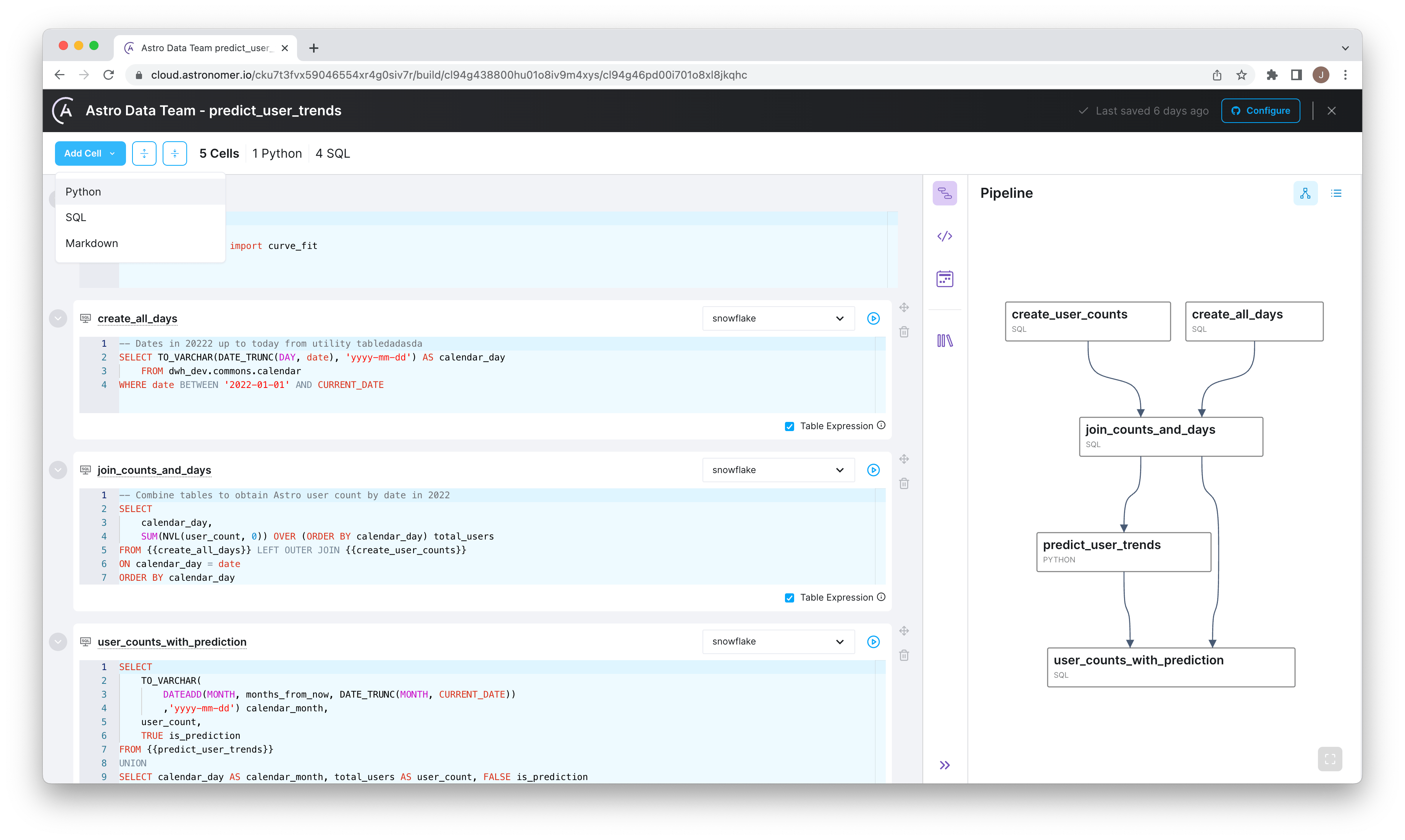
- Configuring Airflow shouldn’t be a barrier to running Airflow.
- Passing data between tasks should be seamless regardless of what language is used to write the task.
- Data pipelines should be quick to deploy and easy to test with CI/CD.
Additional improvements
- In the Astro UI, cluster selection menus are now alphabetized.
Bug fixes
- Fixed an issue where the KubernetesPodOperator was not aware of available ephemeral storage in
m5dandm6idworker nodes. This issue resulted in Pods being evicted to free up storage even when there was enough available storage for tasks. - Fixed an issue in the Astro UI where you could select a worker type before selecting a cluster when creating a Deployment.
- Fixed an issue where Deployments on Runtime 5.0.10 and earlier showed a nonfunctional Configuration tab in the Airflow UI.
- Fixed CVE-2022-32149.
Additional improvements
- In the Astro UI, Access has been moved from the left menu to a tab on the Workspace Settings page.
- In the Astro UI, Workspace Settings in the left menu is now available to all Workspace members.
New Azure regions
You can now create an Astro cluster on Azure in the following regions:japaneastsouthafricanorthsouthcentralus
Additional improvements
- New worker node pools on Azure and Google Cloud Platform (GCP) clusters can now scale to zero. When you set your minimum worker count to 0, you don’t incur costs for enabling a new worker type for your cluster until it’s used in a Deployment.
Bug fixes
- Fixed an issue where worker queues with a minimum worker count of zero would appear with a minimum worker count of one in the Astro UI.
New permissions boundary for managed AWS Accounts
The operational roles that Astronomer assumes on dedicated customer AWS accounts now have new permissions boundaries that limit the roles to a subset of their permissions. The remote management role is now limited to the following actions across all contexts:autoscaling:*cloudformation:*cloudwatch:*ec2:*ecr:*eks:*elasticloadbalancing:*iam:*OpenID*kms:DescribeKeylambda:*logs:*route53:AssociateVPCWithHostedZones3:*secretsmanager:*servicequotas:*ssm:*tag:*
Additional improvements
- Users with the required permissions can now access a Configuration tab in the Admin menu of the Airflow UI. This page no longer shows sensitive values in plain-text and can be used to verify all configurations running on your Deployment.
- In the Astro UI, the maximum time for Deployment metrics has been extended from 24 hours to 7 days.
- The Deployment metrics overview now shows metrics for the
defaultworker queue instead of an aggregate of all worker queues. Improved worker queue metrics coming soon.
Bug fixes
- Added the global environment variable
AIRFLOW__LOGGING__DAG_PROCESSOR_LOG_TARGET=stdoutso that a scheduler’s logs don’t overcrowd its local storage - Removed misleading maximum CPU and memory lines from Deployment metric graphs
Additional improvements
- All worker queue configurations in the Worker Queues tab of the Astro UI now have tooltips.
- The Worker CPU and Worker Memory metrics in the Analytics tab of the Astro UI now show metrics only for the default worker queue instead of an average across queues. Improved worker queue metrics coming soon.
Bug fixes
- Values in the Organization Settings page no longer overlap with other UI elements.
- Organization Owners can now push code to a Deployment even if they aren’t explicit members of the Deployment’s Workspace.
A simpler Deployment page
All of a Deployment’s configurations, including analytics, API keys, environment variables, and resource configurations, are now organized as tabs within the Deployment’s page in the Astro UI.This new UI moves the Analytics and Logs from the left sidebar to the main Deployment page so that you no longer have to filter those views separately by Deployment. The left sidebar now exclusively contains Workspace-level menus.New Account Dashboard
You can now access your Account Dashboard to manage your user account settings and find links to helpful resources. Access this page by going toaccount.astronomer.io in your browser or by clicking Profile > Manage your Astro Account in the Astro UI. You must be authenticated to Astro.Additional improvements
- You can now use the
m6idworker node type series for Deployments on AWS clusters. This worker type is general purpose and includes significant storage as well as up to 15% better performance compared tom5dnodes. For more information, see Worker instance types. - New worker node pools on Amazon Web Services (AWS) clusters can now scale to zero. This means that enabling a new worker type for your cluster does not cost you until it’s used in a Deployment.
Bug fixes
- Fixed an issue where the Astro UI Deployment metrics showed a maximum worker CPU and memory that was inconsistent with your configured worker queues.
Additional improvements
- When you create a new worker queue, the default worker type in your cluster is now pre-selected in the Worker Type list.
- You can now configure multiple instances of the same identity provider (IdP). See Configure an identity provider.
- You can now expand and collapse the Workspace menu in the Astro UI.
Bug fixes
- Fixed an issue where you could not open the Airflow UI from a Deployment.
Export Deployment metrics to Datadog
You can now export over 40 Airflow metrics related to the state of your Astro Deployment to Datadog by adding a Datadog API key to the Deployment. Metrics include task successes, dag processing time, frequency of import errors, and more.For organizations already using the observability service, this integration allows your team to standardize on tooling and gain a more granular view of Deployment metrics in a single place. Once the integration is configured, Astro automatically exports all available metrics to Datadog. For a complete list of supported metrics, see Data Collected.To learn more, see Export Airflow metrics to Datadog.Additional improvements
- The Astro UI now automatically ensures that worker queue names are valid as you type in real time.
- The number of times that a user can enter the wrong credentials for Astro before being locked out has been reduced from 10 to 6.
- You can now configure worker queues to have a minimum Worker count of 0 workers. Note that depending on your cloud provider and Deployment configurations, some Deployments still might not be able to scale to 0 workers.
Bug fixes
- The timestamp shown in the Updated field of the Deployment view in the Astro UI is now properly updated when you create or modify environment variables.
- Fixed an issue where logging in to the Airflow UI with unrecognized credentials could freeze you on an error page.
Additional improvements
- When you configure worker queues in the Astro UI, the total CPU and memory capacity of each worker instance type is now shown instead of the nominal available resources.
- Improved error handling for creating new worker queues when soft-deleted worker queues might still exist on the data plane.
Bug fixes
- Fixed an issue where running
astro deploywith a Deployment API key could revert changes to a worker queue’s size that were previously set in the Astro UI. - Fixed an issue where the Lineage tab in the Astro UI showed all job durations as having a length of 0.
Create multiple worker queues
Worker queues are a new way to configure your Deployment to best fit the needs of your tasks. A worker queue is a set of configurations that apply to a group of workers in your Deployment. Within a worker queue, you can configure worker type and size as well as autoscaling behavior. By configuring multiple worker queues for different types of tasks, you can better optimize for the performance, reliability, and throughput of your Deployment.In the Astro UI, you can now create multiple worker queues. Once you create a worker queue, you can assign a task to that worker queue by adding a simplequeue='<worker-queue-name>' argument in your dag code.This feature enables the ability to:- Use more than one worker type within a single Deployment and cluster. Previously, a single cluster on Astro supported only one worker type.
- Isolate long-running tasks from short-running tasks to avoid errors related to competing resource requests.
- Fine-tune autoscaling behavior for different groups of tasks within a single Deployment.
New worker sizing
This Astro release introduces a new, simple way to allocate resources to the workers in your Deployment. Instead of choosing a varying combination of CPU and memory, you can now select a worker type in the Astro UI as long as it’s enabled in your cluster. For example,m5.2xlarge or c6i.8xlarge on AWS. Once you select a worker type, Astronomer will create the biggest worker that the worker type can support to ensure that your tasks have enough resources to execute successfully.Astro’s worker sizing enables a few benefits:- You can no longer configure a worker that is too large or otherwise not supported by your underlying cluster. Previously, misconfiguring worker size often resulted in task failures.
- A more efficient use of infrastructure. Astronomer has found that a lower number of larger workers is more efficient than a higher number of smaller workers.
- A higher level of reliability. This worker sizing model results in less volatility and a lower frequency of cluster autoscaling events, which lowers the frequency of errors such as zombie tasks and missing task logs.
- The legacy AU unit is no longer applicable in the context of the worker. You only have to think about CPU, memory, and worker type.
New Maximum Tasks per Worker setting
A new Maximum Tasks per Worker configuration is now available in the Deployment view of the Astro UI. Maximum tasks per worker determines the maximum number of tasks that a single worker can process at a time and is the basis of worker autoscaling behavior. It is equivalent to worker concurrency in Apache Airflow.Previously, maximum tasks per worker was permanently set to 16 and was not configurable on Astro. Now, you can set maximum tasks per worker anywhere between 1 and 64 based on the needs of your tasks. It can be set per worker queue on a Deployment.To learn more, see Worker autoscaling logic.New Worker Count (Min-Max) setting
A new Worker Count (Min-Max) configuration is now available in the Deployment view of the Astro UI. This value defines the minimum and maximum number of workers that can run at a time.Use this setting to fine-tune worker autoscaling behavior in your Deployment. By default, the minimum number of workers is 1 and the maximum is 10.Support for multiple Organizations
A single user account can now belong to multiple Organizations. A user with multiple Organizations can switch to another Organization by clicking on their current Organization’s name in the Astro UI and then clicking Switch Organization.Note that switching Organizations with the Astro CLI is not yet supported. For more information, see Switch Organizations.New Azure region (Australia East)
You can now create an Astro cluster on Azure in Australia East (New South Wales).New Google Cloud Platform regions
You can now create an Astro cluster on GCP in the following regions:australia-southeast2(Melbourne)asia-east1(Taiwan)asia-south2(Delhi)asia-southeast2- (Jakarta)europe-north1(Finland)europe-southwest1(Madrid)europe-west8(Milan)europe-west9(Paris)northamerica-northeast2(Toronto)southamerica-west1(Santiago)us-east5(Columbus)us-south1(Dallas)
Bug fixes
- Fixed an issue where the Astro UI’s Resource Settings page wasn’t showing units for CPU and Memory values.
Updated user permissions for Organization and Workspace roles
The following user roles have new and modified permissions:- Organization Owners now have Workspace Admin permissions for all Workspaces in their Organization. This role can now access Organization Workspaces, Deployments, and usage data.
- Organization Billing Admins can now view usage for all Workspaces in their Organization regardless of their Workspace permissions.
- Workspace Editors can now delete any Deployment in their Workspace.
Automatic access for new users authenticating with an identity provider
If your organization has implemented an identity provider (IdP), any new user who authenticates to Astro through your IdP is now automatically assigned the Organization Member role. This means that users authenticating through your IdP don’t need to be invited by email before joining your Organization.Additional improvements
- Added a security measure that ensures Workspace roles can only be assigned to users who have an Organization role in the Organization in which the Workspace is hosted. This ensures that a user who does not belong to your Organization cannot be assigned a Workspace role within it.
Support for Astro on Azure Kubernetes Service (AKS)
Astro now officially supports Astro clusters on AKS. This includes support for an initial set of AKS regions.For more information about the installation process and supported configurations, see Install Astro on Azure and Resource Reference Azure.Bug fixes
- Pending invites no longer appear for active users in the Astro UI.
New Deployment optimizations for high availability (HA)
This release introduces two changes that ensure a higher level of reliability for Deployments on Astro:- PgBouncer, a microservice that increases resilience by pooling database connections, is now considered highly available on Astro. Every Deployment must now have 2 PgBouncer Pods instead of 1, each assigned to a different node within the cluster. This change protects against pod-level connection issues resulting in zombie tasks, which was previously seen during cluster downscaling events. PgBouncer is fully managed by Astronomer and is not configurable.
- The Airflow scheduler is now configured with an anti-affinity policy to limit the possibility of all schedulers for a single Deployment being impacted by an incident within a single node on an Astro cluster. For users who set Scheduler Count in the Astro UI to 2, this means that those 2 scheduler Pods cannot be assigned to the same node and instead require a minimum of 2 nodes total. To avoid significant increases in cost, 3 or 4 schedulers can share the same 2 nodes and will not necessarily result in a higher node count minimum.
Additional improvements
- Added tooltips for Deployment overview metrics in the Astro UI.
Additional improvements
- You can now access an Organization’s AWS external ID from the Settings tab of the Astro UI.
- Organizations now need only a single AWS external ID for all clusters. Previously, each cluster required a unique external ID, which added complexity to the installation and cluster creation process.
- You can now remove a user from an Organization from the Astro UI.
- Organization Billing Admins can now view task usage for all Workspaces regardless of their Workspace permissions.
Additional improvements
- The Astro UI Clusters page now includes the cluster ID value.
- Organization Owners and Organization Billing Admins can now update the Organization name in the Astro UI Settings page.
- The Astro UI Analytics page can now show data for the last 30 minutes.
Bug fixes
- When you change Worker Resources for a Deployment in the Astro UI, any errors related to your worker size request are now based on the correct node instance type that your cluster is running.
- When you select a Workspace and click Go back in a browser, the page now reloads as expected.
- A Page not found error message no longer appears when you select a Deployment in the Usage page of the Astro UI.
- The Deployment Analytics page now displays the correct date.
- Deprecated versions of Astro Runtime now appear correctly in the Deployment page of the Astro UI. Previously, versions were appended with
-deprecated.