

Investigate failures with Otto
When a Dag fails, you can run a structured investigation that combines Airflow context (Dag code, task logs), Astro context (Deployment configuration, component logs, recent deploys), and Observe context (lineage, run history, operational metrics). Each investigation returns a root cause type, severity, suggested fix, and a checklist of Dag- and task-level checks. To run an investigation from Astro Observe:- Click Investigate next to a Dag on the Observe homepage to investigate its most recent failed run.
- Open a Dag in the Catalog and select a failed run from its run history.
- Open a specific run in a Dag’s run history to investigate that run.
AI log summaries
For failed tasks and failure events that depend on these tasks, such as Dag failures and data product SLAs, Astro Observe summarizes the task failure logs into a human-readable description of the issue. AI log summaries are visible from the event timeline of a task failure, the event timeline of an SLA breach with a failed upstream task, and the event timeline tab in the lineage view. AI log summaries are powered by Otto. See Otto overview for Otto’s full set of capabilities.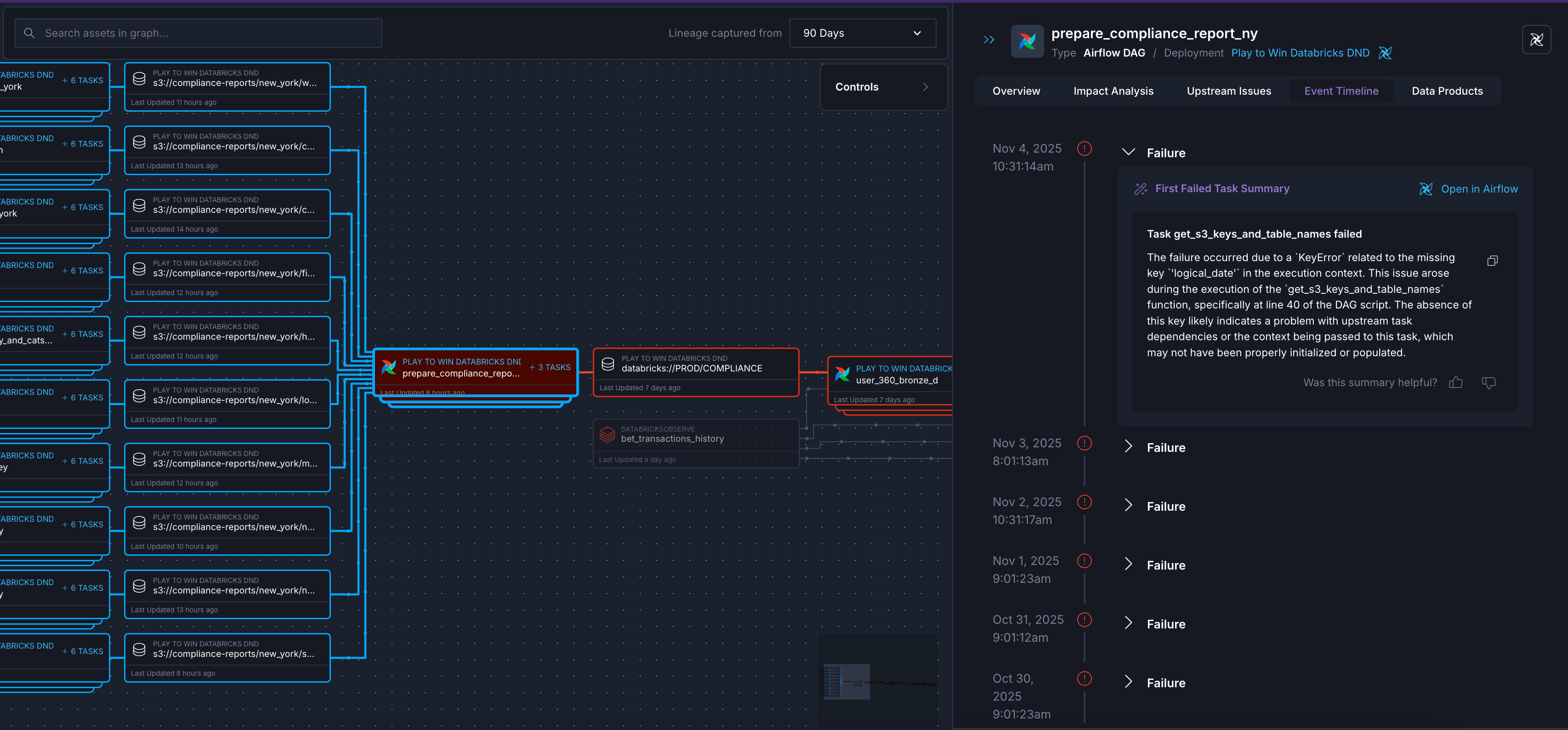
Upstream root cause analysis
For failure events, Astro Observe detects the upstream root cause by scanning upstream dependencies and surfacing any anomalies or failures. Failure events also show downstream dependencies to help you understand the potential impact of the issue.AI features can be enabled or disabled Organization-wide by an Organization Owner. When disabled, AI log summaries and Otto investigations are unavailable for all users. To configure this setting, see Toggle AI features for your Organization.