- Prometheus Remote Write: Send both Airflow application metrics and infrastructure metrics to any Prometheus-compatible monitoring and alerting system using the Universal Metrics Exporter. This gives you unlimited access to all infrastructure metrics that are available to Astronomer and lets you use your preferred observability tooling, such as Grafana or CloudWatch.
- Datadog (infrastructure metrics): Send infrastructure metrics directly to a Datadog site using a Datadog API key. This type sends infrastructure metrics only. To also send Airflow application metrics to Datadog, use the separate method in Export Airflow metrics to Datadog. You can use both types together.
- Gives you access to both Kubernetes-level infrastructure metrics as well as task-level execution information specific to Apache Airflow.
- Provides metrics that aren’t available to Datadog’s supported Airflow metrics.
- Uses the Prometheus data model format using the remote-write capability, making it flexible and easy to use.
- Allows you to configure a metrics export at the per-Deployment level or at the Workspace level.
- Enables you to customize your observability experience with your tooling and create custom dashboards or alerts that aren’t currently available in Astro.
- Offers a way to add custom metadata as labels to your exported metrics or HTTP request headers.
Metric categories
There are two categories of metrics that you can export using a Prometheus Remote Write metrics export:- Airflow application level metrics
- Infrastructure level metrics
A Datadog (infrastructure metrics) export always sends infrastructure metrics only. To also send Airflow application metrics to Datadog, use the separate method in Export Airflow metrics to Datadog.
cloud_providercloud_regioncluster_organization_idclusterId(Deployments on Dedicated clusters only)containernamespacepoddeploymentIdorganizationIdworkspaceId
Custom metadata
In addition to the default metadata included by Astro with your metrics, you can also add Custom headers and Custom labels to your metrics exports.- Custom headers add key-value pairs to the HTTP request made by Astro to your Prometheus server.
- Custom labels add key-value pairs to the export metadata, so you can filter your metrics downstream.
Airflow application metrics
Airflow application metrics are defined by Apache Airflow and describe the health, success, and performance of the Dags that Airflow orchestrates and executes. Examples include task instance failure counts, scheduler heartbeat counts, pool slot utilization, and Dag run durations. Airflow application metrics are available only through a Prometheus Remote Write metrics export. Astro collects these metrics from Airflow in OpenTelemetry format on Airflow 3 and later, or in StatsD format on Airflow 2, and normalizes them before it exports them to your Prometheus endpoint. For the full list of supported metrics, the Prometheus labels available on each, and how each Astro metric name maps to its upstream Airflow name, see the Metrics reference.Infrastructure metrics
Infrastructure metrics describe the resource usage, health, and performance of the Kubernetes Pods that run each Airflow component. Use them to track CPU, memory, storage, and Pod lifecycle status across your Deployment. Infrastructure metrics are available through both Prometheus Remote Write and Datadog (infrastructure metrics) exports. For the full list of supported infrastructure metrics, see the Metrics reference.Prerequisites
- Prometheus Remote Write
- Datadog (infrastructure metrics)
- A Prometheus data endpoint.
- If you export Airflow metrics from Deployments on Astro Runtime 3.3 or later, a Prometheus endpoint that accepts native histograms. Airflow 3.3 records timer metrics as histograms. An endpoint that rejects native histograms rejects each request that contains one, so it also loses the other metrics in that request. See Timers.
- Network connectivity between your Astro resources and your Prometheus endpoint.
- (Optional) Supported auth: Bearer token or license key, username and password, SigV4Authorization (AWS Deployments only), or custom HTTP headers for your target observability server.
Set up your Prometheus endpoint
Complete the following setup only if you’re configuring a Prometheus Remote Write metrics export. If you’re sending infrastructure metrics to Datadog, skip to Enable metrics export. The following list includes the setup instructions of different, commonly used Prometheus endpoints. Use these resources to set up your observability tools to receive metrics exports from Astro.Enable metrics export
You can enable metrics export at both the Workspace and Deployment level.Workspace metrics
- In the Astro UI, go to Environment > Metrics Exports.
- Click + New Metric Export to create a new export connection.
- Enter a Name for your export.
- Select a Type:
- Prometheus Remote Write to send metrics to any Prometheus-compatible endpoint.
- Datadog (infrastructure metrics) to send infrastructure metrics directly to Datadog.
- Enter the fields required for the Type you selected:
- Endpoint - The URL of your Prometheus-compatible endpoint.
Astro sends infrastructure metrics only through this integration. Airflow metrics aren’t included. See Export Airflow metrics to Datadog to set those up separately.
- Datadog Site - The Datadog site your account uses. Choose from
datadoghq.com,us3.datadoghq.com,us5.datadoghq.com,datadoghq.eu,ap1.datadoghq.com,ap2.datadoghq.com, orddog-gov.com. - Datadog API Key - A Datadog API key used to authenticate metric submission to Datadog.
- (Optional) Enter a Description for your metrics export, such as its purpose or destination.
- (Optional) Click More Options to add additional configuration for the Type you selected:
- Authentication Type - None, Basic Authentication, Bearer Authentication, or SigV4Authorization. SigV4Authorization is available only for AWS Deployments on dedicated clusters and enables you to use IAM role-based authentication for metrics export.
- If you select SigV4Authorization, you must configure a trust policy that allows Astro to assume an IAM role in your AWS account. You can view and copy this trust policy from the Trust Policies tab.
- Token - Bearer token or license key for your Prometheus endpoint for bearer authentication, if needed.
- Username and Password - Credentials for basic authentication, if needed.
- AWS Role - IAM role that Astro assumes to communicate with your Amazon Managed Prometheus.
- Region - AWS region of the Amazon Managed Prometheus.
- Custom Headers - Add a Name and Value pair that can be sent to your server as part of the HTTP request with each remote write. If you add a custom header, any default values are overwritten by your custom configuration. You can add Deployment-specific labels when configuring Deployment metrics.
- Custom Labels - Add a Name and Value pair that can be sent to your server. You can add Deployment-specific labels when configuring Deployment metrics.
- Labels - Add a Name and Value pair, then click Add Label to add more. Labels are sent to Datadog with each exported metric. You can add Deployment-specific labels when configuring Deployment metrics.
- Click Create metrics export.
- (Optional) Allow all Deployments to link to this metrics export configuration. See Link metrics export.
Deployment metrics
- In the Astro UI, click Deployments, select a Deployment, then click the Environment tab.
- Toggle to Metrics Exports.
- Click + New Metric Export to configure a new export connection.
- Enter a Name for your export.
- Select a Type:
- Prometheus Remote Write to send metrics to any Prometheus-compatible endpoint.
- Datadog (infrastructure metrics) to send infrastructure metrics directly to Datadog.
- Enter the fields required for the Type you selected:
- Endpoint - The URL of your Prometheus-compatible endpoint.
Astro sends infrastructure metrics only through this integration. Airflow metrics aren’t included. See Export Airflow metrics to Datadog to set those up separately.
- Datadog Site - The Datadog site your account uses. Choose from
datadoghq.com,us3.datadoghq.com,us5.datadoghq.com,datadoghq.eu,ap1.datadoghq.com,ap2.datadoghq.com, orddog-gov.com. - Datadog API Key - A Datadog API key used to authenticate metric submission to Datadog.
- (Optional) Enter a Description for your metrics export, such as its purpose or destination.
- (Optional) Click More Options to add additional configuration for the Type you selected:
- Authentication Type - None, Basic Authentication, Bearer Authentication, or SigV4Authorization. SigV4Authorization is available only for AWS Deployments on dedicated clusters and enables you to use IAM role-based authentication for metrics export.
- If you select SigV4Authorization, you must configure a trust policy that allows Astro to assume an IAM role in your AWS account. You can view and copy this trust policy from the Trust Policies tab.
- Token - Bearer token or license key for your Prometheus endpoint for bearer authentication, if needed.
- Username and Password - Credentials for basic authentication, if needed.
- AWS Role - IAM role that Astro assumes to communicate with your Amazon Managed Prometheus.
- Region - AWS region of the Amazon Managed Prometheus.
- Custom Headers - Add a Name and Value pair that can be sent to your server with as part of the HTTP request with each remote write. If you add a custom header, any default values or values configured at the Workspace level are overwritten by your custom configuration.
- Custom Labels - Add a Name and Value pair that can be sent to your server. You can add Deployment-specific labels when configuring Deployment metrics.
- Labels - Add a Name and Value pair, then click Add Label to add more. Labels are sent to Datadog with each exported metric. If you add a label, any default values or values configured at the Workspace level are overwritten by your custom configuration.
- Click Create metrics export.
View SigV4Authorization trust policy
If you’re using SigV4Authorization to authenticate your Metrics Export for AWS-based Deployments, you must configure your Amazon Managed Prometheus endpoint with a trust policy that allows Astro to assume an IAM role. You can view and copy this trust policy from the Trust Policies tab of the Metrics Export.Share metrics exports across Deployments
You can configure Astro to link Workspace-level metrics exports to all Deployments in the Workspace by default. This is useful, for example, when you need to configure a metrics export for development environments that all Deployments in a Workspace should start with. Then, when you create new Deployments, they automatically have a default metrics export configuration to your development resources. When you’re ready to move your Deployments’ metrics exports to production configurations, you can either replace the metrics export or override the configuration values with your production resource information. If you change the setting from Restricted to Linked to all Deployments, Astro respects any metrics exports fields that you might have configured for existing linked Deployments.- In the Astro UI, go to Environment > Metrics Exports.
- Click the name of the export target that you want to add per-Deployment field overrides to.
- Click Deployment Sharing and toggle the setting to choose either:
- Restricted: Only share individually to Deployments.
- Linked to all Deployments: Link to all current and future Deployments in this Workspace.
- (Optional) Change the default field values.
- Click Update metrics export to save.
Override configuration fields
If you create a metrics export at the Workspace level and link it to a Deployment, you can later edit the metrics export within the Deployment to specify field overrides. When you override a field, you specify values that you want to use for a one Deployment, but not for others. This way, you can configure a metrics export for a single time, but still have the flexibility to customize it at the Deployment level. For example, you might have created a metrics connection to a dev or internal observability destination, and then later you can add field overrides to specify production details you want each Deployment to use.- In the Astro UI, go to Environment > Metrics Exports.
- Click the metrics export that you want to add per-Deployment field overrides to.
- (Optional) Click Deployment Sharing and choose if you want to Restrict or Link to all Deployments. You can also change the default field values. Click Update metrics export to save.
- Click Edit to open the metrics export configurations for a specific linked Deployment.
- Add the override values to the fields you want to edit. You might need to open More options to find the full list of available fields.
- Click Update metrics export.
Example: Grafana Cloud dashboard
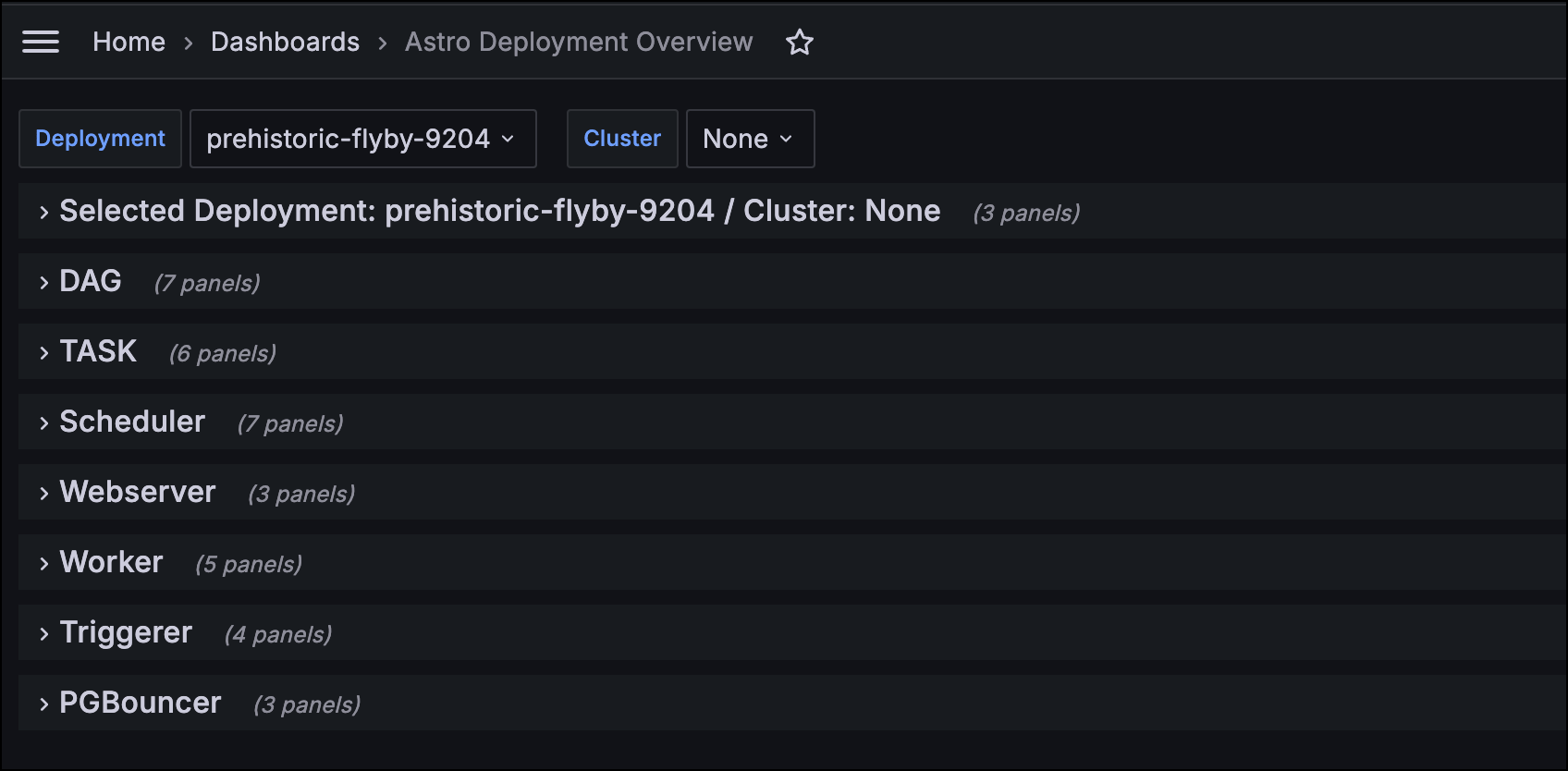
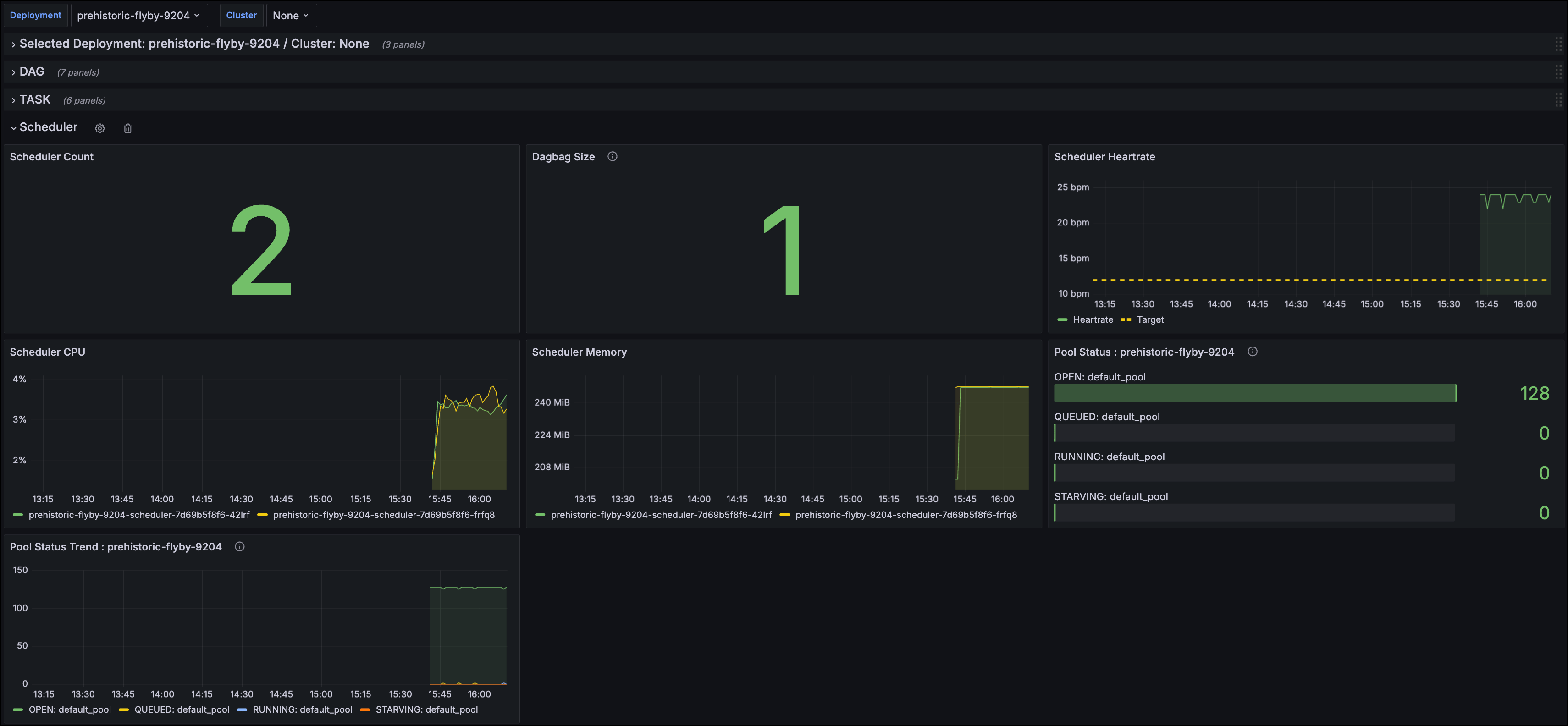
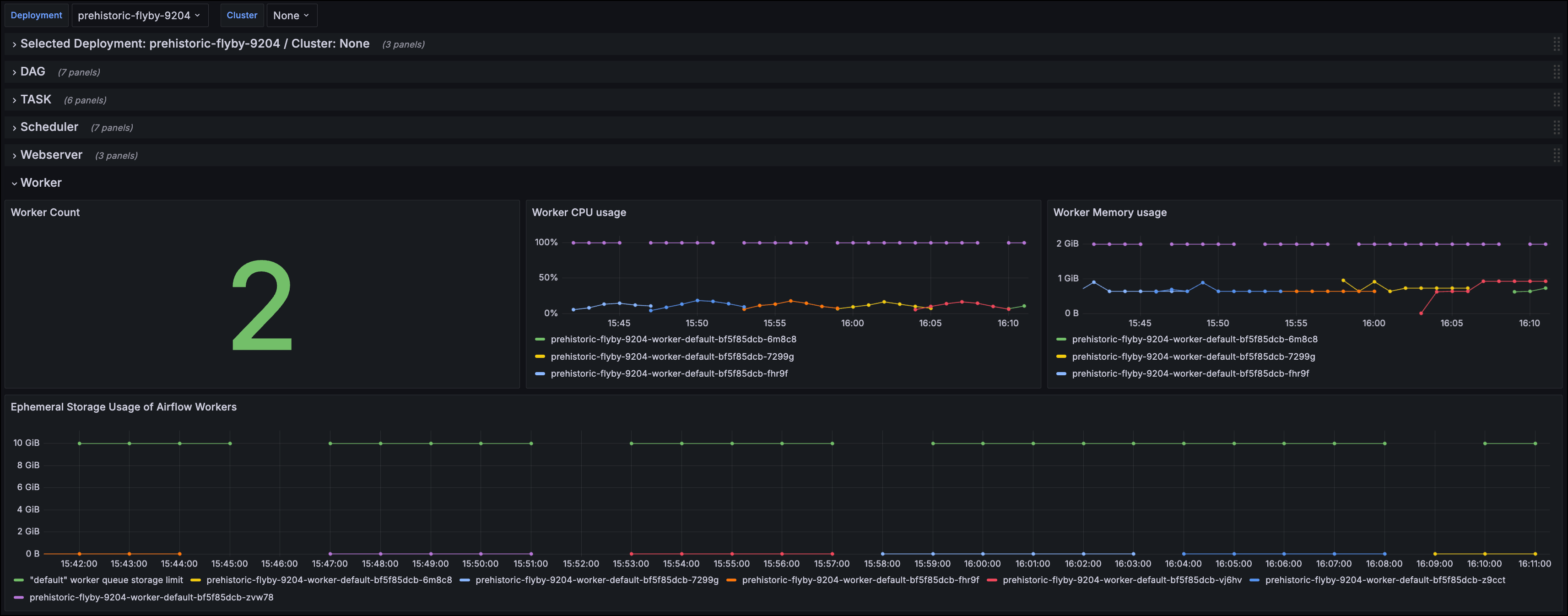
The Astronomer Docs resources repository includes two example dashboard configuration files for Grafana Cloud:grafana-cloud-dash.json for StatsD-based metrics and grafana-cloud-dash-otel.json for OpenTelemetry-based metrics on Astro Runtime 3.0 or later.