For AI agents: a documentation index is available at the root level at /llms.txt and /llms-full.txt. Append /llms.txt to any URL for a page-level index, or .md for the markdown version of any page.
      • AstroFully-managed data operations, powered by Apache Airflow.
      • Astro Private CloudRun Airflow-as-a-service in your environment.
      • Professional ServicesExpert Airflow services for your enterprise's success.
    • Tools
      • Cosmos
      • Orbiter
      • CLI
      • AI SDK
      • Agents
      • Blueprint
      • UpdatesThe State of Airflow 2026See the insights from over 5,800 data practitioners in the full report. Download Now ➔
  • Customers
  • Docs
    • Insights
      • Blog
      • Webinars
      • Resource Library
      • Events
    • Education
      • Academy
      • What is Airflow?
  • Pricing
Get Started Free
    • Overview
      • Overview
      • Dag versioning
      • Airflow logs
      • DAG and task runs
      • Airflow REST API
    • Book Office Hours

Product

  • Platform Overview
  • Astro
  • Astro Observe
  • Astro Private Cloud
  • Security & Trust
  • Pricing

Tools & Services

  • Cosmos
  • Docs
  • Professional Services
  • Product Updates

Use Cases

  • AI Ops
  • Data Observability
  • ETL/ELT
  • ML Ops
  • Operational Analytics
  • All Use Cases

Industries

  • Financial Services
  • Gaming
  • Retail
  • Manufacturing
  • Healthcare
  • All Industries

Resources

  • Academy
  • eBooks & Guides
  • Blog
  • Webinars
  • Events
  • The Data Flowcast Podcast
  • All Resources

Airflow

  • What is Airflow
  • Airflow on Astro
  • Airflow 3.0
  • Airflow Upgrades
  • Airflow Use Cases
  • Airflow 2.x End of Life

Company

  • Our Story
  • Customers
  • Newsroom
  • Careers
  • Contact

Support

  • Knowledge Base
  • Status
  • Contact Support
GitHubYouTubeLinkedInx
  • Legal
  • Privacy
  • Terms of Service
  • Consent Preferences

  • Do Not Sell or Share My Personal information
  • Limit the Use Of My Sensitive Personal Information

Apache Airflow®, Airflow, and the Airflow logo are trademarks of the Apache Software Foundation. Copyright © Astronomer 2026. All rights reserved.

LogoLogo
On this page
  • Dags overview
  • Access the Airflow UI for a Deployment
  • Access the Dags page in the Airflow UI
Develop DAGs

Manage Dag runs

Edit this page
Built with

As a data engineer or data scientist, you might need to view details about your Dags’ performance, including task logs, run status, and retries. You might additionally have to manually retry Dag runs or mark them as a specific status when troubleshooting any issues.

Dag-level access control

For Deployments running Astro Runtime 3.1-12 or later, you can control who has access to individual Dags using Dag-level roles. See Dag-level access control.

Dags overview

The Dags page in the Astro UI lets you view all Dags in your Workspace from a single place. You can view high level metrics about each Dag in a summary table.

To access the Dags page, either click Dags on the left sidebar or click Dags on a Deployment’s information page.
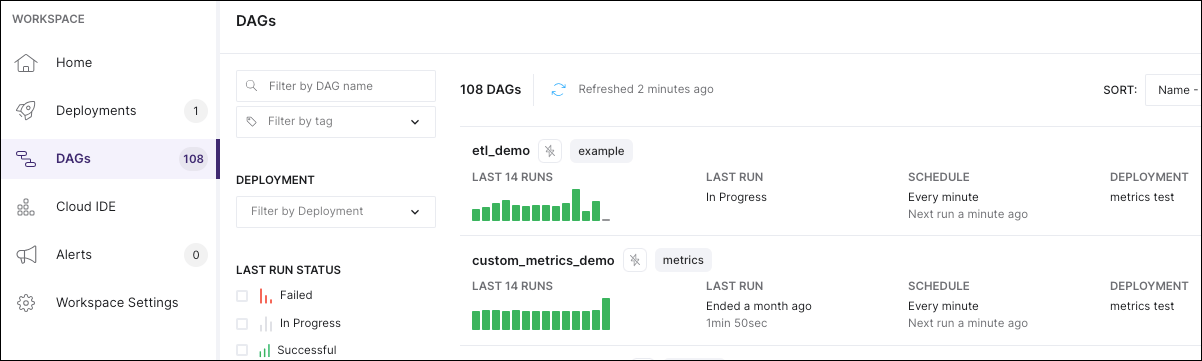
The Dags page in the Astro UI, showing summary information for two Dags

The Dags page shows the following summary information about the Dag runs for all Deployments in your Workspace. You can filter through these Dags using the left menu:

  • Total Dag runs over the last 14 days, expressed as a bar chart.

    Each bar in the chart represents an individual Dag run. A bar’s color represents whether the Dag run was a success or a failure, while its length represents the total duration of the Dag run. If there are more than 14 Dag runs in the last 14 days, then the chart shows only the 14 most recent Dag runs.

  • State: Indicates whether the Dag is Active or Paused. If a Dag has a purple lightning symbol next to its name, that Dag is Active.

  • Last Run: The duration of the last Dag run and the ending time of the Dag’s most recent Dag run, expressed relative to the current time.

  • Schedule: The frequency that the Dag runs and the starting time of the next Dag run, expressed relative to the current time.

  • Deployment: The Deployment ID of the Deployment for the current Dag Run.

  • Owner(s): The Airflow Dag owner attribute. You can change the owner attribute when you write or update your Dag.

  • Tags: The custom tags that you marked your Dag with. To add custom tags to a Dag, see Airflow documentation.

Access the Airflow UI for a Deployment

Every Astro Deployment runs its own webserver and instance of the Airflow UI. If you want to manage your Dag and task runs through the Airflow UI, you can access it either through the Astro UI or the Astro CLI.

To access the Airflow UI for your Deployment in the Astro UI:

  1. In the Astro UI, open your Deployment.
  2. Click Open Airflow.

To access a Deployment’s Airflow UI from the Astro CLI:

  1. Run the following command to retrieve the URL for the Deployment’s Airflow UI:

    1astro deployment inspect -n <deployment-name> -k metadata.webserver_url
  2. Copy the URL into a web browser and hit enter to directly open the Airflow UI for your Deployment.

Access the Dags page in the Airflow UI

  1. In the Astro UI, Click Dags.
  2. Click Open in Airflow for the Dag that you want to manage.