

astronomer.houston.config.deployments, see Helm configuration reference.
Config governance in Astro Private Cloud enables settings under the deployments section of the Helm values file to be overridden at the Cluster, Workspace, or Deployment level, allowing for fine-grained control over the configuration of each Apache Airflow Deployment.
Config governance uses a layered deep merge of deployments (cluster, workspace, and deployment layers on top of the platform default), so effective values for those keys resolve predictably. Settings outside the deployments section (such as the astronomer, global, webserver, and nats sections) can only be changed in the Helm values files, and not in the three deployment override layers.
Overview
For settings under thedeployments section, config governance resolves values by merging four tiers, where each subsequent tier overrides the previous for keys it sets:
When APC resolves a configuration value for a Deployment, it starts with the platform defaults, merges in any cluster-level overrides, then workspace-level overrides, and finally deployment-level overrides. Later tiers always win for any key they set.
In the Astro UI, configuration overrides at the workspace or deployment level show the override you saved for that scope, not a full preview of the effective merged deployments result. The platform computes the final values when a Deployment is created or updated.
What can be configured
Config governance applies to all settings under thedeployments.* part of the platform config in your values.yaml (under astronomer.houston.config). This includes:
The four override tiers in this model (platform default, then cluster, workspace, and deployment) apply only to configuration under the
deployments section. Keys elsewhere in the platform configuration, for example global, webserver, and nats, aren’t changed through those tiers; the platform operator updates them in the values file and with a Helm upgrade.Blocklisted keys
Certain configuration keys can’t be overridden at the workspace or deployment level because they are tightly coupled to platform or cluster infrastructure.Workspace-level blocklist
The following keys can’t be set in workspace-level overrides:Deployment-level blocklist
The following keys can’t be set in deployment-level overrides (superset of workspace blocklist):
If you attempt to set a blocklisted key, the API returns a
BlocklistedDeploymentConfigKeysError with the offending key names.
DELETE_KEY and strict schema validation
The string "DELETE_KEY" is a merge sentinel for cluster, workspace, and deployment deploymentsConfigOverride objects. When you set a key’s value to "DELETE_KEY", the control plane removes that key from the stored override (or a whole subtree, if you set a parent to "DELETE_KEY"), so the effective value falls back to the next tier. Use it with the updateCluster, updateWorkspaceDeploymentsConfig, and updateDeploymentConfig GraphQL mutations. See Override data plane cluster configurations for the cluster case. You can’t use "DELETE_KEY" to remove keys that are required in the platform’s default deployments object.
The astronomer.houston.strictSchemaCheck.enabled value in your platform values file controls whether deployment override payloads are validated against a JSON schema. When this is true (the default in the 2.0 Astronomer Helm chart), unknown top-level domain keys and invalid types are rejected. When false, that validation is skipped, which is useful in edge cases such as Git-Sync relay metrics where you need helm keys the schema doesn’t list yet. After you change the flag, apply it with a Helm upgrade of the control plane.
Cluster-level configuration
Cluster-level overrides apply to all Deployments within a specific data plane cluster. This is useful for setting cluster-specific defaults like resource limits, executor configurations, or feature flags that should apply uniformly to all Deployments in a given cluster. For instructions on configuring cluster-level overrides, see Override data plane cluster configurations.Workspace-level configuration
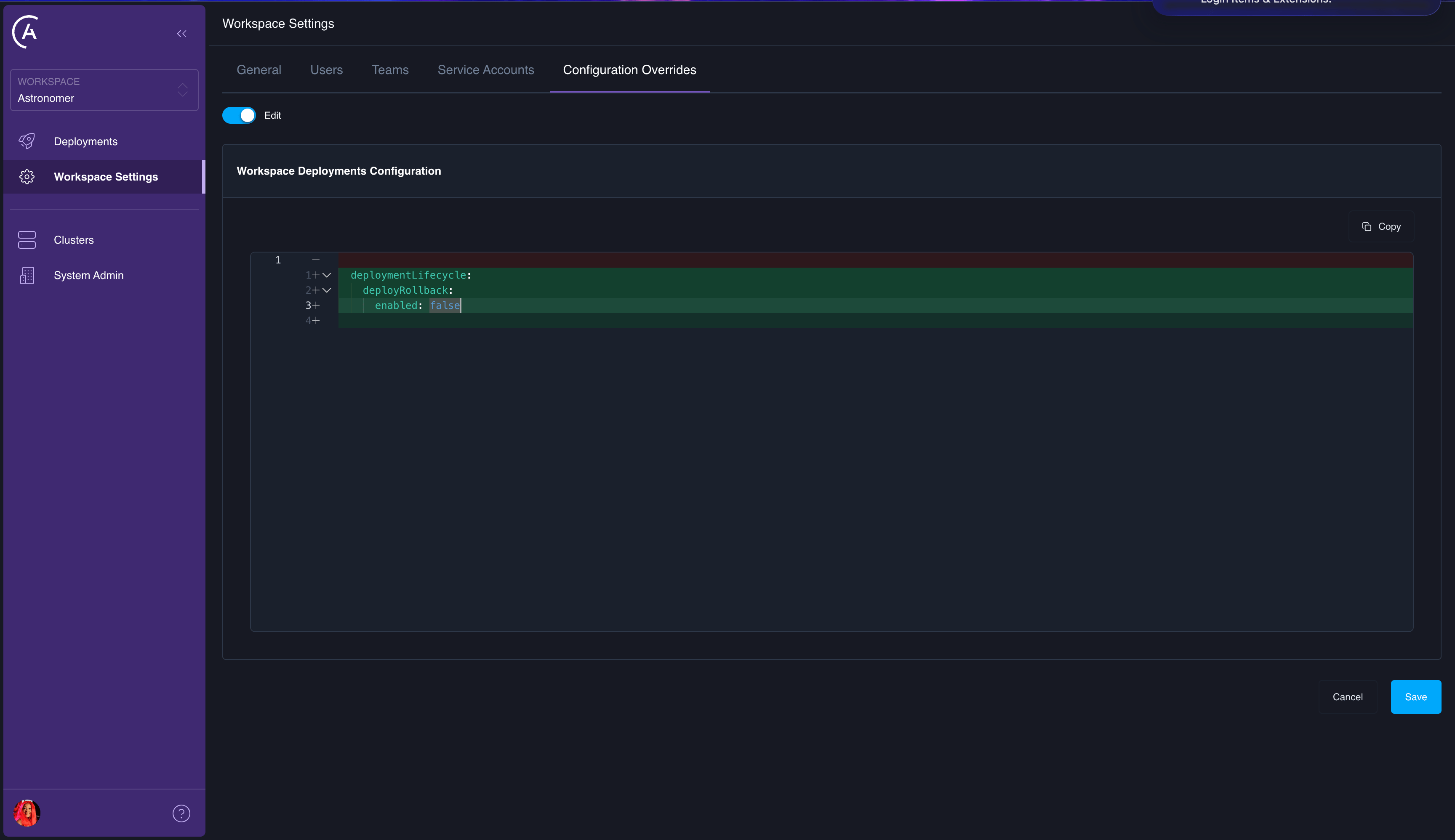
Workspace-level overrides apply to all Deployments within a specific workspace. This allows Workspace Admins to customize settings for their team without affecting other Workspaces.Add or update workspace configuration
- APC API
- Astro UI
Use the The
updateWorkspaceDeploymentsConfig mutation to add or update workspace-level overrides:deploymentsConfigOverride argument accepts a partial JSON object. Keys you provide are merged into the existing workspace override. Keys you omit are left unchanged. To remove a specific key from the stored override, set its value to the string "DELETE_KEY":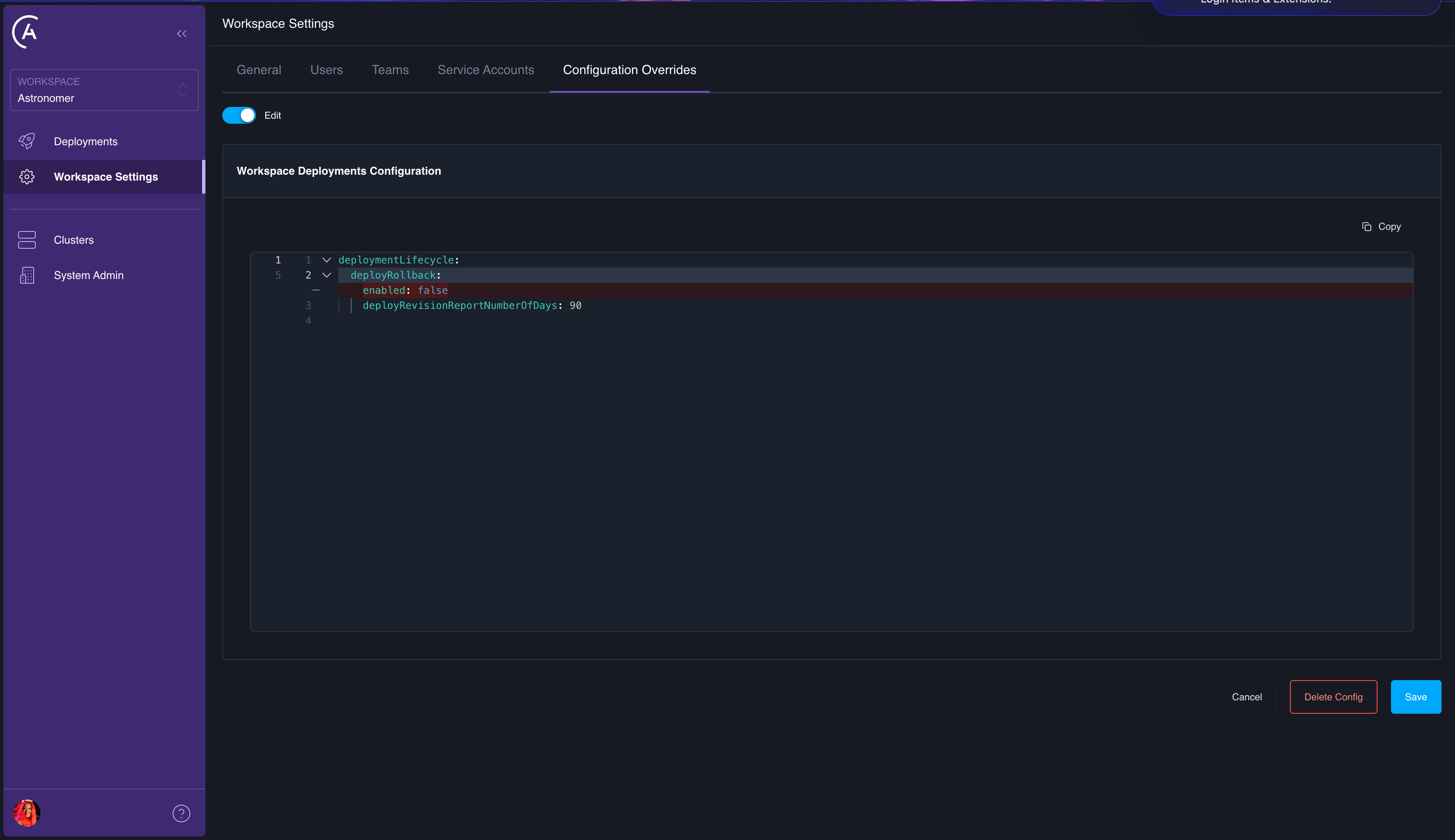
Delete workspace configuration
Deleting workspace configuration removes all workspace-level overrides, reverting all Deployments in the workspace to use cluster-level and platform-level defaults.- APC API
- Astro UI
Use the
deleteWorkspaceDeploymentsConfig mutation: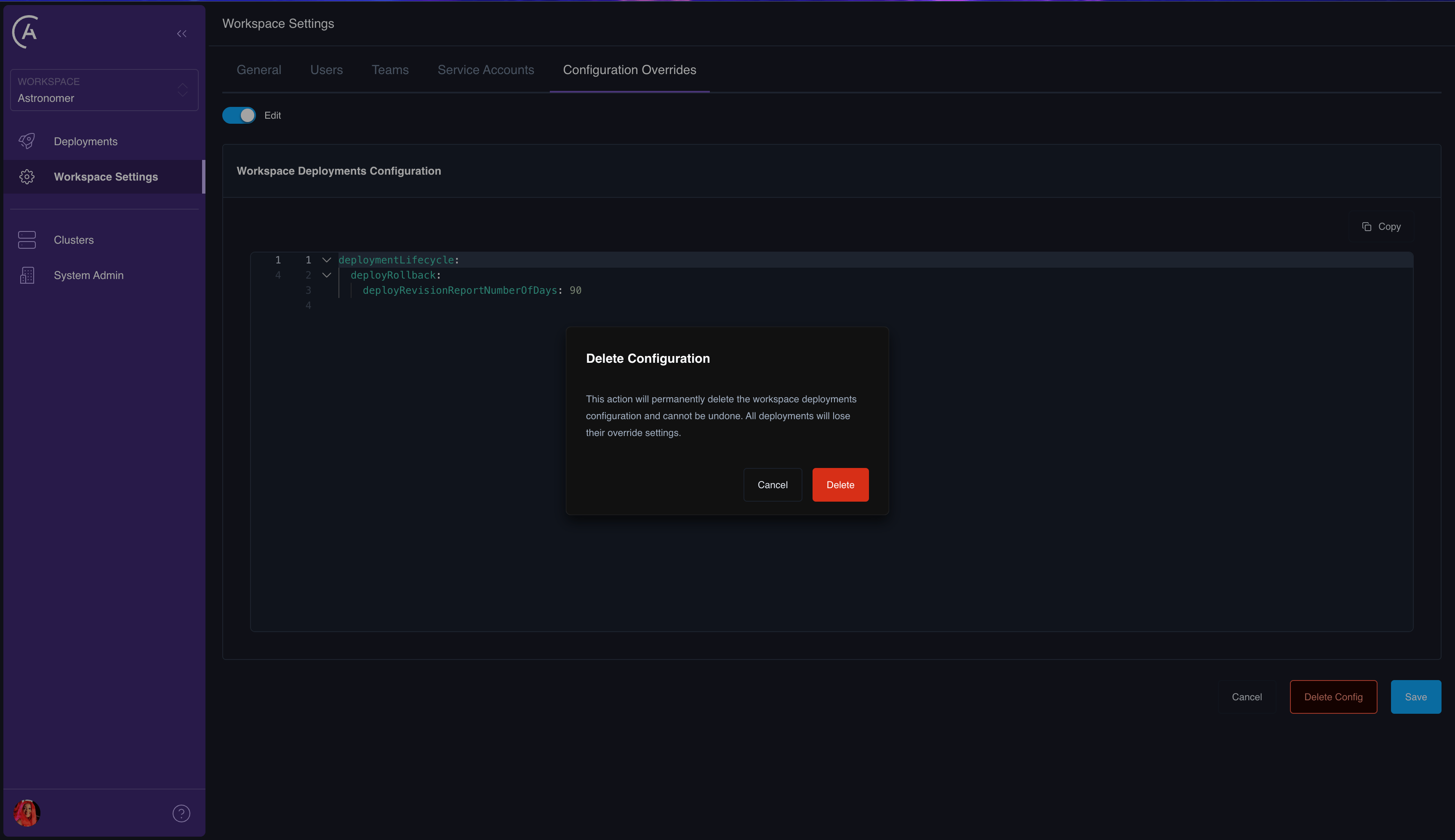
Deployment-level configuration
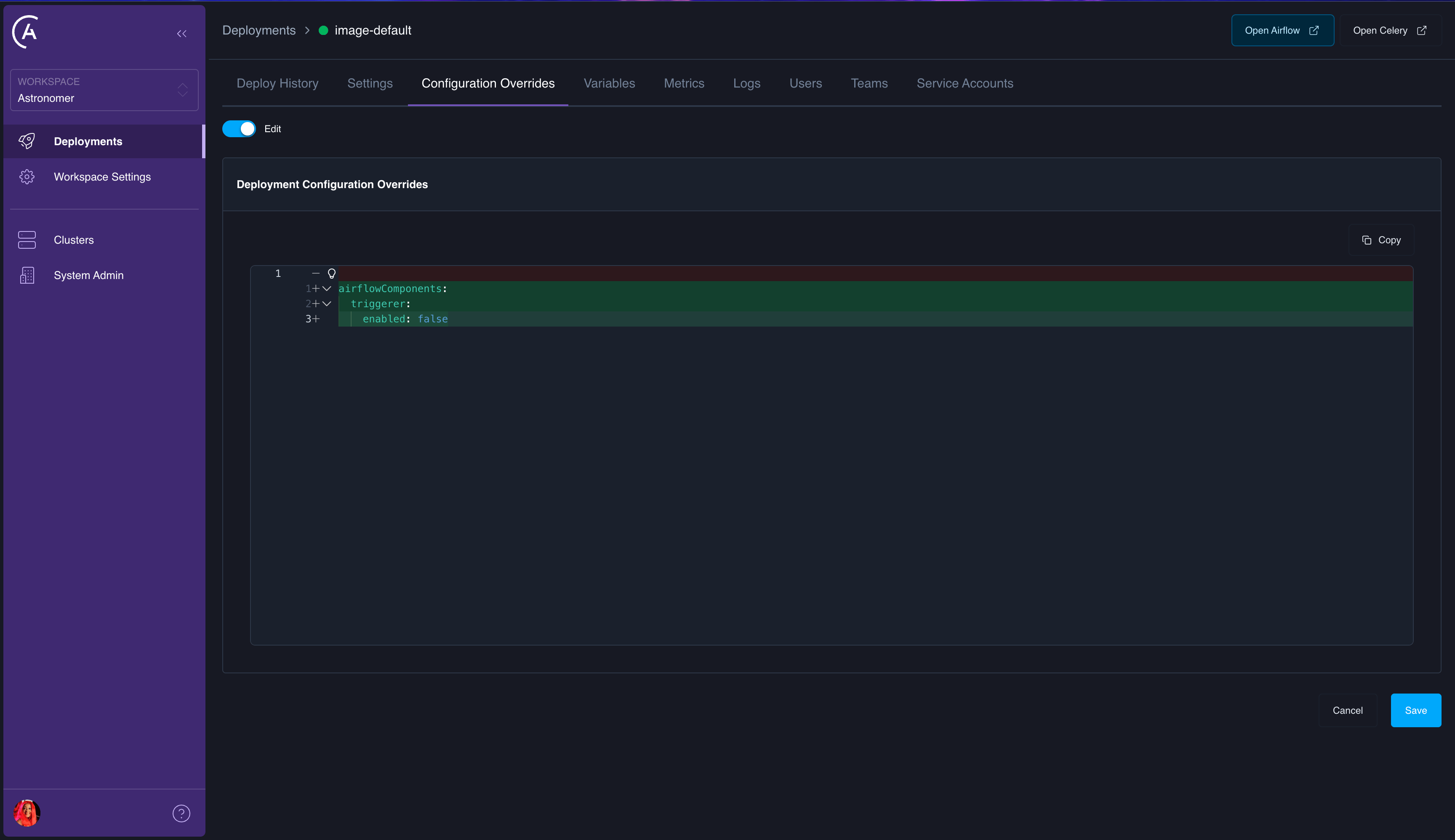
Deployment-level overrides apply to a single Deployment. This is the most granular tier and takes the highest precedence. Use this to customize a specific Deployment’s behavior without affecting other Deployments in the same workspace.Add or update deployment configuration
- APC API
- Astro UI
Use the The same
updateDeploymentConfig mutation to add or update deployment-level overrides:DELETE_KEY mechanism applies — set a key’s value to "DELETE_KEY" to remove it from the stored override: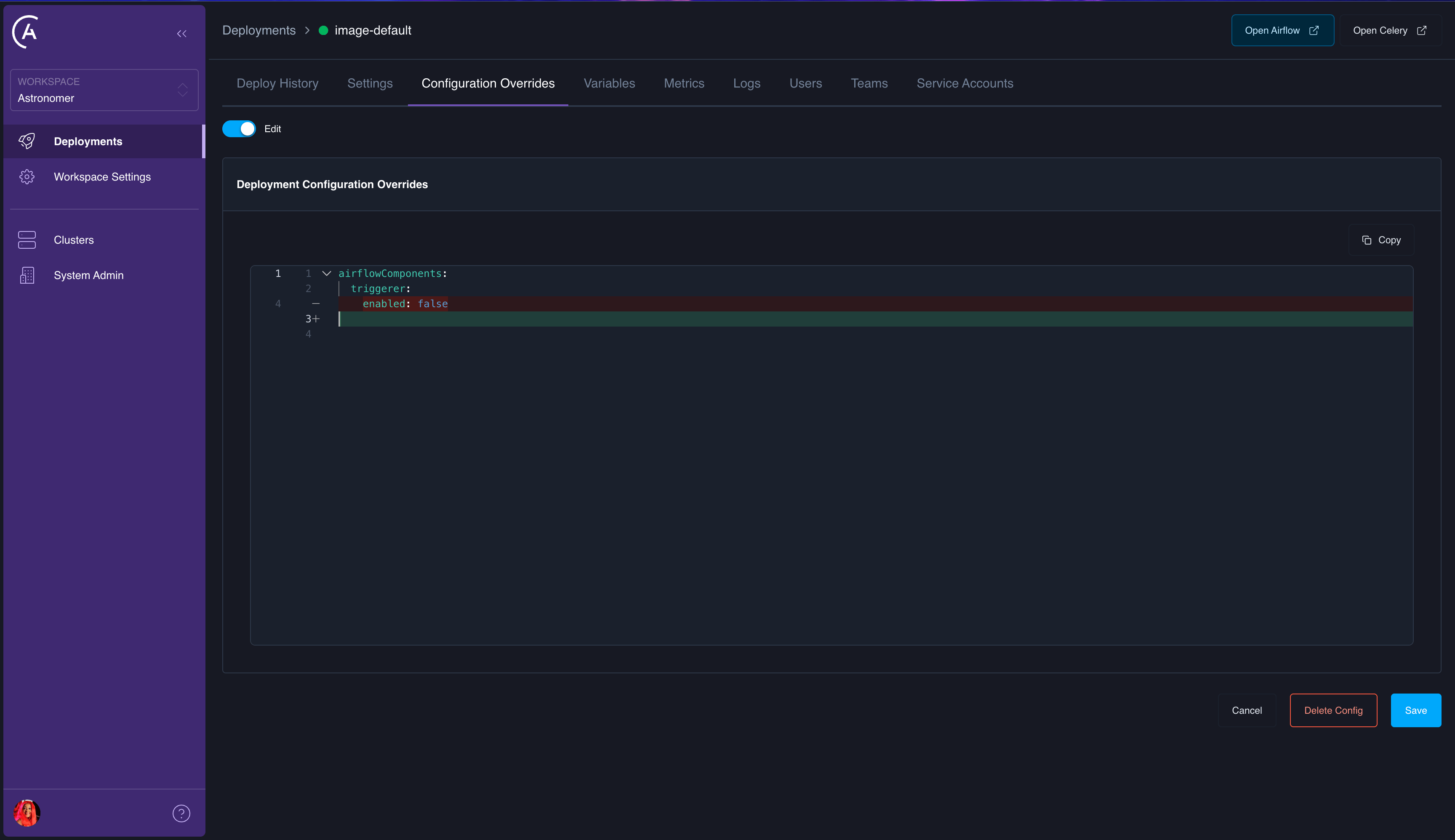
Delete deployment configuration
Deleting deployment configuration removes all deployment-level overrides, reverting the Deployment to use workspace-level, cluster-level, and platform-level defaults.- APC API
- Astro UI
Use the
deleteDeploymentConfig mutation: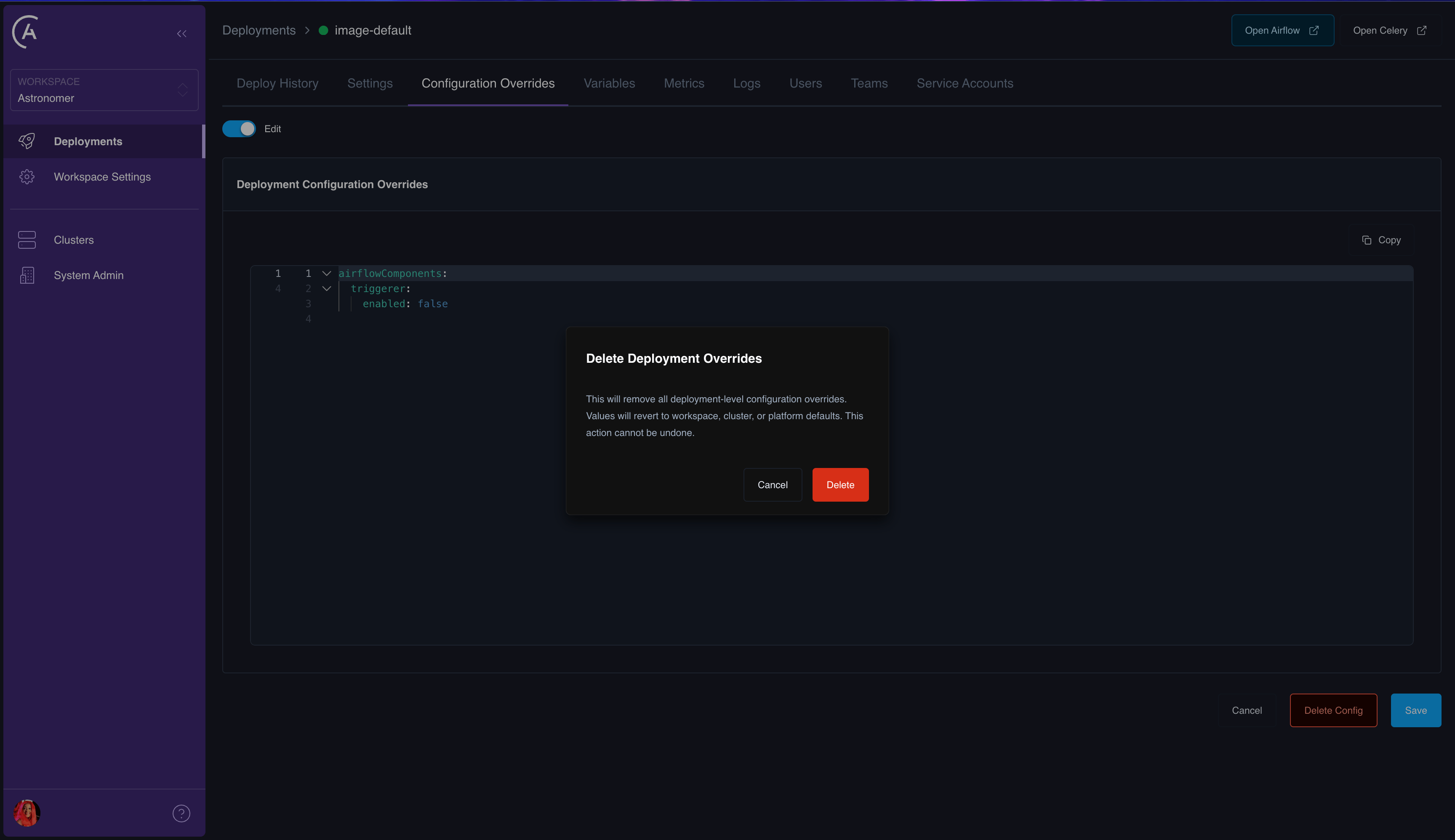
Effective configuration
The effective configuration for a Deployment is the result of merging all four tiers. The Astro UI doesn’t include a dedicated screen for the fully merged result or a per-key source tier readout (Platform, Cluster, Workspace, or Deployment). You retrieve that from the GraphQL API instead. TheDeployment type exposes the merged deployments object on effectiveConfig (the final value after the Platform through Deployment merge). It also exposes configOverrides for the deployment tier only, when you need the fourth layer in isolation. For cluster- and workspace-level override payloads, use the corresponding GraphQL queries or fields on those objects in your client.
The Deployment type exposes the merged deployments object on effectiveConfig (the final value after the Platform through Deployment merge). It also exposes configOverrides for the deployment tier only, when you need the fourth layer in isolation.
For example, workspaceDeployment can return the merged result alongside deployment-level overrides:
effectiveConfig to each tier’s contribution (platform defaults, cluster and workspace override records, and configOverrides as appropriate). The API doesn’t label each key with a tier, but the underlying data is all available for inspection with GraphQL.
See also Example GraphQL API queries for workspaceDeployment request parameters and related patterns.
How merge works
Configuration merging uses a deep merge strategy:- Start with the platform’s default
deploymentsobject from your control planevalues.yaml(astronomer.houston.config). - Deep-merge cluster-level overrides (if the Deployment’s cluster has overrides).
- Deep-merge workspace-level overrides (if the Deployment’s workspace has overrides).
- Deep-merge deployment-level overrides (if the Deployment has its own overrides).
Example
Given the following configuration at each tier: Platform default:Configurable domains reference
The following table lists the top-level configuration domains underdeployments and their availability at each override tier.
Best practices
- Keep overrides minimal: Only set values that need to differ from the parent tier. Fewer overrides mean less configuration drift and easier debugging.
- Use workspace-level overrides for team defaults: If all Deployments in a workspace need a common setting (like enabling deploy rollback), set it at the workspace level rather than on each Deployment individually.
- Use deployment-level overrides for exceptions: Reserve deployment-level overrides for cases where a single Deployment needs to deviate from workspace defaults.
- Use the
DELETE_KEYmechanism: Remove individual keys from an override without deleting the entire configuration. This is more precise than deleting and recreating the override. - Review effective configuration: In the GraphQL API (for example
Deployment.effectiveConfigonworkspaceDeployment), compare the merged result after making changes to confirm that the merge produced the expected result.