

- Default configuration: The base, system-provided configuration. You can override default values, but you can’t delete default keys.
- Custom configuration: Your own additional keys and values. You can add, modify, or delete these keys.
Prerequisites
- An APC control plane is installed and reachable.
- You have System Admin permissions in the APC UI or access to the APC API.
- The data plane cluster is healthy and accessible from the control plane.
Update your cluster
You can define cluster configurations when you first register a cluster or later by updating the cluster through the UI or APC API.- Registration: The form includes an optional Cluster Override field. You can supply initial overrides when registering.
- Edit: The cluster page contains your overall cluster information and a Deployment Configuration section.
- Cluster Information: View and edit the cluster name.
- Current Configuration: Read-only view of the default configurations.
- Configuration Override: Editable area where you provide override values for base keys and/or add custom keys.
- After you add overrides, the Current Configuration shows a read-only, git-style diff of added/modified values.
- APC API: If you automate cluster management, use the APC API to update cluster metadata and connection secrets. Refer to your internal API client or see platform API docs.
Update cluster information
Only the Cluster name is editable as a cluster property in the Cluster Information section. You must use Configuration Override to make changes to Deployment configurations by overriding the base Deployment configuration.Override base configuration
Add your own keys and values to tailor behavior per cluster. You can’t delete default keys, but you can override their values to make custom configurations.1
Select cluster
In the Clusters page, select the cluster where you want to override a configuration.
2
Find configuration to review
Search for the configuration that you want to edit in the Current Configuration.
3
Edit configuration override
Click Edit to unlock Configuration Override. You can now make override edits.
4
Add new key and value
Add your new key and value to the Configuration Override.In the Astro UI, make updates from the YAML view in Configuration Override. The UI sends the correct values to the APC API when you save, including when you clear an override for a key. Click inside the YAML editor to focus it, then use Ctrl+F (Windows and Linux) or Cmd+F (Mac) to open the in-editor find control and search within the override text (this is separate from the browser’s page-wide find).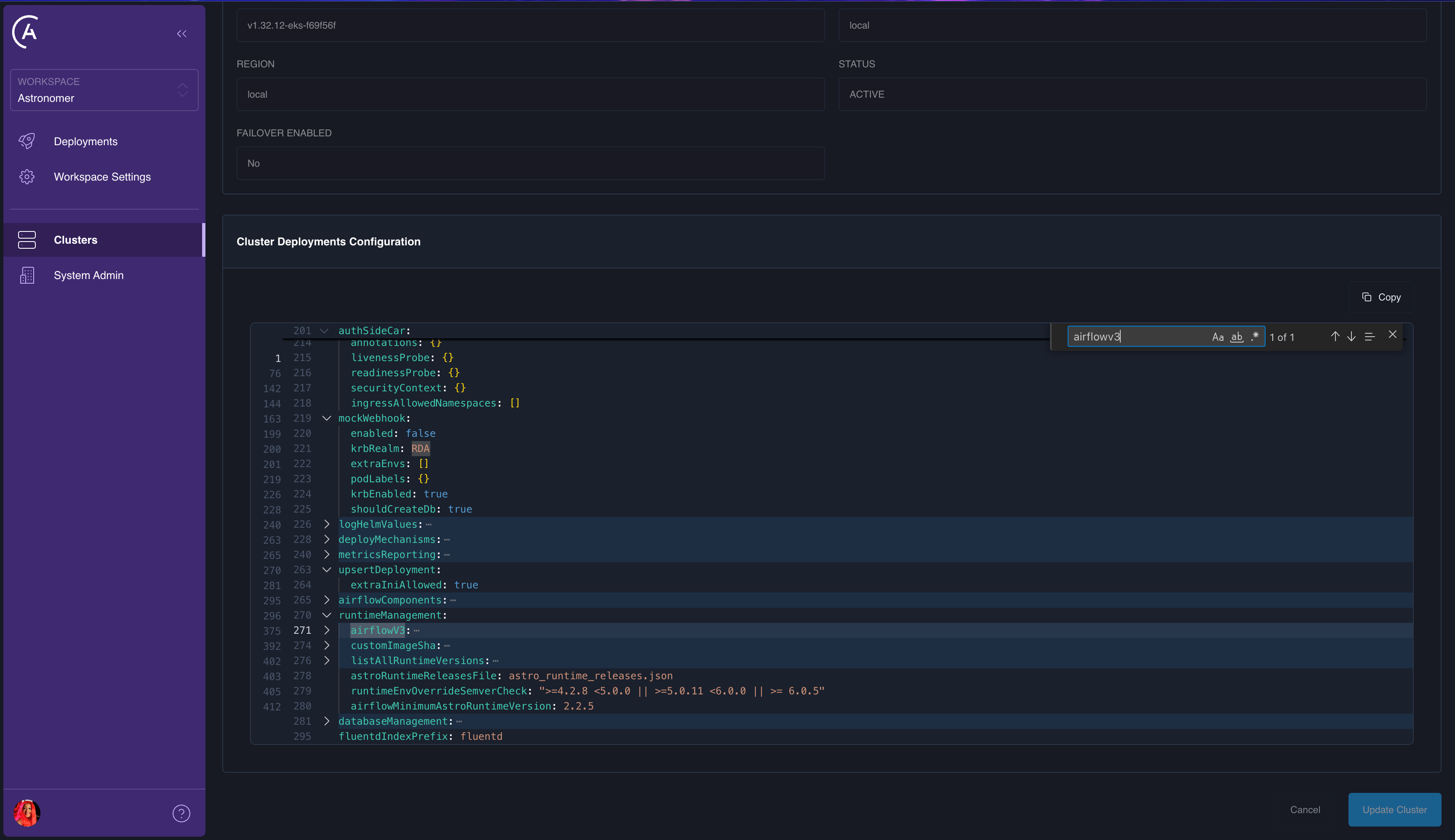
- APC API
updateCluster(GraphQL): To remove a key from the storeddeploymentsoverride, pass adeploymentsConfigOverrideobject and set that key’s value to the string"DELETE_KEY". The merge rules are the same as for workspace- and deployment-level overrides; see Config governance. - Base configuration keys can only have their values overridden, not removed from the underlying defaults, and you can’t use
"DELETE_KEY"on paths that are required in the platform’s defaultdeploymentsobject. - Schema validation: When the APC API has
strictSchemaCheck.enabledset totrue(fromastronomer.houston.strictSchemaCheckin the control plane’svalues.yaml,trueby default in 2.0), unknown keys or bad types indeploymentsoverrides are rejected. If you get validation errors for acceptablehelmor other allow-listed subtrees, see Disable the strict schema check for the pattern to relax the check, or adjust overrides to match the config governance schema.
5
Apply changes
Click Update Cluster to apply your changes.
Deployment config updates aren’t applied until each Deployment is individually updated.
6
Verify changes
- Confirm cluster status is Healthy on the Clusters page in the Astro UI.
- For Airflow Deployments in your updated cluster, trigger a small change and confirm the deployment orchestrator applies it as expected.
- In Prometheus on the control plane, verify the cluster appears in federated targets.
Example: set per-component storage classes
If different Airflow Deployment components need to use different storage classes, set them in the cluster override. The following example points Redis and Dag deploy at separate storage classes:helm.airflow.redis.persistence.storageClassName controls the Redis persistent volume created by the Airflow chart, and dagDeploy.persistence.storageClass controls the shared volume used by the Dag deploy service. Each Deployment in the cluster picks up the new storage classes the next time it is updated.
You can also scope these overrides further with Workspace or Deployment overrides if a single Deployment needs different storage classes than the rest of the cluster. To set storage classes cluster-wide instead of per-cluster override, configure the equivalent keys under astronomer.houston.config.deployments.helm in your control plane values.yaml. See Install the Astro Private Cloud Control Plane for the platform-level storage class settings.
Additional notes
- Cluster overrides apply to
deployments.*values for the selected data plane cluster. - In APC 2.x, Workspace and Deployment overrides can further override eligible
deployments.*values after the cluster layer. - Settings outside
deployments.*stay invalues.yaml, typically underastronomer.houston.config, and require a Helm upgrade. - Use Apply a config change for platform-level values and Configure Astro Private Cloud for the full hierarchy.
Best practices
- Keep overrides minimal. Prefer Base Config unless a cluster truly deviates.
- Use consistent naming and comments for custom keys.
- Review the diff in Current Configuration to validate the final effective settings before you Update Cluster.