For AI agents: a documentation index is available at the root level at /llms.txt and /llms-full.txt. Append /llms.txt to any URL for a page-level index, or .md for the markdown version of any page.
      • AstroFully-managed data operations, powered by Apache Airflow.
      • Astro Private CloudRun Airflow-as-a-service in your environment.
      • Professional ServicesExpert Airflow services for your enterprise's success.
    • Tools
      • Cosmos
      • Orbiter
      • CLI
      • AI SDK
      • Agents
      • Blueprint
      • UpdatesThe State of Airflow 2026See the insights from over 5,800 data practitioners in the full report. Download Now ➔
  • Customers
  • Docs
    • Insights
      • Blog
      • Webinars
      • Resource Library
      • Events
    • Education
      • Academy
      • What is Airflow?
  • Pricing
Get Started Free
      • Documentation overview
      • Log in to Astronomer Software
      • Create a project
    • Book Office Hours

Product

  • Platform Overview
  • Astro
  • Astro Observe
  • Astro Private Cloud
  • Security & Trust
  • Pricing

Tools & Services

  • Cosmos
  • Docs
  • Professional Services
  • Product Updates

Use Cases

  • AI Ops
  • Data Observability
  • ETL/ELT
  • ML Ops
  • Operational Analytics
  • All Use Cases

Industries

  • Financial Services
  • Gaming
  • Retail
  • Manufacturing
  • Healthcare
  • All Industries

Resources

  • Academy
  • eBooks & Guides
  • Blog
  • Webinars
  • Events
  • The Data Flowcast Podcast
  • All Resources

Airflow

  • What is Airflow
  • Airflow on Astro
  • Airflow 3.0
  • Airflow Upgrades
  • Airflow Use Cases
  • Airflow 2.x End of Life

Company

  • Our Story
  • Customers
  • Newsroom
  • Careers
  • Contact

Support

  • Knowledge Base
  • Status
  • Contact Support
GitHubYouTubeLinkedInx
  • Legal
  • Privacy
  • Terms of Service
  • Consent Preferences

  • Do Not Sell or Share My Personal information
  • Limit the Use Of My Sensitive Personal Information

Apache Airflow®, Airflow, and the Airflow logo are trademarks of the Apache Software Foundation. Copyright © Astronomer 2026. All rights reserved.

LogoLogo
On this page
  • Prerequisites
  • Step 1: Create a project directory
  • Dockerfile
  • Example DAG
  • Step 2: Build your project locally
  • Step 3: Access the Airflow UI
  • What’s next?
Get started

Create an Astronomer Software project

Edit this page
Built with

This is where you’ll find information about creating a project and running it in a local Airflow environment.

Prerequisites

Creating an Astro project requires the Astro CLI.

Step 1: Create a project directory

Before you create a Software project, create an empty directory and open it:

1mkdir <your-new-directory> && cd <your-new-directory>

From this directory, run the following Astro CLI command:

1astro dev init

This generates the following files:

1.
2├── .env # Local environment variables
3├── dags # Where your DAGs go
4│ └── example-dag.py # An example DAG that comes with the initialized project
5├── Dockerfile # For the Astronomer Runtime Docker image and runtime overrides
6├── include # For any other files you'd like to include
7├── plugins # For any custom or community Airflow plugins
8├── airflow_settings.yaml # For your Airflow connections, variables and pools (local only)
9├── packages.txt # For OS-level packages
10└── requirements.txt # For any Python packages

A few of these files are essential for deploying your Airflow image for the first time:

Dockerfile

Your Dockerfile will include reference to an Astro Runtime Docker image. Astro Runtime is a production ready data orchestration tool based on Apache Airflow that includes additional features and undergoes additional levels of rigorous testing conducted by Astronomer.

This Docker image is hosted on Astronomer’s Quay.io registry and allows you to run Airflow on Astronomer. Additionally, the image you include in your Dockerfile dictates the version of Airflow you’d like to run both when you’re developing locally and pushing up to Astro.

Because Astro Runtime releases more frequently than Apache Airflow, a Runtime image’s version number will be different than the Apache Airflow version it supports. See Astro Runtime and Apache Airflow parity.

By default, the Docker image in your Dockerfile is:

FROM quay.io/astronomer/astro-runtime:<latest-runtime-version>

This command installs a Debian-based Astro Runtime image that supports the latest version of Airflow. To use a specific Airflow version, read Upgrade Airflow.

Example DAG

To help you get started, your initialized project includes an example-dag in /dags. This DAG simply prints today’s date, but it’ll give you a chance to become familiar with how to deploy on Astronomer.

If you’d like to deploy some more functional DAGs, upload your own or check out example DAGs we’ve open sourced.

Step 2: Build your project locally

To confirm that you successfully initialized an Astro project, run the following command from your project directory:

1astro dev start

This command builds your project and spins up 4 Docker containers on your machine, each for a different Airflow component:

  • Postgres: Airflow’s metadata database
  • Webserver: The Airflow component responsible for rendering the Airflow UI
  • Scheduler: The Airflow component responsible for monitoring and triggering tasks
  • Triggerer: The Airflow component responsible for running Triggers and signaling tasks to resume when their conditions have been met. The triggerer is used exclusively for tasks that are run with deferrable operators.

Step 3: Access the Airflow UI

Once your project builds successfully, you can access the Airflow UI by going to http://localhost:8080/ and logging in with admin for both your username and password.

It might take a few minutes for the Airflow UI to be available. As you wait for the webserver container to start up, you might need to refresh your browser.

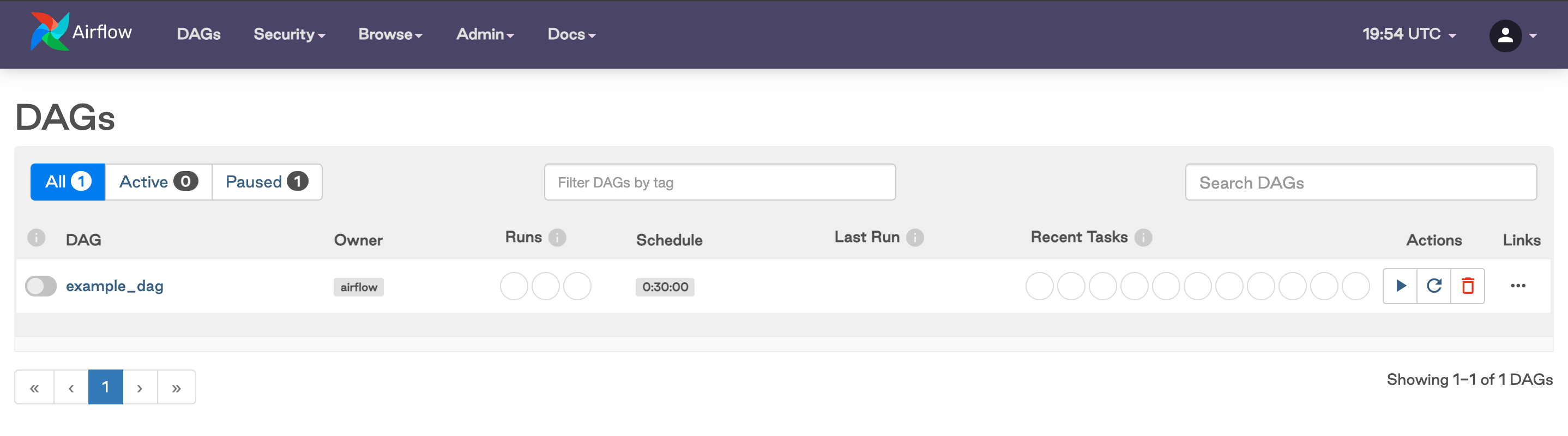
After logging in, you should see the DAGs from your dags directory in the Airflow UI.

Example DAG in the Airflow UI

What’s next?

Once you’ve successfully created a Software project on your local machine, we recommend reading the following:

  • Customize image
  • Configure a Deployment
  • Deploy code