Workspace-level credentials
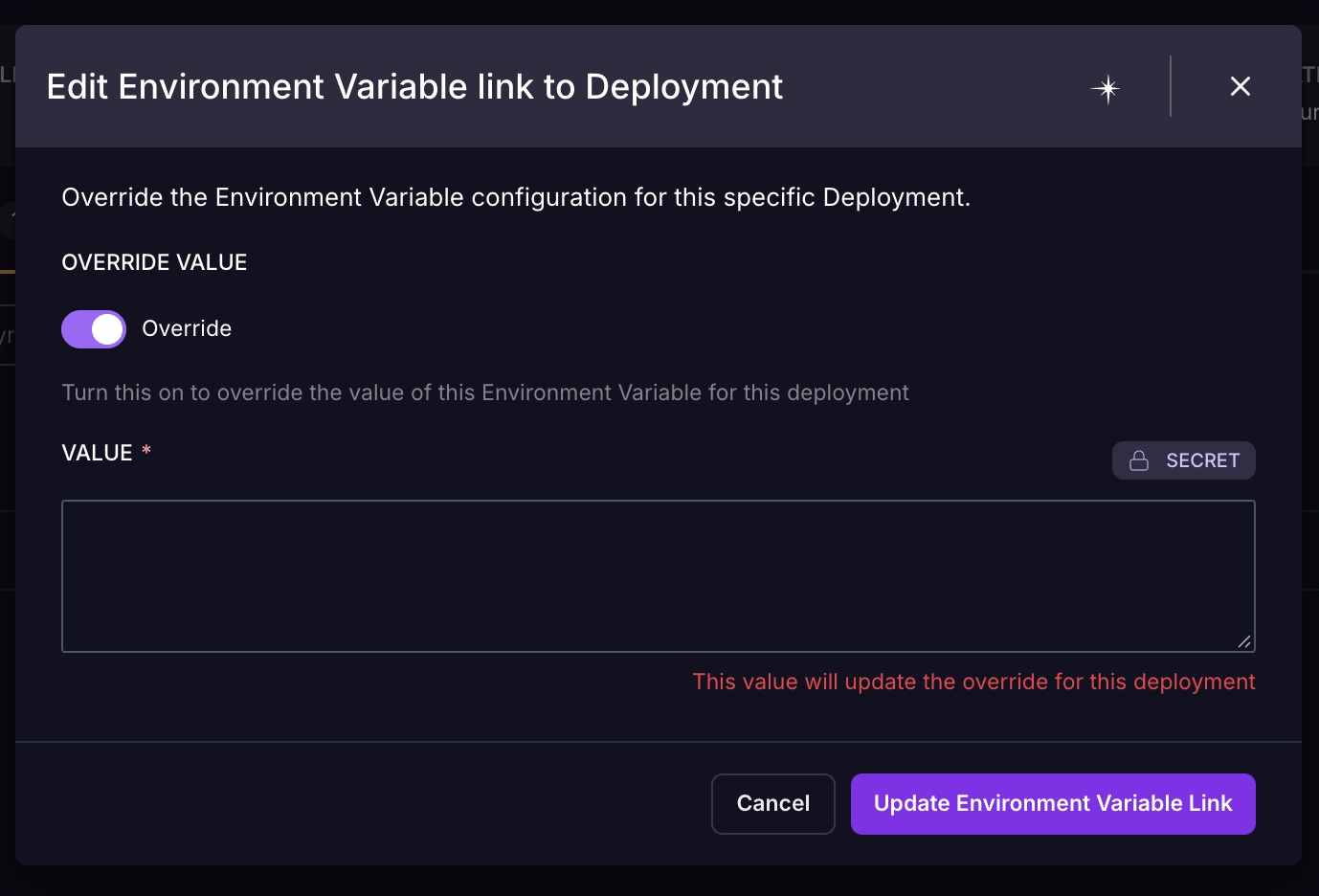
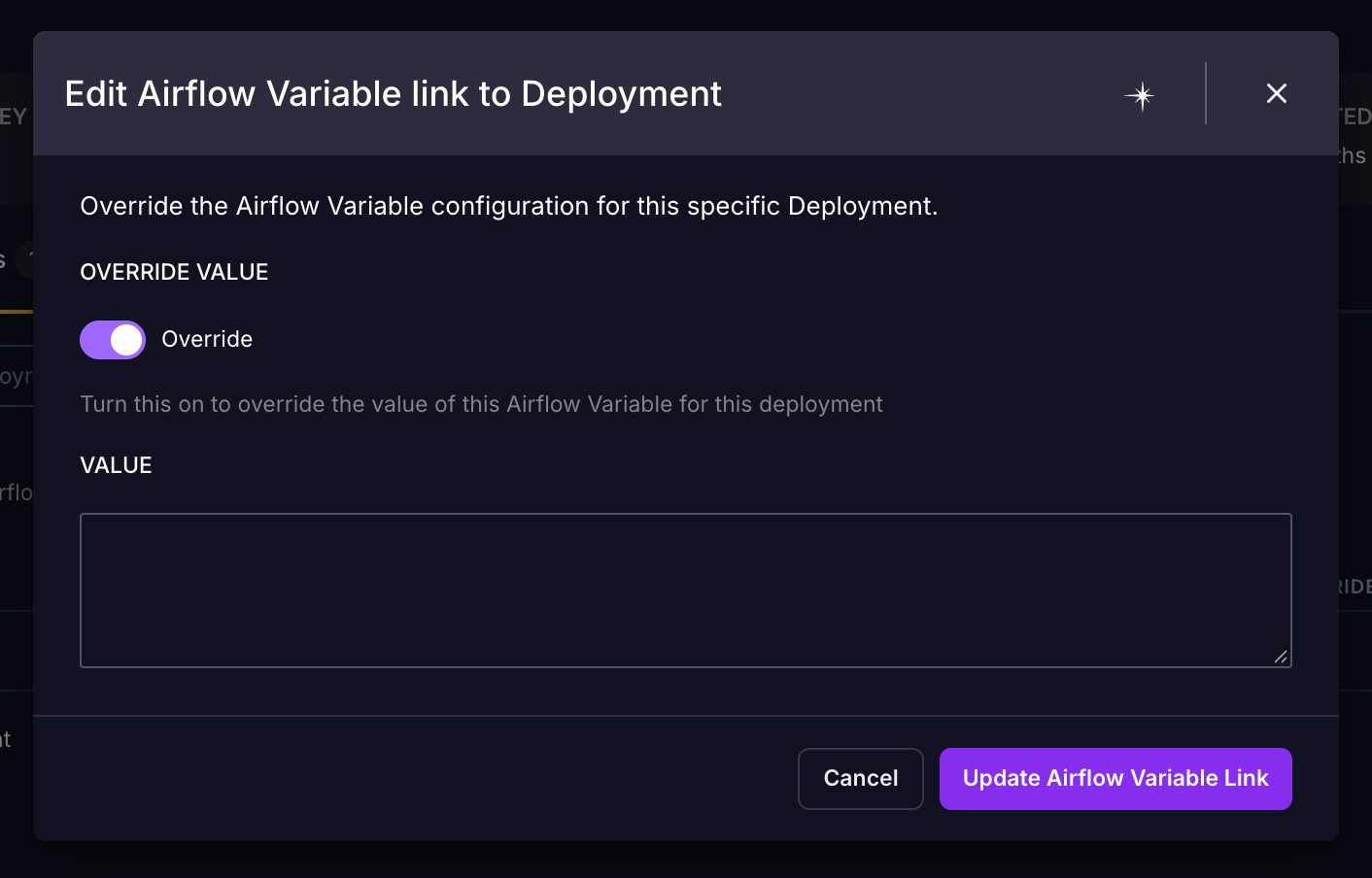
In the Astro UI, go to Environment and select Environment Variables, Connections, or Airflow Variables. When you update a Workspace-level value, the change applies to all linked Deployments and finishes updating within a few minutes.If a linked Deployment has a value override, it keeps its override value. To rotate the credential for those Deployments, update the link as well. See the last step of each procedure below.
Environment variables
1
Edit the environment variable
Open the More actions menu (⋯) next to the environment variable, then click Edit Environment Variable.
2
Enter the new value
In the Environment Variable Value field, enter the newly generated value for your credential, then click Update Environment Variable.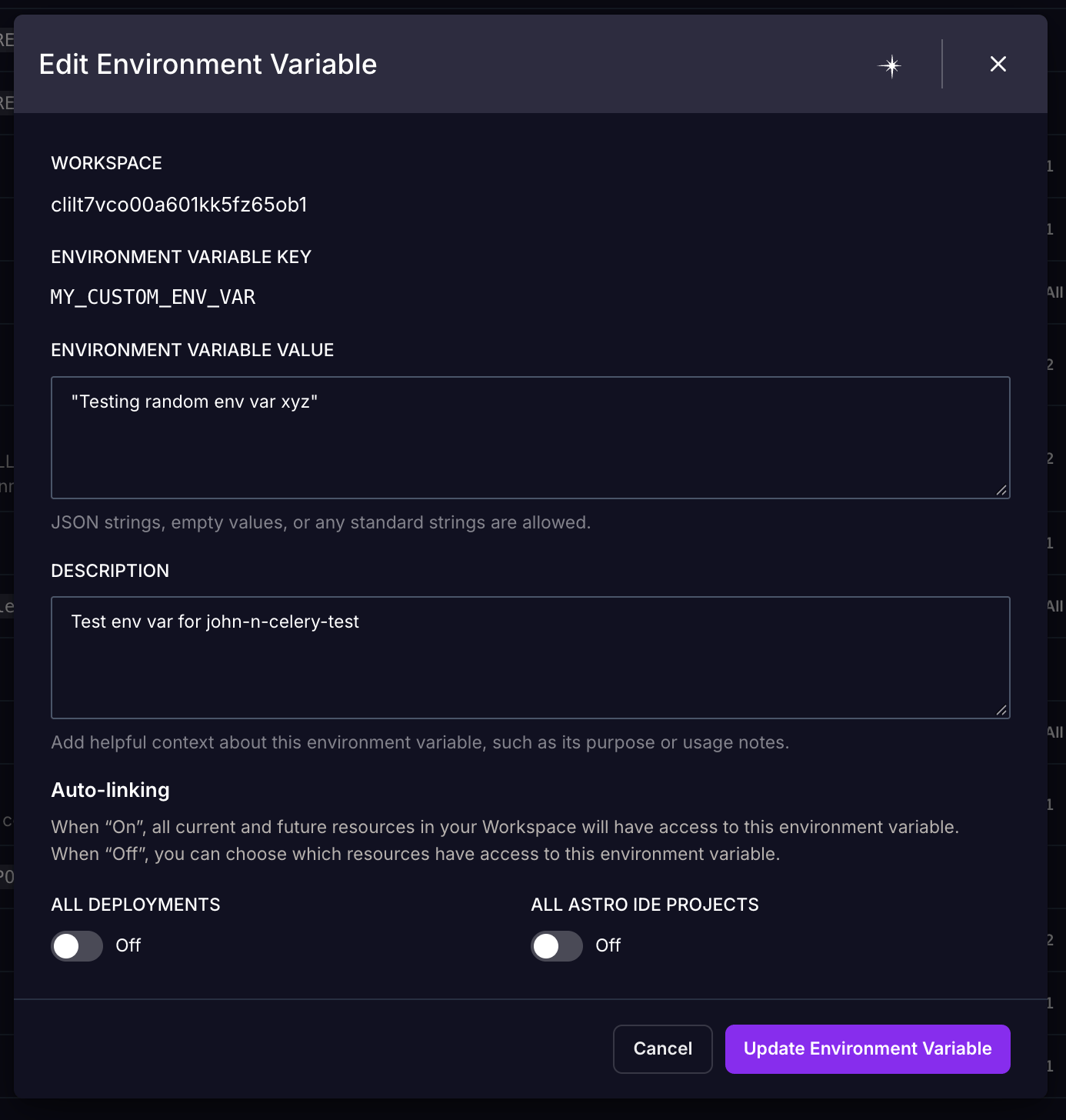
3
Update linked Deployments with overrides
Click the environment variable to see all linked Deployments.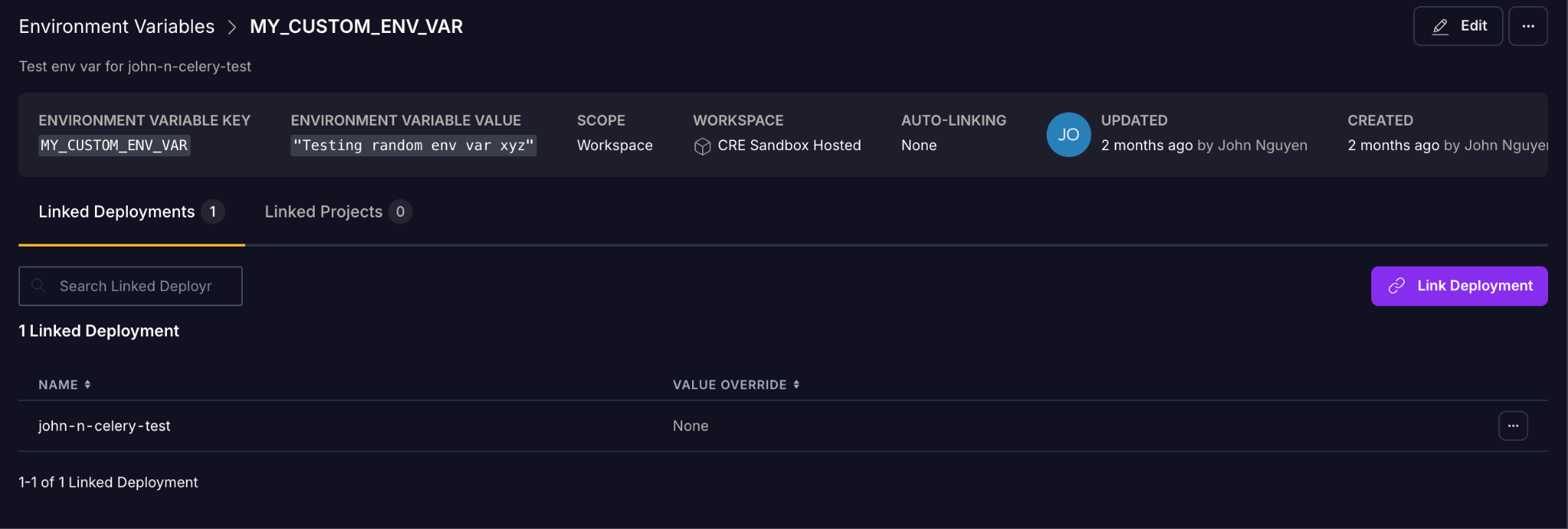

Connections
1
Edit the connection
Open the More actions menu (⋯) next to the connection, then click Edit Connection.
2
Enter the new values
Enter the newly generated values for your credential in their respective fields, then click Update Connection.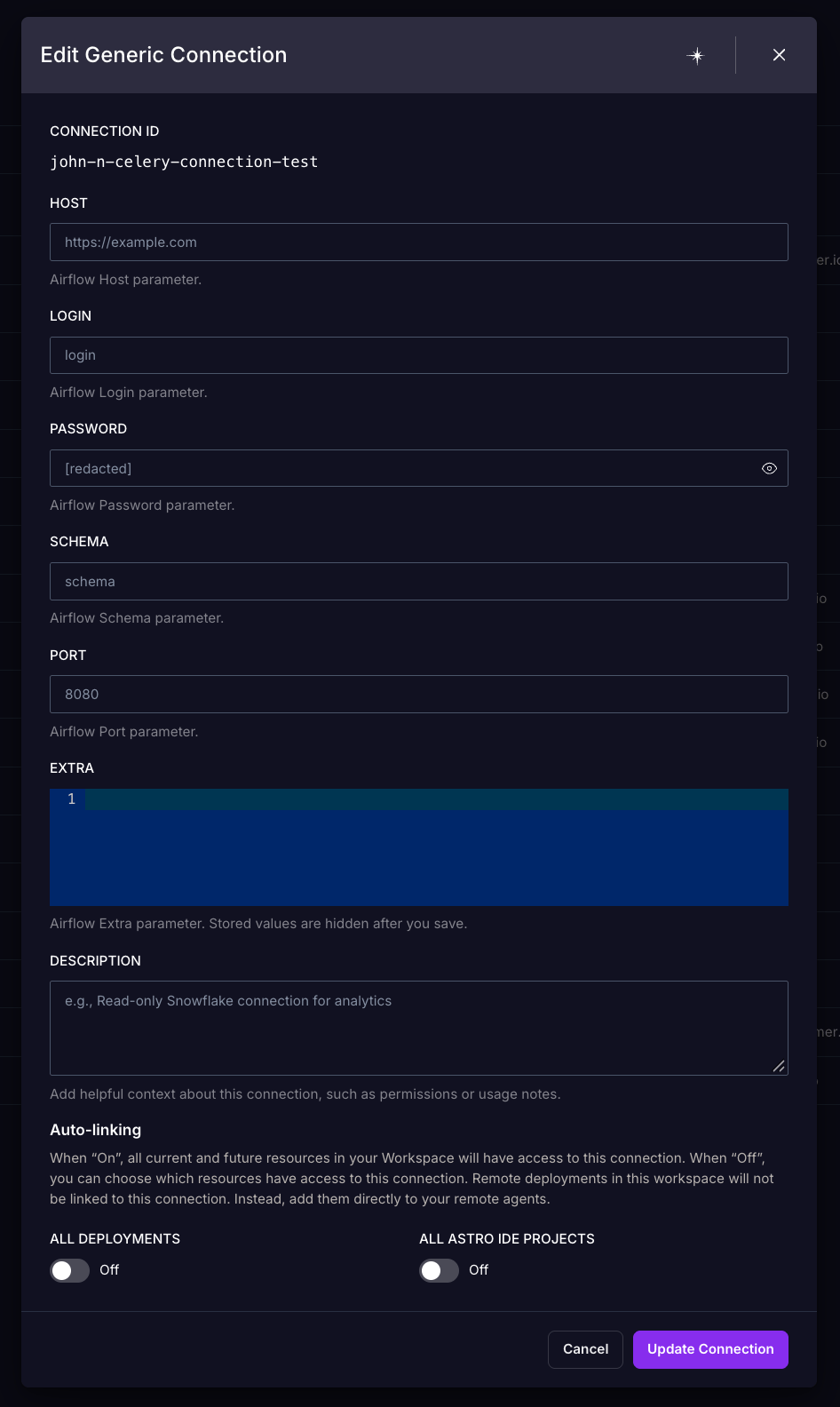
The fields in this dialog differ depending on the connection type.
3
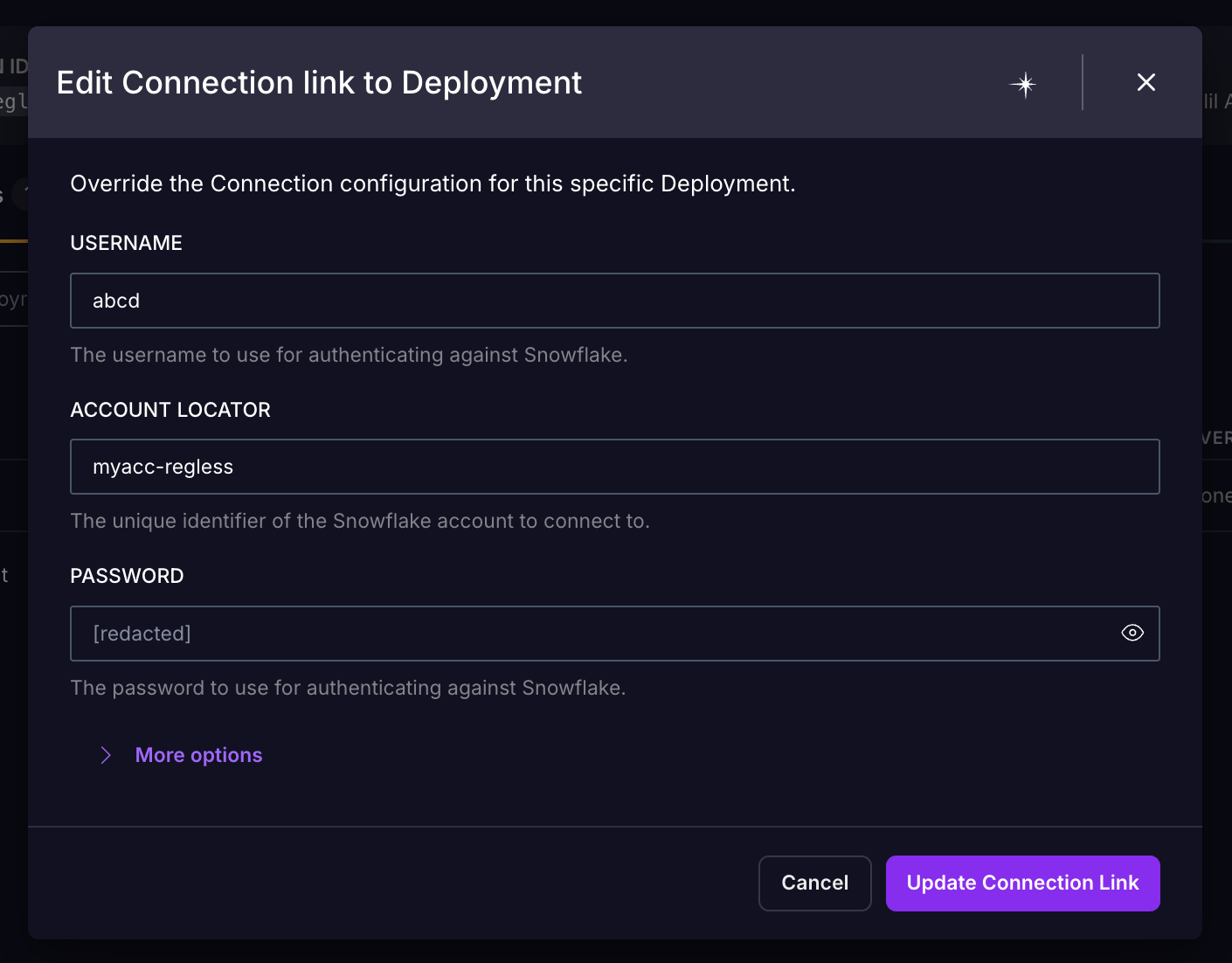
Update linked Deployments with overrides
Click the connection to see all linked Deployments.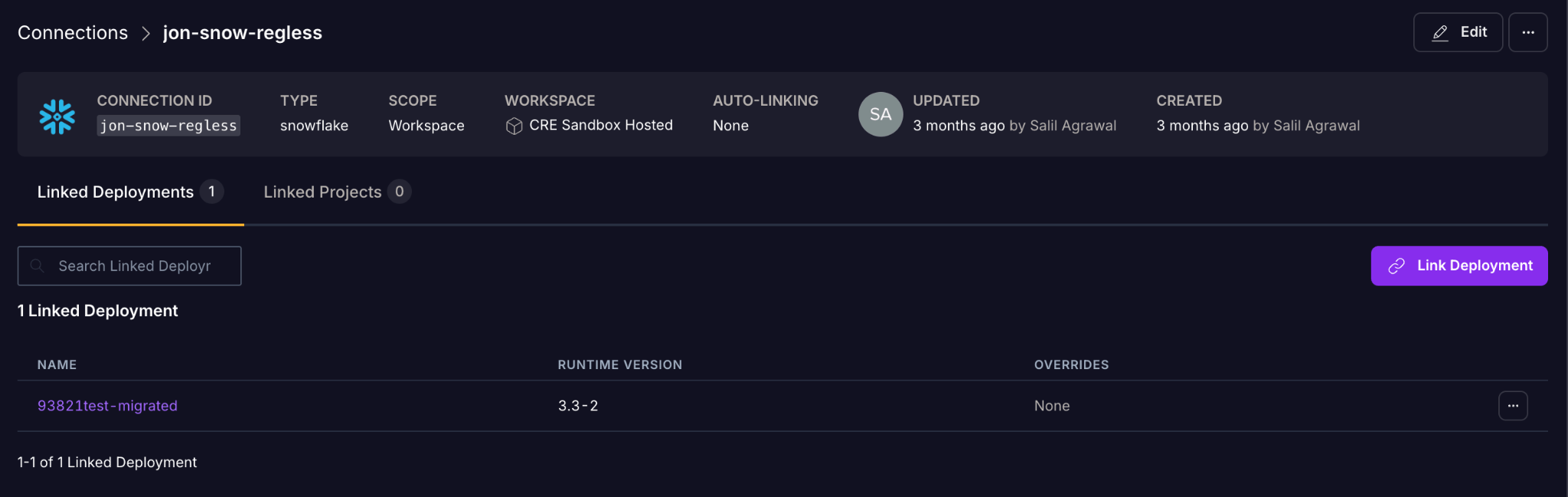
Airflow variables
1
Edit the Airflow variable
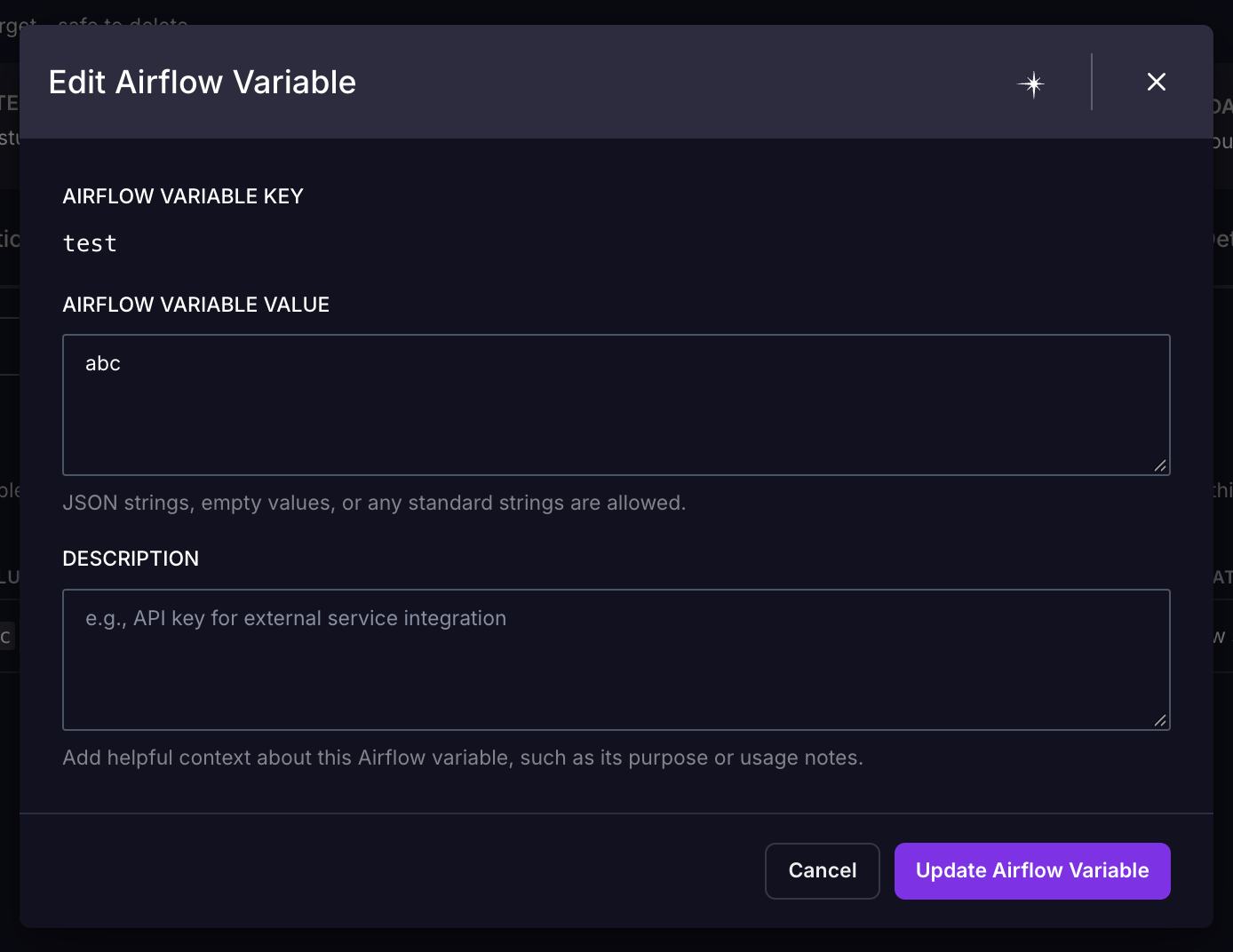
Open the More actions menu (⋯) next to the Airflow variable, then click Edit Airflow Variable.
2
Enter the new value
In the Airflow Variable Value field, enter the newly generated value for your credential, then click Update Airflow Variable.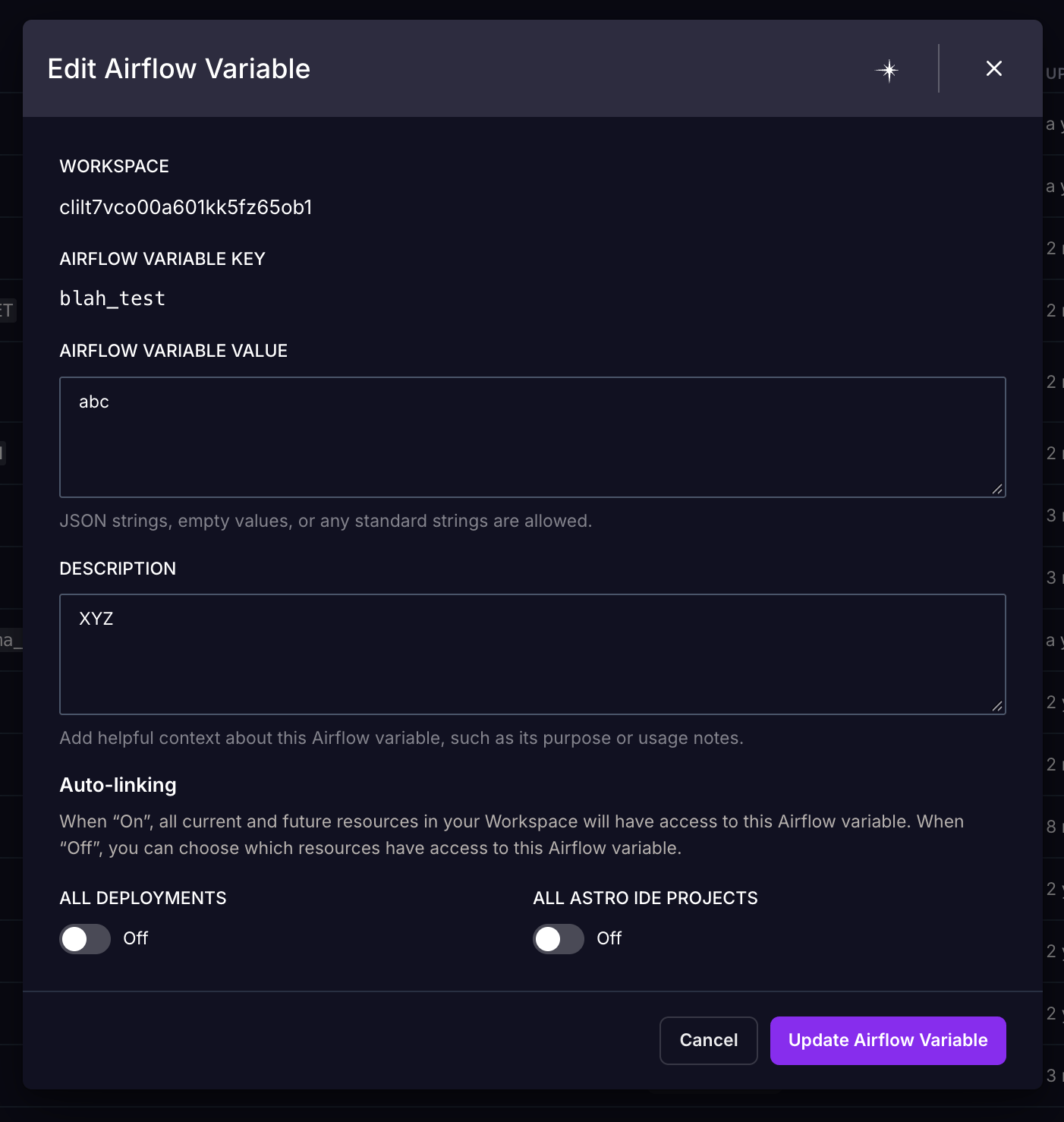
3
Update linked Deployments with overrides
Click the Airflow variable to see all linked Deployments.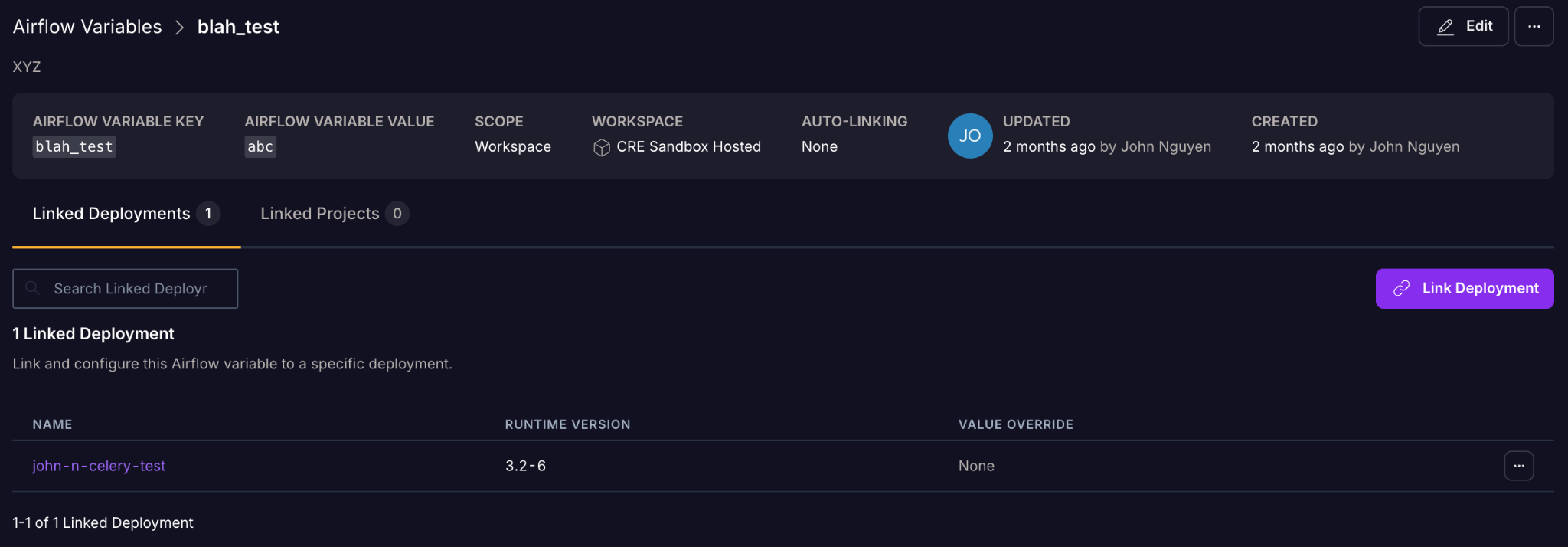
Deployment-level credentials
In the Astro UI, click Deployments, select a Deployment, then click the Environment tab.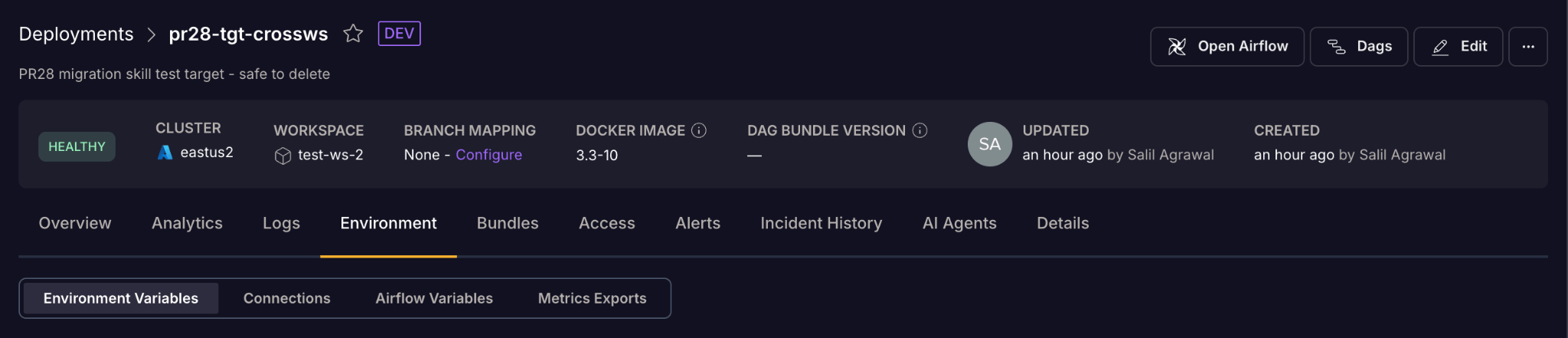
Environment variables
1
Edit the environment variables
Click Edit Deployment Variables.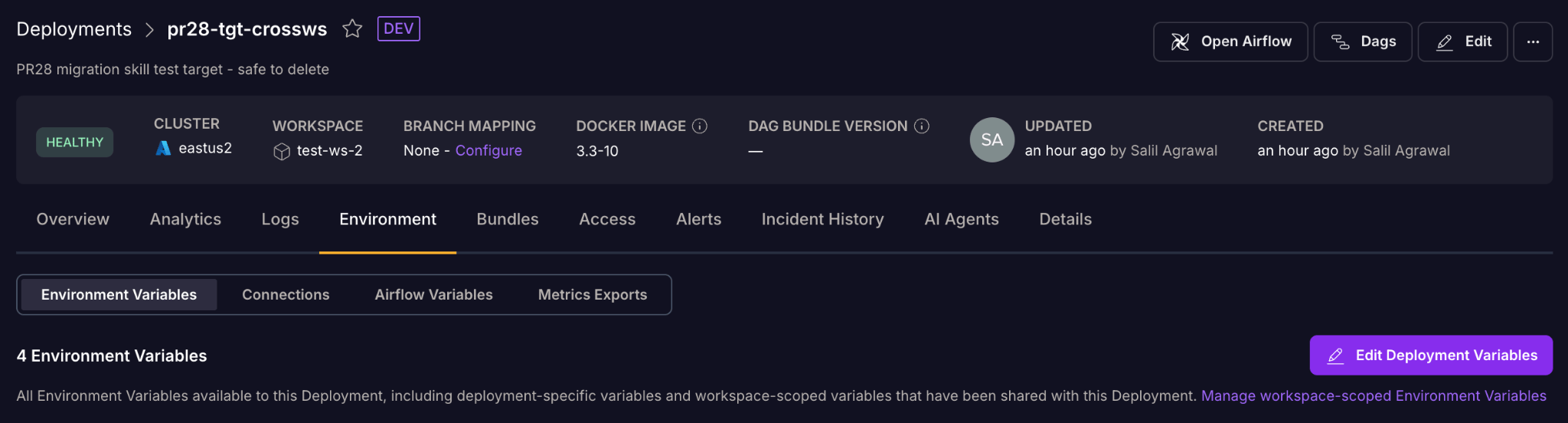
2
Enter the new value
In the dialog, enter the newly generated value for your credential next to its key, then click Update Environment Variables.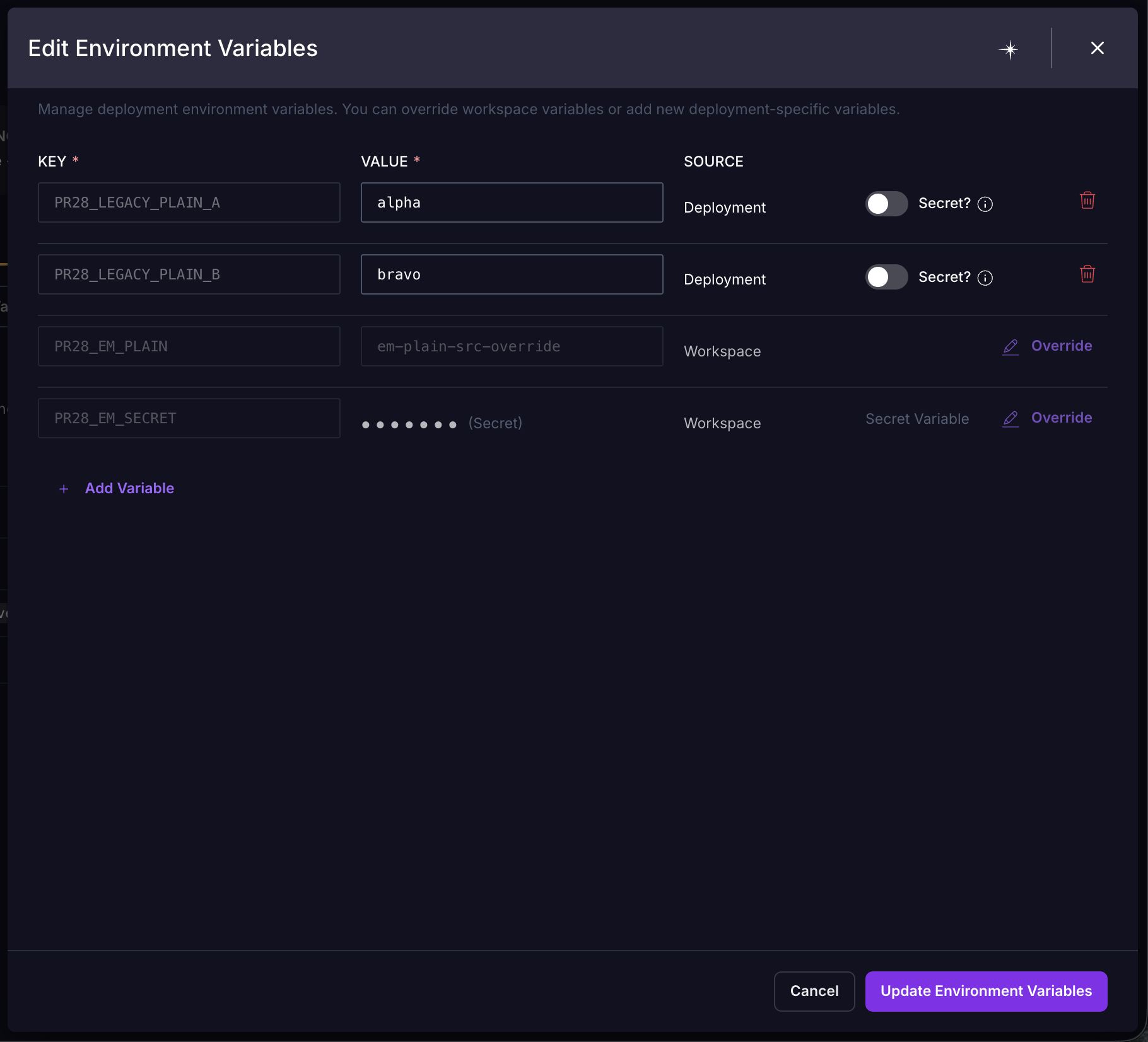
Connections
1
Edit the connection
Open the More actions menu (⋯) next to the connection, then click Edit Connection.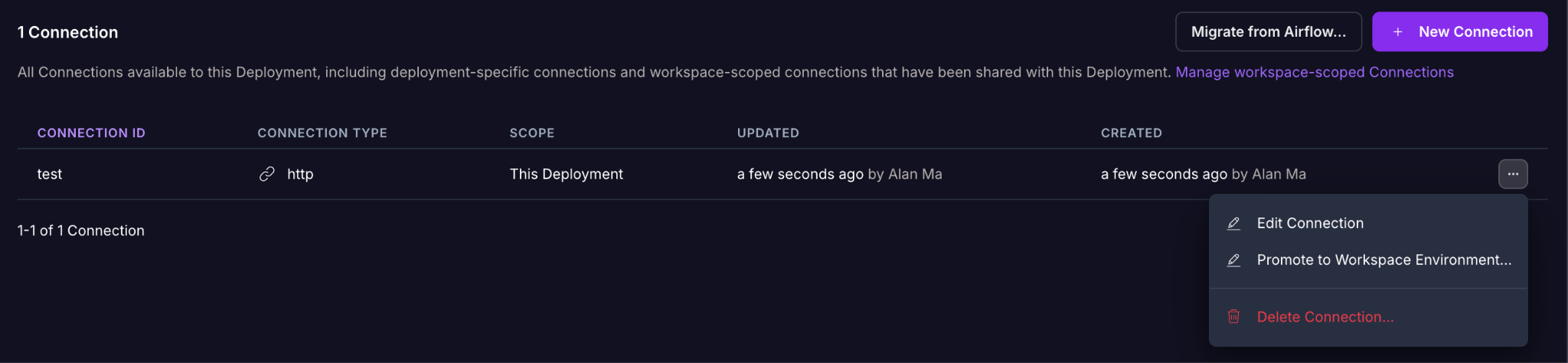
2
Enter the new values
Enter the newly generated values for your credential in their respective fields, then click Update Connection.
The fields in this dialog differ depending on the connection type.
Airflow variables
1
Edit the Airflow variable
Open the More actions menu (⋯) next to the Airflow variable, then click Edit Airflow Variable.
2
Enter the new value
In the Airflow Variable Value field, enter the newly generated value for your credential, then click Update Airflow Variable.