

heavy-etl queue set to 1 to 8 workers with a worker concurrency of 5 runs one worker while idle.
A queue’s worker count comes from:
heavy-etl, ceil(40 / 5) is 8, so the queue runs 8 workers. With 60 tasks, ceil(60 / 5) is 12, so it runs its maximum of 8. With 3 tasks, ceil(3 / 5) is 1, its minimum. KEDA asks the platform for this number every 30 seconds by default and sets the queue’s worker count to it.
Astro Private Cloud 2.2This feature was introduced in Astro Private Cloud 2.2. To access this feature, upgrade your Astro Private Cloud installation to 2.2 or later.
This page covers worker queue autoscaling for Deployments in Airflow operator
mode. Astro Private Cloud
doesn’t support KEDA autoscaling for Helm-mode Deployments.
Prerequisites
- Astro Private Cloud 2.2 or later.
- A Deployment in Airflow operator mode that uses the Celery executor, with worker queues turned on. See Enable worker queues.
- The Airflow operator that ships with Astro Private Cloud 2.2 (1.7.0) on each data plane. Earlier operators silently drop the scaling configuration. See Verify the data plane.
- Kubernetes permissions to install KEDA on each data plane cluster, and to let the platform’s Helm release write into the namespace KEDA runs in.
The Astro Private Cloud UI and the APC API combine the four into one answer for each Deployment,
canWorkerQueuesAutoscale. See Confirm autoscaling is available.
Step 1: Install KEDA
Install KEDA 2.20.0 or later on each data plane cluster that runs Deployments you want to autoscale. Follow the KEDA deployment guide. Note the namespace and the operator service account name. Step 2 needs both. Install KEDA before you setglobal.keda.enabled on the data plane. The APC Helm chart creates a KEDA ClusterTriggerAuthentication, and an install or upgrade fails if KEDA’s resource definitions aren’t on the cluster yet.
Why 2.20.0 is the minimum
Check the version you run:
Step 2: Configure the data plane
Set the following in thevalues.yaml of each data plane, then upgrade the release. See Apply a config change.
In a unified installation, set them in the single
values.yaml. On a control plane, they create nothing.
If global.keda.enabled is true and global.keda.namespace is empty, the install fails with global.keda.namespace is required when global.keda.enabled is true.
If you upgrade from 2.1 and set
airflow-operator.kedaEnabled, remove it.
Astro Private Cloud 2.2 doesn’t read it. The Airflow operator now follows
global.keda.enabled.What the platform creates in your KEDA namespace
Withglobal.keda.enabled set to true, a platform install or upgrade creates four objects: three in your KEDA namespace and one cluster-scoped.
Each object carries the label
astronomer.io/platform-release, set to your platform release name.
The platform creates these objects only on install or upgrade, not when you create a Deployment. Helm owns all four: upgrading updates them in place, and uninstalling removes them.
Setting global.keda.enabled back to false and upgrading also removes them. Do that only when no Deployment uses worker autoscaling, because without the identity KEDA can’t get a worker count and every autoscaling queue drops to its minimum.
Network policies
Whenglobal.networkPolicy.enabled is true, the platform allows traffic from the namespace named in global.keda.namespace to the Laminar API server on port 8000. If you restrict egress from your KEDA namespace yourself, also allow traffic from it to the platform namespace on port 8000. The platform doesn’t write network policies into a namespace it doesn’t manage.
If KEDA resolves cluster-scoped objects elsewhere
KEDA looks for the service account named on aClusterTriggerAuthentication in the namespace set by its KEDA_CLUSTER_OBJECT_NAMESPACE environment variable, which defaults to the namespace KEDA runs in. If you set that variable, set clusterObjectNamespace to the same namespace:
keda-cluster, and the role binding still names the KEDA service account in keda-system. Laminar trusts the account in keda-cluster as part of the same change.
Verify the data plane
-
Confirm the three namespaced objects exist:
If you set
clusterObjectNamespace, look in that namespace instead. -
Confirm the cluster-scoped object exists:
-
Confirm KEDA’s service account can create a token for the identity:
If you set
clusterObjectNamespace, pass it to-nand keep the namespace KEDA runs in for--as. If you setoperatorServiceAccountName, use that name in place ofkeda-operator. -
Confirm both Airflow resource definitions carry the scaling trigger field. Each command must print
array:
Step 3: Turn on worker autoscaling
deployments.workerQueues.autoscaling.enabled controls worker autoscaling and ships false. Like other deployments settings, you can set it for the platform, a cluster, a Workspace, or a single Deployment. See Config governance.
To set it for a cluster, go to your Clusters page, select your cluster, click Edit in the Deployment Configuration section, and add the following to the Configuration Override field:
deployments block under astronomer.houston.config in the control plane’s values.yaml. See Apply a config change.
To set it for one Deployment, use a Deployment-level override:
Change how often KEDA asks for a worker count
deployments.workerQueues.autoscaling.pollingIntervalSeconds sets how often KEDA asks for each queue’s worker count. It defaults to 30 and takes a whole number of seconds, 1 or more. You can set it at any of the four tiers. A shorter interval reacts faster and sends more requests to the data plane.
The new interval reaches each Deployment’s scaling objects the next time the Deployment is updated.
Confirm autoscaling is available
- Astro Private Cloud UI
- APC API
- Astro CLI
Open the Deployment, click Settings, and expand Worker Queues. When autoscaling is available, the queue editor shows Min workers and Max workers. See Set a worker range on a queue.When autoscaling isn’t available, the editor shows a single Num workers field instead: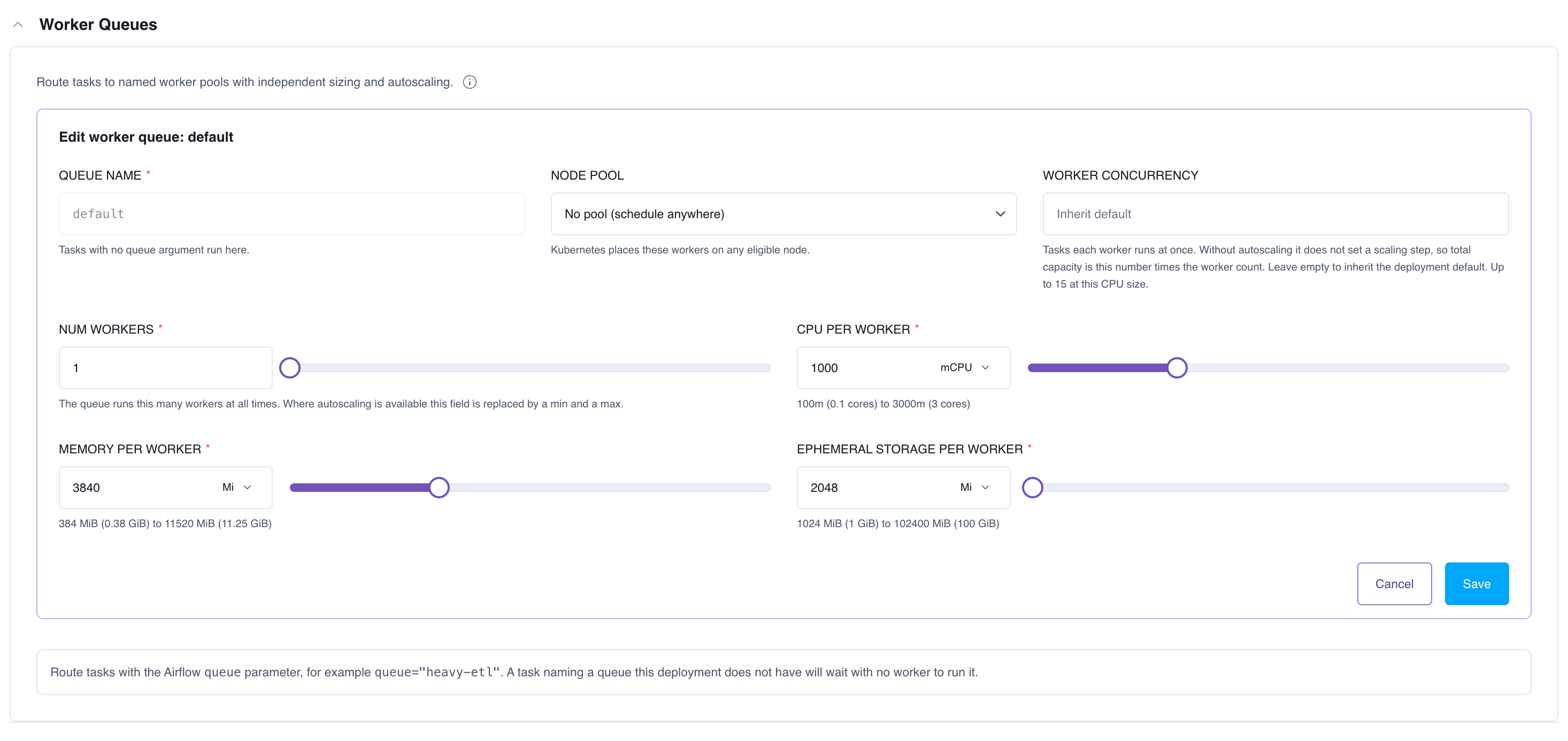

Set a worker range on a queue
- Astro Private Cloud UI
- APC API
- Astro CLI
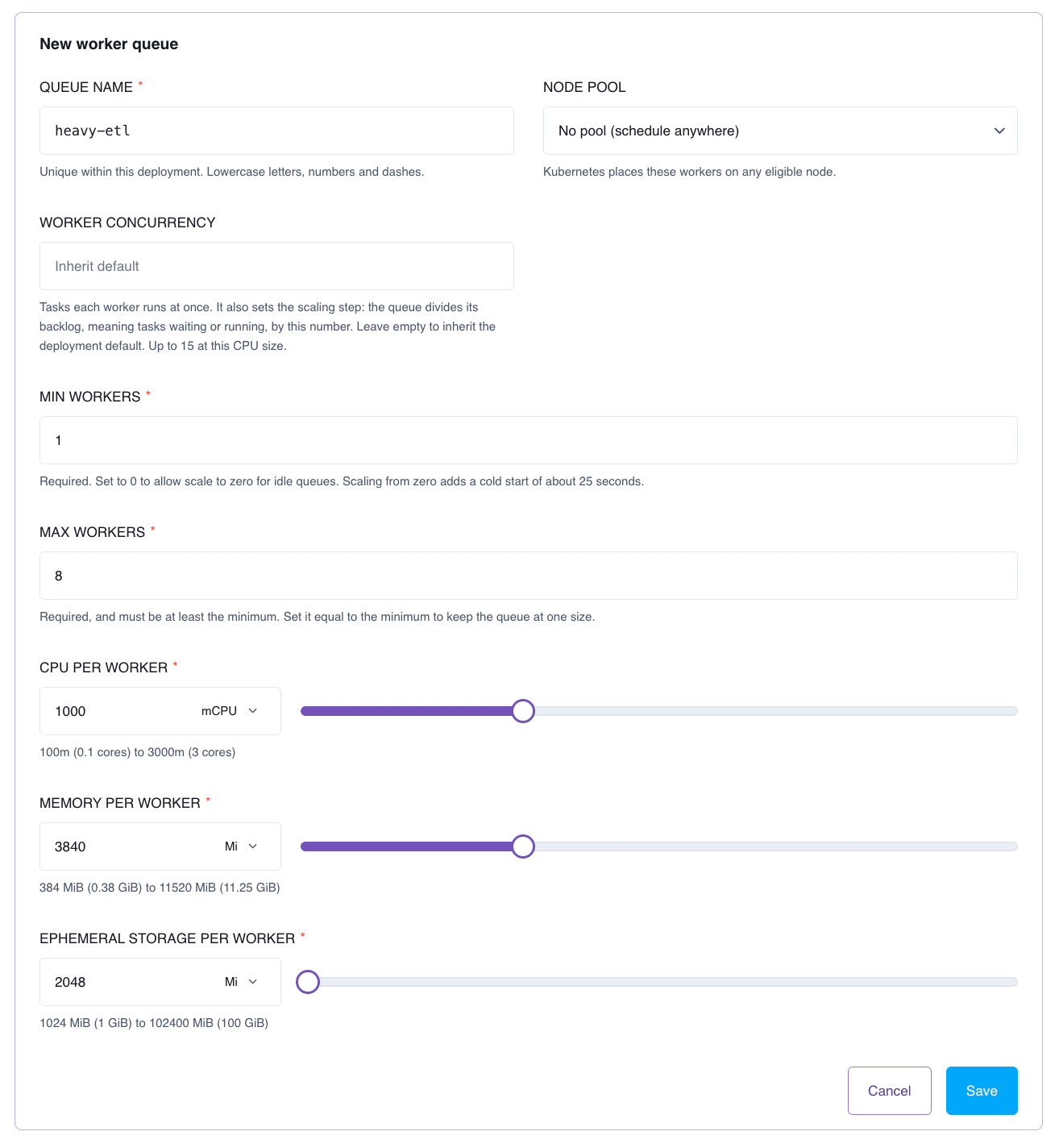
- In the Astro Private Cloud UI, open your Deployment and click Settings.
- Expand Worker Queues.
- Click Edit on the queue, or click Add worker queue. For the queue’s other fields, see Add a worker queue.
- In Min workers, enter the fewest workers the queue runs. Enter
0to let an idle queue scale to zero. See Scale a queue to zero. - In Max workers, enter the most workers the queue runs. It must be at least the minimum. Enter the same value as the minimum to keep the queue at one size.
- (Optional) In Worker concurrency, enter how many tasks each worker runs at once. See Worker concurrency sets the scaling step.
- Click Save.
- Click Deploy Changes.
Limits on a range
The per-queue worker limit applies to a fixed count and to both bounds of a range, so raising it for autoscaling also raises the cap on fixed-size queues. You can override it per cluster, Workspace, and Deployment. The UI doesn’t check this limit on Max workers, so a maximum above it is refused when you save.
Scale a queue to zero
A queue with a minimum of0 stops all of its workers when it has no running or queued tasks. When a task arrives, KEDA starts a worker, so the first task waits for it to start.
Scale to zero needs the following:
- KEDA and Laminar on the data plane. Without them, nothing could start the first worker again, so a minimum of
0is refused withWorkerQueueZeroMinimumUnsupportedError. - To save a minimum of
0from the Astro Private Cloud UI, a platform administrator must lowerdeployments.resourceManagement.components[workers].extra.replicas.minimumto0. The UI sends a worker count of0with a zero minimum, and the default minimum of1refuses it. Through the APC API, send both bounds and leave outreplicas, which then defaults to1.
How far a queue scales
Worker concurrency sets the scaling step
A queue asks for its running and queued tasks divided by its worker concurrency. The same 48 tasks ask for 3 workers at a concurrency of 16 and 12 workers at a concurrency of 4. A queue with no concurrency set uses 16. A queue’s concurrency can be at most 15 for each CPU core of that queue’s workers, rounded down and never below 1. For example, workers with 1000 millicores (one core) allow up to 15, 500 millicores allow up to 7, and 2000 millicores allow up to 30.If you set the worker concurrency environment variable
On a Deployment in Airflow operator mode, theAIRFLOW__CELERY__WORKER_CONCURRENCY environment variable doesn’t change worker concurrency. The Deployment still shows the variable, but every worker has run 16 tasks at once, whatever value it shows. Set concurrency on the worker queue instead.
On a Helm-mode Deployment, the variable takes effect. Leave it in place and skip these steps.
Setting the queue to the value in your variable changes how your Deployment runs. If the variable says 4 and your workers have run 16, a queue of 3 workers goes from 48 tasks at once (3 × 16) to 12 (3 × 4), and tasks can start to queue where they didn’t before. If you’re unsure which value you want, 16 is what your Deployment has run successfully.
- Decide on a value. Compare the variable with 16, which is what your workers run now.
- In the Astro Private Cloud UI, open your Deployment, click Settings, and expand Worker Queues.
- Click Edit on each queue that should run a different number of tasks per worker. If you have one queue, it’s named
default. - Set Worker concurrency to the value you chose, click Save, and click Deploy Changes.
- After the Deployment finishes updating, confirm that each worker runs the number of tasks you set.
- Remove
AIRFLOW__CELERY__WORKER_CONCURRENCYfrom the Deployment’s environment variables.
Parallelism
AIRFLOW__CORE__PARALLELISM limits how many tasks each scheduler runs and queues at once. Astro Private Cloud derives it from your queues:
default queue of 2 workers with no concurrency set, and heavy-etl at 1 to 8 workers with a concurrency of 5:
ceil(72 / 2), which is 36 for each scheduler.
If you set AIRFLOW__CORE__PARALLELISM yourself, your value replaces the derived one. A value lower than the derived one can hold a queue below its maximum, because tasks past the limit wait as scheduled tasks and the queue doesn’t count them. For example, with parallelism set to 32 and one scheduler, heavy-etl has at most 32 running or queued tasks, so it asks for at most ceil(32 / 5), which is 7 workers, one short of its maximum. Nothing in the platform reports this. If a queue tops out below its maximum, check this variable first.
Cluster capacity
A worker that doesn’t fit on any node staysPending. KEDA still asks for the full count, and the queue runs the workers that fit. If the queue uses a node pool, the pool’s total counts each queue at its maximum worker count, and the editor warns when a change takes a pool over its total. For example, heavy-etl at 1 to 8 workers with 2000 millicores and 7680 MiB each counts as 16 CPU (8 × 2) and 60 GiB (8 × 7.5 GiB) against its pool, even while it runs one worker.
The Deployment’s namespace resource quota counts each autoscaling queue at its maximum, so heavy-etl counts as 8 workers even while it runs one.
Scale-down and restarts
Scale-down
When a queue needs fewer workers, the Kubernetes Horizontal Pod Autoscaler waits for its scale-down stabilization window, 300 seconds by default, before it removes workers. The last step from one worker to zero waits for KEDA’s cooldown period, also 300 seconds, counted from the last time the queue had running or queued tasks. For example, if the last ofheavy-etl’s tasks finishes at 10:00 while it runs 8 workers, the queue drops to its minimum of 1 at about 10:05. A queue with a minimum of 0 stops its last worker at about 10:05 too, when the cooldown ends.
A removed worker has the worker termination grace period, 600 seconds by default, to finish its running tasks, and a task still running at the end stops. For example, a worker removed while it runs a task with 15 minutes left stops that task after 10 minutes. A platform administrator sets the grace period with deployments.resourceManagement.components[workers].extra.terminationGracePeriodSeconds.
What restarts when you change a queue
Lowering a queue’s maximum below the number of workers it runs stops the extra workers. The Astro Private Cloud UI doesn’t warn you before it does.
Monitor autoscaling
The queue card
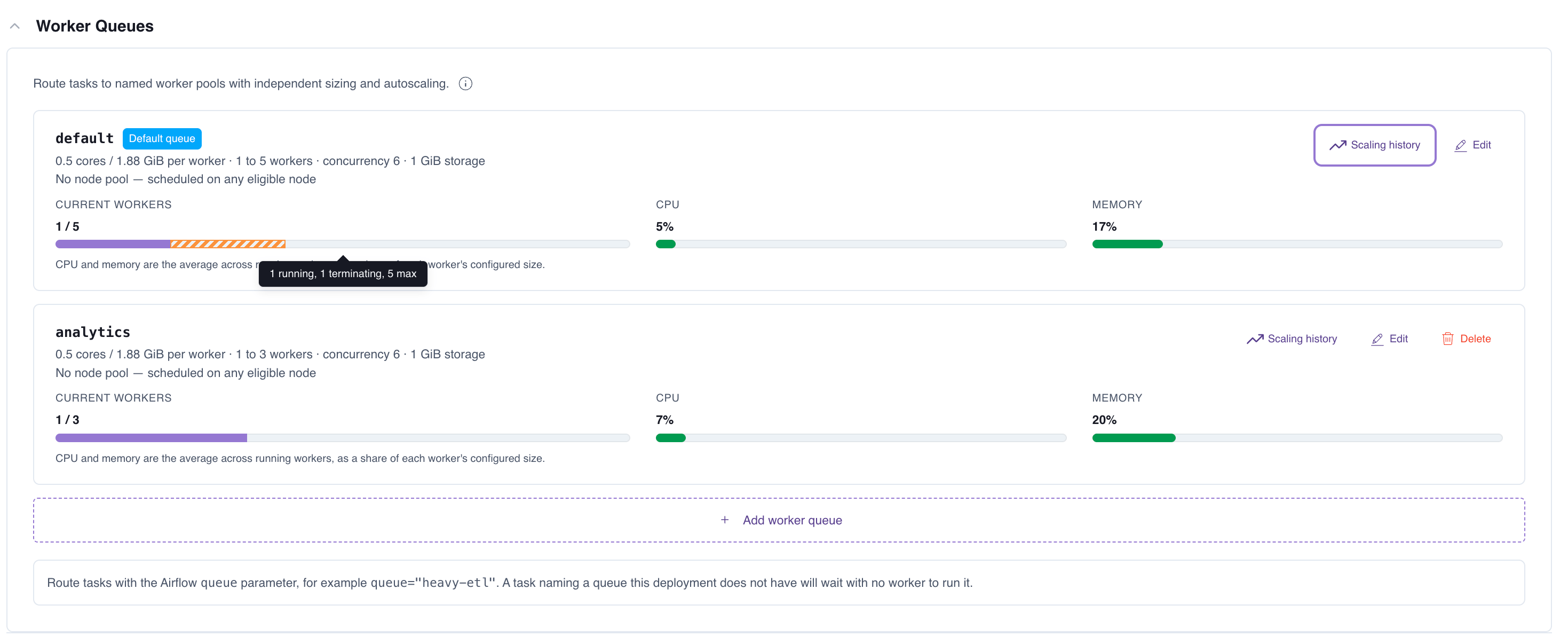
Each queue card in the Worker Queues section shows the queue’s range, for example1 to 8 workers, and a Current workers bar. The bar shows running workers against the queue’s maximum, with terminating workers marked separately. It doesn’t show workers that are waiting for room on the cluster. For the CPU and memory readings on the same card, see Monitor worker queues.
The scaling history dialog
Click Scaling history on a queue card to see how the queue scaled. The link appears on a saved queue with a range, when the Deployment’s data plane can autoscale. Anyone who can see the Deployment can open it.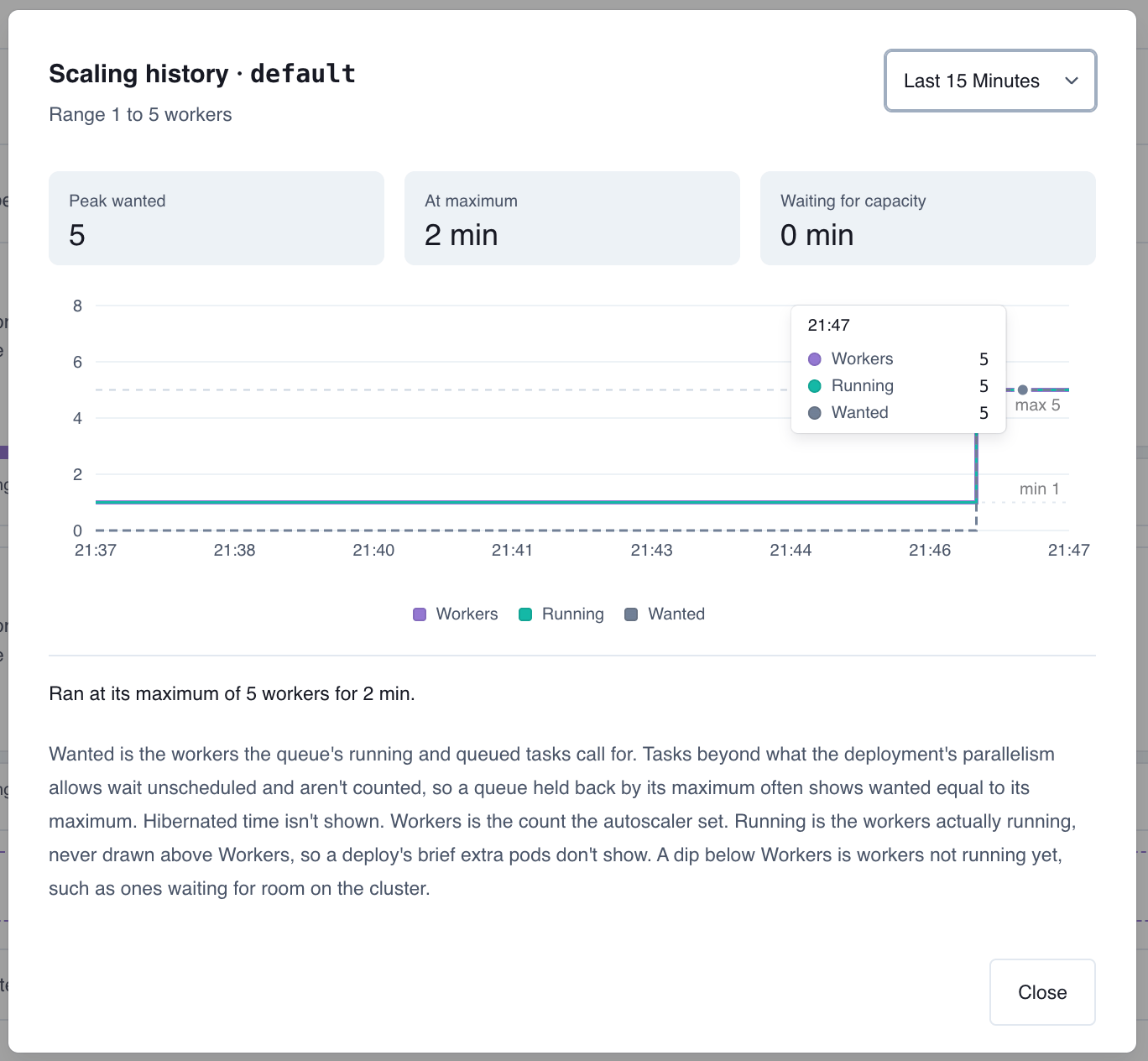
- Wanted: the workers the queue’s running and queued tasks call for. Tasks held back by parallelism aren’t counted.
- Workers: the count the autoscaler set.
- Running: the workers actually running.
Ran at its maximum of 8 workers for 2 h. or Workers waited for room on the cluster for 40 min. When nothing applies, it shows Stayed within its range over this period. Time the Deployment spent hibernated isn’t shown.
A state becomes a finding after it adds up to 15 minutes in a day, scaled to the selected range (15 minutes × range ÷ 1 day):
The dialog also reports a queue that wanted fewer workers than its minimum for at least 90% of the time it was running, for example
Needed fewer than its minimum of 2 workers for 95% of the time it was running. That finding needs at least 2 hours of running time on a one-day range, scaled the same way.
From the cluster
A platform administrator can read a queue’s scaling objects directly:Reference
Configuration
For the data plane Helm values, see Step 2: Configure the data plane.