

- Using database (DB) user credentials
- Using IAM credentials
- Using IAM role
Prerequisites
- The Astro CLI.
- A locally running Astro project.
- Permissions to access to your Redshift cluster. See Using IAM authentication and Authorizing Amazon Redshift to access other AWS services.
Get connection details
- DB Credentials
- IAM Credentials
- IAM Role
DB user credentials can be used to establish a connection to an Amazon Redshift cluster. While straightforward to use, this approach lacks the strong security and user access controls provided by identity and access management (IAM). Connecting this way requires the following information:
- Cluster identifier
- Database name
- Port
- User
- Password
- In your AWS console, select the region that contains your Redshift cluster, open the Redshift cluster dashboard, then open your cluster.
- From the General information section, copy the Cluster identifier and Endpoint.
- Open the Properties tab and copy the Database name and Port.
- Create a Redshift user and grant a role so that Airflow can access Redshift through the user. Copy the username and password.
Create your connection
Astro users can also create connections using the Astro Environment Manager, which stores connections in an Astro-managed secrets backend. These connections can be shared across multiple deployed and local Airflow environments. See Create Airflow connections in the Astro UI.
- DB Credentials
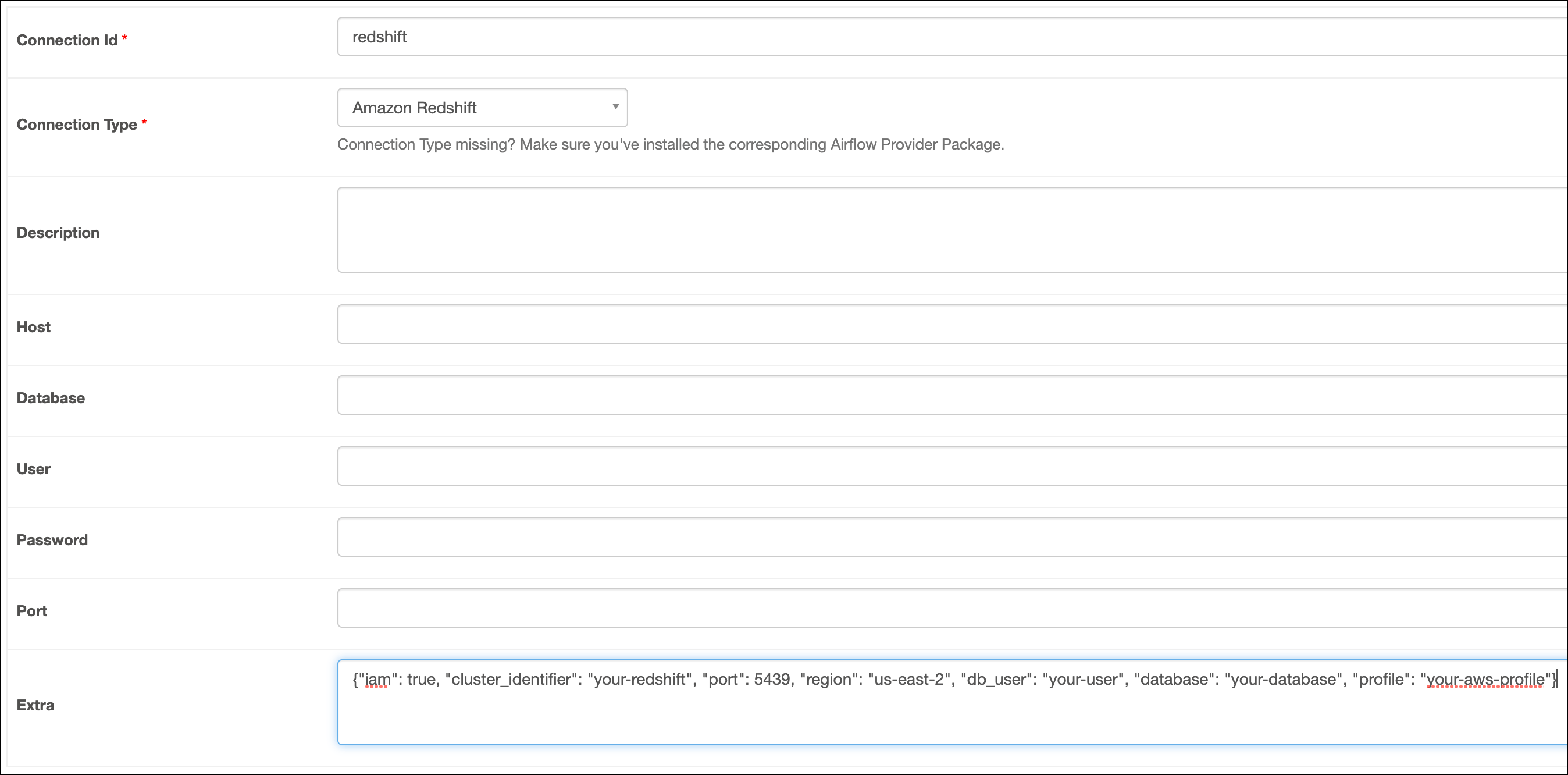
- IAM Credentials
- IAM Role
-
Open your Astro project and add the following line to your
requirements.txtfile:This will install the Amazon provider package, which makes the Amazon Redshift connection type available in Airflow. -
Run
astro dev restartto restart your local Airflow environment and apply your changes inrequirements.txt. - In the Airflow UI for your local Airflow environment, go to Admin > Connections. Click + to add a new connection, then select the connection type as Amazon Redshift.
-
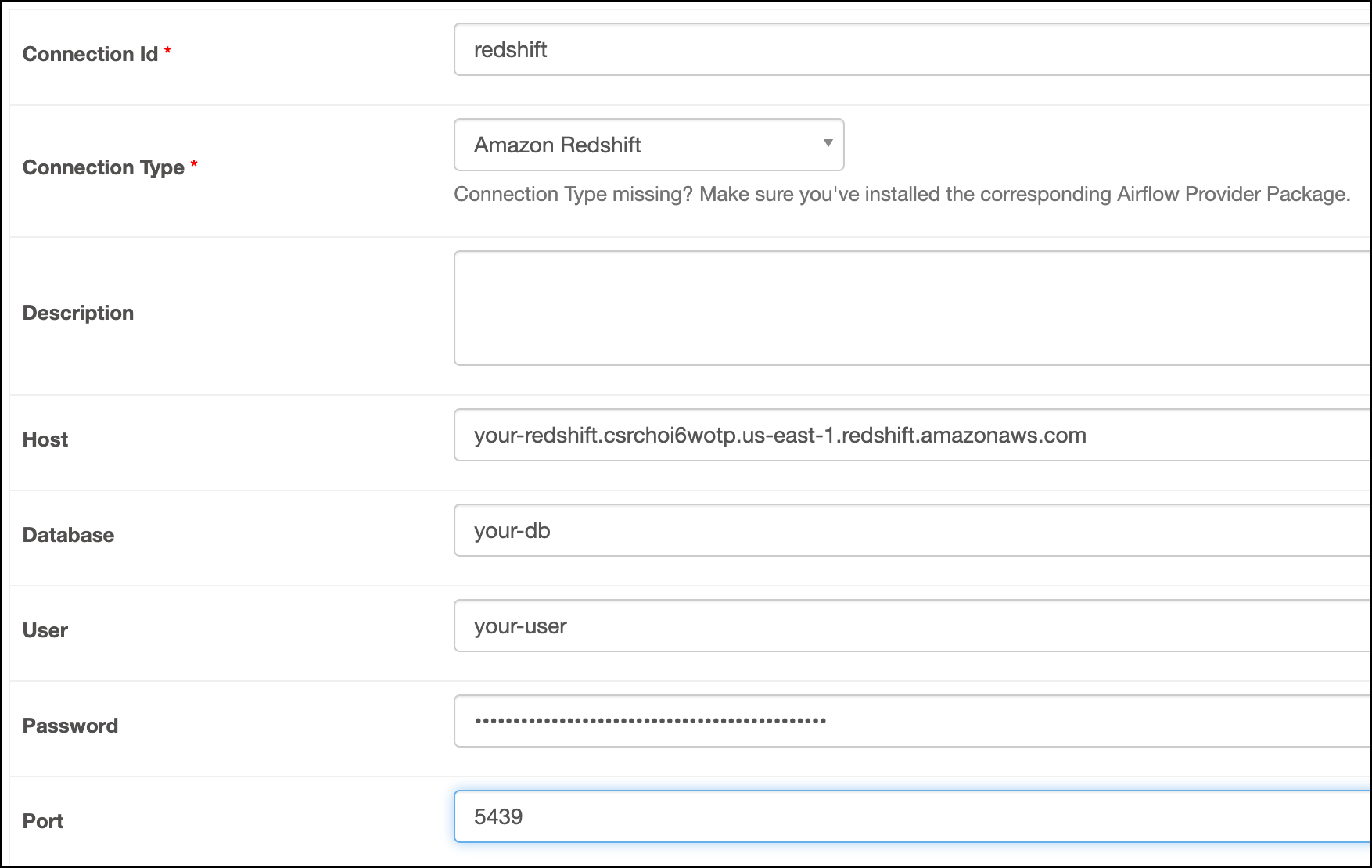
Fill out the following connection fields using the information you retrieved from Get connection details:
- Connection Id: Enter a name for the connection.
- Host: Enter the cluster Endpoint.
- Database: Enter the Database name.
- User: Enter the DB user username.
- Password: Enter the DB user password.
- Port: Enter the Port.
-
Click Test. After the connection test succeeds, click Save.
How it works
Airflow uses the Amazon Redshift Python Connector to connect to Redshift through theRedshiftSQLHook.