

- Use the contents of a service account key file directly in an Airflow connection.
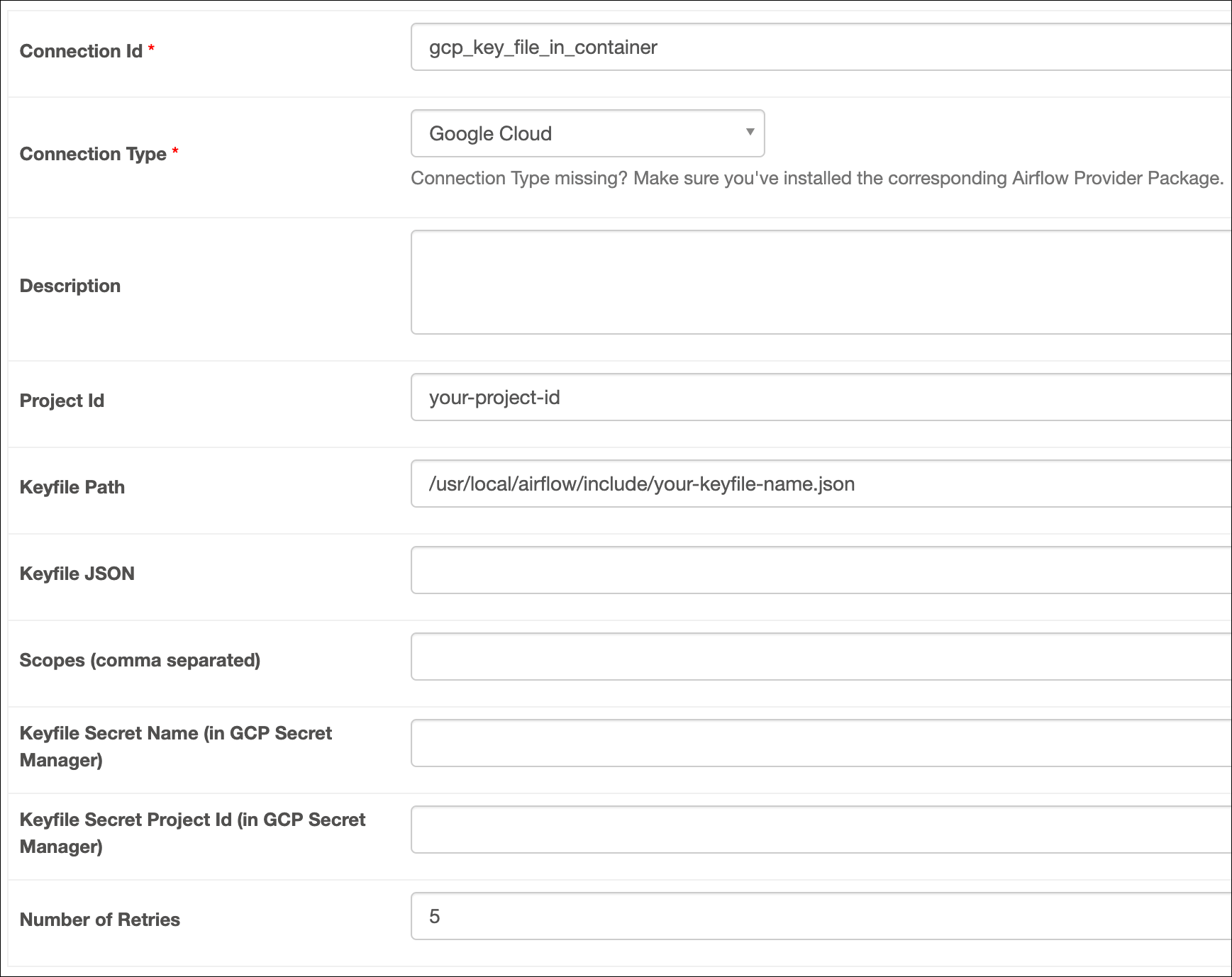
- Copy the service account key file to your Airflow project.
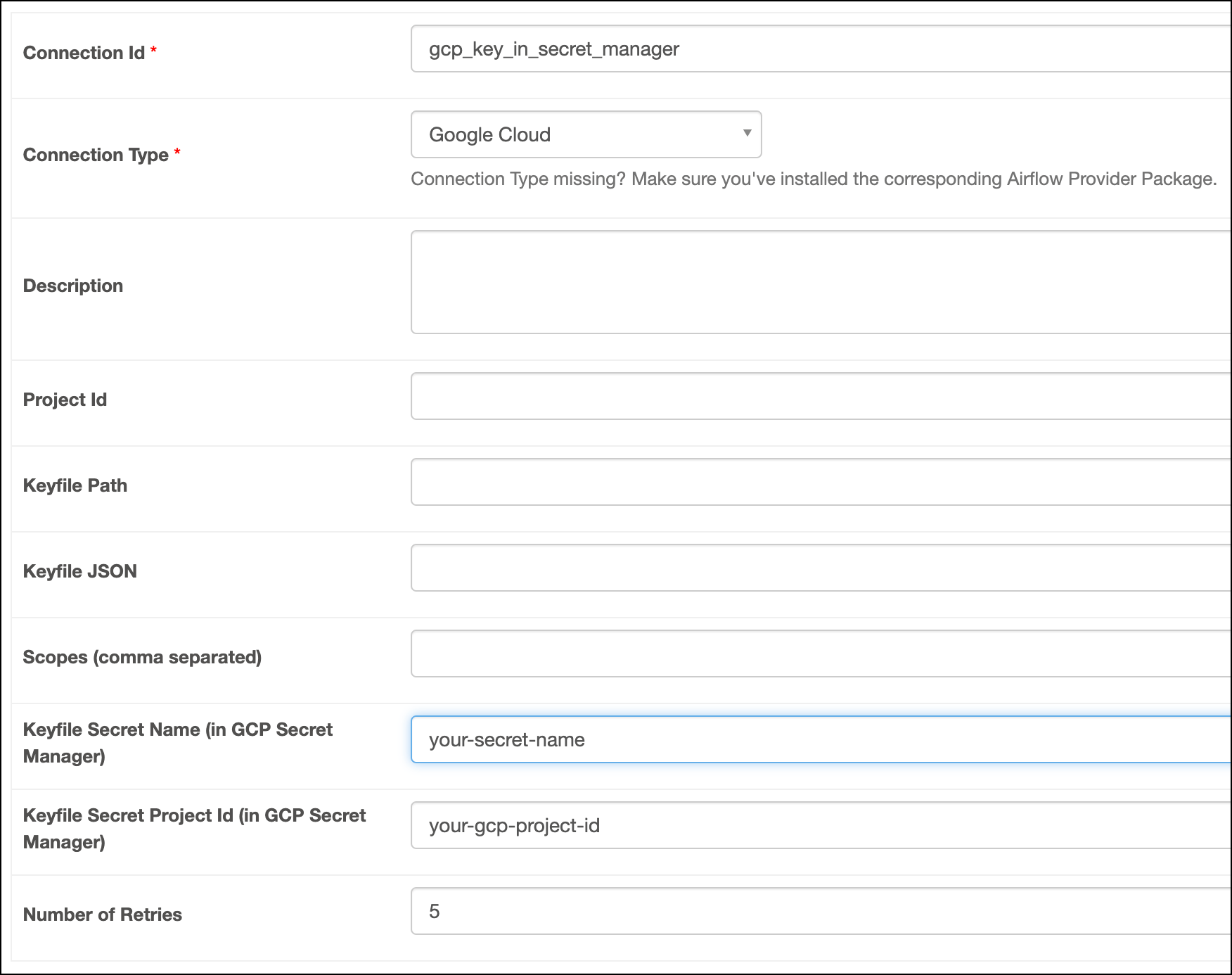
- Store the contents of a service account key file in a secrets backend.
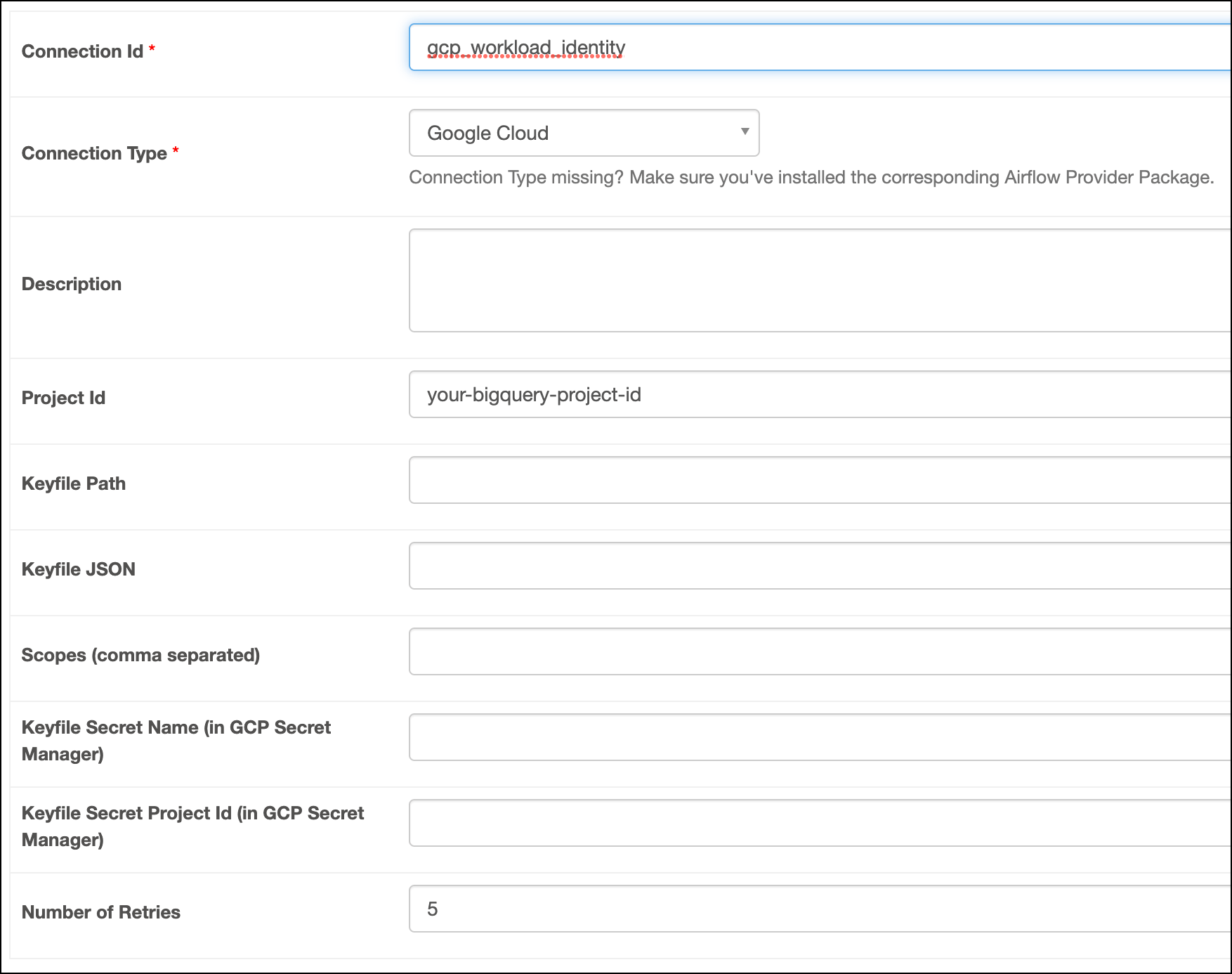
- Use a Kubernetes service account to integrate Airflow and BigQuery. This is possible only if you run Airflow on Astro or Google Kubernetes Engine (GKE).
Prerequisites
- The Astro CLI.
- A locally running Astro project.
- A Google Cloud project with BigQuery API enabled.
- Permissions to create an IAM service account or use an existing one. See Google documentation.
Get connection details
A connection from Airflow to Google BigQuery requires the following information:- Service account name
- Service account key file
- Google Cloud Project ID
- Key File Value
- Key File In Container
- Key File In Secrets Backend
- Kubernetes Service Account
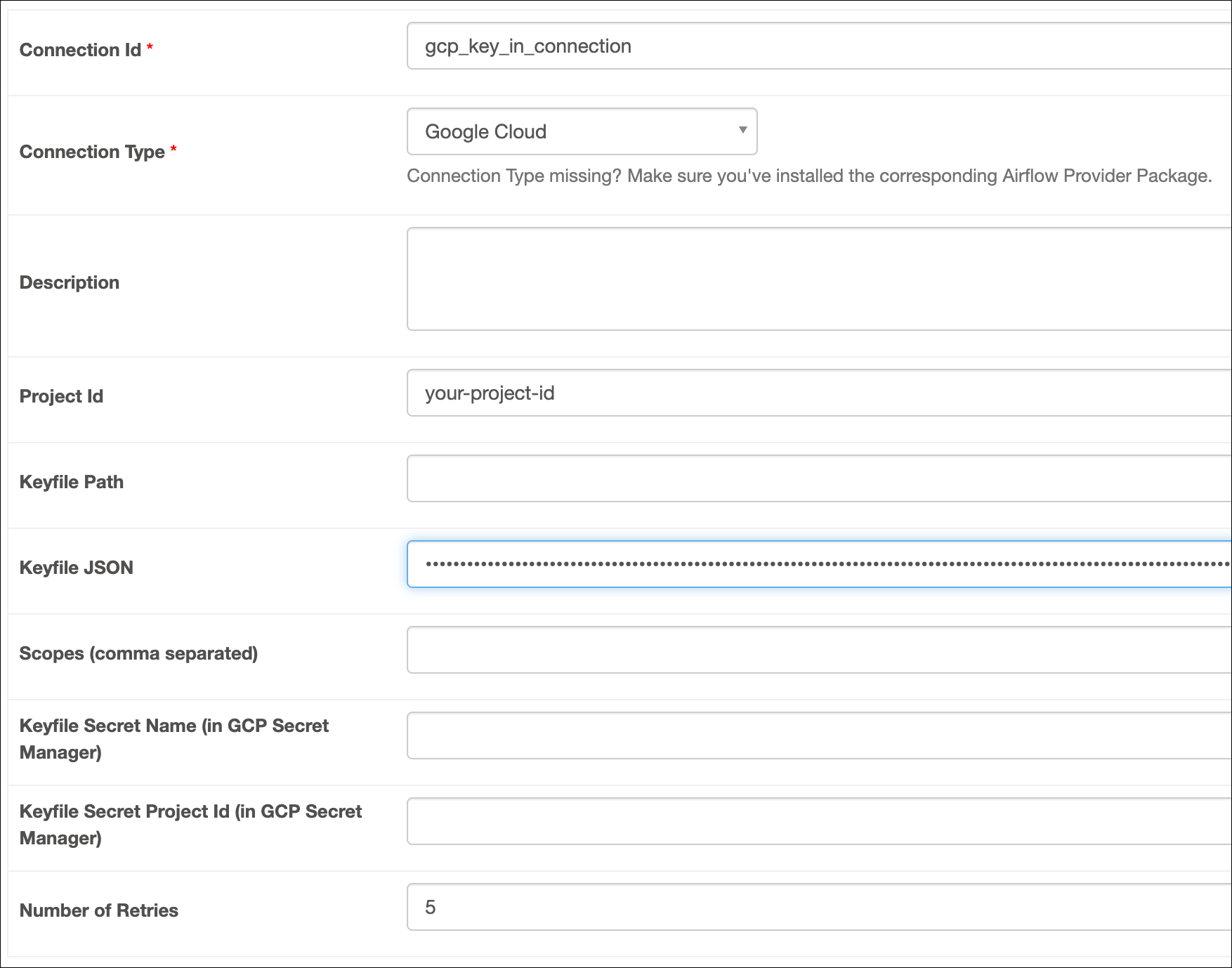
This method requires you to save the contents of your service account key file in your Airflow connection.
- In your Google Cloud console, select your Google Cloud project and copy its ID.
- Create a new service account.
- Grant roles to your service account so that it can access BigQuery. See BigQuery roles for a list of available roles and the permissions.
- Add a new JSON key file to the service account.
- Copy the contents of the key file.
Create your connection
Astro users can also create connections using the Astro Environment Manager, which stores connections in an Astro-managed secrets backend. These connections can be shared across multiple deployed and local Airflow environments. See Create Airflow connections in the Astro UI.
- Key File Value
- Key File In Container
- Key File In Secrets Backend
- Kubernetes Service Account
-
Open your Astro project and add the following line to your
requirements.txtfile:This installs the Google Cloud provider package, which makes the Google Cloud connection type available in Airflow. -
Run
astro dev restartto restart your local Airflow environment and apply your changes inrequirements.txt. - In the Airflow UI for your local Airflow environment, go to Admin > Connections. Click + to add a new connection, then choose the Google Cloud connection type.
-
Fill out the following connection fields using the information you retrieved from Get connection details:
- Connection Id: Enter a name for the connection.
- Keyfile JSON: Enter the contents of the key file.
-
Click Test. After the connection test succeeds, click Save.
How it works
Airflow uses thepython-bigquery library to connect to GCP BigQuery through the BigQueryHook. If you don’t define specific key credentials in the connection, Google defaults to using Application Default Credentials (ADC). This means when you use Workload Identity to connect to BigQuery, Airflow relies on ADC to authenticate.