> ## Documentation Index
> Fetch the complete documentation index at: https://astronomer.io/docs/llms.txt
> Use this file to discover all available pages before exploring further.
# Create a PostgreSQL connection in Airflow
This page hasn't yet been updated for Airflow 3. The concepts shown are relevant, but some code may need to be updated. If you run any examples, take care to update import statements and watch for any other breaking changes.
[Postgres](https://www.postgresql.org/) is a free and open source relational database system. Integrating Postgres with Airflow allows you to interact with your Postgres database, run queries, and load or export data from an Airflow DAG.
This guide provides the basic setup for creating a Postgres connection.
## Prerequisites
* The [Astro CLI](/docs/cli/v1.43/overview).
* A locally running [Astro project](/docs/cli/v1.43/get-started-cli).
* A Postgres database running in the cloud or on-premises.
* [Permission](https://www.digitalocean.com/community/tutorials/how-to-use-roles-and-manage-grant-permissions-in-postgresql-on-a-vps-2) to access your Postgres database from your local Airflow environment.
## Get connection details
A connection from Airflow to Postgres requires the following information:
* Host (also known as the endpoint URL, server name, or instance ID based on your cloud provider)
* Port (default is 5432)
* Username
* Password
* Schema (default is `public`)
The method to retrieve these values varies based on which cloud provider you use to host Postgres. Refer to the following documents for more information about retrieving these values:
* AWS: Connect to Postgres running on [RDS](https://docs.aws.amazon.com/AmazonRDS/latest/UserGuide/USER_ConnectToPostgreSQLInstance.html)
* GCP: Connect to Postgres running on [ Cloud SQL](https://cloud.google.com/sql/docs/postgres/connect-instance-local-computer)
* Azure: Connect to Postgres running on an [Azure database](https://learn.microsoft.com/en-us/training/modules/create-connect-to-postgres/4-connect-develop-your-database)
For example, if you're running Postgres in a Relational Data Store (RDS) in AWS, complete the following steps to retrieve these values:
1. In your AWS console, select your region, then go to the RDS service and select your Postgres database.
2. Open the **Connectivity & security** tab and copy the **Endpoint** and **Port**.
3. Follow the AWS instructions to [create a user](https://www.postgresql.org/docs/8.0/sql-createuser.html) and [grant a role to the user](https://www.postgresql.org/docs/current/sql-grant.html) that Airflow will use to connect to Postgres. Copy the username and password.
4. (Optional) To use a specific schema, copy the name of the schema. If you skip this, Airflow uses the default schema `public`.
## Create your connection
Astro users can also create connections using the [Astro Environment Manager](/docs/astro/manage-connections-variables#astro-environment-manager), which stores connections in an Astro-managed secrets backend. These connections can be shared across multiple deployed and local Airflow environments. See [Create Airflow connections in the Astro UI](/docs/astro/create-and-link-connections).
1. Open your Astro project and add the following line to your `requirements.txt` file:
```text wrap theme={null}
apache-airflow-providers-postgres
```
This installs the Postgres provider package, which makes the Postgres connection type available in Airflow.
2. Run `astro dev restart` to restart your local Airflow environment and apply your changes in `requirements.txt`.
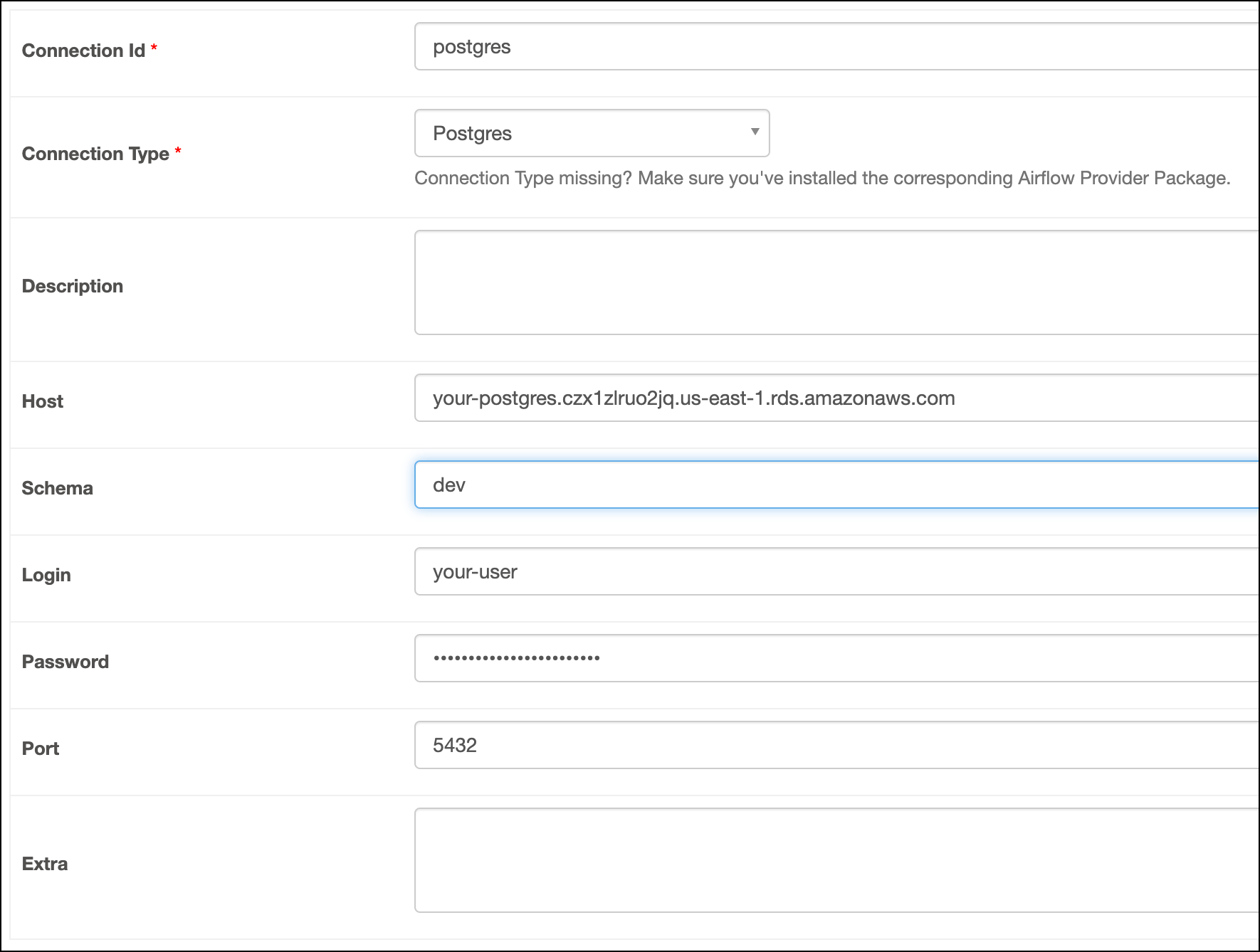
3. In the Airflow UI for your local Airflow environment, go to **Admin** > **Connections**. Click **+** to add a new connection, then choose **Postgres** as the connection type.
4. Fill out the following connection fields using the information you retrieved from [Get connection details](#get-connection-details):
* **Connection Id**: Enter a name for the connection.
* **Host**: Enter your Postgres server's host/ endpoint URL/ server name/ instance ID.
* **Schema**: Enter your schema name.
* **Login**: Enter your username.
* **Password**: Enter your password.
* **Port**: Enter your Postgres server's **Port**.
5. Click **Test**. After the connection test succeeds, click **Save**.
 ## How it works
Airflow uses the [psycopg2](https://pypi.org/project/psycopg2/) python library to connect to Postgres through the [`PostgresHook`](https://airflow.apache.org/docs/apache-airflow-providers-postgres/stable/_api/airflow/providers/postgres/hooks/postgres/index.html). You can also directly use the `PostgresHook` to create your own custom operators.
## See also
* [Apache Airflow Postgres provider package documentation](https://airflow.apache.org/docs/apache-airflow-providers-postgres/stable/index.html)
* Postgres modules in the [Airflow Registry](https://airflow.apache.org/registry/)
* [Import and export Airflow connections using Astro CLI](/docs/astro/import-export-connections-variables#using-the-astro-cli-local-environments-only)
## How it works
Airflow uses the [psycopg2](https://pypi.org/project/psycopg2/) python library to connect to Postgres through the [`PostgresHook`](https://airflow.apache.org/docs/apache-airflow-providers-postgres/stable/_api/airflow/providers/postgres/hooks/postgres/index.html). You can also directly use the `PostgresHook` to create your own custom operators.
## See also
* [Apache Airflow Postgres provider package documentation](https://airflow.apache.org/docs/apache-airflow-providers-postgres/stable/index.html)
* Postgres modules in the [Airflow Registry](https://airflow.apache.org/registry/)
* [Import and export Airflow connections using Astro CLI](/docs/astro/import-export-connections-variables#using-the-astro-cli-local-environments-only)