> ## Documentation Index
> Fetch the complete documentation index at: https://astronomer.io/docs/llms.txt
> Use this file to discover all available pages before exploring further.
# Rerun Airflow DAGs and tasks
You can set when to run Airflow DAGs using a wide variety of [scheduling](/docs/learn/2.x/scheduling-in-airflow) options. Some uses cases where you might want tasks or DAGs to run outside of their regular schedule include:
* You want one or more tasks to automatically run again if they fail.
* You need to manually rerun a failed task for one or multiple DAG runs.
* You want to deploy a DAG with a start date of one year ago and trigger all DAG runs that would have been scheduled in the past year.
* You have a running DAG and realize you need it to process data for two months prior to the DAG's start date.
In this guide, you'll learn how to configure automatic retries, rerun tasks or DAGs, trigger historical DAG runs, and review the Airflow concepts of catchup and backfill.
## Assumed knowledge
To get the most out of this guide, you should have an understanding of:
* DAG scheduling. See [Schedule DAGs in Airflow](/docs/learn/2.x/scheduling-in-airflow)
## Automatically retry tasks
In Airflow, you can configure individual tasks to retry automatically in case of a failure. The default number of times a task will retry before failing permanently can be defined at the Airflow configuration level using the core config `default_task_retries`. You can set this configuration either in `airflow.cfg` or with the environment variable `AIRFLOW__CORE__DEFAULT_TASK_RETRIES`.
You can overwrite the `default_task_retries` of an Airflow environment at the task level by using the `retries` parameter.
The `retry_delay` parameter (default: `timedelta(seconds=300)`) defines the time spent between retries. You can set a maximum value for the retry delay in the core Airflow config, `max_task_retry_delay` (`AIRFLOW__CORE__MAX_TASK_RETRY_DELAY`), which, by default, is set at 24 hours. Or, for individual tasks, you can set the maximum retry delay with the parameter, `max_retry_delay`.
To progressively increase the wait time between retries until `max_retry_delay` is reached, set `retry_exponential_backoff` to `True`.
It is common practice to set the number of retries for all tasks in a DAG by using `default_args` and override it for specific tasks as needed. To override specific tasks, provide a different value to the task level `retries` parameter.
The DAG below contains 4 tasks that will always fail. Each of the tasks uses a different retry parameter configuration.
```python expandable wrap theme={null}
from airflow.decorators import dag
from airflow.operators.bash import BashOperator
from pendulum import datetime, duration
@dag(
start_date=datetime(2023, 4, 1),
schedule="@daily",
catchup=False,
default_args={
"retries": 3,
"retry_delay": duration(seconds=2),
"retry_exponential_backoff": True,
"max_retry_delay": duration(hours=2),
},
)
def retry_example():
t1 = BashOperator(task_id="t1", bash_command="echo I get 3 retries! && False")
t2 = BashOperator(
task_id="t2",
bash_command="echo I get 6 retries and never wait long! && False",
retries=6,
max_retry_delay=duration(seconds=10),
)
t3 = BashOperator(
task_id="t3",
bash_command="echo I wait exactly 20 seconds between each of my 4 retries! && False",
retries=4,
retry_delay=duration(seconds=20),
retry_exponential_backoff=False,
)
t4 = BashOperator(
task_id="t4",
bash_command="echo I have to get it right the first time! && False",
retries=0,
)
retry_example()
```
## Automatically pause a failing DAG
As of Airflow 2.9, you can configure Airflow to automatically pause a DAG after a certain number of failed DAG runs, preventing a failing DAG from continuing to run and potentially causing more issues.
To set the maximum number of consecutive failed DAG runs for all your DAGs in your Airflow environment, set the `core.max_consecutive_failed_dag_runs_per_dag` config. For example, to automatically pause all your DAGs after they had 5 failed DAG runs in a row, set:
```text wrap theme={null}
AIRFLOW__CORE__MAX_CONSECUTIVE_FAILED_DAG_RUNS_PER_DAG=5
```
You can override this setting for a specific DAG by setting the `max_consecutive_failed_dag_runs` parameter in the DAG instantiation. For example, to pause a specific DAG after 3 failed DAG runs in a row, set:
```python wrap theme={null}
# from airflow.decorators import dag
# from pendulum import datetime
@dag(
start_date=datetime(2024, 4, 1),
schedule="@daily",
max_consecutive_failed_dag_runs=3,
catchup=False,
)
def my_dag():
# Define your tasks here
my_dag()
```
Traditional
```python wrap theme={null}
# from airflow.modules import DAG
# from pendulum import datetime
with DAG(
dag_id="my_dag",
start_date=datetime(2024, 4, 1),
schedule="@daily",
max_consecutive_failed_dag_runs=3,
catchup=False,
):
# Define your tasks here
```
The `max_consecutive_failed_dag_runs` config and DAG-level parameter is currently experimental and might be subject to breaking changes in future releases.
## Manually rerun tasks or DAGs
[Rerunning tasks](https://airflow.apache.org/docs/apache-airflow/stable/dag-run.html#re-run-tasks) or full DAGs in Airflow is a common workflow.
To rerun a task in Airflow you clear the task status to update the `max_tries` and current task instance state values in the metastore. After the task reruns, the `max_tries` value updates to `0`, and the current task instance state updates to `None`.
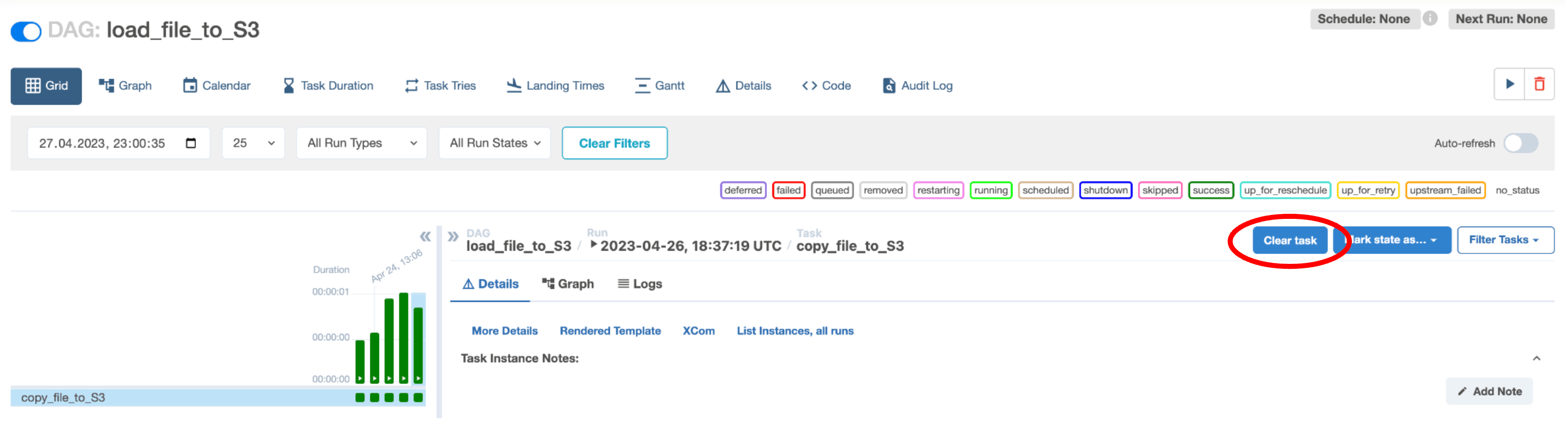
To clear the task status, go to the Grid View in the Airflow UI, select the task instance you want to rerun and click the **Clear task** button.
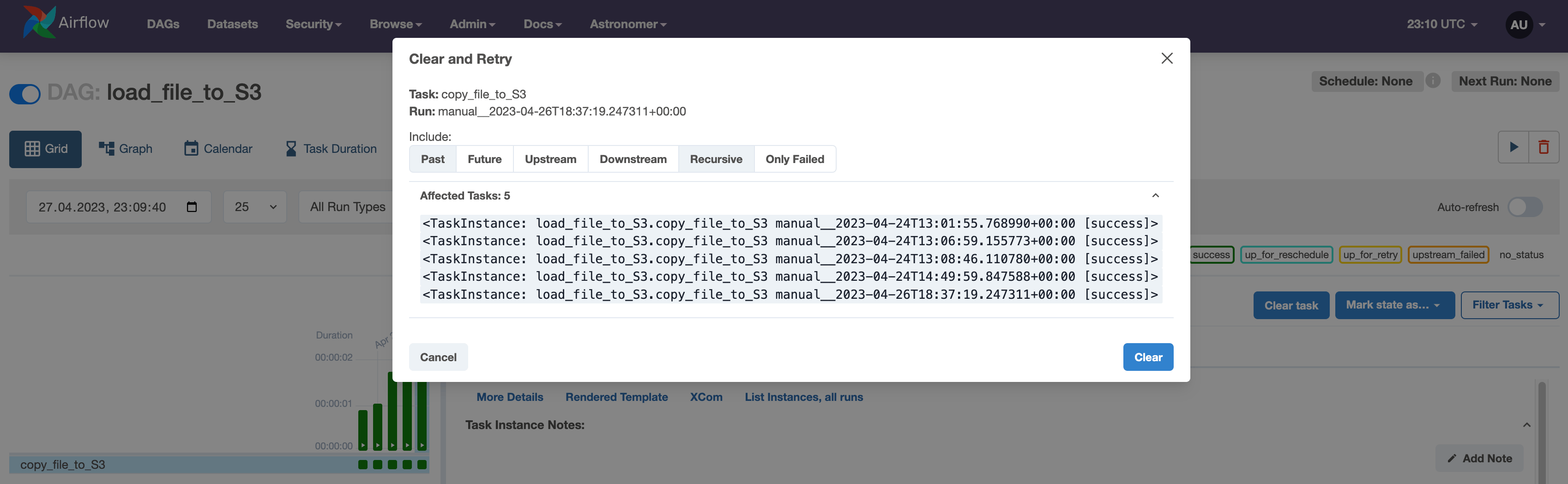
 A popup window appears, giving you the following options to clear and rerun additional task instances related to the selected task:
* Past: Clears any instances of the task in DAG runs with a data interval before the selected task instance.
* Future: Clears any instances of the task in DAG runs with a data interval after the selected task instance.
* Upstream: Clears any tasks in the current DAG run which are upstream from the selected task instance.
* Downstream: Clears any tasks in the current DAG run which are downstream from the selected task instance.
* Recursive: Clears any task instances of the task in the child DAG and any parent DAGs if you have cross-DAG dependencies.
* Only Failed: Clears only failed instances of any task instances selected based on the above options.
Check which task instances will be cleared with the current settings by expanding the dropdown menu **Affected tasks: X**. Click **Clear** to confirm and the task(s) will be cleared and rescheduled for another run.
A popup window appears, giving you the following options to clear and rerun additional task instances related to the selected task:
* Past: Clears any instances of the task in DAG runs with a data interval before the selected task instance.
* Future: Clears any instances of the task in DAG runs with a data interval after the selected task instance.
* Upstream: Clears any tasks in the current DAG run which are upstream from the selected task instance.
* Downstream: Clears any tasks in the current DAG run which are downstream from the selected task instance.
* Recursive: Clears any task instances of the task in the child DAG and any parent DAGs if you have cross-DAG dependencies.
* Only Failed: Clears only failed instances of any task instances selected based on the above options.
Check which task instances will be cleared with the current settings by expanding the dropdown menu **Affected tasks: X**. Click **Clear** to confirm and the task(s) will be cleared and rescheduled for another run.
 If you want to use the Airflow CLI to clear task statuses, you can use the following command:
```bash wrap theme={null}
airflow tasks clear [-h] [-R] [-d] [-e END_DATE] [-X] [-x] [-f] [-r]
[-s START_DATE] [-S SUBDIR] [-t TASK_REGEX] [-u] [-y]
dag_id
```
For more info on the positional arguments for the `clear` command, see the [Airflow documentation](https://airflow.apache.org/docs/apache-airflow/stable/cli-and-env-variables-ref.html#clear).
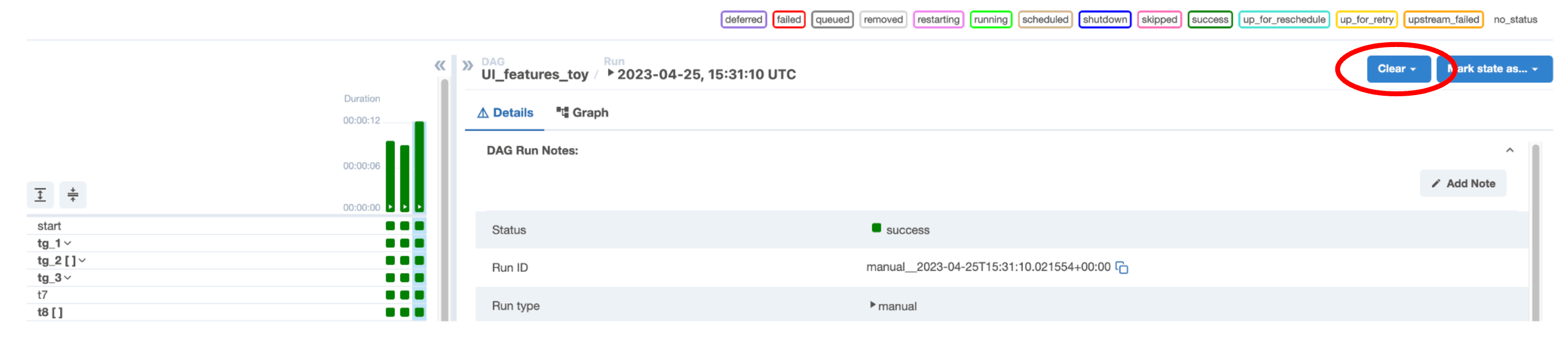
To clear a full DAG run, go to the Grid View in the Airflow UI, click the DAG run, and then click **Clear** as shown in the following image.
If you want to use the Airflow CLI to clear task statuses, you can use the following command:
```bash wrap theme={null}
airflow tasks clear [-h] [-R] [-d] [-e END_DATE] [-X] [-x] [-f] [-r]
[-s START_DATE] [-S SUBDIR] [-t TASK_REGEX] [-u] [-y]
dag_id
```
For more info on the positional arguments for the `clear` command, see the [Airflow documentation](https://airflow.apache.org/docs/apache-airflow/stable/cli-and-env-variables-ref.html#clear).
To clear a full DAG run, go to the Grid View in the Airflow UI, click the DAG run, and then click **Clear** as shown in the following image.
 Don't clear or change task statuses directly in the Airflow metastore. This can cause unexpected behavior in Airflow.
### Add notes to cleared tasks and DAGs
You can add notes to task instances and DAG runs from the **Grid View** in the Airflow UI. This feature is useful for tracking manual changes to task instances, such as reruns or task status changes. Astronomer recommends leaving a note on a task or DAG whenever you manually update a task instance through the Airflow UI.
To add a note to a task instance or DAG run:
1. Go to the **Grid View** of the Airflow UI.
2. Select a task instance or DAG run.
3. Click **Details** > **Task Instance Notes** or **DAG Run notes** > **Add Note**.
4. Write a note and click **Save Note**.
Don't clear or change task statuses directly in the Airflow metastore. This can cause unexpected behavior in Airflow.
### Add notes to cleared tasks and DAGs
You can add notes to task instances and DAG runs from the **Grid View** in the Airflow UI. This feature is useful for tracking manual changes to task instances, such as reruns or task status changes. Astronomer recommends leaving a note on a task or DAG whenever you manually update a task instance through the Airflow UI.
To add a note to a task instance or DAG run:
1. Go to the **Grid View** of the Airflow UI.
2. Select a task instance or DAG run.
3. Click **Details** > **Task Instance Notes** or **DAG Run notes** > **Add Note**.
4. Write a note and click **Save Note**.
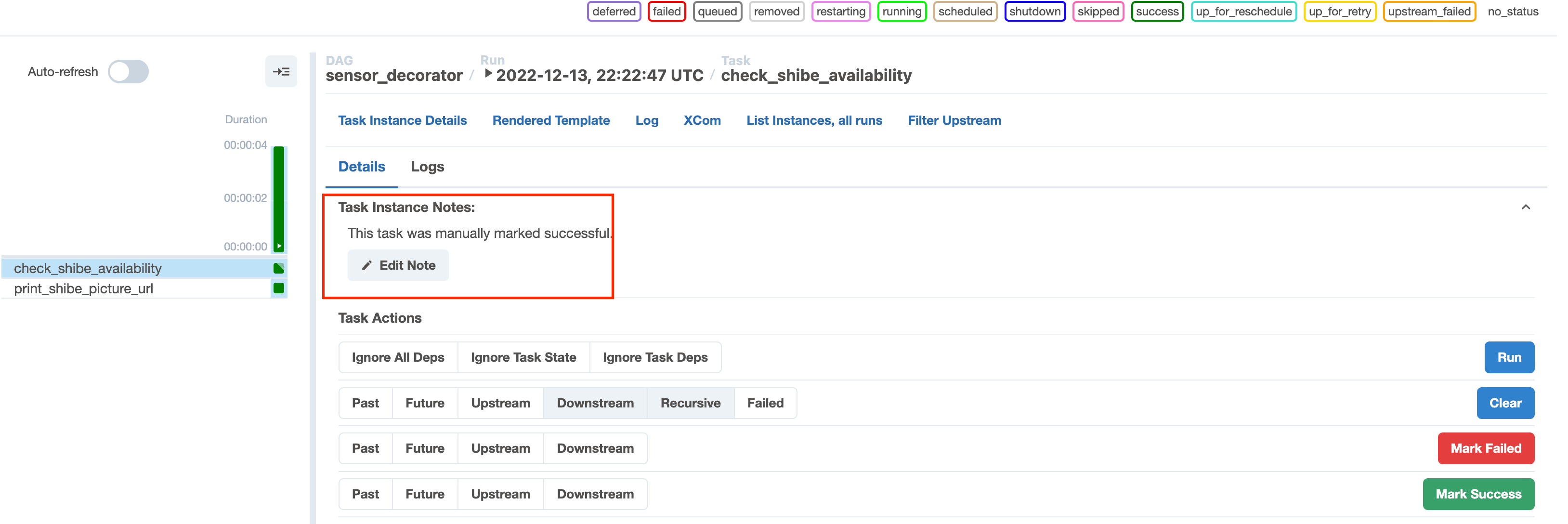 If a task instance or DAG run has a note, its grid box is marked with a grey corner.
This feature is useful for tracking and maintaining visibility of manual changes made to task instances such as rerunning or changing the task status. We recommend utilizing this feature any time task or DAG statuses are altered.
### Clear all tasks
1. In the Airflow UI, go to **Browse** > **Task Instances**.
2. Select the tasks to rerun.
3. In the **Actions** list select **Clear**.
To rerun multiple DAGs, click **Browse** > **DAG Runs**, select the DAGs to rerun, and in the **Actions** list select **Clear the state**.
## Catchup
You can use the built-in [catchup](https://airflow.apache.org/docs/apache-airflow/stable/dag-run.html#catchup) DAG argument to process data for logical dates between the set `start_date` of a DAG and the current date.
When the catchup parameter for a DAG is set to `True`, at the time the DAG is turned on in Airflow, the scheduler starts a DAG run for every data interval that hasn't been run between the DAG's `start_date` and the current data interval. For example, if your DAG is scheduled to run daily and has a `start_date` of 1/1/2023, and you deploy that DAG and turn it on 2/1/2023, Airflow will schedule and start all of the daily DAG runs for January. Catchup is also triggered when you turn a DAG off for a period and then turn it on again.
Catchup can be controlled by setting the parameter in your DAG's arguments. By default, catchup is set to `True`. This example DAG doesn't use catchup:
```python wrap theme={null}
@dag(
dag_id="example_dag",
start_date=datetime(2023, 4, 23),
max_active_runs=1,
schedule=UnevenIntervalsTimetable(),
default_args={
"retries": 1,
"retry_delay": timedelta(minutes=3),
},
catchup=False
)
```
Catchup is a powerful feature, but it should be used with caution. For example, if you deploy a DAG that runs every 5 minutes with a start date of 1 year ago and don't set catchup to `False`, Airflow will schedule numerous DAG runs all at once. When using catchup, keep in mind what resources Airflow has available and how many DAG runs you can support at one time. To avoid overloading your scheduler or external systems, you can use the following parameters in conjunction with catchup:
* `max_active_runs`: Set at the DAG level and limits the number of DAG runs that Airflow will execute for that particular DAG at any given time. For example, if you set this value to 3 and the DAG had 15 catchup runs to complete, they would be executed in 5 chunks of 3 runs.
* `depends_on_past`: Set at the task level or as a `default_arg` for all tasks at the DAG level. When set to `True`, the task instance must wait for the same task in the most recent DAG run to be successful. This ensures sequential data loads and allows only one DAG run to be executed at a time in most cases.
* `wait_for_downstream`: Set at the DAG level and similar to a DAG-level implementation of `depends_on_past`. The entire DAG needs to run successfully for the next DAG run to start.
* `catchup_by_default`: Set at the Airflow level in your `airflow.cfg` or as an environment variable. If you set this parameter to `False` all DAGs in your Airflow environment won't catchup unless you turn it on.
If you want to deploy your DAG with catchup enabled but there are some tasks you don't want to run during the catchup, you can use the [`LatestOnlyOperator`](https://airflow.apache.org/registry/providers/standard#standard-latest_only-LatestOnlyOperator) in your DAG. This operator only runs during the DAG's most recent scheduled interval. In every other DAG run it is ignored, along with any tasks downstream of it.
## Backfill
Backfilling lets you use a DAG to process data prior to the DAG's start date. [Backfilling](https://airflow.apache.org/docs/apache-airflow/stable/dag-run.html#backfill) is the concept of running a DAG for a specified historical period. Unlike catchup, which triggers missed DAG runs from the DAG's `start_date` through the current data interval, backfill periods can be specified explicitly and can include periods prior to the DAG's `start_date`.
Backfilling can be accomplished in Airflow using the CLI by specifying the DAG ID and the start and end dates for the backfill period. This command runs the DAG for all intervals between the start date and end date. DAGs in your backfill interval are still rerun even if they already have DAG runs. For example:
```bash wrap theme={null}
airflow dags backfill [-h] [-c CONF] [--delay-on-limit DELAY_ON_LIMIT] [-x]
[-n] [-e END_DATE] [-i] [-I] [-l] [-m] [--pool POOL]
[--rerun-failed-tasks] [--reset-dagruns] [-B]
[-s START_DATE] [-S SUBDIR] [-t TASK_REGEX] [-v] [-y]
dag_id
```
For example, `airflow dags backfill -s 2023-04-01 -e 2021-04-02 example_dag` backfills `example_dag` from April 1st-2nd 2023. For more information about the backfill parameter, see the [Airflow documentation](https://airflow.apache.org/docs/apache-airflow/stable/cli-and-env-variables-ref.html#backfill).
When using backfill keep the following considerations in mind:
* Consider your available resources. If your backfill will trigger many DAG runs, you might want to add some of the catchup parameters to your DAG.
* Clearing the task or DAG status of a backfilled DAG run doesn't rerun the task or DAG.
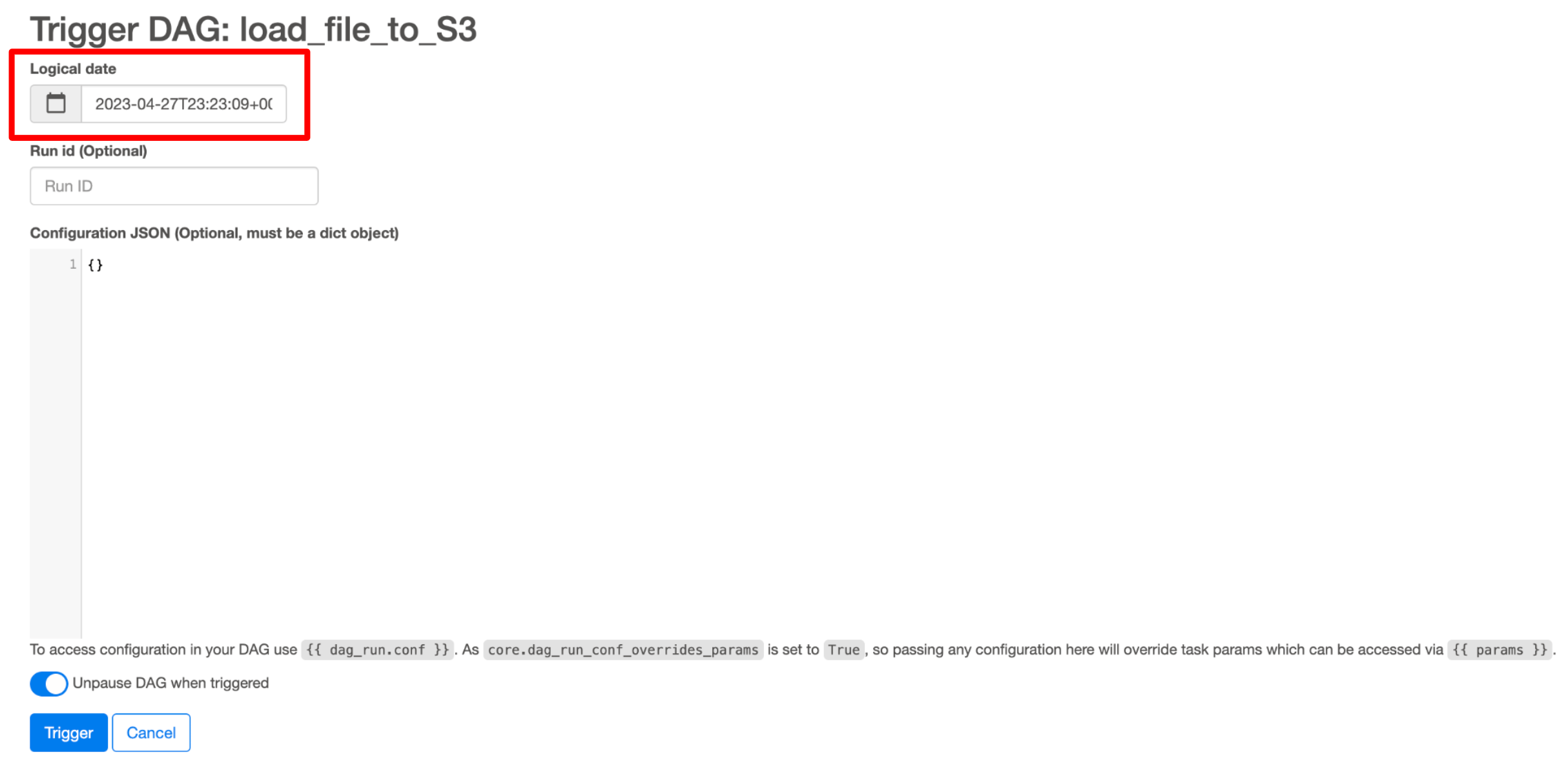
Alternatively, you can deploy a copy of the DAG using a new name with the start date as the date you want to backfill to. Airflow considers this a separate DAG, so you won't see all the DAG runs and task instances in the same place, but it runs the DAG for data in the desired time period. If you have a small number of DAG runs to backfill, you can trigger them manually from the Airflow UI using **Trigger DAG w/ config** and choose the desired logical date as shown in the following image:
If a task instance or DAG run has a note, its grid box is marked with a grey corner.
This feature is useful for tracking and maintaining visibility of manual changes made to task instances such as rerunning or changing the task status. We recommend utilizing this feature any time task or DAG statuses are altered.
### Clear all tasks
1. In the Airflow UI, go to **Browse** > **Task Instances**.
2. Select the tasks to rerun.
3. In the **Actions** list select **Clear**.
To rerun multiple DAGs, click **Browse** > **DAG Runs**, select the DAGs to rerun, and in the **Actions** list select **Clear the state**.
## Catchup
You can use the built-in [catchup](https://airflow.apache.org/docs/apache-airflow/stable/dag-run.html#catchup) DAG argument to process data for logical dates between the set `start_date` of a DAG and the current date.
When the catchup parameter for a DAG is set to `True`, at the time the DAG is turned on in Airflow, the scheduler starts a DAG run for every data interval that hasn't been run between the DAG's `start_date` and the current data interval. For example, if your DAG is scheduled to run daily and has a `start_date` of 1/1/2023, and you deploy that DAG and turn it on 2/1/2023, Airflow will schedule and start all of the daily DAG runs for January. Catchup is also triggered when you turn a DAG off for a period and then turn it on again.
Catchup can be controlled by setting the parameter in your DAG's arguments. By default, catchup is set to `True`. This example DAG doesn't use catchup:
```python wrap theme={null}
@dag(
dag_id="example_dag",
start_date=datetime(2023, 4, 23),
max_active_runs=1,
schedule=UnevenIntervalsTimetable(),
default_args={
"retries": 1,
"retry_delay": timedelta(minutes=3),
},
catchup=False
)
```
Catchup is a powerful feature, but it should be used with caution. For example, if you deploy a DAG that runs every 5 minutes with a start date of 1 year ago and don't set catchup to `False`, Airflow will schedule numerous DAG runs all at once. When using catchup, keep in mind what resources Airflow has available and how many DAG runs you can support at one time. To avoid overloading your scheduler or external systems, you can use the following parameters in conjunction with catchup:
* `max_active_runs`: Set at the DAG level and limits the number of DAG runs that Airflow will execute for that particular DAG at any given time. For example, if you set this value to 3 and the DAG had 15 catchup runs to complete, they would be executed in 5 chunks of 3 runs.
* `depends_on_past`: Set at the task level or as a `default_arg` for all tasks at the DAG level. When set to `True`, the task instance must wait for the same task in the most recent DAG run to be successful. This ensures sequential data loads and allows only one DAG run to be executed at a time in most cases.
* `wait_for_downstream`: Set at the DAG level and similar to a DAG-level implementation of `depends_on_past`. The entire DAG needs to run successfully for the next DAG run to start.
* `catchup_by_default`: Set at the Airflow level in your `airflow.cfg` or as an environment variable. If you set this parameter to `False` all DAGs in your Airflow environment won't catchup unless you turn it on.
If you want to deploy your DAG with catchup enabled but there are some tasks you don't want to run during the catchup, you can use the [`LatestOnlyOperator`](https://airflow.apache.org/registry/providers/standard#standard-latest_only-LatestOnlyOperator) in your DAG. This operator only runs during the DAG's most recent scheduled interval. In every other DAG run it is ignored, along with any tasks downstream of it.
## Backfill
Backfilling lets you use a DAG to process data prior to the DAG's start date. [Backfilling](https://airflow.apache.org/docs/apache-airflow/stable/dag-run.html#backfill) is the concept of running a DAG for a specified historical period. Unlike catchup, which triggers missed DAG runs from the DAG's `start_date` through the current data interval, backfill periods can be specified explicitly and can include periods prior to the DAG's `start_date`.
Backfilling can be accomplished in Airflow using the CLI by specifying the DAG ID and the start and end dates for the backfill period. This command runs the DAG for all intervals between the start date and end date. DAGs in your backfill interval are still rerun even if they already have DAG runs. For example:
```bash wrap theme={null}
airflow dags backfill [-h] [-c CONF] [--delay-on-limit DELAY_ON_LIMIT] [-x]
[-n] [-e END_DATE] [-i] [-I] [-l] [-m] [--pool POOL]
[--rerun-failed-tasks] [--reset-dagruns] [-B]
[-s START_DATE] [-S SUBDIR] [-t TASK_REGEX] [-v] [-y]
dag_id
```
For example, `airflow dags backfill -s 2023-04-01 -e 2021-04-02 example_dag` backfills `example_dag` from April 1st-2nd 2023. For more information about the backfill parameter, see the [Airflow documentation](https://airflow.apache.org/docs/apache-airflow/stable/cli-and-env-variables-ref.html#backfill).
When using backfill keep the following considerations in mind:
* Consider your available resources. If your backfill will trigger many DAG runs, you might want to add some of the catchup parameters to your DAG.
* Clearing the task or DAG status of a backfilled DAG run doesn't rerun the task or DAG.
Alternatively, you can deploy a copy of the DAG using a new name with the start date as the date you want to backfill to. Airflow considers this a separate DAG, so you won't see all the DAG runs and task instances in the same place, but it runs the DAG for data in the desired time period. If you have a small number of DAG runs to backfill, you can trigger them manually from the Airflow UI using **Trigger DAG w/ config** and choose the desired logical date as shown in the following image: