> ## Documentation Index
> Fetch the complete documentation index at: https://astronomer.io/docs/llms.txt
> Use this file to discover all available pages before exploring further.
# Create a Databricks connection in Airflow
[Databricks](https://www.databricks.com/) is a SaaS product for data processing using Apache Spark. Integrating Databricks with Airflow lets you manage Databricks clusters, as well as execute and monitor Databricks jobs from an Airflow DAG.
This guide provides the basic setup for creating a Databricks connection. For a complete integration tutorial, see [Orchestrate Databricks jobs with Airflow](/docs/learn/2.x/airflow-databricks).
## Prerequisites
* The [Astro CLI](/docs/cli/v1.43/overview).
* A locally running [Astro project](/docs/cli/v1.43/get-started-cli).
* A [Databricks account](https://www.databricks.com/try-databricks?itm_data=NavBar-TryDatabricks-Trial#account).
## Get connection details
A connection from Airflow to Databricks requires the following information:
* Databricks URL
* Personal access token
Complete the following steps to retrieve these values:
1. In the Databricks Cloud UI, copy the URL of your Databricks workspace. For example, it should be formatted as either `https://dbc-75fc7ab7-96a6.cloud.databricks.com/` or `https://your-org.cloud.databricks.com/`.
2. To use a personal access token for a user, follow the [Databricks documentation](https://docs.databricks.com/dev-tools/auth.html#databricks-personal-access-tokens-for-users) to generate a new token. To generate a personal access token for a service principal, see [Manage personal access tokens for a service principal](https://docs.databricks.com/administration-guide/users-groups/service-principals.html#manage-personal-access-tokens-for-a-service-principal). Copy the personal access token.
## Create your connection
Astro users can also create connections using the [Astro Environment Manager](/docs/astro/manage-connections-variables#astro-environment-manager), which stores connections in an Astro-managed secrets backend. These connections can be shared across multiple deployed and local Airflow environments. See [Create Airflow connections in the Astro UI](/docs/astro/create-and-link-connections).
1. Open your Astro project and add the following line to your `requirements.txt` file:
```text wrap theme={null}
apache-airflow-providers-databricks
```
This will install the Databricks provider package, which makes the Databricks connection type available in Airflow.
2. Run `astro dev restart` to restart your local Airflow environment and apply your changes in `requirements.txt`.
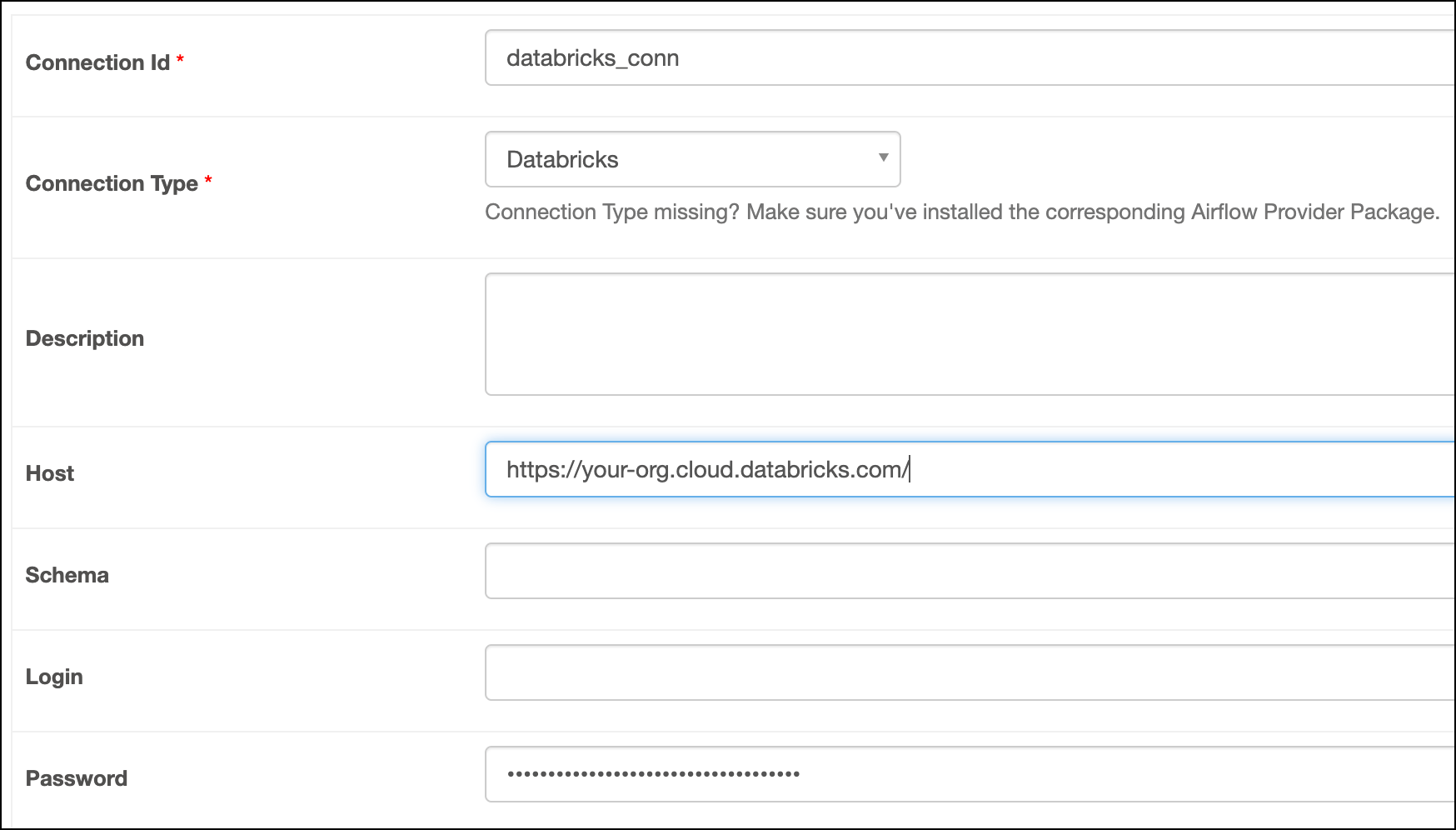
3. In the Airflow UI for your local Airflow environment, go to **Admin** > **Connections**. Click **+** to add a new connection, then select the connection type as **Databricks**.
4. Fill out the following connection fields using the information you retrieved from [Get connection details](#get-connection-details):
* **Connection Id**: Enter a name for the connection.
* **Host**: Enter the Databricks URL.
* **Password**: Enter your personal access token.
5. Click **Test**. After the connection test succeeds, click **Save**.
 ## How it works
Airflow uses Python's `requests` library to connect to Databricks through the [`BaseDatabricksHook`](https://airflow.apache.org/docs/apache-airflow-providers-databricks/stable/_api/airflow/providers/databricks/hooks/databricks/index.html).
## See also
* [Apache Airflow Databricks provider package documentation](https://airflow.apache.org/docs/apache-airflow-providers-databricks/stable/index.html)
* Databricks modules in the [Airflow Registry](https://airflow.apache.org/registry/)
* [Import and export Airflow connections using Astro CLI](/docs/astro/import-export-connections-variables#using-the-astro-cli-local-environments-only)
## How it works
Airflow uses Python's `requests` library to connect to Databricks through the [`BaseDatabricksHook`](https://airflow.apache.org/docs/apache-airflow-providers-databricks/stable/_api/airflow/providers/databricks/hooks/databricks/index.html).
## See also
* [Apache Airflow Databricks provider package documentation](https://airflow.apache.org/docs/apache-airflow-providers-databricks/stable/index.html)
* Databricks modules in the [Airflow Registry](https://airflow.apache.org/registry/)
* [Import and export Airflow connections using Astro CLI](/docs/astro/import-export-connections-variables#using-the-astro-cli-local-environments-only)