> ## Documentation Index
> Fetch the complete documentation index at: https://astronomer.io/docs/llms.txt
> Use this file to discover all available pages before exploring further.
# Manage connections in Apache Airflow
Connections in Airflow are sets of configurations used to connect with other tools in the data ecosystem. Because most hooks and operators rely on connections to send and retrieve data from external systems, understanding how to create and configure them is essential for running Airflow in a production environment.
In this guide you'll:
* Learn about Airflow connections.
* Learn how to define connections using the Airflow UI.
* Learn how to define connections using environment variables.
* Add sample Snowflake and Slack Webhook connections to a DAG.
**Other ways to learn**
There are multiple resources for learning about this topic. See also:
* Astronomer Academy: [Airflow: Connections 101](https://academy.astronomer.io/path/airflow-101/connections-101) module.
For Astro customers, Astronomer recommends using the [Astro Environment Manager](/docs/astro/manage-connections-variables#astro-environment-manager) to store connections in an Astro-managed secrets backend. These connections can be shared across multiple deployed and local Airflow environments. See [Create Airflow connections in the Astro UI](/docs/astro/create-and-link-connections).
## Assumed knowledge
To get the most out of this guide, you should have an understanding of:
* Basic Airflow concepts. See [Introduction to Apache Airflow](/docs/learn/2.x/intro-to-airflow).
* Airflow operators. See [Operators 101](/docs/learn/2.x/what-is-an-operator).
* Airflow hooks. See [Hooks 101](/docs/learn/2.x/what-is-a-hook).
## Airflow connection basics
An Airflow connection is a set of configurations that send requests to the API of an external tool. In most cases, a connection requires login credentials or a private key to authenticate Airflow to the external tool.
Airflow connections can be created by using one of the following methods:
* The [Astro Environment Manager](/docs/astro/manage-connections-variables#astro-environment-manager), which is the recommended way for Astro customers to manage connections.
* The [Airflow UI](/docs/learn/2.x/airflow-ui).
* [Environment variables](https://airflow.apache.org/docs/apache-airflow/stable/cli-and-env-variables-ref.html#environment-variables).
* The [Airflow REST API](https://airflow.apache.org/docs/apache-airflow/stable/stable-rest-api-ref.html#tag/Connection).
* A [secrets backend](https://airflow.apache.org/docs/apache-airflow/stable/security/secrets/secrets-backend/index.html) (a system for managing secrets external to Airflow).
* The [Airflow CLI](https://airflow.apache.org/docs/apache-airflow/stable/howto/connection.html#connection-cli).
* The [`airflow_settings.yaml` file](/docs/cli/v1.43/develop-project#configure-airflow_settings-yaml-local-development-only) for Astro CLI users.
This guide focuses on adding connections using the Airflow UI and environment variables. For more in-depth information on configuring connections using other methods, see the [REST API reference](https://airflow.apache.org/docs/apache-airflow/stable/stable-rest-api-ref.html#tag/Connection), [Managing Connections](https://airflow.apache.org/docs/apache-airflow/stable/howto/connection.html) and [Secrets Backend](https://airflow.apache.org/docs/apache-airflow/stable/security/secrets/secrets-backend/index.html).
Each connection has a unique `conn_id` which can be provided to operators and [hooks](/docs/learn/2.x/what-is-a-hook) that require a connection.
To standardize connections, Airflow includes many different connection types. There are general connection types for connecting to large clouds, such as `aws_default` and `gcp_default`, as well as connection types for specific services like `azure_service_bus_default`.
Each connection type requires different configurations and values based on the service it's connecting to. There are a couple of ways to find the information you need to provide for a particular connection type:
* Open the relevant provider page in the [Airflow Registry](https://airflow.apache.org/registry/providers/) and go to the first link under **Helpful Links** to access the Apache Airflow documentation for the provider. Most commonly used providers will have documentation on each of their associated connection types. For example, you can find information on how to set up different connections to Azure in the [Azure provider docs](https://airflow.apache.org/registry/providers/microsoft-azure).
* Check the documentation of the external tool you are connecting to and see if it offers guidance on how to authenticate.
* Refer to the source code of the hook that is being used by your operator.
If you use a mix of strategies for managing connections, it's important to understand that if the same connection is defined in multiple ways, Airflow uses the following order of precedence:
1. Secrets Backend
2. Astro Environment Manager
3. Environment Variables
4. Airflow's metadata database (Airflow UI)
See [How Airflow finds connections](/docs/astro/manage-connections-variables#how-airflow-finds-connections) for more information.
## Defining connections in the Airflow UI
The most common way of defining a connection is using the Airflow UI. Go to **Admin** > **Connections**.
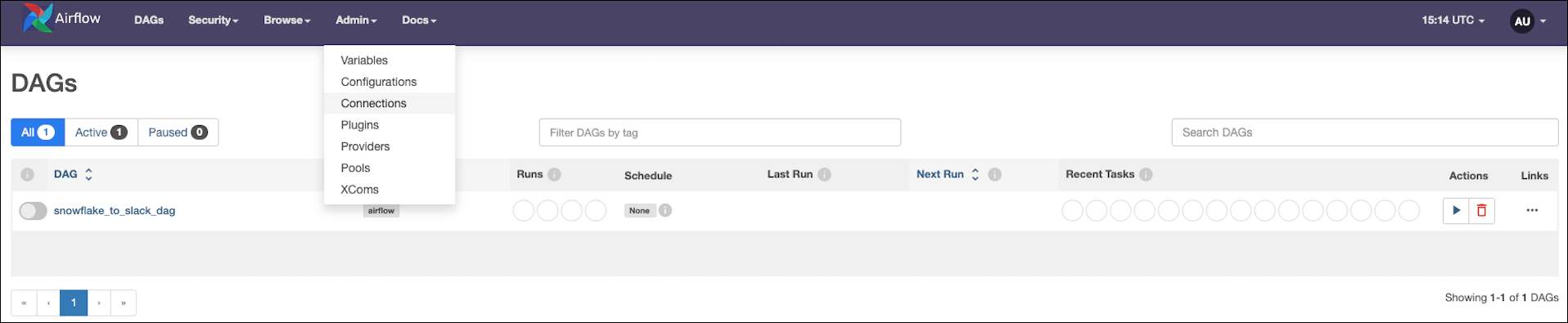 Airflow doesn't provide any preconfigured connections. To create a new connection, click the blue **+** button.
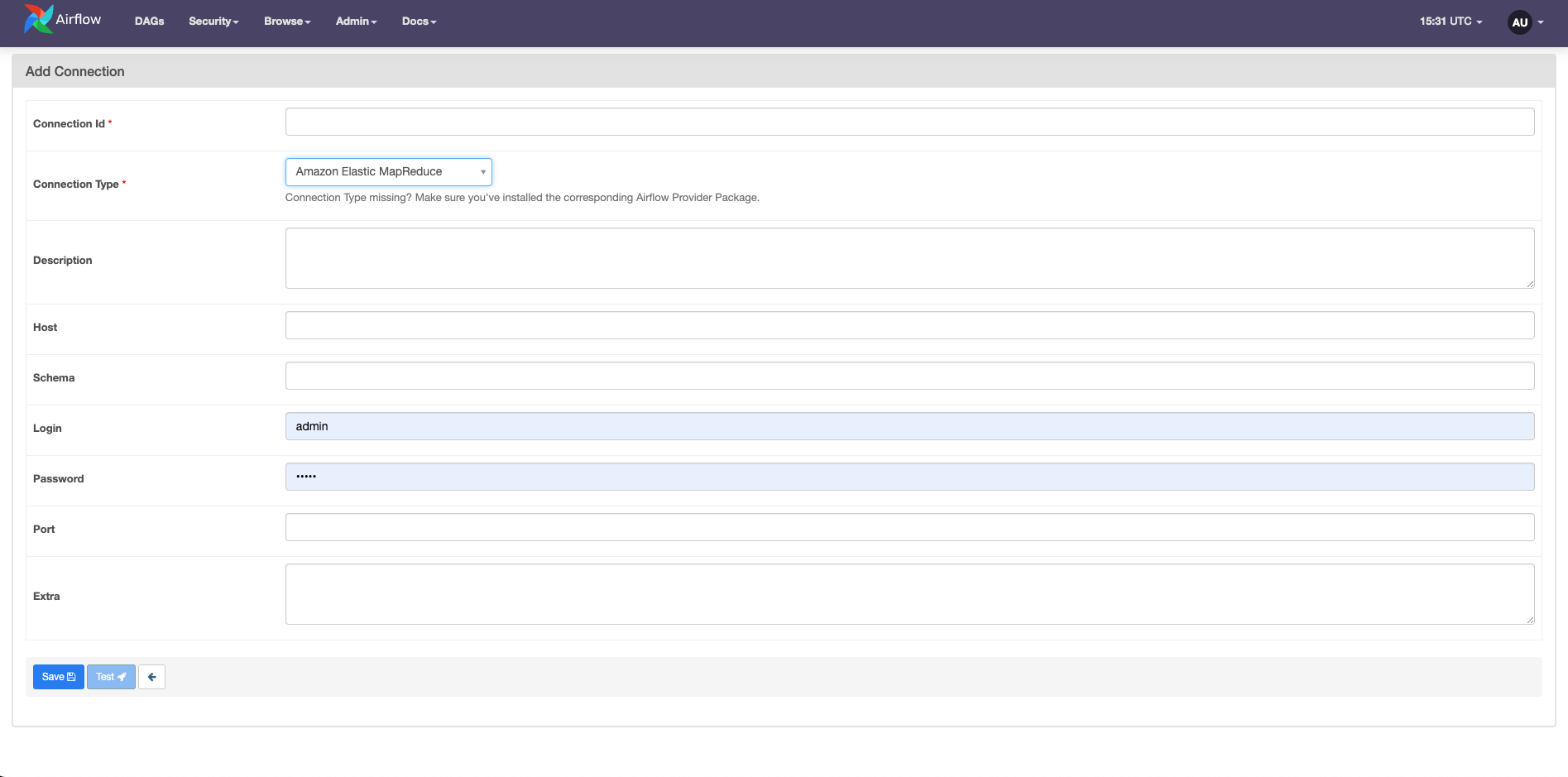 As you update the **Connection Type** field, notice how the other available fields change. Each connection type requires different kinds of information. Specific connection types are only available in the dropdown list when the relevant provider is installed in your Airflow environment.
You don't have to specify every field for most connections. However, the values marked as required in the Airflow UI can be misleading. For example, to set up a connection to a PostgreSQL database, you need to reference the [PostgreSQL provider documentation](https://airflow.apache.org/docs/apache-airflow-providers-postgres/stable/connections/postgres.html) to learn that the connection requires a `Host`, a user name as `login`, and a password in the `password` field.
As you update the **Connection Type** field, notice how the other available fields change. Each connection type requires different kinds of information. Specific connection types are only available in the dropdown list when the relevant provider is installed in your Airflow environment.
You don't have to specify every field for most connections. However, the values marked as required in the Airflow UI can be misleading. For example, to set up a connection to a PostgreSQL database, you need to reference the [PostgreSQL provider documentation](https://airflow.apache.org/docs/apache-airflow-providers-postgres/stable/connections/postgres.html) to learn that the connection requires a `Host`, a user name as `login`, and a password in the `password` field.
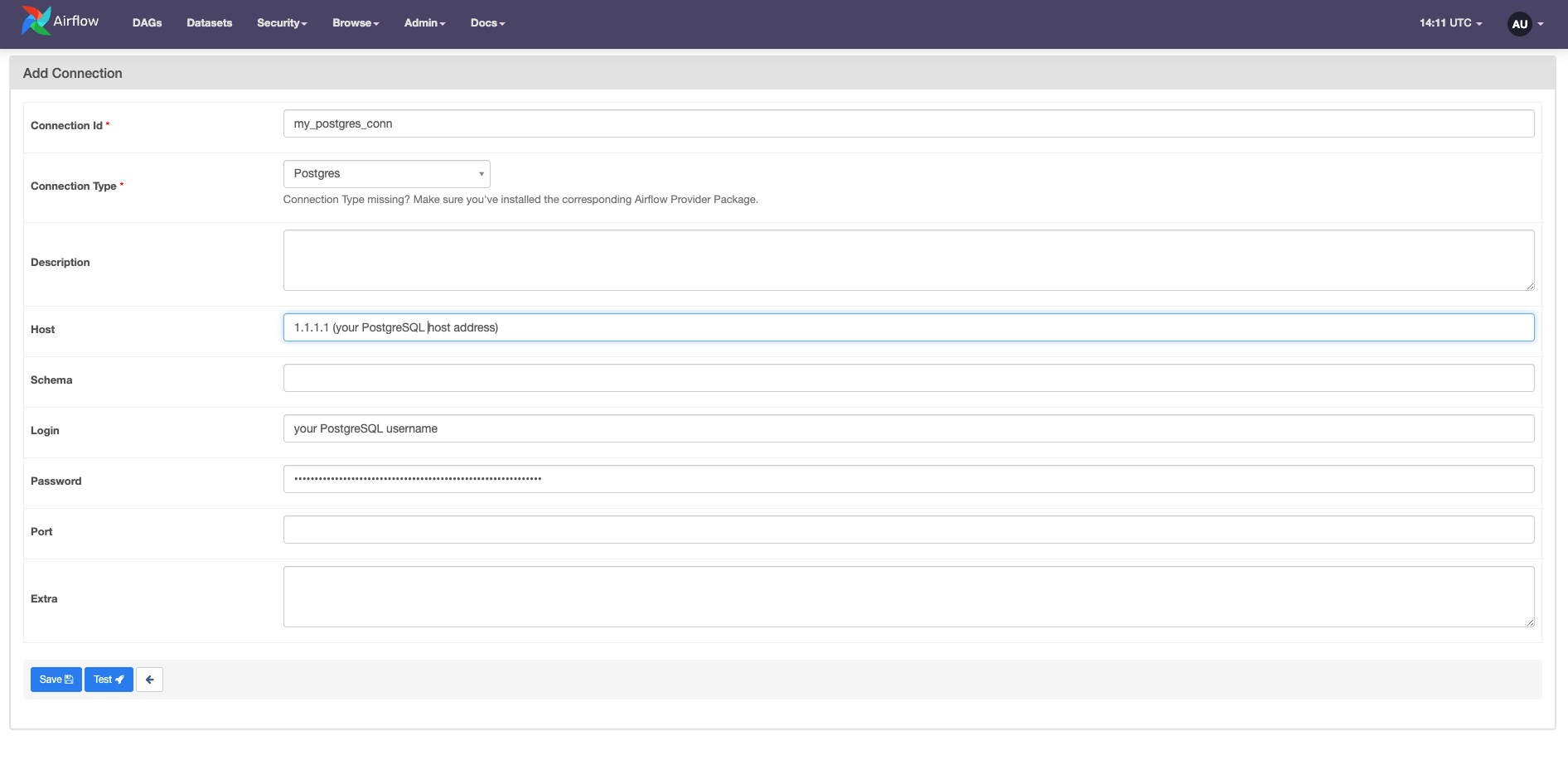 Any parameters that don't have specific fields in the connection form can be defined in the **Extra** field as a JSON dictionary. For example, you can add the `sslmode` or a client `sslkey` in the **Extra** field of your PostgreSQL connection.
You can test some connection types from the Airflow UI with the **Test** button if you enable [`test_connection` in the Airflow config](https://airflow.apache.org/docs/apache-airflow/stable/configurations-ref.html#test-connection). After running a connection test, a message shows either a success confirmation or an error message. When using the **Test** button, the connection to your external tool is made from the webserver component of Airflow. See also [Testing connections in the Airflow documentation](https://airflow.apache.org/docs/apache-airflow/stable/howto/connection.html#testing-connections).
## Define connections with environment variables
Connections can also be defined using environment variables. If you use the Astro CLI, you can use the `.env` file for local development or specify environment variables in your project's Dockerfile.
If you are synchronizing your project to a remote repository, don't save sensitive information in your Dockerfile. In this case, using either a secrets backend, Airflow connections defined in the UI, or `.env` locally are preferred to avoid exposing secrets in plain text.
The environment variable used for the connection must be formatted as `AIRFLOW_CONN_YOURCONNID` and can be provided as a Uniform Resource Identifier (URI) or in JSON.
[URI](https://en.wikipedia.org/wiki/Uniform_Resource_Identifier) is a format designed to contain all necessary connection information in one string, starting with the connection type, followed by `login`, `password`, and `host`. In many cases a specific port, schema, and additional parameters must be added.
```docker wrap theme={null}
# the general format of a URI connection that is defined in your Dockerfile
ENV AIRFLOW_CONN_MYCONNID='my-conn-type://login:password@host:port/schema?param1=val1¶m2=val2'
# an example of a connection to snowflake defined as a URI
ENV AIRFLOW_CONN_SNOWFLAKE_CONN='snowflake://LOGIN:PASSWORD@/?account=xy12345®ion=eu-central-1'
```
Connections can also be provided to an environment variable as a JSON dictionary:
```json wrap theme={null}
# example of a connection defined as a JSON file in your `.env` file
AIRFLOW_CONN_MYCONNID='{
"conn_type": "my-conn-type",
"login": "my-login",
"password": "my-password",
"host": "my-host",
"port": 1234,
"schema": "my-schema",
"extra": {
"param1": "val1",
"param2": "val2"
}
}'
```
Connections that are defined using environment variables don't appear in the list of available connections in the Airflow UI.
To store a connection in JSON as an Astro environment variable, remove all line breaks in your JSON object so that the value is a single, unbroken line. See [Add Airflow connections and variables using environment variables](/docs/astro/environment-variables)
## Mask sensitive information
Connections often contain sensitive credentials. By default, Airflow hides the `password` field in the UI and in the Airflow logs. If `AIRFLOW__CORE__HIDE_SENSITIVE_VAR_CONN_FIELDS` is set to `True`, values from the connection's `Extra` field are also hidden if their keys contain any of the words listed in `AIRFLOW__CORE__SENSITIVE_VAR_CONN_NAMES`. You can find more information on masking, including a list of the default values in this environment variable, in the Airflow documentation on [Masking sensitive data](https://airflow.apache.org/docs/apache-airflow/stable/security/secrets/mask-sensitive-values.html).
## Test a connection
Airflow offers several ways to test your connections by calling the `test_connection` method of the [Airflow hook](/docs/learn/2.x/what-is-a-hook) associated with your connection. Provider hooks that don't have this method defined can't be tested using these methods.
* Airflow UI: You can test many types of Airflow connections directly from the UI using the **Test** button on the **Connections** page. See [Defining connections in the Airflow UI](#defining-connections-in-the-airflow-ui).
* Airflow REST API: The Airflow REST API offers the [`connections/test` endpoint](https://airflow.apache.org/docs/apache-airflow/stable/stable-rest-api-ref.html#operation/test_connection) to test connections. This is the same endpoint that the Airflow UI uses to test connections.
* Airflow CLI: You can test a connection from the [Airflow CLI](https://airflow.apache.org/docs/apache-airflow/stable/cli-and-env-variables-ref.html) using `airflow connections test `, if you have [`test_connection`](https://airflow.apache.org/docs/apache-airflow/stable/configurations-ref.html#test-connection) enabled in the Airflow config. If you use the Astro CLI, you can access this command by running `astro dev run connections test `.
In Airflow 2.7+ testing connections by any of the methods above is disabled by default. You can enable connection testing by setting the [`test_connection` core config](https://airflow.apache.org/docs/apache-airflow/stable/configurations-ref.html#test-connection) to `Enabled` by defining the environment variable `AIRFLOW__CORE__TEST_CONNECTION=Enabled` in your Airflow environment. Astronomer recommends not to enable this feature until you made sure that only highly trusted UI/API users have "edit connection" permissions.
## Example: Configure the `SnowflakeToSlackOperator`
In this example, you'll configure the `SnowflakeToSlackOperator`, which requires connections to Snowflake and Slack. You'll define the connections using the Airflow UI.
Before starting Airflow, you need to install the [Snowflake](https://airflow.apache.org/registry/providers/snowflake) and the [Slack](https://airflow.apache.org/registry/providers/slack) providers. If you use the Astro CLI, you can install the packages by adding the following lines to your Astro project's `requirements.txt` file:
```text wrap theme={null}
apache-airflow-providers-snowflake
apache-airflow-providers-slack
```
Open the Airflow UI and create a new connection. Set the **Connection Type** to `Snowflake`. This connection type requires the following parameters:
* Connection Id: `snowflake_conn` or any other string that isn't already in use by an existing connection
* Connection Type: `Snowflake`
* Account: Your Snowflake account in the format `xy12345.region`
* Login: Your Snowflake login name.
* Password: Your Snowflake login password.
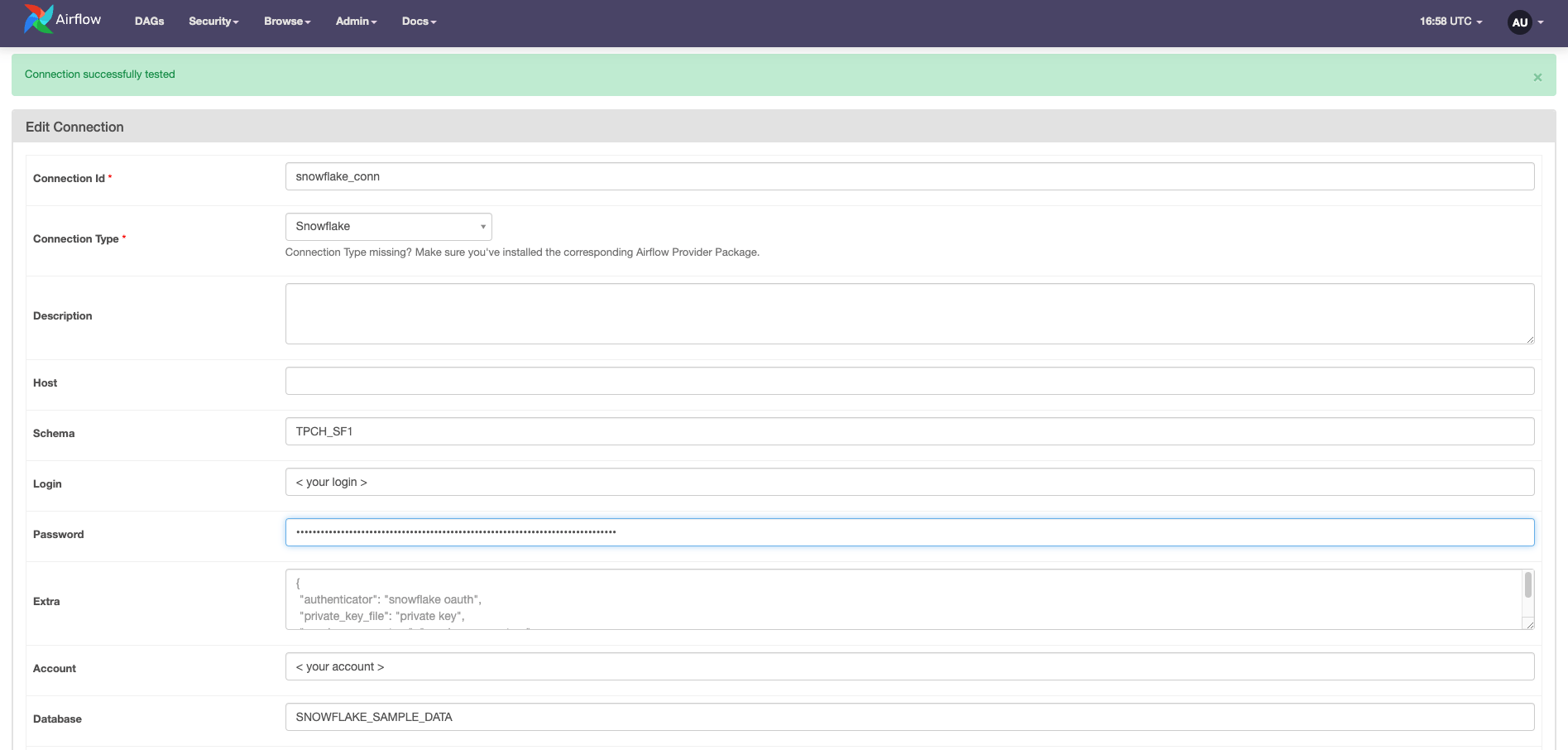
You can leave the other fields empty. Click **Test** to test the connection.
The following image shows the connection to Snowflake was successful.
Any parameters that don't have specific fields in the connection form can be defined in the **Extra** field as a JSON dictionary. For example, you can add the `sslmode` or a client `sslkey` in the **Extra** field of your PostgreSQL connection.
You can test some connection types from the Airflow UI with the **Test** button if you enable [`test_connection` in the Airflow config](https://airflow.apache.org/docs/apache-airflow/stable/configurations-ref.html#test-connection). After running a connection test, a message shows either a success confirmation or an error message. When using the **Test** button, the connection to your external tool is made from the webserver component of Airflow. See also [Testing connections in the Airflow documentation](https://airflow.apache.org/docs/apache-airflow/stable/howto/connection.html#testing-connections).
## Define connections with environment variables
Connections can also be defined using environment variables. If you use the Astro CLI, you can use the `.env` file for local development or specify environment variables in your project's Dockerfile.
If you are synchronizing your project to a remote repository, don't save sensitive information in your Dockerfile. In this case, using either a secrets backend, Airflow connections defined in the UI, or `.env` locally are preferred to avoid exposing secrets in plain text.
The environment variable used for the connection must be formatted as `AIRFLOW_CONN_YOURCONNID` and can be provided as a Uniform Resource Identifier (URI) or in JSON.
[URI](https://en.wikipedia.org/wiki/Uniform_Resource_Identifier) is a format designed to contain all necessary connection information in one string, starting with the connection type, followed by `login`, `password`, and `host`. In many cases a specific port, schema, and additional parameters must be added.
```docker wrap theme={null}
# the general format of a URI connection that is defined in your Dockerfile
ENV AIRFLOW_CONN_MYCONNID='my-conn-type://login:password@host:port/schema?param1=val1¶m2=val2'
# an example of a connection to snowflake defined as a URI
ENV AIRFLOW_CONN_SNOWFLAKE_CONN='snowflake://LOGIN:PASSWORD@/?account=xy12345®ion=eu-central-1'
```
Connections can also be provided to an environment variable as a JSON dictionary:
```json wrap theme={null}
# example of a connection defined as a JSON file in your `.env` file
AIRFLOW_CONN_MYCONNID='{
"conn_type": "my-conn-type",
"login": "my-login",
"password": "my-password",
"host": "my-host",
"port": 1234,
"schema": "my-schema",
"extra": {
"param1": "val1",
"param2": "val2"
}
}'
```
Connections that are defined using environment variables don't appear in the list of available connections in the Airflow UI.
To store a connection in JSON as an Astro environment variable, remove all line breaks in your JSON object so that the value is a single, unbroken line. See [Add Airflow connections and variables using environment variables](/docs/astro/environment-variables)
## Mask sensitive information
Connections often contain sensitive credentials. By default, Airflow hides the `password` field in the UI and in the Airflow logs. If `AIRFLOW__CORE__HIDE_SENSITIVE_VAR_CONN_FIELDS` is set to `True`, values from the connection's `Extra` field are also hidden if their keys contain any of the words listed in `AIRFLOW__CORE__SENSITIVE_VAR_CONN_NAMES`. You can find more information on masking, including a list of the default values in this environment variable, in the Airflow documentation on [Masking sensitive data](https://airflow.apache.org/docs/apache-airflow/stable/security/secrets/mask-sensitive-values.html).
## Test a connection
Airflow offers several ways to test your connections by calling the `test_connection` method of the [Airflow hook](/docs/learn/2.x/what-is-a-hook) associated with your connection. Provider hooks that don't have this method defined can't be tested using these methods.
* Airflow UI: You can test many types of Airflow connections directly from the UI using the **Test** button on the **Connections** page. See [Defining connections in the Airflow UI](#defining-connections-in-the-airflow-ui).
* Airflow REST API: The Airflow REST API offers the [`connections/test` endpoint](https://airflow.apache.org/docs/apache-airflow/stable/stable-rest-api-ref.html#operation/test_connection) to test connections. This is the same endpoint that the Airflow UI uses to test connections.
* Airflow CLI: You can test a connection from the [Airflow CLI](https://airflow.apache.org/docs/apache-airflow/stable/cli-and-env-variables-ref.html) using `airflow connections test `, if you have [`test_connection`](https://airflow.apache.org/docs/apache-airflow/stable/configurations-ref.html#test-connection) enabled in the Airflow config. If you use the Astro CLI, you can access this command by running `astro dev run connections test `.
In Airflow 2.7+ testing connections by any of the methods above is disabled by default. You can enable connection testing by setting the [`test_connection` core config](https://airflow.apache.org/docs/apache-airflow/stable/configurations-ref.html#test-connection) to `Enabled` by defining the environment variable `AIRFLOW__CORE__TEST_CONNECTION=Enabled` in your Airflow environment. Astronomer recommends not to enable this feature until you made sure that only highly trusted UI/API users have "edit connection" permissions.
## Example: Configure the `SnowflakeToSlackOperator`
In this example, you'll configure the `SnowflakeToSlackOperator`, which requires connections to Snowflake and Slack. You'll define the connections using the Airflow UI.
Before starting Airflow, you need to install the [Snowflake](https://airflow.apache.org/registry/providers/snowflake) and the [Slack](https://airflow.apache.org/registry/providers/slack) providers. If you use the Astro CLI, you can install the packages by adding the following lines to your Astro project's `requirements.txt` file:
```text wrap theme={null}
apache-airflow-providers-snowflake
apache-airflow-providers-slack
```
Open the Airflow UI and create a new connection. Set the **Connection Type** to `Snowflake`. This connection type requires the following parameters:
* Connection Id: `snowflake_conn` or any other string that isn't already in use by an existing connection
* Connection Type: `Snowflake`
* Account: Your Snowflake account in the format `xy12345.region`
* Login: Your Snowflake login name.
* Password: Your Snowflake login password.
You can leave the other fields empty. Click **Test** to test the connection.
The following image shows the connection to Snowflake was successful.
 Next you'll set up a connection to Slack. To post a message to a Slack channel, you need to create a Slack app for your server and configure incoming webhooks. See the [Slack Documentation](https://api.slack.com/messaging/webhooks) for setup steps.
To connect to Slack from Airflow, you need to provide the following parameters:
* Connection Id: `slack_conn` (or another string that hasn't been used for a different connection already)
* Connection Type: `Slack Webhook`
* Host: `https://hooks.slack.com.services`, which is the first part of your Webhook URL
* Password: The second part of your Webhook URL in the format `T00000000/B00000000/XXXXXXXXXXXXXXXXXXXXXXXX`
Click **Test** to test the connection.
The last step is writing the DAG using the `SnowflakeToSlackOperator` to run a SQL query on a Snowflake table and post the result as a message to a Slack channel. The `SnowflakeToSlackOperator` requires both the connection id for the Snowflake connection (`snowflake_conn_id`) and the connection id for the Slack connection (`slack_conn_id`).
```python wrap theme={null}
from airflow.decorators import dag
from pendulum import datetime
from airflow.providers.snowflake.transfers.snowflake_to_slack import (
SnowflakeToSlackOperator,
)
@dag(start_date=datetime(2022, 7, 1), schedule=None, catchup=False)
def snowflake_to_slack_dag():
transfer_task = SnowflakeToSlackOperator(
task_id="transfer_task",
# the two connections are passed to the operator here:
snowflake_conn_id="snowflake_conn",
slack_conn_id="slack_conn",
params={"table_name": "ORDERS", "col_to_sum": "O_TOTALPRICE"},
sql="""
SELECT
COUNT(*) AS row_count,
SUM({{ params.col_to_sum }}) AS sum_price
FROM {{ params.table_name }}
""",
slack_message="""The table {{ params.table_name }} has
=> {{ results_df.ROW_COUNT[0] }} entries
=> with a total price of {{results_df.SUM_PRICE[0]}}""",
)
transfer_task
snowflake_to_slack_dag()
```
Next you'll set up a connection to Slack. To post a message to a Slack channel, you need to create a Slack app for your server and configure incoming webhooks. See the [Slack Documentation](https://api.slack.com/messaging/webhooks) for setup steps.
To connect to Slack from Airflow, you need to provide the following parameters:
* Connection Id: `slack_conn` (or another string that hasn't been used for a different connection already)
* Connection Type: `Slack Webhook`
* Host: `https://hooks.slack.com.services`, which is the first part of your Webhook URL
* Password: The second part of your Webhook URL in the format `T00000000/B00000000/XXXXXXXXXXXXXXXXXXXXXXXX`
Click **Test** to test the connection.
The last step is writing the DAG using the `SnowflakeToSlackOperator` to run a SQL query on a Snowflake table and post the result as a message to a Slack channel. The `SnowflakeToSlackOperator` requires both the connection id for the Snowflake connection (`snowflake_conn_id`) and the connection id for the Slack connection (`slack_conn_id`).
```python wrap theme={null}
from airflow.decorators import dag
from pendulum import datetime
from airflow.providers.snowflake.transfers.snowflake_to_slack import (
SnowflakeToSlackOperator,
)
@dag(start_date=datetime(2022, 7, 1), schedule=None, catchup=False)
def snowflake_to_slack_dag():
transfer_task = SnowflakeToSlackOperator(
task_id="transfer_task",
# the two connections are passed to the operator here:
snowflake_conn_id="snowflake_conn",
slack_conn_id="slack_conn",
params={"table_name": "ORDERS", "col_to_sum": "O_TOTALPRICE"},
sql="""
SELECT
COUNT(*) AS row_count,
SUM({{ params.col_to_sum }}) AS sum_price
FROM {{ params.table_name }}
""",
slack_message="""The table {{ params.table_name }} has
=> {{ results_df.ROW_COUNT[0] }} entries
=> with a total price of {{results_df.SUM_PRICE[0]}}""",
)
transfer_task
snowflake_to_slack_dag()
```