> ## Documentation Index
> Fetch the complete documentation index at: https://astronomer.io/docs/llms.txt
> Use this file to discover all available pages before exploring further.
# Using Airflow to Execute SQL
Executing SQL queries is one of the most common use cases for data pipelines. Whether you're extracting and loading data, calling a stored procedure, or executing a complex query for a report, Airflow has you covered. Using Airflow, you can orchestrate all of your SQL tasks elegantly with just a few lines of boilerplate code.
In this guide you'll learn about the best practices for executing SQL from your DAG, review the most commonly used Airflow SQL-related operators, and then use sample code to implement a few common SQL use cases.
All code used in this guide is located in the [Astronomer GitHub](https://github.com/astronomer/airflow-sql-tutorial).
## Assumed knowledge
To get the most out of this guide, you should have an understanding of:
* Airflow operators. See [Operators 101](/docs/learn/2.x/what-is-an-operator).
* Snowflake basics. See [Introduction to Snowflake](https://docs.snowflake.com/en/user-guide-intro.html).
## Best practices for executing SQL from your DAG
No matter what database or SQL version you're using, there are many ways to execute your queries using Airflow. Once you determine how to execute your queries, the following tips will help you keep your DAGs clean, readable, and efficient for execution.
### Use hooks and operators
Using hooks and operators whenever possible makes your DAGs easier to read, easier to maintain, and improves performance. The SQL-related operators included with Airflow can significantly limit the code needed to execute your queries.
### Keep lengthy SQL code out of your DAG
Astronomer recommends avoiding top-level code in your DAG file. If you have a SQL query, you should keep it in its own .sql file and imported into your DAG.
If you use the Astro CLI, you can store scripts like SQL queries in the `include/` directory:
```bash wrap theme={null}
├─ dags/
| └─ example-dag.py
├─ plugins/
├─ include/
| ├─ query1.sql
| └─ query2.sql
├─ Dockerfile
├─ packages.txt
└─ requirements.txt
```
An exception to this rule could be very short queries (such as `SELECT * FROM table`). Putting one-line queries like this directly in the DAG is fine if it makes your code more readable.
### Keep transformations in SQL
Remember that Airflow is primarily an orchestrator, not a transformation framework. While you have the full power of Python in your DAG, Astronomer recommends offloading as much of your transformation logic as possible to third party transformation frameworks. With SQL, this means completing the transformations within your query whenever possible.
## SQL operators
To make working with SQL easier, Airflow includes many built in operators. This guide discusses some of the most commonly used operators and shouldn't be considered a definitive resource. For more information about the available Airflow operators, see [`airflow.operators`](https://airflow.apache.org/docs/stable/_api/airflow/operators/index.html#).
In Airflow 2+, provider packages are separate from the core of Airflow. If you're running Airflow 2+, you might need to install separate packages (such as `apache-airflow-providers-snowflake`) to use the hooks, operators, and connections described here. In an Astro project, you can do this by adding the package names to your `requirements.txt` file. To learn more, read [Airflow Docs on Provider Packages](https://airflow.apache.org/docs/apache-airflow-providers/index.html).
### Action operators
In Airflow, action operators execute a function. You can use action operators (or hooks if no operator is available) to execute a SQL query against a database. Commonly used SQL-related action operators include:
* [`SQLExecuteQueryOperator`](https://airflow.apache.org/registry/providers/common-sql#common-sql-sql-SQLExecuteQueryOperator)
* [`MssqlHook`](https://airflow.apache.org/registry/providers/microsoft-mssql#microsoft-mssql-mssql-MsSqlHook)
* [`MysqlOperator`](https://registry.astronomer.io/providers/mysql/modules/mysqloperator)
* [`BigQueryOperator`](https://airflow.apache.org/registry/providers/google#google-bigquery-BigQueryInsertJobOperator)
### Transfer operators
Transfer operators move data from a source to a destination. For SQL-related tasks, they can often be used in the 'Extract-Load' portion of an ELT pipeline and can significantly reduce the amount of code you need to write. Some examples are:
* [`S3ToSnowflakeTransferOperator`](https://airflow.apache.org/registry/providers/snowflake#snowflake-copy_into_snowflake-CopyFromExternalStageToSnowflakeOperator)
* [`S3toRedshiftOperator`](https://airflow.apache.org/registry/providers/amazon#amazon-s3_to_redshift-S3ToRedshiftOperator)
* [`GCSToBigQueryOperator`](https://airflow.apache.org/registry/providers/google#google-gcs_to_bigquery-GCSToBigQueryOperator)
* [`PostgresToGCSOperator`](https://airflow.apache.org/registry/providers/google#google-postgres_to_gcs-PostgresToGCSOperator)
* [`BaseSQLToGCSOperator`](https://registry.astronomer.io/providers/google/modules/basesqltogcsoperator)
* [`VerticaToMySqlOperator`](https://airflow.apache.org/registry/providers/mysql#mysql-vertica_to_mysql-VerticaToMySqlOperator)
## Examples
Now that you've learned about the most commonly used Airflow SQL operators, you'll use the operators in some SQL use cases. For this guide you'll use [Snowflake](https://www.snowflake.com/), but the concepts shown can be adapted for other databases. Some of the environment setup for each example makes use of the [Astro CLI](/docs/cli/v1.43/overview) and Astro project structure, but you can also adapt this setup for use with Apache Airflow.
### Example 1: Execute a query
In this first example, a DAG executes two simple interdependent queries using [`SQLExecuteQueryOperator`](https://airflow.apache.org/registry/providers/common-sql#common-sql-sql-SQLExecuteQueryOperator).
First you need to define your DAG:
```python expandable wrap theme={null}
from airflow.decorators import dag
from airflow.providers.common.sql.operators.sql import SQLExecuteQueryOperator
from datetime import datetime, timedelta
default_args = {
"owner": "airflow",
"depends_on_past": False,
"email_on_failure": False,
"email_on_retry": False,
"retries": 1,
"retry_delay": timedelta(minutes=5),
}
@dag(
"call_snowflake_sprocs",
start_date=datetime(2020, 6, 1),
max_active_runs=3,
schedule="@daily",
default_args=default_args,
template_searchpath="/usr/local/airflow/include",
catchup=False,
)
def call_snowflake_sprocs():
opr_call_sproc1 = SQLExecuteQueryOperator(
task_id="call_sproc1", conn_id="snowflake", sql="call-sproc1.sql"
)
opr_call_sproc2 = SQLExecuteQueryOperator(
task_id="call_sproc2", conn_id="snowflake", sql="call-sproc2.sql"
)
opr_call_sproc1 >> opr_call_sproc2
call_snowflake_sprocs()
```
The `template_searchpath` argument in the DAG definition tells the DAG to look in the given folder for scripts, so you can now add two SQL scripts to your project. In this example, those scripts are `call-sproc1.sql` and `call-sproc2.sql`, which contain the following SQL code respectively:
```sql wrap theme={null}
-- call-sproc1
CALL sp_pi();
```
```sql wrap theme={null}
-- call-sproc2
CALL sp_pi_squared();
```
`sp_pi()` and `sp_pi_squared()` are two stored procedures that are defined in a Snowflake instance. Note that the SQL in these files could be any type of query you need to execute. Sprocs are used here only as an example.
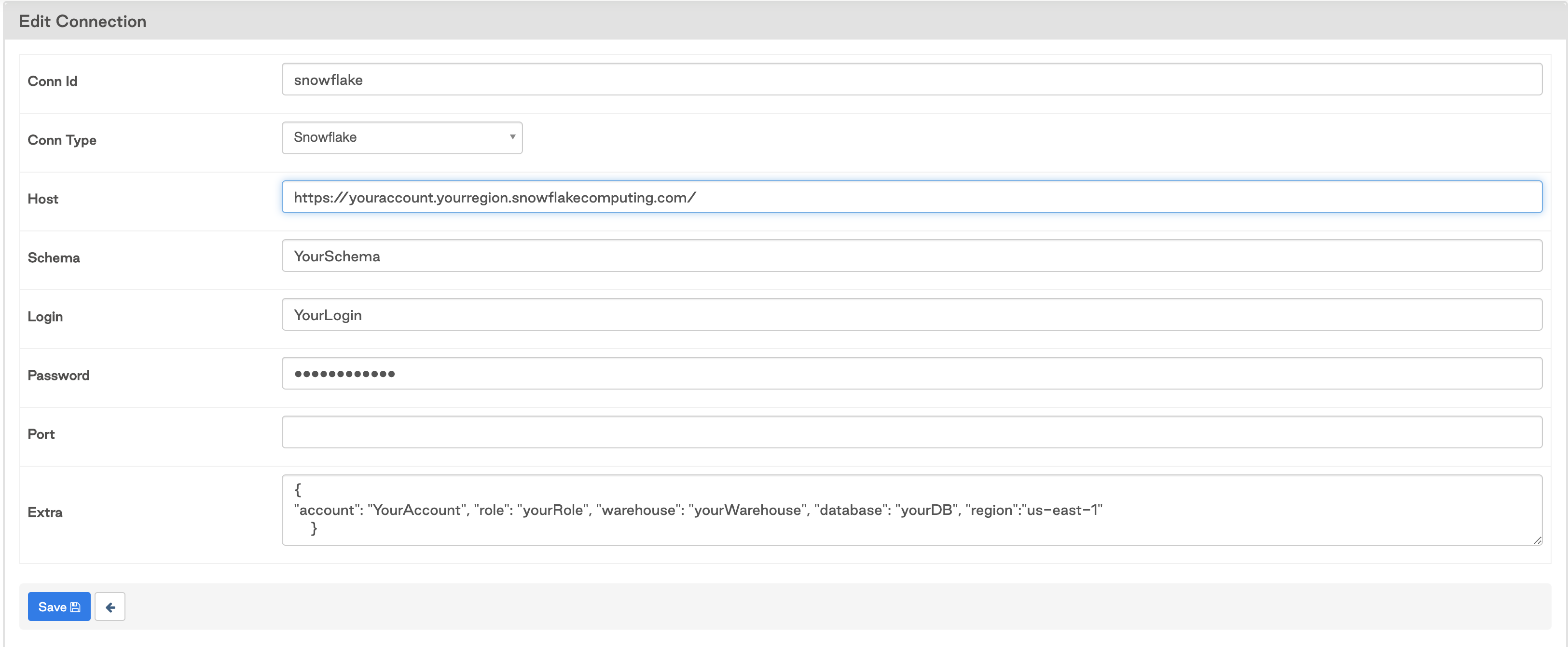
Finally, you need to set up a connection to Snowflake. There are a few ways to manage connections using Astronomer, including [IAM roles](https://www.astronomer.io/docs/software/integrate-iam), [secrets managers](https://www.astronomer.io/docs/software/secrets-backend), and the [Airflow API](https://www.astronomer.io/docs/software/airflow-api). For this example, set up a connection using the Airflow UI. Because the connection in the DAG is called `snowflake`, your configured connection should look something like this:
 With the connection established, you can now run the DAG to execute the SQL queries.
### Example 2: Execute a query with parameters
Using Airflow, you can also parameterize your SQL queries to make them more dynamic. Consider when you have a query that selects data from a table for a date that you want to dynamically update. You can execute the query using the same setup as in Example 1, but with a few adjustments.
Your DAG will look like the following:
```python expandable wrap theme={null}
from airflow.decorators import dag
from airflow.providers.common.sql.operators.sql import SQLExecuteQueryOperator
from pendulum import datetime, duration
default_args = {
"owner": "airflow",
"depends_on_past": False,
"email_on_failure": False,
"email_on_retry": False,
"retries": 1,
"retry_delay": duration(minutes=1),
}
@dag(
start_date=datetime(2020, 6, 1),
max_active_runs=3,
schedule="@daily",
default_args=default_args,
template_searchpath="/usr/local/airflow/include",
catchup=False,
)
def parameterized_query():
opr_param_query = SQLExecuteQueryOperator(
task_id="param_query", conn_id="snowflake", sql="param-query.sql"
)
opr_param_query
parameterized_query()
```
The DAG is essentially the same that you used in Example 1. The difference is in the query itself:
```sql wrap theme={null}
SELECT *
FROM STATE_DATA
WHERE date = '{{ yesterday_ds_nodash }}'
```
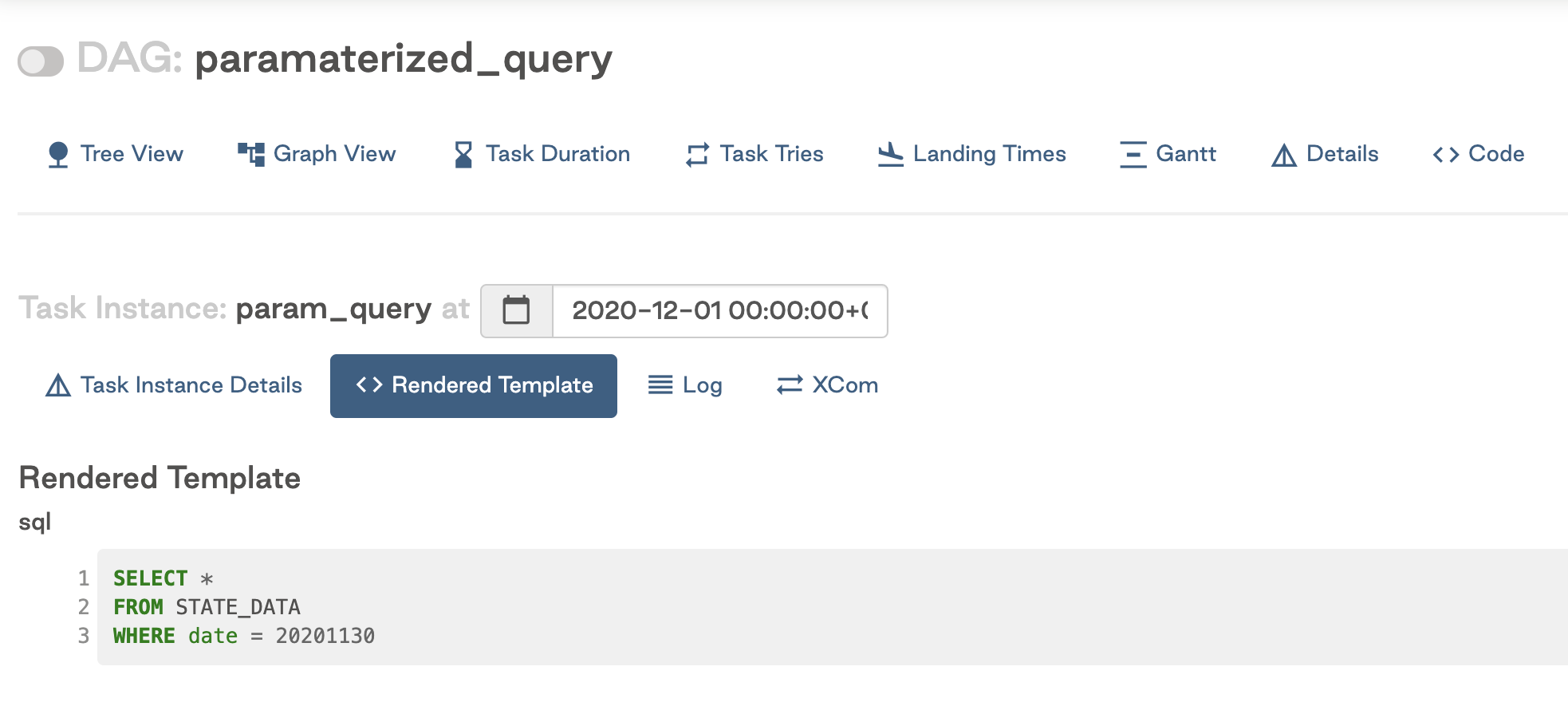
In this example, the query has been parameterized to dynamically select data for yesterday's date using a built-in Airflow variable with double curly brackets. The rendered template in the Airflow UI looks like this:
With the connection established, you can now run the DAG to execute the SQL queries.
### Example 2: Execute a query with parameters
Using Airflow, you can also parameterize your SQL queries to make them more dynamic. Consider when you have a query that selects data from a table for a date that you want to dynamically update. You can execute the query using the same setup as in Example 1, but with a few adjustments.
Your DAG will look like the following:
```python expandable wrap theme={null}
from airflow.decorators import dag
from airflow.providers.common.sql.operators.sql import SQLExecuteQueryOperator
from pendulum import datetime, duration
default_args = {
"owner": "airflow",
"depends_on_past": False,
"email_on_failure": False,
"email_on_retry": False,
"retries": 1,
"retry_delay": duration(minutes=1),
}
@dag(
start_date=datetime(2020, 6, 1),
max_active_runs=3,
schedule="@daily",
default_args=default_args,
template_searchpath="/usr/local/airflow/include",
catchup=False,
)
def parameterized_query():
opr_param_query = SQLExecuteQueryOperator(
task_id="param_query", conn_id="snowflake", sql="param-query.sql"
)
opr_param_query
parameterized_query()
```
The DAG is essentially the same that you used in Example 1. The difference is in the query itself:
```sql wrap theme={null}
SELECT *
FROM STATE_DATA
WHERE date = '{{ yesterday_ds_nodash }}'
```
In this example, the query has been parameterized to dynamically select data for yesterday's date using a built-in Airflow variable with double curly brackets. The rendered template in the Airflow UI looks like this:
 Astronomer recommends using Airflow variables or macros whenever possible to increase flexibility and make your workflows [idempotent](https://en.wikipedia.org/wiki/Idempotence). The above example will work with any Airflow variables. For example, you could access a variable from your Airflow config:
```sql wrap theme={null}
SELECT *
FROM STATE_DATA
WHERE state = {{ conf['state_variable'] }}
```
If you need a parameter that isn't available as a built-in variable or a macro, such as a value from another task in your DAG, you can also pass that parameter into your query using the operator:
```python wrap theme={null}
opr_param_query = SQLExecuteQueryOperator(
task_id="param_query",
conn_id="snowflake",
sql="param-query.sql",
parameters={"my_date": mydatevariable}
)
```
And then reference that param in your SQL file:
```sql wrap theme={null}
SELECT *
FROM STATE_DATA
WHERE date = %(my_date)s
```
An alternative option is to use [Jinja](/docs/learn/2.x/templating) templates in your SQL statements and pass the relevant values using the `params` parameter.
```python wrap theme={null}
opr_param_query = SQLExecuteQueryOperator(
task_id="param_query",
conn_id="snowflake_default",
sql="param-query.sql",
params={"my_date": "2022-09-01"},
)
```
The value can be referenced using Jinja syntax in the SQL statement:
```sql wrap theme={null}
SELECT *
FROM STATE_DATA
WHERE date = '{{ params.date }}'
```
Airflow params can also be defined at the DAG-level and passed to a DAG at runtime. Params passed at runtime will override param defaults defined at the DAG or the task level. For more information on params see the [Create and use params in Airflow](/docs/learn/2.x/airflow-params) guide.
### Example 3: Load data
The next example loads data from an external source into a database table. You'll pull data from an API and save it to a flat file on Amazon S3, which you can then load into Snowflake.
This example uses the [`S3toSnowflakeOperator`](https://airflow.apache.org/registry/providers/snowflake#snowflake-copy_into_snowflake-CopyFromExternalStageToSnowflakeOperator) to limit the code that you have to write.
First, create a DAG that pulls cat facts from an [API endpoint](http://catfact.ninja/fact), saves the data to comma-separated values (CSVs) on S3, and loads each of those CSVs to Snowflake using the transfer operator. Here's the DAG code:
```python expandable wrap theme={null}
from pendulum import datetime, duration
import requests
from airflow.decorators import dag, task
from airflow.operators.empty import EmptyOperator
from airflow.providers.amazon.aws.hooks.s3 import S3Hook
from airflow.providers.snowflake.transfers.s3_to_snowflake import S3ToSnowflakeOperator
S3_CONN_ID = "astro-s3-workshop"
BUCKET = "astro-workshop-bucket"
name = "cat_data" # swap your name here
@task
def upload_to_s3(cat_fact_number):
# Instantiate
s3_hook = S3Hook(aws_conn_id=S3_CONN_ID)
# Base URL
url = "http://catfact.ninja/fact"
# Grab data
res = requests.get(url)
# Take string, upload to S3 using predefined method
s3_hook.load_string(
res.text,
"cat_fact_{0}.csv".format(cat_fact_number),
bucket_name=BUCKET,
replace=True,
)
number_of_cat_facts = 3
@dag(
start_date=datetime(2020, 6, 1),
max_active_runs=3,
schedule="@daily",
default_args={"retries": 1, "retry_delay": duration(minutes=5)},
catchup=False,
)
def cat_data_s3_to_snowflake():
t0 = EmptyOperator(task_id="start")
for i in range(number_of_cat_facts):
snowflake = S3ToSnowflakeOperator(
task_id="upload_{0}_snowflake".format(i),
s3_keys=["cat_fact_{0}.csv".format(i)],
stage="cat_stage",
table="CAT_DATA",
schema="SANDBOX_KENTEND",
file_format="cat_csv",
snowflake_conn_id="snowflake",
)
t0 >> upload_to_s3(i) >> snowflake
cat_data_s3_to_snowflake()
```
Astronomer recommends using Airflow variables or macros whenever possible to increase flexibility and make your workflows [idempotent](https://en.wikipedia.org/wiki/Idempotence). The above example will work with any Airflow variables. For example, you could access a variable from your Airflow config:
```sql wrap theme={null}
SELECT *
FROM STATE_DATA
WHERE state = {{ conf['state_variable'] }}
```
If you need a parameter that isn't available as a built-in variable or a macro, such as a value from another task in your DAG, you can also pass that parameter into your query using the operator:
```python wrap theme={null}
opr_param_query = SQLExecuteQueryOperator(
task_id="param_query",
conn_id="snowflake",
sql="param-query.sql",
parameters={"my_date": mydatevariable}
)
```
And then reference that param in your SQL file:
```sql wrap theme={null}
SELECT *
FROM STATE_DATA
WHERE date = %(my_date)s
```
An alternative option is to use [Jinja](/docs/learn/2.x/templating) templates in your SQL statements and pass the relevant values using the `params` parameter.
```python wrap theme={null}
opr_param_query = SQLExecuteQueryOperator(
task_id="param_query",
conn_id="snowflake_default",
sql="param-query.sql",
params={"my_date": "2022-09-01"},
)
```
The value can be referenced using Jinja syntax in the SQL statement:
```sql wrap theme={null}
SELECT *
FROM STATE_DATA
WHERE date = '{{ params.date }}'
```
Airflow params can also be defined at the DAG-level and passed to a DAG at runtime. Params passed at runtime will override param defaults defined at the DAG or the task level. For more information on params see the [Create and use params in Airflow](/docs/learn/2.x/airflow-params) guide.
### Example 3: Load data
The next example loads data from an external source into a database table. You'll pull data from an API and save it to a flat file on Amazon S3, which you can then load into Snowflake.
This example uses the [`S3toSnowflakeOperator`](https://airflow.apache.org/registry/providers/snowflake#snowflake-copy_into_snowflake-CopyFromExternalStageToSnowflakeOperator) to limit the code that you have to write.
First, create a DAG that pulls cat facts from an [API endpoint](http://catfact.ninja/fact), saves the data to comma-separated values (CSVs) on S3, and loads each of those CSVs to Snowflake using the transfer operator. Here's the DAG code:
```python expandable wrap theme={null}
from pendulum import datetime, duration
import requests
from airflow.decorators import dag, task
from airflow.operators.empty import EmptyOperator
from airflow.providers.amazon.aws.hooks.s3 import S3Hook
from airflow.providers.snowflake.transfers.s3_to_snowflake import S3ToSnowflakeOperator
S3_CONN_ID = "astro-s3-workshop"
BUCKET = "astro-workshop-bucket"
name = "cat_data" # swap your name here
@task
def upload_to_s3(cat_fact_number):
# Instantiate
s3_hook = S3Hook(aws_conn_id=S3_CONN_ID)
# Base URL
url = "http://catfact.ninja/fact"
# Grab data
res = requests.get(url)
# Take string, upload to S3 using predefined method
s3_hook.load_string(
res.text,
"cat_fact_{0}.csv".format(cat_fact_number),
bucket_name=BUCKET,
replace=True,
)
number_of_cat_facts = 3
@dag(
start_date=datetime(2020, 6, 1),
max_active_runs=3,
schedule="@daily",
default_args={"retries": 1, "retry_delay": duration(minutes=5)},
catchup=False,
)
def cat_data_s3_to_snowflake():
t0 = EmptyOperator(task_id="start")
for i in range(number_of_cat_facts):
snowflake = S3ToSnowflakeOperator(
task_id="upload_{0}_snowflake".format(i),
s3_keys=["cat_fact_{0}.csv".format(i)],
stage="cat_stage",
table="CAT_DATA",
schema="SANDBOX_KENTEND",
file_format="cat_csv",
snowflake_conn_id="snowflake",
)
t0 >> upload_to_s3(i) >> snowflake
cat_data_s3_to_snowflake()
```
Traditional
```python expandable wrap theme={null}
from datetime import datetime, timedelta
import requests
from airflow import DAG
from airflow.operators.empty import EmptyOperator
from airflow.operators.python import PythonOperator
from airflow.providers.amazon.aws.hooks.s3 import S3Hook
from airflow.providers.snowflake.transfers.s3_to_snowflake import S3ToSnowflakeOperator
S3_CONN_ID = "astro-s3-workshop"
BUCKET = "astro-workshop-bucket"
name = "cat_data" # swap your name here
def upload_to_s3(cat_fact_number):
# Instantiate
s3_hook = S3Hook(aws_conn_id=S3_CONN_ID)
# Base URL
url = "http://catfact.ninja/fact"
# Grab data
res = requests.get(url)
# Take string, upload to S3 using predefined method
s3_hook.load_string(
res.text,
"cat_fact_{0}.csv".format(cat_fact_number),
bucket_name=BUCKET,
replace=True,
)
number_of_cat_facts = 3
with DAG(
"cat_data_s3_to_snowflake",
start_date=datetime(2020, 6, 1),
max_active_runs=3,
schedule="@daily",
default_args={"retries": 1, "retry_delay": timedelta(minutes=5)},
catchup=False,
):
t0 = EmptyOperator(task_id="start")
for i in range(number_of_cat_facts):
generate_files = PythonOperator(
task_id="generate_file_{0}".format(i),
python_callable=upload_to_s3,
op_kwargs={"cat_fact_number": i},
)
snowflake = S3ToSnowflakeOperator(
task_id="upload_{0}_snowflake".format(i),
s3_keys=["cat_fact_{0}.csv".format(i)],
stage="cat_stage",
table="CAT_DATA",
schema="SANDBOX_KENTEND",
file_format="cat_csv",
snowflake_conn_id="snowflake",
)
t0 >> generate_files >> snowflake
```
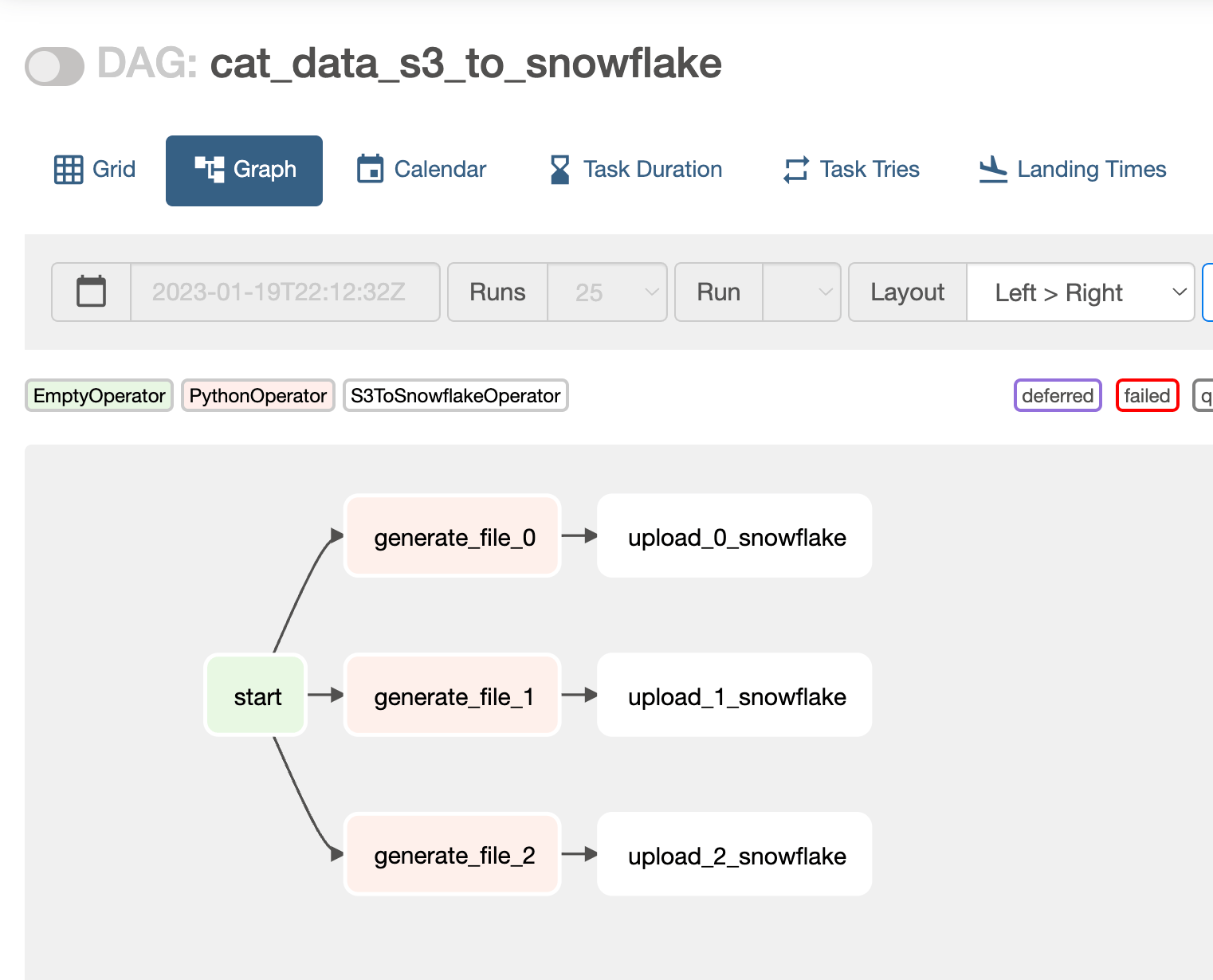
This image shows a graph view of the DAG:
 There are a few things you need to configure in Snowflake to make this DAG work:
* A table that will receive the data (`CAT_DATA` in this example).
* A defined Snowflake stage (`cat_stage`) and file format (`cat_csv`). See the [Snowflake documentation](https://docs.snowflake.com/en/user-guide/data-load-s3.html).
Next, set up your Airflow connections. This example requires two connections:
* A connection to S3 (established using `astro-s3-workshop` in the DAG above).
* A connection to Snowflake (established using `snowflake`. See Example 1 for a screenshot of what the connection should look like).
After this setup, you're ready to run the DAG!
Note that while this example is specific to Snowflake, the concepts apply to any database you might be using. If a transfer operator doesn't exist for your specific source and destination tools, you can always write your own (and maybe contribute it back to the Airflow project)!
### Example 4: Use gusty
If you're unfamiliar with Airflow or Python, you can use [gusty](https://github.com/chriscardillo/gusty) to generate DAGs directly from your SQL code.
You can install gusty in your Airflow environment by running `pip install gusty` from your command line. If you use the Astro CLI, you can alternatively add `gusty` to your Astro project `requirements.txt` file.
Once you've installed gusty in your Airflow environment, you can turn your SQL files into Airflow tasks by adding YAML instructions to the front matter your SQL file. The front matter is the section at the top of the SQL file enclosed in `---`.
The example below shows how to turn a simple SQL statement into an Airflow task using the [`PostgresOperator`](https://registry.astronomer.io/providers/postgres/modules/postgresoperator) with the `postgres_default` connection ID. This SQL file `task_1.sql` defines a task that will only run once `task_0` of the same DAG has completed successfully.
```SQL wrap theme={null}
---
operator: airflow.providers.postgres.operators.postgres.PostgresOperator
conn_id: postgres_default
dependencies:
- task_0
---
SELECT column_1
FROM table_2;
```
Add your modified SQL files within a gusty directory structure:
```text wrap theme={null}
.
└── dags
├── my_gusty_dags
│ ├── my_dag_1
│ │ ├── METADATA.yml
│ │ ├── task_0.sql
│ │ └── task_1.sql
└── creating_gusty_dags.py
```
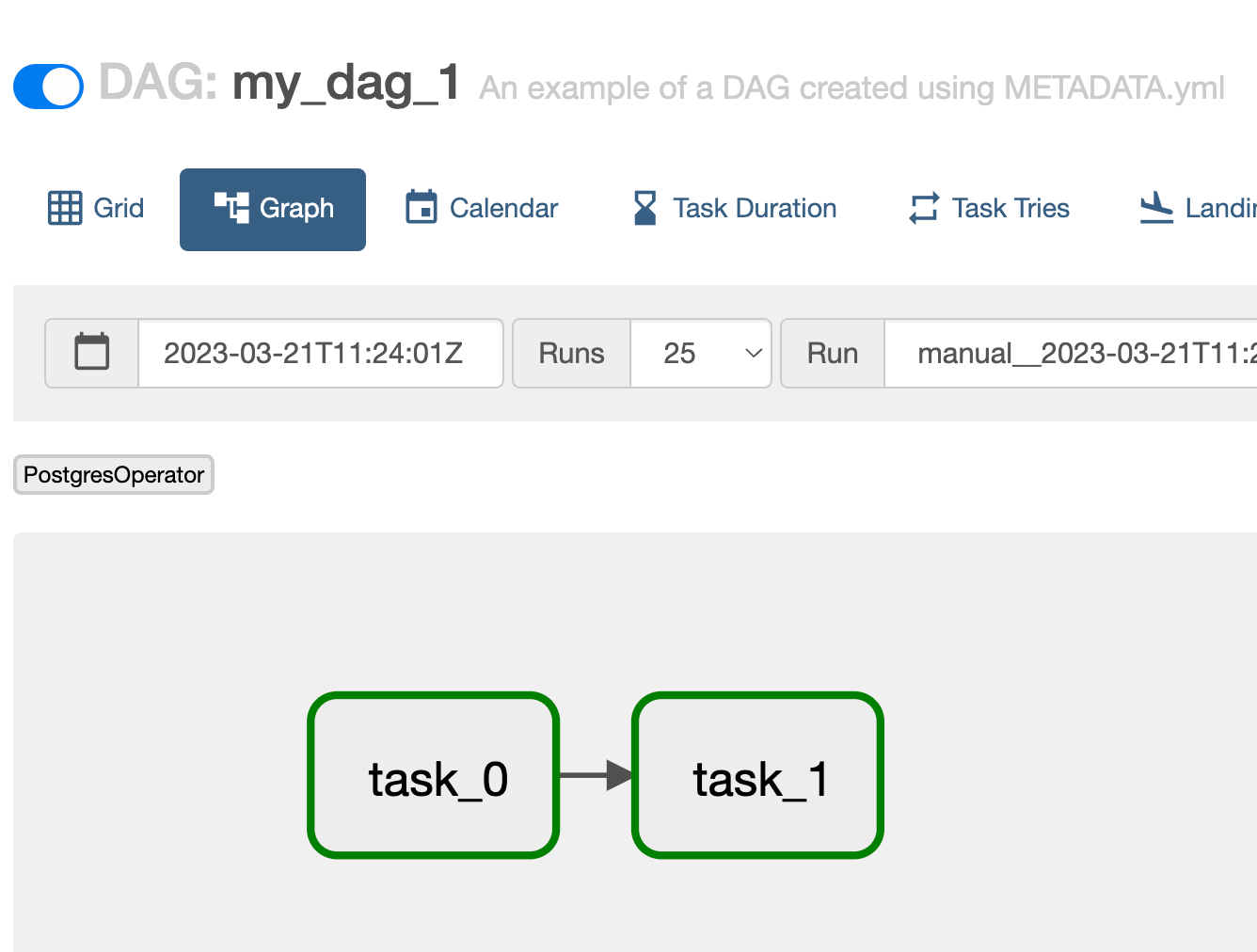
The rendered `my_dag_1` DAG will contain two tasks defined as SQL files:
There are a few things you need to configure in Snowflake to make this DAG work:
* A table that will receive the data (`CAT_DATA` in this example).
* A defined Snowflake stage (`cat_stage`) and file format (`cat_csv`). See the [Snowflake documentation](https://docs.snowflake.com/en/user-guide/data-load-s3.html).
Next, set up your Airflow connections. This example requires two connections:
* A connection to S3 (established using `astro-s3-workshop` in the DAG above).
* A connection to Snowflake (established using `snowflake`. See Example 1 for a screenshot of what the connection should look like).
After this setup, you're ready to run the DAG!
Note that while this example is specific to Snowflake, the concepts apply to any database you might be using. If a transfer operator doesn't exist for your specific source and destination tools, you can always write your own (and maybe contribute it back to the Airflow project)!
### Example 4: Use gusty
If you're unfamiliar with Airflow or Python, you can use [gusty](https://github.com/chriscardillo/gusty) to generate DAGs directly from your SQL code.
You can install gusty in your Airflow environment by running `pip install gusty` from your command line. If you use the Astro CLI, you can alternatively add `gusty` to your Astro project `requirements.txt` file.
Once you've installed gusty in your Airflow environment, you can turn your SQL files into Airflow tasks by adding YAML instructions to the front matter your SQL file. The front matter is the section at the top of the SQL file enclosed in `---`.
The example below shows how to turn a simple SQL statement into an Airflow task using the [`PostgresOperator`](https://registry.astronomer.io/providers/postgres/modules/postgresoperator) with the `postgres_default` connection ID. This SQL file `task_1.sql` defines a task that will only run once `task_0` of the same DAG has completed successfully.
```SQL wrap theme={null}
---
operator: airflow.providers.postgres.operators.postgres.PostgresOperator
conn_id: postgres_default
dependencies:
- task_0
---
SELECT column_1
FROM table_2;
```
Add your modified SQL files within a gusty directory structure:
```text wrap theme={null}
.
└── dags
├── my_gusty_dags
│ ├── my_dag_1
│ │ ├── METADATA.yml
│ │ ├── task_0.sql
│ │ └── task_1.sql
└── creating_gusty_dags.py
```
The rendered `my_dag_1` DAG will contain two tasks defined as SQL files:
 See [`METADATA.yml`](https://github.com/chriscardillo/gusty#metadata) and [`creating_gusty_dags.py`](https://github.com/chriscardillo/gusty#create_dags) in the gusty documentation for example configurations.
Note that by default, gusty will add a [`LatestOnlyOperator`](https://airflow.apache.org/registry/providers/standard#standard-latest_only-LatestOnlyOperator) to the root of your DAG. You can disable this behavior by passing `latest_only=False` to the `create_dags` function, or setting `latest_only: False` in the `METADATA.yml`.
## Next steps
You've learned how to interact with your SQL database from Airflow. There are some topics you didn't cover, including:
* How does it work behind the scenes?
* What if you want to retrieve data with the `PostgresOperator`?
* Is it scalable?
Find out more on Astronomer's [Airflow: Branching](https://academy.astronomer.io/astro-runtime-branching) course for free today.
See [`METADATA.yml`](https://github.com/chriscardillo/gusty#metadata) and [`creating_gusty_dags.py`](https://github.com/chriscardillo/gusty#create_dags) in the gusty documentation for example configurations.
Note that by default, gusty will add a [`LatestOnlyOperator`](https://airflow.apache.org/registry/providers/standard#standard-latest_only-LatestOnlyOperator) to the root of your DAG. You can disable this behavior by passing `latest_only=False` to the `create_dags` function, or setting `latest_only: False` in the `METADATA.yml`.
## Next steps
You've learned how to interact with your SQL database from Airflow. There are some topics you didn't cover, including:
* How does it work behind the scenes?
* What if you want to retrieve data with the `PostgresOperator`?
* Is it scalable?
Find out more on Astronomer's [Airflow: Branching](https://academy.astronomer.io/astro-runtime-branching) course for free today.