> ## Documentation Index
> Fetch the complete documentation index at: https://astronomer.io/docs/llms.txt
> Use this file to discover all available pages before exploring further.
# Orchestrate Databricks jobs with Airflow
[Databricks](https://databricks.com/) is a popular unified data and analytics platform built around [Apache Spark](https://spark.apache.org/) that provides users with fully managed Apache Spark clusters and interactive workspaces.
The open source [Airflow Databricks provider](https://airflow.apache.org/docs/apache-airflow-providers-databricks/stable/index.html) provides full observability and control from Airflow so you can manage Databricks from one place, including enabling you to orchestrate your Databricks notebooks from Airflow and execute them as [Databricks jobs](https://docs.databricks.com/en/workflows/index.html).
**Other ways to learn**
There are multiple resources for learning about this topic. See also:
* Webinar: [How to Orchestrate Databricks jobs Using Airflow](https://www.astronomer.io/events/webinars/orchestrate-databricks-jobs-using-airflow-video/).
## Why use Airflow with Databricks
Many data teams use Databricks' optimized Spark engine to run heavy workloads like machine learning models, data transformations, and data analysis. While Databricks offers some orchestration with Databricks Workflows, they are limited in functionality and don't integrate with the rest of your data stack. Using a tool-agnostic orchestrator like Airflow gives you several advantages, like the ability to:
* Use CI/CD to manage your workflow deployment. Airflow DAGs are Python code, and can be [integrated with a variety of CI/CD tools](/docs/astro/ci-cd-templates/template-overview) and [tested](/docs/learn/2.x/testing-airflow).
* Use [task groups](/docs/learn/2.x/task-groups) within Databricks jobs, enabling you to collapse and expand parts of larger Databricks jobs visually.
* Use [Airflow datasets](/docs/learn/2.x/airflow-datasets) to trigger Databricks jobs from tasks in other DAGs in your Airflow environment or using the Airflow REST API [Create dataset event endpoint](https://airflow.apache.org/docs/apache-airflow/stable/stable-rest-api-ref.html#operation/create_dataset_event), allowing for a data-driven architecture.
* Use familiar Airflow code as your interface to orchestrate Databricks notebooks as jobs.
* [Inject parameters](#parameters) into your Databricks job at the job-level. These parameters can be dynamic and retrieved at runtime from other Airflow tasks.
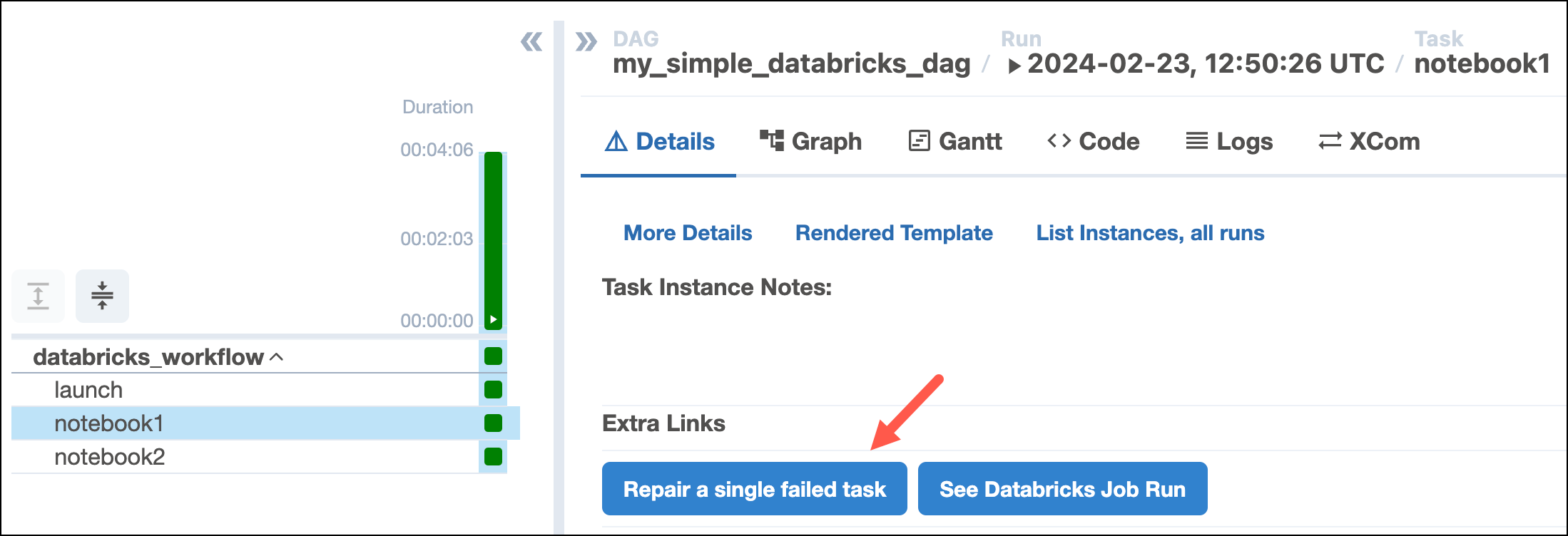
* Repair single tasks in your Databricks job from the Airflow UI (Provider version 6.8.0+ is required). If a task fails, you can [re-run it](#repair-a-databricks-job) using an [operator extra link](/docs/learn/2.x/operator-extra-link-tutorial) in the Airflow UI.
## Time to complete
This tutorial takes approximately 30 minutes to complete.
## Assumed knowledge
To get the most out of this tutorial, make sure you have an understanding of:
* The basics of Databricks. See [Getting started with Databricks](https://www.databricks.com/learn).
* Airflow fundamentals, such as writing DAGs and defining tasks. See [Get started with Apache Airflow](/docs/learn/2.x/get-started-with-airflow).
* Airflow operators. See [Operators 101](/docs/learn/2.x/what-is-an-operator).
* Airflow connections. See [Managing your Connections in Apache Airflow](/docs/learn/2.x/connections).
## Prerequisites
* The [Astro CLI](/docs/cli/v1.43/overview).
* Access to a Databricks workspace. See [Databricks' documentation](https://docs.databricks.com/getting-started/index.html) for instructions. You can use any workspace that has access to the [Databricks Workflows](https://docs.databricks.com/workflows/index.html) feature. You need a user account with permissions to create notebooks and Databricks jobs. You can use any underlying cloud service, and a [14-day free trial](https://www.databricks.com/try-databricks) is available.
## Step 1: Configure your Astro project
1. Create a new Astro project:
```sh wrap theme={null}
$ mkdir astro-databricks-tutorial && cd astro-databricks-tutorial
$ astro dev init
```
2. Add the [Airflow Databricks provider package](https://airflow.apache.org/docs/apache-airflow-providers-databricks/stable/index.html) to your `requirements.txt` file.
```text wrap theme={null}
apache-airflow-providers-databricks==6.10.0
```
## Step 2: Create Databricks notebooks
You can orchestrate any Databricks notebooks in a Databricks job using the Airflow Databricks provider. If you don't have Databricks notebooks ready, follow these steps to create two notebooks:
1. [Create an empty notebook](https://docs.databricks.com/notebooks/notebooks-manage.html) in your Databricks workspace called `notebook1`.
2. Copy and paste the following code into the first cell of the `notebook1` notebook.
```python wrap theme={null}
print("Hello")
```
3. Create a second empty notebook in your Databricks workspace called `notebook2`.
4. Copy and paste the following code into the first cell of the `notebook2` notebook.
```python wrap theme={null}
print("World")
```
## Step 3: Configure the Databricks connection
1. Start Airflow by running `astro dev start`.
2. In the Airflow UI, go to **Admin** > **Connections** and click **+**.
3. Create a new connection named `databricks_conn`. Select the connection type **Databricks** and enter the following information:
* **Connection ID**: `databricks_conn`.
* **Connection Type**: `Databricks`.
* **Host**: Your Databricks host address (format: `https://dbc-1234cb56-d7c8.cloud.databricks.com/`).
* **Password**: Your [Databricks personal access token](https://docs.databricks.com/dev-tools/auth.html#databricks-personal-access-tokens).
## Step 4: Create your DAG
1. In your `dags` folder, create a file called `my_simple_databricks_dag.py`.
2. Copy and paste the following DAG code into the file. Replace `` variable with your Databricks login email. If you already had Databricks notebooks and didn't create new ones in Step 2, adjust the `notebook_path` parameters in the two DatabricksNotebookOperators.
```python expandable wrap theme={null}
"""
### Run notebooks in databricks as a Databricks Workflow using the Airflow Databricks provider
This DAG runs two Databricks notebooks as a Databricks workflow.
"""
from airflow.decorators import dag
from airflow.providers.databricks.operators.databricks import DatabricksNotebookOperator
from airflow.providers.databricks.operators.databricks_workflow import (
DatabricksWorkflowTaskGroup,
)
from airflow.models.baseoperator import chain
from pendulum import datetime
DATABRICKS_LOGIN_EMAIL = ""
DATABRICKS_NOTEBOOK_NAME_1 = "notebook1"
DATABRICKS_NOTEBOOK_NAME_2 = "notebook2"
DATABRICKS_NOTEBOOK_PATH_1 = (
f"/Users/{DATABRICKS_LOGIN_EMAIL}/{DATABRICKS_NOTEBOOK_NAME_1}"
)
DATABRICKS_NOTEBOOK_PATH_2 = (
f"/Users/{DATABRICKS_LOGIN_EMAIL}/{DATABRICKS_NOTEBOOK_NAME_2}"
)
DATABRICKS_JOB_CLUSTER_KEY = "tutorial-cluster"
DATABRICKS_CONN_ID = "databricks_conn"
# adjust if necessary for example to align the spark version with your Notebooks
job_cluster_spec = [
{
"job_cluster_key": DATABRICKS_JOB_CLUSTER_KEY,
"new_cluster": {
"cluster_name": "",
"spark_version": "15.3.x-cpu-ml-scala2.12",
"aws_attributes": {
"first_on_demand": 1,
"availability": "SPOT_WITH_FALLBACK",
"zone_id": "eu-central-1",
"spot_bid_price_percent": 100,
"ebs_volume_count": 0,
},
"node_type_id": "i3.xlarge",
"spark_env_vars": {"PYSPARK_PYTHON": "/databricks/python3/bin/python3"},
"enable_elastic_disk": False,
"data_security_mode": "LEGACY_SINGLE_USER_STANDARD",
"runtime_engine": "STANDARD",
"num_workers": 1,
},
}
]
@dag(start_date=datetime(2024, 7, 1), schedule=None, catchup=False)
def my_simple_databricks_dag():
task_group = DatabricksWorkflowTaskGroup(
group_id="databricks_workflow",
databricks_conn_id=DATABRICKS_CONN_ID,
job_clusters=job_cluster_spec,
)
with task_group:
notebook_1 = DatabricksNotebookOperator(
task_id="notebook1",
databricks_conn_id=DATABRICKS_CONN_ID,
notebook_path=DATABRICKS_NOTEBOOK_PATH_1,
source="WORKSPACE",
job_cluster_key=DATABRICKS_JOB_CLUSTER_KEY,
)
notebook_2 = DatabricksNotebookOperator(
task_id="notebook2",
databricks_conn_id=DATABRICKS_CONN_ID,
notebook_path=DATABRICKS_NOTEBOOK_PATH_2,
source="WORKSPACE",
job_cluster_key=DATABRICKS_JOB_CLUSTER_KEY,
)
chain(notebook_1, notebook_2)
my_simple_databricks_dag()
```
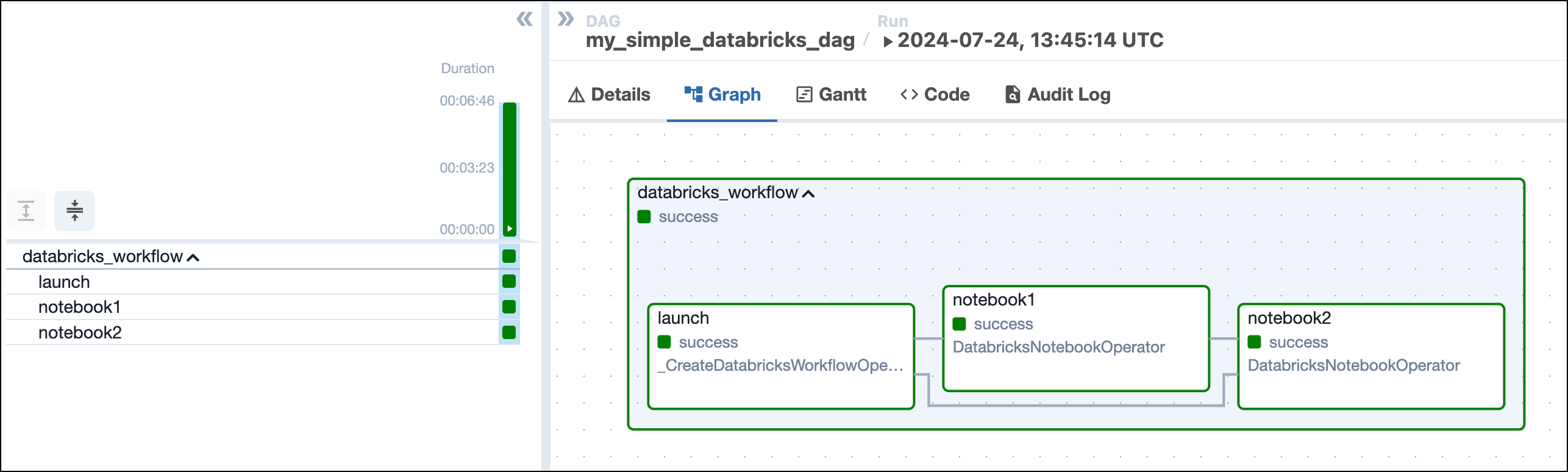
This DAG uses the Airflow Databricks provider to create a Databricks job that runs two notebooks. The `databricks_workflow` task group, created using the `DatabricksWorkflowTaskGroup` class, automatically creates a Databricks job that executes the Databricks notebooks you specified in the individual DatabricksNotebookOperators. One of the biggest benefits of this setup is the use of a Databricks job cluster, allowing you to [significantly reduce your Databricks cost](https://www.databricks.com/product/pricing). The task group contains three tasks:
* The `launch` task, which the task group automatically generates, provisions a Databricks `job_cluster` with the spec defined as `job_cluster_spec` and creates the Databricks job from the tasks within the task group.
* The `notebook1` task runs the `notebook1` notebook in this cluster as the first part of the Databricks job.
* The `notebook2` task runs the `notebook2` notebook as the second part of the Databricks job.
3. Run the DAG manually by clicking the play button and view the DAG in the graph tab. In case the task group appears collapsed, click it in order to expand and see all tasks.
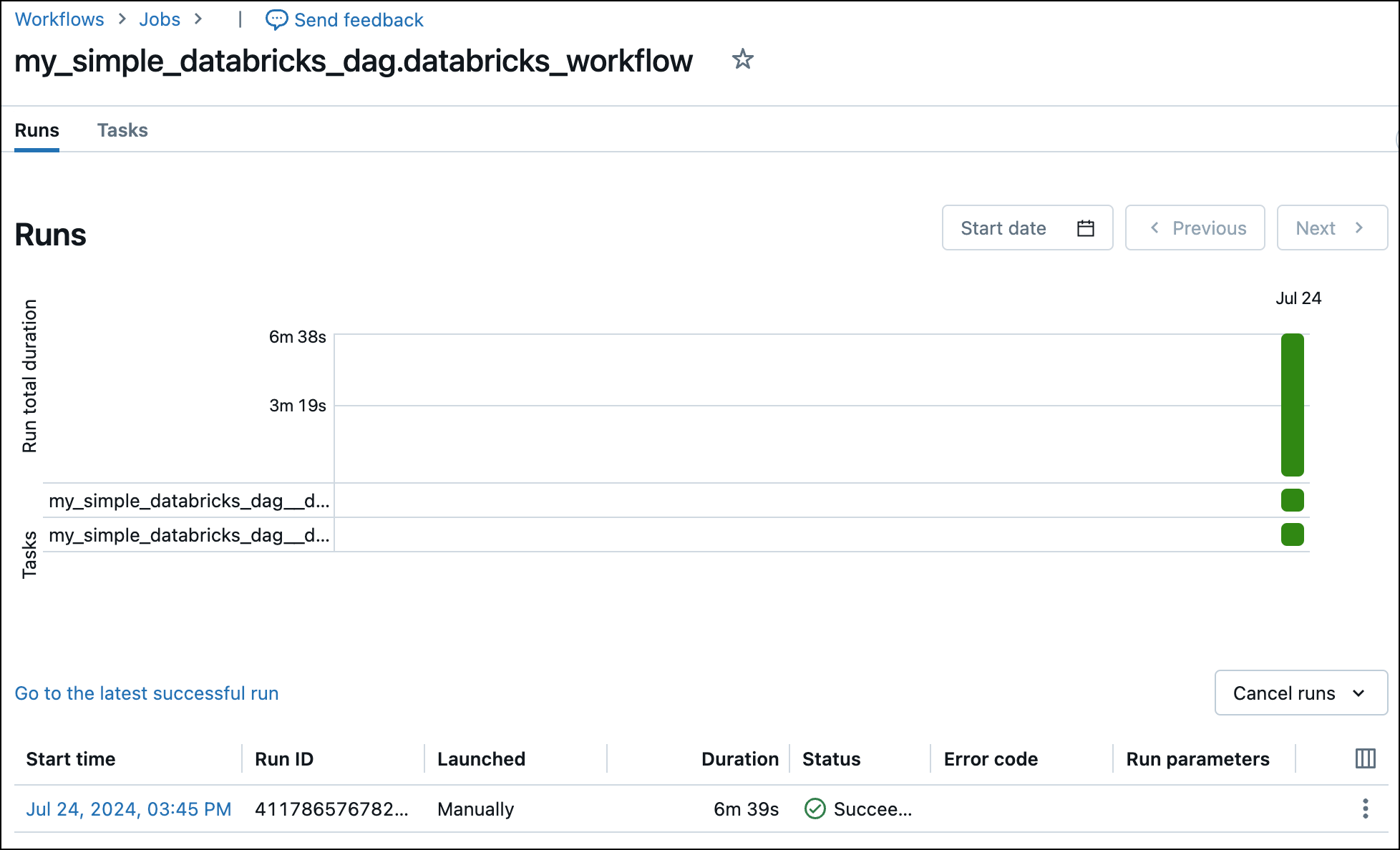
 4. View the completed Databricks job in the Databricks UI.
 ## How it works
This section explains Airflow Databricks provider functionality in more depth. You can learn more about the Airflow Databricks provider, including more information about other available operators, in the [provider documentation](https://airflow.apache.org/docs/apache-airflow-providers-databricks/stable/index.html).
### Parameters
The DatabricksWorkflowTaskGroup provides configuration options via several parameters:
* `job_clusters`: the job clusters parameters for this job to use. You can provide the full `job_cluster_spec` as shown in the tutorial DAG.
* `notebook_params`: a dictionary of parameters to make available to all notebook tasks in a job. This operator is templatable, see below for a code example:
```python wrap theme={null}
dbx_workflow_task_group = DatabricksWorkflowTaskGroup(
group_id="databricks_workflow",
databricks_conn_id=_DBX_CONN_ID,
job_clusters=job_cluster_spec,
notebook_params={
"my_date": "{{ ds }}"
},
)
```
To retrieve this parameter inside your Databricks notebook add the following code to a Databricks notebook cell:
```python wrap theme={null}
dbutils.widgets.text("my_date", "my_default_value", "Description")
my_date = dbutils.widgets.get("my_date")
```
* `notebook_packages`: a list of dictionaries defining Python packages to install in all notebook tasks in a job.
* `extra_job_params`: a dictionary with properties to override the default Databricks job definitions.
You also have the ability to specify parameters at the task level in the `DatabricksNotebookOperator`:
* `notebook_params`: a dictionary of parameters to make available to the notebook.
* `notebook_packages`: a list of dictionaries defining Python packages to install in the notebook.
Note that you can't specify the same packages in both the `notebook_packages` parameter of a DatabricksWorkflowTaskGroup and the `notebook_packages` parameter of a task using the `DatabricksNotebookOperator` in that same task group. Duplicate entries in this parameter cause an error in Databricks.
### Repair a Databricks job
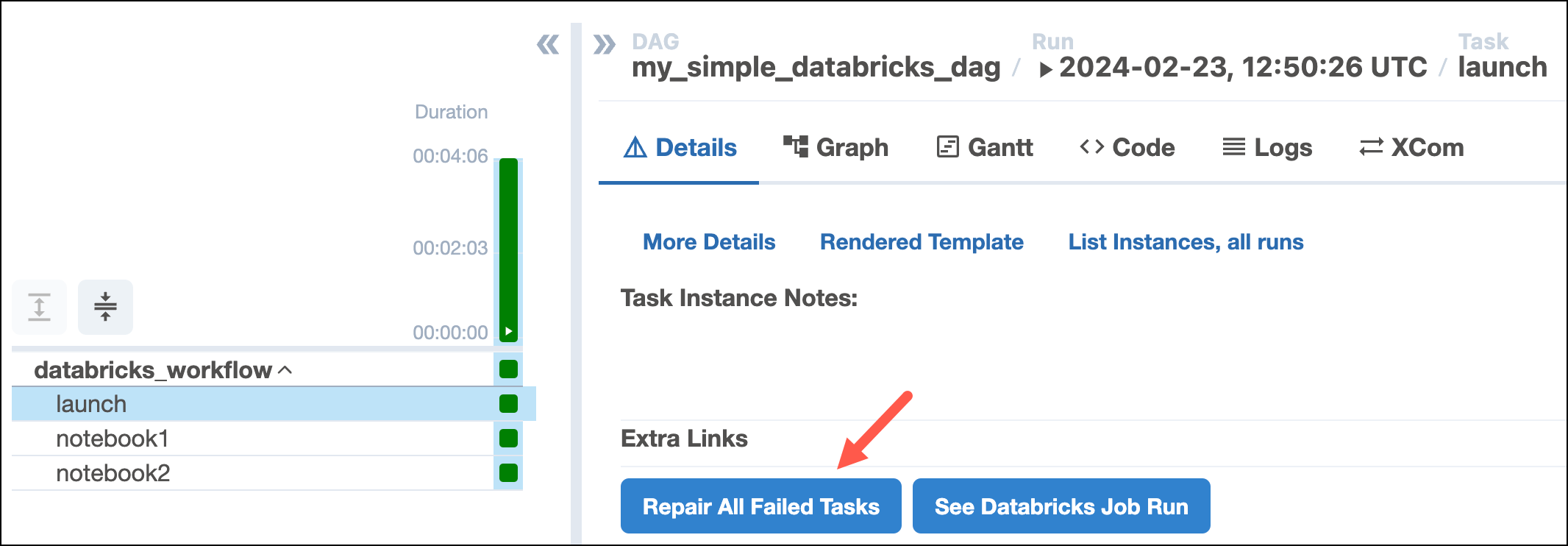
The Airflow Databricks provider version 6.8.0+ includes functionality to repair a failed Databricks job by making a repair request to the [Databricks jobs API](https://docs.databricks.com/api-explorer/workspace/jobs/repairrun). Databricks expects a single repair request for all tasks that need to be rerun in one cluster, this can be achieved via the Airflow UI by using the operator extra link **Repair All Failed Tasks**. If you would be using Airflow's built in [retry functionality](/docs/learn/2.x/rerunning-dags#automatically-retry-tasks) a separate cluster would be created for each failed task.
## How it works
This section explains Airflow Databricks provider functionality in more depth. You can learn more about the Airflow Databricks provider, including more information about other available operators, in the [provider documentation](https://airflow.apache.org/docs/apache-airflow-providers-databricks/stable/index.html).
### Parameters
The DatabricksWorkflowTaskGroup provides configuration options via several parameters:
* `job_clusters`: the job clusters parameters for this job to use. You can provide the full `job_cluster_spec` as shown in the tutorial DAG.
* `notebook_params`: a dictionary of parameters to make available to all notebook tasks in a job. This operator is templatable, see below for a code example:
```python wrap theme={null}
dbx_workflow_task_group = DatabricksWorkflowTaskGroup(
group_id="databricks_workflow",
databricks_conn_id=_DBX_CONN_ID,
job_clusters=job_cluster_spec,
notebook_params={
"my_date": "{{ ds }}"
},
)
```
To retrieve this parameter inside your Databricks notebook add the following code to a Databricks notebook cell:
```python wrap theme={null}
dbutils.widgets.text("my_date", "my_default_value", "Description")
my_date = dbutils.widgets.get("my_date")
```
* `notebook_packages`: a list of dictionaries defining Python packages to install in all notebook tasks in a job.
* `extra_job_params`: a dictionary with properties to override the default Databricks job definitions.
You also have the ability to specify parameters at the task level in the `DatabricksNotebookOperator`:
* `notebook_params`: a dictionary of parameters to make available to the notebook.
* `notebook_packages`: a list of dictionaries defining Python packages to install in the notebook.
Note that you can't specify the same packages in both the `notebook_packages` parameter of a DatabricksWorkflowTaskGroup and the `notebook_packages` parameter of a task using the `DatabricksNotebookOperator` in that same task group. Duplicate entries in this parameter cause an error in Databricks.
### Repair a Databricks job
The Airflow Databricks provider version 6.8.0+ includes functionality to repair a failed Databricks job by making a repair request to the [Databricks jobs API](https://docs.databricks.com/api-explorer/workspace/jobs/repairrun). Databricks expects a single repair request for all tasks that need to be rerun in one cluster, this can be achieved via the Airflow UI by using the operator extra link **Repair All Failed Tasks**. If you would be using Airflow's built in [retry functionality](/docs/learn/2.x/rerunning-dags#automatically-retry-tasks) a separate cluster would be created for each failed task.
 If you only want to rerun specific tasks within your job, you can use the **Repair a single failed task** operator extra link on an individual task in the Databricks job.