> ## Documentation Index
> Fetch the complete documentation index at: https://astronomer.io/docs/llms.txt
> Use this file to discover all available pages before exploring further.
# Transfer a Deployment to a different Workspace
Transferring a Deployment can be helpful when your team needs to change user access to a Deployment. Transferring a Deployment moves all Dags, task history, connections, and other Astro configurations to another Workspace. This process doesn't affect your task scheduling or any currently running tasks.
## Prerequisites
* You must be a Workspace Owner or Operator in both the original Workspace and the target Workspace.
* The Workspaces must be in the same Organization.
* Deployments can't be transferred to a different cluster from the one in which they were created.
* Only the users who are members of the target Workspace can access the Deployment after it is transferred.
**A new Astro UI is here**
Astronomer has redesigned the Astro UI. Try the new experience and switch your instructions using the **New Astro UI** and **Legacy UI** tabs on this page. Your selection is remembered across the docs.
## Transfer a Deployment to another Workspace
1. In the Astro UI, click **Deployments**, then select a Deployment.
2. Click the Deployment's **More actions** menu (⋯), then select **Transfer Deployment**.
3. Select the target Workspace where you want to transfer the Deployment.
4. Click **Transfer Deployment**.
1. In the Astro UI, select a Workspace, click **Deployments**, and then select a Deployment.
2. Click the **Options** menu and select **Transfer Deployment**.
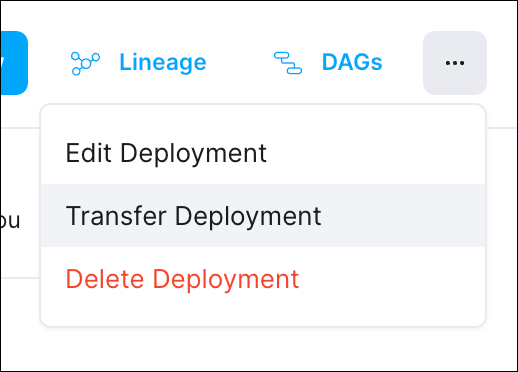 3. Select the target Workspace where you want to transfer the Deployment.
4. Click **Transfer Deployment**.
3. Select the target Workspace where you want to transfer the Deployment.
4. Click **Transfer Deployment**.