> ## Documentation Index
> Fetch the complete documentation index at: https://astronomer.io/docs/llms.txt
> Use this file to discover all available pages before exploring further.
# Lineage
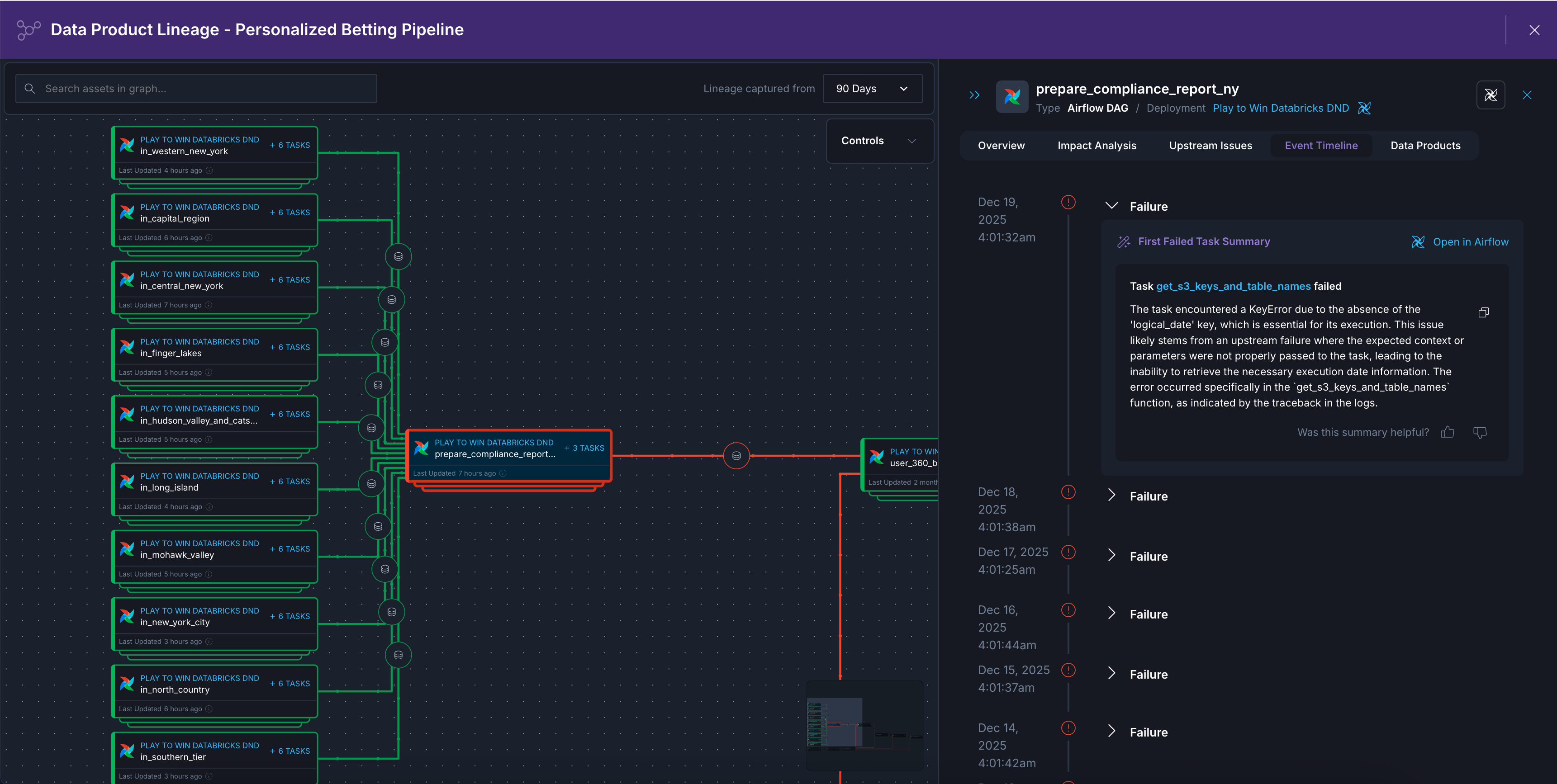
Astro visualizes real-time lineage based on Airflow run metadata. You can view the lineage for a specific [data product](/docs/astro/create-data-products) or [asset](/docs/astro/assets-overview) to understand data dependencies and run history.
## View lineage
To view lineage, navigate to a [data product](/docs/astro/create-data-products) or [asset](/docs/astro/assets-overview) and click **Open Lineage**.
By default, the lineage graph displays dags, tasks, datasets, and tables that ran or were updated any time in the last 90 days. You can update this time range by changing the **Lineage captured from** filter in the top right of the lineage graph.
Click any asset to highlight its upstream and downstream dependencies in the graph and see asset metadata, like an **Event Timeline** of its run or update history and which **Data Products** the asset belongs to.
 ## Search and filter lineage
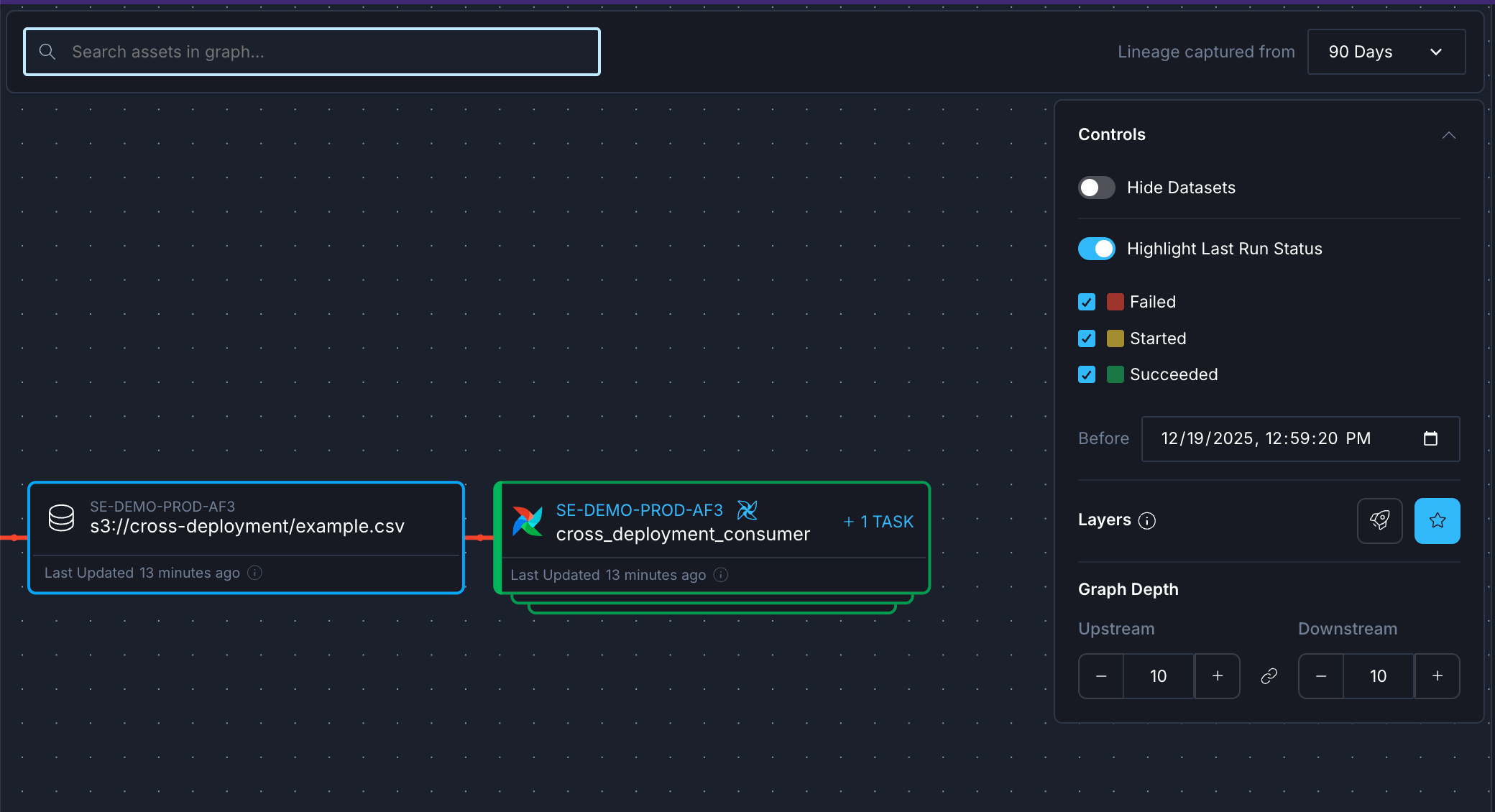
Use the controls to customize your view of the lineage graph:
* **Search**: Use the search box in the upper left of the graph to find specific assets by name.
* **Lineage captured from**: Determines which assets appear in the graph. Any asset with a run or update event in the selected time range will appear in the graph.
* **Hide Datasets**: Toggle to hide or show dataset nodes from the graph to reduce noise.
* **Highlight Last Run Status**: Toggle to highlight assets based on their last run status. The **Before** filter allows you to see run status before a specific point in time. For example, you can view the last run status before the timestamp of a known failure to see which exactly task in your pipeline failed. This time filter also affects which events show up in the **Event Timeline** tab of a selected asset.
* **Layers**: **Highlight Deployments** highlights Astro Deployments across the lineage graph. **Highlight Key Assets** highlights the final assets in data product graphs, and the primary asset in asset graphs.
## Search and filter lineage
Use the controls to customize your view of the lineage graph:
* **Search**: Use the search box in the upper left of the graph to find specific assets by name.
* **Lineage captured from**: Determines which assets appear in the graph. Any asset with a run or update event in the selected time range will appear in the graph.
* **Hide Datasets**: Toggle to hide or show dataset nodes from the graph to reduce noise.
* **Highlight Last Run Status**: Toggle to highlight assets based on their last run status. The **Before** filter allows you to see run status before a specific point in time. For example, you can view the last run status before the timestamp of a known failure to see which exactly task in your pipeline failed. This time filter also affects which events show up in the **Event Timeline** tab of a selected asset.
* **Layers**: **Highlight Deployments** highlights Astro Deployments across the lineage graph. **Highlight Key Assets** highlights the final assets in data product graphs, and the primary asset in asset graphs.
 ## Adjust graph depth
By default, data product graphs include 10 levels upstream of the selected final assets. In asset graphs, you can control how many levels of dependencies to display:
* **Upstream**: Adjust the number of upstream dependency levels to show using the **+** and **-** buttons.
* **Downstream**: Adjust the number of downstream dependency levels to show using the **+** and **-** buttons.
The graph depth controls help you focus on the most relevant dependencies for your analysis.
## View asset details in lineage
Click any asset in the lineage graph to open a side panel with detailed information, including:
* **Basic**: Asset metadata including FQDN, Name, and Namespace
* **Dag Metadata**: Owner and Tags (for Airflow assets)
* **Source**: Last updated timestamp and last updated by information
The side panel also includes tabs for:
* **Impact Analysis**: View assets downstream of the selected asset. By default, this view only shows leaf nodes, or nodes with no further downstream assets. You can change this by toggling the **Only Leaf Assets** control.
* **Upstream Issues**: See any issues in upstream dependencies. By default, this view only shows upstream issues that had a failure or anomaly. You can change this by toggling the **Only Problems** control.
* **Event Timeline**: View a history of run events or update events for this asset. Failed dag and task runs display a summary of the failure logs for troubleshooting.
* **Data Products**: See which data products this asset is part of to understand the potential impact across the business.
## Adjust graph depth
By default, data product graphs include 10 levels upstream of the selected final assets. In asset graphs, you can control how many levels of dependencies to display:
* **Upstream**: Adjust the number of upstream dependency levels to show using the **+** and **-** buttons.
* **Downstream**: Adjust the number of downstream dependency levels to show using the **+** and **-** buttons.
The graph depth controls help you focus on the most relevant dependencies for your analysis.
## View asset details in lineage
Click any asset in the lineage graph to open a side panel with detailed information, including:
* **Basic**: Asset metadata including FQDN, Name, and Namespace
* **Dag Metadata**: Owner and Tags (for Airflow assets)
* **Source**: Last updated timestamp and last updated by information
The side panel also includes tabs for:
* **Impact Analysis**: View assets downstream of the selected asset. By default, this view only shows leaf nodes, or nodes with no further downstream assets. You can change this by toggling the **Only Leaf Assets** control.
* **Upstream Issues**: See any issues in upstream dependencies. By default, this view only shows upstream issues that had a failure or anomaly. You can change this by toggling the **Only Problems** control.
* **Event Timeline**: View a history of run events or update events for this asset. Failed dag and task runs display a summary of the failure logs for troubleshooting.
* **Data Products**: See which data products this asset is part of to understand the potential impact across the business.