> ## Documentation Index
> Fetch the complete documentation index at: https://astronomer.io/docs/llms.txt
> Use this file to discover all available pages before exploring further.
# Import and export Airflow connections and variables
After you create connections and variables in an Airflow environment, you might want to move them between environments for any of the following reasons:
* You are launching a production Airflow environment on Astro based on a locally running Airflow environment.
* You need to replicate a production Airflow environment on your local machine.
* Your team is migrating old Airflow environments to a new location.
Based on the [management strategy for your connections and variables](/docs/astro/manage-connections-variables), their storage location will vary. Use this document to learn how to export and import them from one environment to another.
If you use the Astro Environment Manager to [create connections](/docs/astro/create-and-link-connections), instead of importing and exporting connections from Airflow, you can configure the CLI to automatically retrieve connection details from Astro when you're working locally. See [Work locally with Airflow connections hosted on Astro](/docs/cli/v1.43/local-connections) to set up this configuration and learn more about how Astro stores and syncs connection information.
## From the Airflow UI and metadata database
When you use the Airflow UI to store your Airflow connections and variables, they are stored in Airflow's metadata database. If your variables are stored in Airflow's metadata database, you can use the Airflow UI to import and export them in bulk.
### Using the Airflow UI
To export variables from a local Airflow environment or Astro Deployment, complete the following steps:
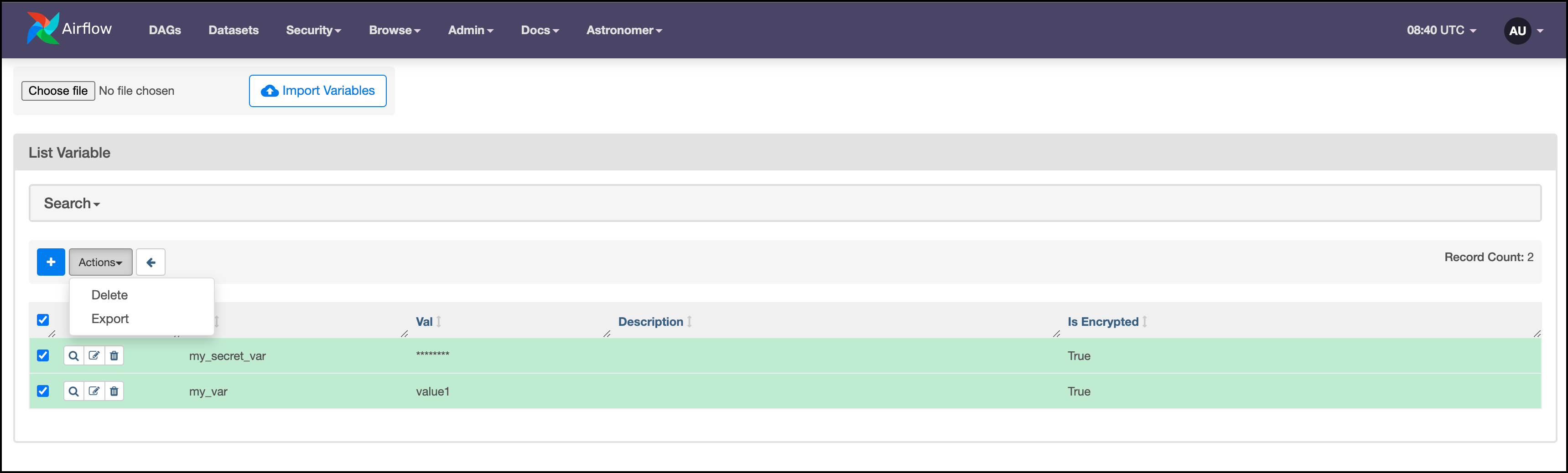
1. In the Airflow UI, go to **Admin** > **Variables**.
2. Select the variables you want to export, then click **Export** in the **Actions** dropdown menu.
The selected variables are exported to your local machine in a file named `variables.json`.
 To import variables to a local Airflow environment or Astro Deployment from a `json` file, complete the following steps:
1. Either create a new `json` file with environment variables or follow the previous steps to export a `json` file from an existing Airflow environment. Your `json` file should look similar to the following:
```json title="variables.json" wrap theme={null}
{
"my_string_var": "test",
"my_int_var": 1234,
"my_secret_var": "my_secret",
"my_json_var": {
"key1": "val1",
"key2": 123
}
}
```
2. In the Airflow UI, go to **Admin** > **Variables**.
3. Click **Choose file** and select the file containing your environment variables. Then, click **Import Variables**.
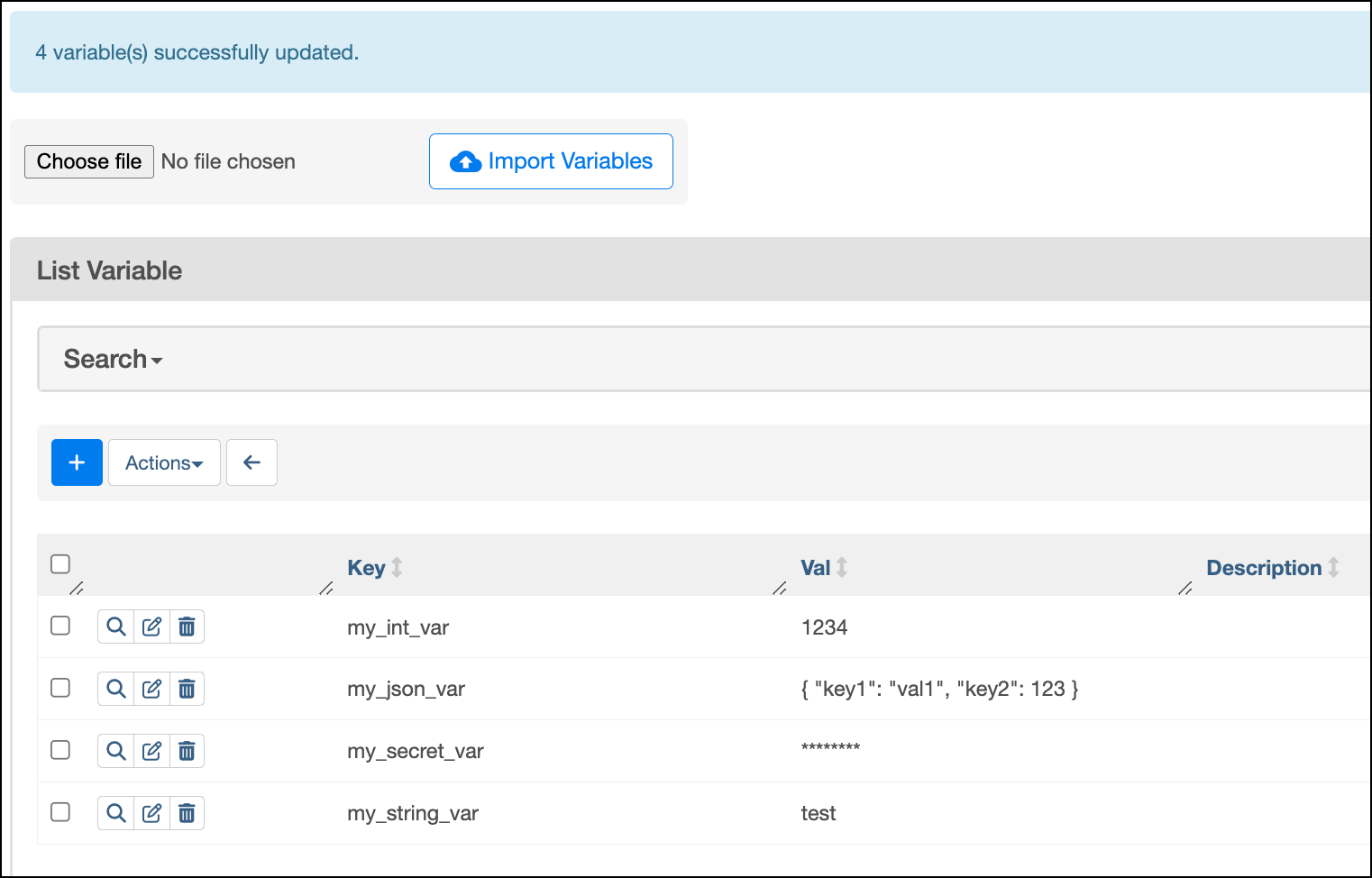
After the variables are updated, the UI will show a confirmation message.
To import variables to a local Airflow environment or Astro Deployment from a `json` file, complete the following steps:
1. Either create a new `json` file with environment variables or follow the previous steps to export a `json` file from an existing Airflow environment. Your `json` file should look similar to the following:
```json title="variables.json" wrap theme={null}
{
"my_string_var": "test",
"my_int_var": 1234,
"my_secret_var": "my_secret",
"my_json_var": {
"key1": "val1",
"key2": 123
}
}
```
2. In the Airflow UI, go to **Admin** > **Variables**.
3. Click **Choose file** and select the file containing your environment variables. Then, click **Import Variables**.
After the variables are updated, the UI will show a confirmation message.
 For security reasons, you can't bulk import or export connections from the Airflow UI.
### Using the Astro CLI (Local environments only)
Use [`astro dev object export`](/docs/cli/v1.43/astro-dev-object-export), [`astro dev object import`](/docs/cli/v1.43/astro-dev-object-import), and [`astro dev run`](/docs/cli/v1.43/astro-dev-run) to import and export connections and variables from a local Airflow environment to various formats. For example:
* To export all Airflow objects including connections, variables, and pools to your Astro project `.env` file in a URI format, run:
```sh wrap theme={null}
astro dev object export --env-export
```
* To print only your connections in JSON format to STDOUT, run:
```sh wrap theme={null}
astro dev run connections export - --file-format=env --serialization-format=json
```
* To import all Airflow objects from a file named `myairflowobjects.yaml` to a locally running Airflow environment, run:
```sh wrap theme={null}
astro dev object import --settings-file="myairflowobjects.yaml"
```
## From a secrets backend
If you use a secrets backend to store connections and variables, you need to use your secrets backend's API to manage connections and variables between environments. Note that importing/exporting from a secrets backend is necessary only in rare circumstances, such as when:
* You want to migrate your secrets backend to a different account.
* You want to use your secrets as a reference for another Deployment and then customize it. Astronomer recommends maintaining separate `development` and `production` secrets backend.
* You want to migrate to a different cloud provider.
Refer to your secrets backend provider's documentation to learn how to manage resources using API calls:
* Google secret manager's [Python SDK](https://cloud.google.com/secret-manager/docs/reference/libraries#client-libraries-install-python) and [REST API](https://cloud.google.com/secret-manager/docs/reference/rest) reference.
* AWS secret manager's [Python SDK](https://boto3.amazonaws.com/v1/documentation/api/latest/reference/services/secretsmanager.html) and [other SDKs](https://docs.aws.amazon.com/secretsmanager/latest/apireference/Welcome.html).
* Azure key vault's [SDK and API](https://learn.microsoft.com/en-us/azure/key-vault/general/developers-guide#apis-and-sdks-for-key-vault-management) reference.
* Hashicorp Vault's [Python SDK](https://developer.hashicorp.com/vault/docs/get-started/developer-qs#step-2-install-a-client-library)
To set up a secrets backend on Astro, see [configure secrets backend](/docs/astro/secrets-backend).
## From environment variables
This section covers **Deployment-level environment variables**. For information about **Workspace-level environment variables** managed through the Environment Manager, see [Create environment variables in Astro](/docs/astro/create-and-link-environment-variables). Workspace-level environment variables cannot be bulk exported, similar to connections and Airflow variables in the Environment Manager.
If you use an `.env` file to manage your connections and variables as Deployment-level environment variables in a local Astro project, you can import your Airflow objects to another local Airflow Astro project by copying the `.env` file into the destination project.
The `.env` file is not pushed to your Deployment when you run `astro deploy`. However, you can use Astro CLI commands to import the contents of your `.env` file to an Astro Deployment using `astro deployment` commands.
If your connections and variables are stored in a local Airflow metadata database, you can also export these to a `.env` file and then import them to an Astro Deployment as environment variables.
* To export all Airflow objects from your local Airflow environment, including connections and variables, to an `.env` file in URI format, run:
```sh wrap theme={null}
astro dev object export --env-export
```
* To import all Airflow objects from an `.env` file to an Astro Deployment, run:
```sh wrap theme={null}
astro deployment variable create -d --load --env .env
```
If your connections and variables are defined as environment variables on an Astro Deployment, you can export them to a local Airflow environment using the Astro CLI.
* To export variables from your Deployment, run:
```sh wrap theme={null}
astro deployment variable list --deployment-id --save
```
This command exports your variables to a local file named `.env`. The values of secret environment variables will be redacted.
See [Set environment variables on Astro](/docs/astro/manage-env-vars).
## From the Airflow REST API
You can use the [Airflow REST API](/docs/astro/airflow-api) to import and export connections and variables from a Deployment or local Airflow environment. Note that the Airflow REST API can only access connections and variables that are stored in the Airflow metadata database.
To export connections from any Airflow environment, you can use the [List Connections API](https://airflow.apache.org/docs/apache-airflow/stable/stable-rest-api-ref.html#operation/get_connections) and [Get Connection API](https://airflow.apache.org/docs/apache-airflow/stable/stable-rest-api-ref.html#operation/get_connection).
To export variables from any Airflow environment, you can use the [List Variables API](https://airflow.apache.org/docs/apache-airflow/stable/stable-rest-api-ref.html#operation/get_variables) and [Get Variable API](https://airflow.apache.org/docs/apache-airflow/stable/stable-rest-api-ref.html#operation/get_variable).
To import connections or variables to any Airflow environment, you can use the [Create Connection API](https://airflow.apache.org/docs/apache-airflow/stable/stable-rest-api-ref.html#operation/post_connection) and [Create Variable API](https://airflow.apache.org/docs/apache-airflow/stable/stable-rest-api-ref.html#operation/post_variables) respectively.
For security reasons, you can't bulk import or export connections from the Airflow UI.
### Using the Astro CLI (Local environments only)
Use [`astro dev object export`](/docs/cli/v1.43/astro-dev-object-export), [`astro dev object import`](/docs/cli/v1.43/astro-dev-object-import), and [`astro dev run`](/docs/cli/v1.43/astro-dev-run) to import and export connections and variables from a local Airflow environment to various formats. For example:
* To export all Airflow objects including connections, variables, and pools to your Astro project `.env` file in a URI format, run:
```sh wrap theme={null}
astro dev object export --env-export
```
* To print only your connections in JSON format to STDOUT, run:
```sh wrap theme={null}
astro dev run connections export - --file-format=env --serialization-format=json
```
* To import all Airflow objects from a file named `myairflowobjects.yaml` to a locally running Airflow environment, run:
```sh wrap theme={null}
astro dev object import --settings-file="myairflowobjects.yaml"
```
## From a secrets backend
If you use a secrets backend to store connections and variables, you need to use your secrets backend's API to manage connections and variables between environments. Note that importing/exporting from a secrets backend is necessary only in rare circumstances, such as when:
* You want to migrate your secrets backend to a different account.
* You want to use your secrets as a reference for another Deployment and then customize it. Astronomer recommends maintaining separate `development` and `production` secrets backend.
* You want to migrate to a different cloud provider.
Refer to your secrets backend provider's documentation to learn how to manage resources using API calls:
* Google secret manager's [Python SDK](https://cloud.google.com/secret-manager/docs/reference/libraries#client-libraries-install-python) and [REST API](https://cloud.google.com/secret-manager/docs/reference/rest) reference.
* AWS secret manager's [Python SDK](https://boto3.amazonaws.com/v1/documentation/api/latest/reference/services/secretsmanager.html) and [other SDKs](https://docs.aws.amazon.com/secretsmanager/latest/apireference/Welcome.html).
* Azure key vault's [SDK and API](https://learn.microsoft.com/en-us/azure/key-vault/general/developers-guide#apis-and-sdks-for-key-vault-management) reference.
* Hashicorp Vault's [Python SDK](https://developer.hashicorp.com/vault/docs/get-started/developer-qs#step-2-install-a-client-library)
To set up a secrets backend on Astro, see [configure secrets backend](/docs/astro/secrets-backend).
## From environment variables
This section covers **Deployment-level environment variables**. For information about **Workspace-level environment variables** managed through the Environment Manager, see [Create environment variables in Astro](/docs/astro/create-and-link-environment-variables). Workspace-level environment variables cannot be bulk exported, similar to connections and Airflow variables in the Environment Manager.
If you use an `.env` file to manage your connections and variables as Deployment-level environment variables in a local Astro project, you can import your Airflow objects to another local Airflow Astro project by copying the `.env` file into the destination project.
The `.env` file is not pushed to your Deployment when you run `astro deploy`. However, you can use Astro CLI commands to import the contents of your `.env` file to an Astro Deployment using `astro deployment` commands.
If your connections and variables are stored in a local Airflow metadata database, you can also export these to a `.env` file and then import them to an Astro Deployment as environment variables.
* To export all Airflow objects from your local Airflow environment, including connections and variables, to an `.env` file in URI format, run:
```sh wrap theme={null}
astro dev object export --env-export
```
* To import all Airflow objects from an `.env` file to an Astro Deployment, run:
```sh wrap theme={null}
astro deployment variable create -d --load --env .env
```
If your connections and variables are defined as environment variables on an Astro Deployment, you can export them to a local Airflow environment using the Astro CLI.
* To export variables from your Deployment, run:
```sh wrap theme={null}
astro deployment variable list --deployment-id --save
```
This command exports your variables to a local file named `.env`. The values of secret environment variables will be redacted.
See [Set environment variables on Astro](/docs/astro/manage-env-vars).
## From the Airflow REST API
You can use the [Airflow REST API](/docs/astro/airflow-api) to import and export connections and variables from a Deployment or local Airflow environment. Note that the Airflow REST API can only access connections and variables that are stored in the Airflow metadata database.
To export connections from any Airflow environment, you can use the [List Connections API](https://airflow.apache.org/docs/apache-airflow/stable/stable-rest-api-ref.html#operation/get_connections) and [Get Connection API](https://airflow.apache.org/docs/apache-airflow/stable/stable-rest-api-ref.html#operation/get_connection).
To export variables from any Airflow environment, you can use the [List Variables API](https://airflow.apache.org/docs/apache-airflow/stable/stable-rest-api-ref.html#operation/get_variables) and [Get Variable API](https://airflow.apache.org/docs/apache-airflow/stable/stable-rest-api-ref.html#operation/get_variable).
To import connections or variables to any Airflow environment, you can use the [Create Connection API](https://airflow.apache.org/docs/apache-airflow/stable/stable-rest-api-ref.html#operation/post_connection) and [Create Variable API](https://airflow.apache.org/docs/apache-airflow/stable/stable-rest-api-ref.html#operation/post_variables) respectively.