> ## Documentation Index
> Fetch the complete documentation index at: https://astronomer.io/docs/llms.txt
> Use this file to discover all available pages before exploring further.
# Deployment logs on Astronomer Software
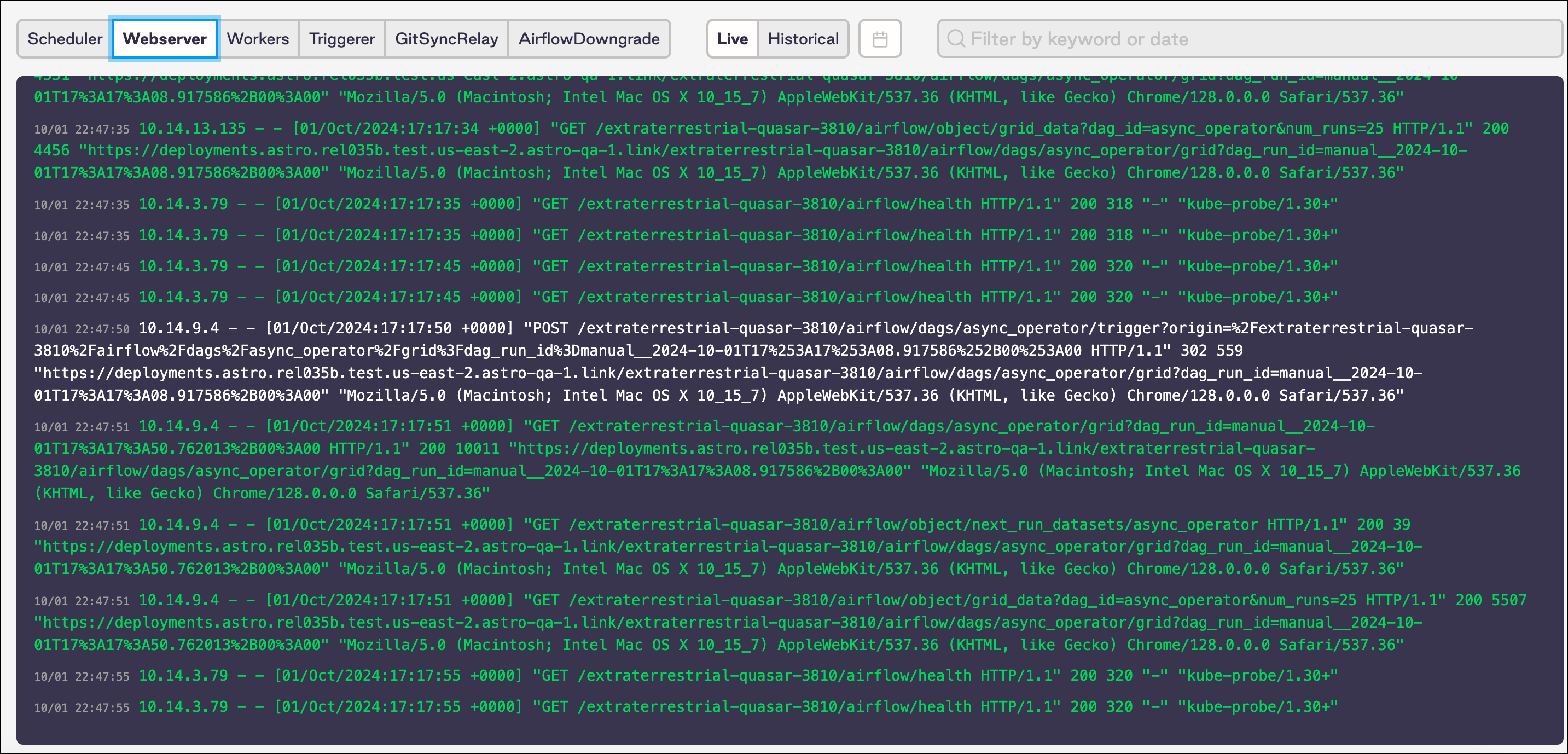
The Software UI allows you to view and search Airflow logs emitted by your webserver, scheduler, triggerer, worker(s), and git-sync Pods for any Deployment you have access to.
### Interpreting logs
This view gives you access to Deployment logs that help you monitor the health of your Deployment's Airflow components.
A few use cases:
* See your scheduler, webserver, and workers all restart after you push `astro dev deploy`
* If your Airflow UI is not loading as expected - determine whether your webserver in a CrashLoop
* See how quickly your scheduler queues tasks
* Determine if your Celery worker behaves unexpectedly
These are *not* task-level logs that you can find in the Airflow Web UI. Logs on Astronomer are not a replacement for task-level logging in the Airflow UI.
### Prerequisites
To view logs on Astronomer, you need:
* Access to an Astronomer Software Installation
* A Deployment on Astronomer
## View logs
To view Airflow logs, log into Astronomer and navigate to: **Deployment** > **Logs**.
Depending on your Software configuration, you might have different logging views available to you. If a view is not available, it means you do not have that functionality configured.
In the menu, you can change views of logs for your:
* Scheduler
* Webserver
* Workers
* Triggerer (Optional, but enabled by default)
* GitSyncRelay (Optional, visible with [Git Sync deploys](/docs/astro-private-cloud/v-0-37/deploy-git-sync#enable-git-sync) enabled)
* DAGServer (Optional, visible with [DAG-only deploys](/docs/astro-private-cloud/v-0-37/deploy-dags) enabled)
* AirflowDowngrade (Optional, visible with [Deployment rollbacks](/docs/astro-private-cloud/v-0-37/deploy-rollbacks) enabled)
 ### Filter by time/date
As you manage logs, you can filter by:
* Past 5 minutes
* Past hour
* Today
* All time
To adjust this filter, toggle the top right menu.
### Search logs
On Astronomer, you can search for logs with a text string or date.
### Filter by time/date
As you manage logs, you can filter by:
* Past 5 minutes
* Past hour
* Today
* All time
To adjust this filter, toggle the top right menu.
### Search logs
On Astronomer, you can search for logs with a text string or date.
