> ## Documentation Index
> Fetch the complete documentation index at: https://astronomer.io/docs/llms.txt
> Use this file to discover all available pages before exploring further.
# Manage user permissions on Astronomer Software
Astronomer supports a permissions and role-based access control (RBAC) framework that allows users to configure varying levels of access both at the Workspace and Airflow Deployment levels.
Workspace and Deployment-level access can each be configured with 3 user roles (*Admin*, *Editor*, *Viewer*), all of which can be set and changed via the Software UI and CLI. Each role maps to a combination of permissions to both Astronomer and Apache Airflow itself.
The guidelines below will cover:
1. How to invite users to an Astronomer Workspace and Deployment
2. How to view, set and modify user roles
3. Deployment and Workspace Permissions Reference
## Invite users
Workspace and Deployment Admins can invite and otherwise manage users both via the Software UI and CLI. All users who have access to a Workspace must be assigned 1 of 3 Workspace roles, though deployment-level roles are not required.
Read below for guidelines.
### Invite to Workspace
The ability to invite users to an Astronomer Workspace is limited to Workspace Admins, who can also grant the Admin role to other users. Workspace Editors and Viewers cannot invite or otherwise manage other Workspace users, though they may do so at the deployment level depending on their deployment-level role.
A user who creates a Workspace is automatically granted the Admin role for the Workspace and has the ability to create any number of Airflow Deployments within it. Every Workspace must have at least 1 Workspace Admin.
#### Using the Software UI
To invite a user to a Workspace via the Software UI, navigate to **Workspace** > **Users** > **Invite User**.
When a Workspace Admin invites a user to a Workspace in which one or more Airflow Deployments exist, they'll have the opportunity to set that user's deployment-level roles as well, though it is not required.
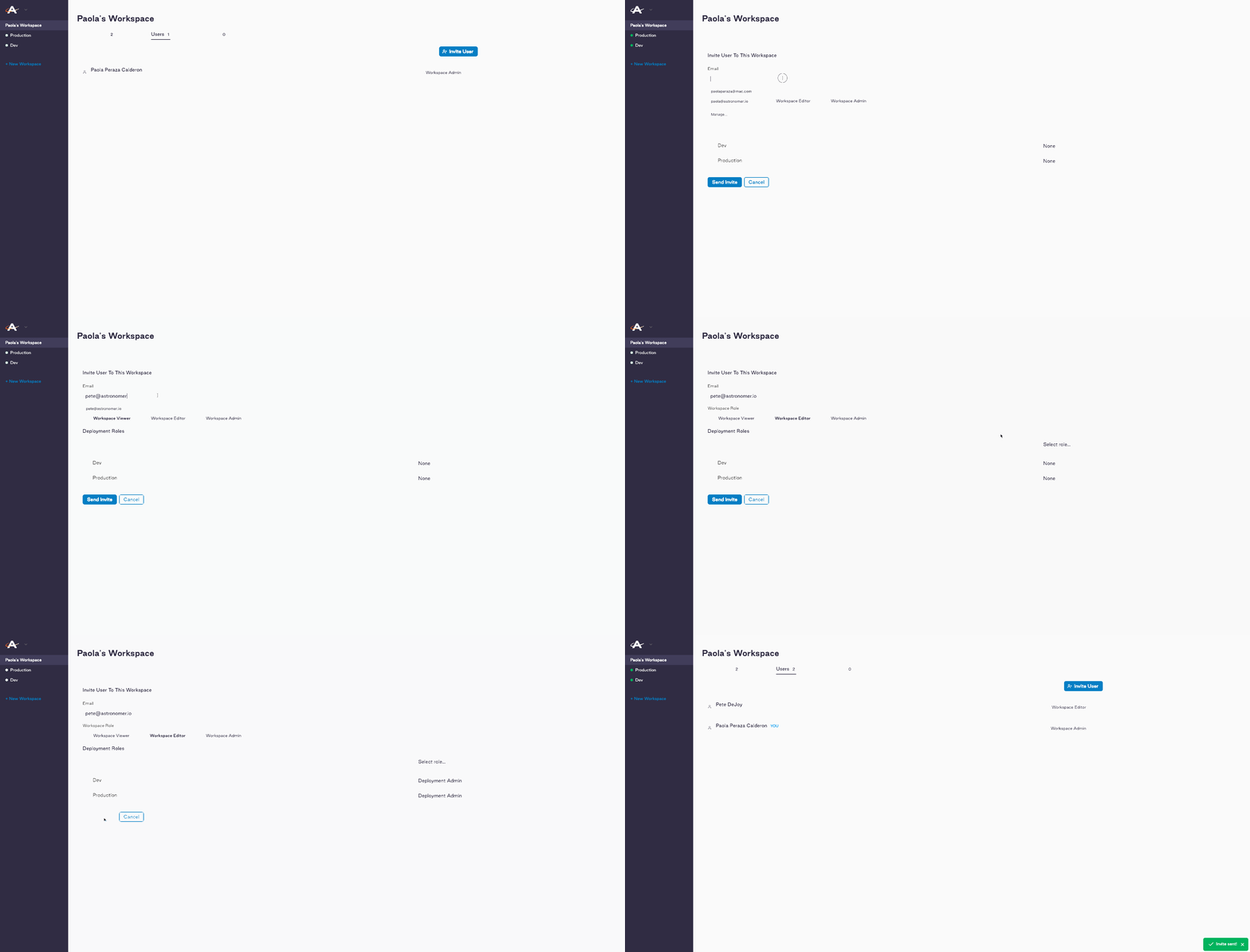 If a Workspace Admin invites a user to a Workspace that has 0 Airflow Deployments, the **Deployment Roles** modal above will not appear.
#### Using the Astro CLI
To invite a user to a Workspace using the Astro CLI, run:
```bash wrap theme={null}
astro workspace user add --workspace-id --role
```
Only Workspace *Admins* can invite other users and set their permissions.
To find **Workspace ID**, you can:
* Run `$ astro workspace list`
* Find it in the Workspace URL from your browser after the `/w/` (e.g. `https://app.basedomain/w/`)
To set a **Role**, add a flag in the following format:
* `--WORKSPACE_EDITOR`
* `--WORKSPACE_VIEWER`
* `--WORKSPACE_ADMIN`
If you do *not* specify a role in this command, `WORKSPACE_VIEWER` will be set by default. In all cases where a user is invited to a Workspace and deployment-level role is not specified, no deployment-level role will be assumed.
#### Using Teams
You can invite a group of users from a configured third party identity provider (IdP) as a Team on your Workspace. A Team is an IdP-defined group of users who all share the same permissions to a given Deployment or Workspace.
Note that to use Teams, a System Admin must first complete the setup in [Integrate an auth system](/docs/astro-private-cloud/v-0-36/integrate-auth-system) and configure user groups as described in [Import IdP Groups](/docs/astro-private-cloud/v-0-36/import-idp-groups).
To add a Team to a Workspace:
1. In the Astronomer UI, go to your Workspace and open the **Teams** tab.
2. Click **Add Team**.
3. Under **Team Name**, enter the name of your IdP group.
4. Select a **Workspace Role** for the Team. If your Workspace has existing Deployments, you can also configure the Team's permissions to those Deployments on this page:
If a Workspace Admin invites a user to a Workspace that has 0 Airflow Deployments, the **Deployment Roles** modal above will not appear.
#### Using the Astro CLI
To invite a user to a Workspace using the Astro CLI, run:
```bash wrap theme={null}
astro workspace user add --workspace-id --role
```
Only Workspace *Admins* can invite other users and set their permissions.
To find **Workspace ID**, you can:
* Run `$ astro workspace list`
* Find it in the Workspace URL from your browser after the `/w/` (e.g. `https://app.basedomain/w/`)
To set a **Role**, add a flag in the following format:
* `--WORKSPACE_EDITOR`
* `--WORKSPACE_VIEWER`
* `--WORKSPACE_ADMIN`
If you do *not* specify a role in this command, `WORKSPACE_VIEWER` will be set by default. In all cases where a user is invited to a Workspace and deployment-level role is not specified, no deployment-level role will be assumed.
#### Using Teams
You can invite a group of users from a configured third party identity provider (IdP) as a Team on your Workspace. A Team is an IdP-defined group of users who all share the same permissions to a given Deployment or Workspace.
Note that to use Teams, a System Admin must first complete the setup in [Integrate an auth system](/docs/astro-private-cloud/v-0-36/integrate-auth-system) and configure user groups as described in [Import IdP Groups](/docs/astro-private-cloud/v-0-36/import-idp-groups).
To add a Team to a Workspace:
1. In the Astronomer UI, go to your Workspace and open the **Teams** tab.
2. Click **Add Team**.
3. Under **Team Name**, enter the name of your IdP group.
4. Select a **Workspace Role** for the Team. If your Workspace has existing Deployments, you can also configure the Team's permissions to those Deployments on this page:
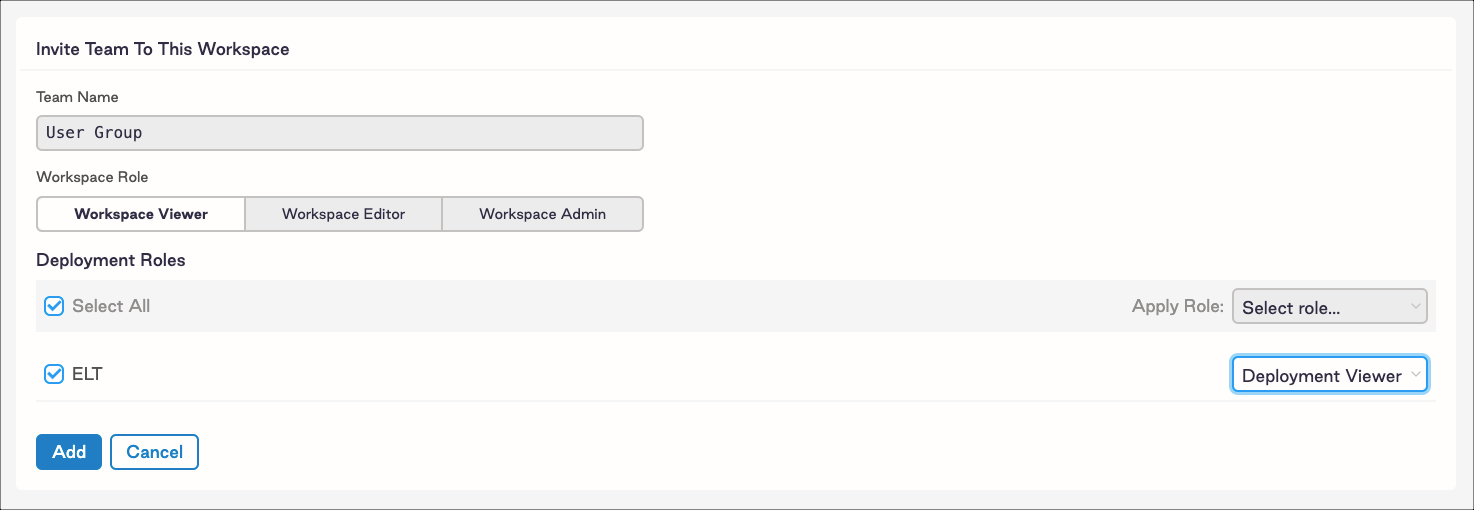 5. Click **Add**.
If a user already exists on a Workspace before being invited via a Team, the user context with the most permissive role will be applied to the Workspace. For more information, read [Import IdP Groups](/docs/astro-private-cloud/v-0-36/import-idp-groups).
### Invite to Deployment
The ability to invite Workspace users to an Airflow Deployment within it is limited to Deployment *Admins*, who can also grant the *Admin* role to other users. Deployment *Editors* and *Viewers* cannot invite or otherwise manage users. A user who creates a Deployment is automatically granted the *Admin* role within it.
In order for a user to be granted access to an Airflow Deployment, they must *first* be invited to and assigned a role within the Workspace. On the other hand, a user could be a part of a Workspace but have no access or role to any Airflow Deployments within it.
#### Using the Software UI
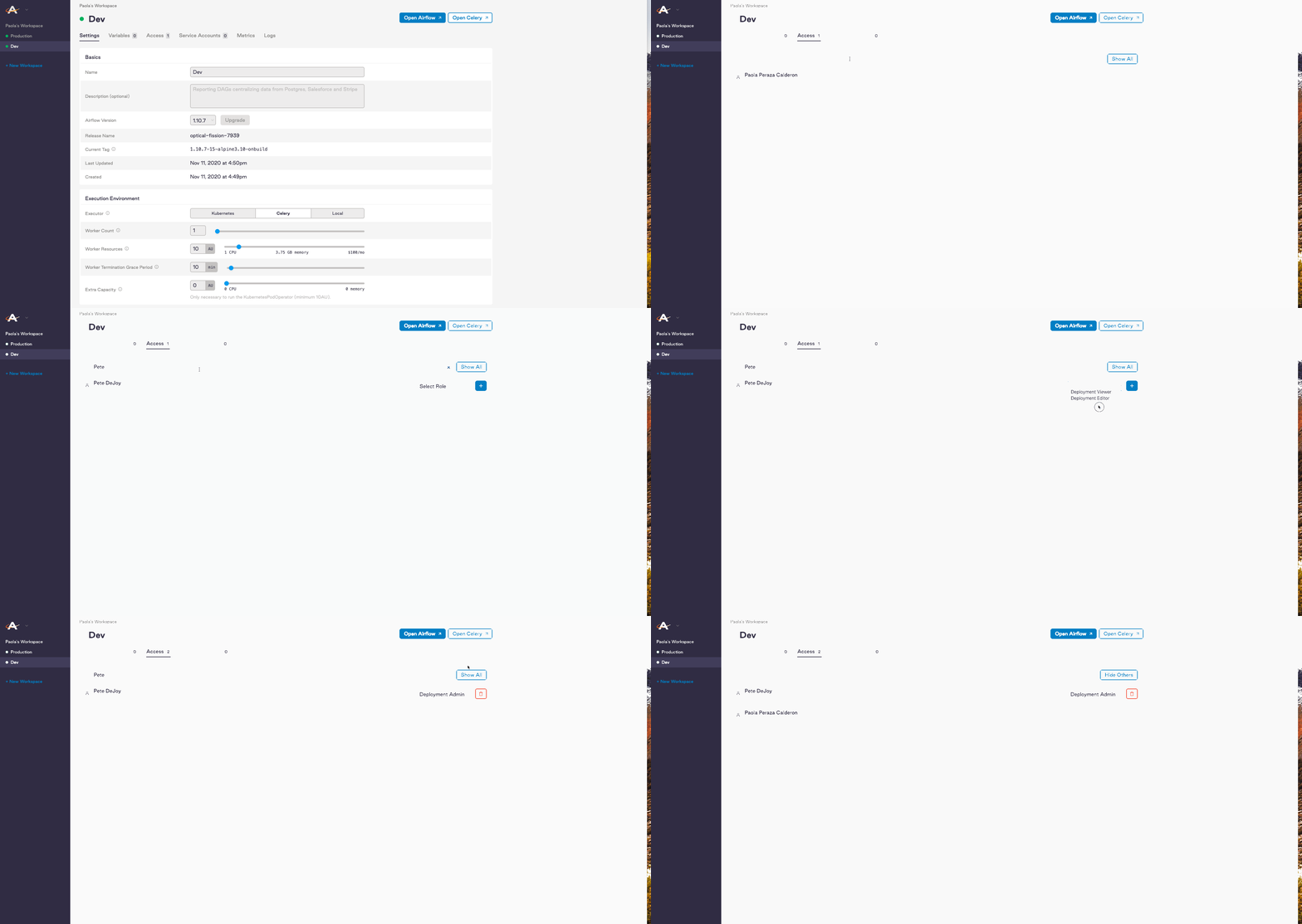
To invite a Workspace user to an Airflow Deployment via the Software UI, navigate to: **Workspace** > **Deployment** > **Access**.
From there:
1. Type the Workspace user's name in the search bar on top (or click **Show All** to view all users)
2. Select a deployment role from the drop-down menu to the right of the selected user
3. Click the `+` symbol
5. Click **Add**.
If a user already exists on a Workspace before being invited via a Team, the user context with the most permissive role will be applied to the Workspace. For more information, read [Import IdP Groups](/docs/astro-private-cloud/v-0-36/import-idp-groups).
### Invite to Deployment
The ability to invite Workspace users to an Airflow Deployment within it is limited to Deployment *Admins*, who can also grant the *Admin* role to other users. Deployment *Editors* and *Viewers* cannot invite or otherwise manage users. A user who creates a Deployment is automatically granted the *Admin* role within it.
In order for a user to be granted access to an Airflow Deployment, they must *first* be invited to and assigned a role within the Workspace. On the other hand, a user could be a part of a Workspace but have no access or role to any Airflow Deployments within it.
#### Using the Software UI
To invite a Workspace user to an Airflow Deployment via the Software UI, navigate to: **Workspace** > **Deployment** > **Access**.
From there:
1. Type the Workspace user's name in the search bar on top (or click **Show All** to view all users)
2. Select a deployment role from the drop-down menu to the right of the selected user
3. Click the `+` symbol
 #### Using the Astro CLI
To invite a Workspace user to an Airflow Deployment using the Astro CLI, run:
```text wrap theme={null}
astro deployment user add --email= --deployment-id= --role=
```
Only Deployment *Admins* can invite other users and set their permissions.
To find **Deployment ID**, you can:
* Run `$ astro deployment list`
To set a **Role**, add a flag in the following format:
* `--DEPLOYMENT_EDITOR`
* `--DEPLOYMENT_VIEWER`
* `--DEPLOYMENT_ADMIN`
If you do *not* specify a role in this command, `DEPLOYMENT_VIEWER` will be set by default.
#### Using Teams
You can invite a group of users from a configured third party identity provider (IdP) as a Team on your Deployment. A Team is an IdP-defined group of users who all share the same permissions to a given Deployment or Workspace.
Note that to use Teams, a System Admin must first complete the setup in [Integrate an auth system](/docs/astro-private-cloud/v-0-36/integrate-auth-system) and configure user groups as described in [Import IdP Groups](/docs/astro-private-cloud/v-0-36/import-idp-groups).
To add a team to a Deployment:
1. In the Astronomer UI, go to your Deployment and open the **Teams** tab.
2. In the search bar that appears, search for your Team's name.
3. When your Team appears, select a Deployment-level role for the Team and click the **+** button:
#### Using the Astro CLI
To invite a Workspace user to an Airflow Deployment using the Astro CLI, run:
```text wrap theme={null}
astro deployment user add --email= --deployment-id= --role=
```
Only Deployment *Admins* can invite other users and set their permissions.
To find **Deployment ID**, you can:
* Run `$ astro deployment list`
To set a **Role**, add a flag in the following format:
* `--DEPLOYMENT_EDITOR`
* `--DEPLOYMENT_VIEWER`
* `--DEPLOYMENT_ADMIN`
If you do *not* specify a role in this command, `DEPLOYMENT_VIEWER` will be set by default.
#### Using Teams
You can invite a group of users from a configured third party identity provider (IdP) as a Team on your Deployment. A Team is an IdP-defined group of users who all share the same permissions to a given Deployment or Workspace.
Note that to use Teams, a System Admin must first complete the setup in [Integrate an auth system](/docs/astro-private-cloud/v-0-36/integrate-auth-system) and configure user groups as described in [Import IdP Groups](/docs/astro-private-cloud/v-0-36/import-idp-groups).
To add a team to a Deployment:
1. In the Astronomer UI, go to your Deployment and open the **Teams** tab.
2. In the search bar that appears, search for your Team's name.
3. When your Team appears, select a Deployment-level role for the Team and click the **+** button:
 If a user already exists on a Deployment before being invited via a Team, the user context with the most permissive role will be applied to the Deployment. For more information, read [Import IdP Groups](/docs/astro-private-cloud/v-0-36/import-idp-groups).
## View and edit user roles
### Workspace
#### View Workspace users
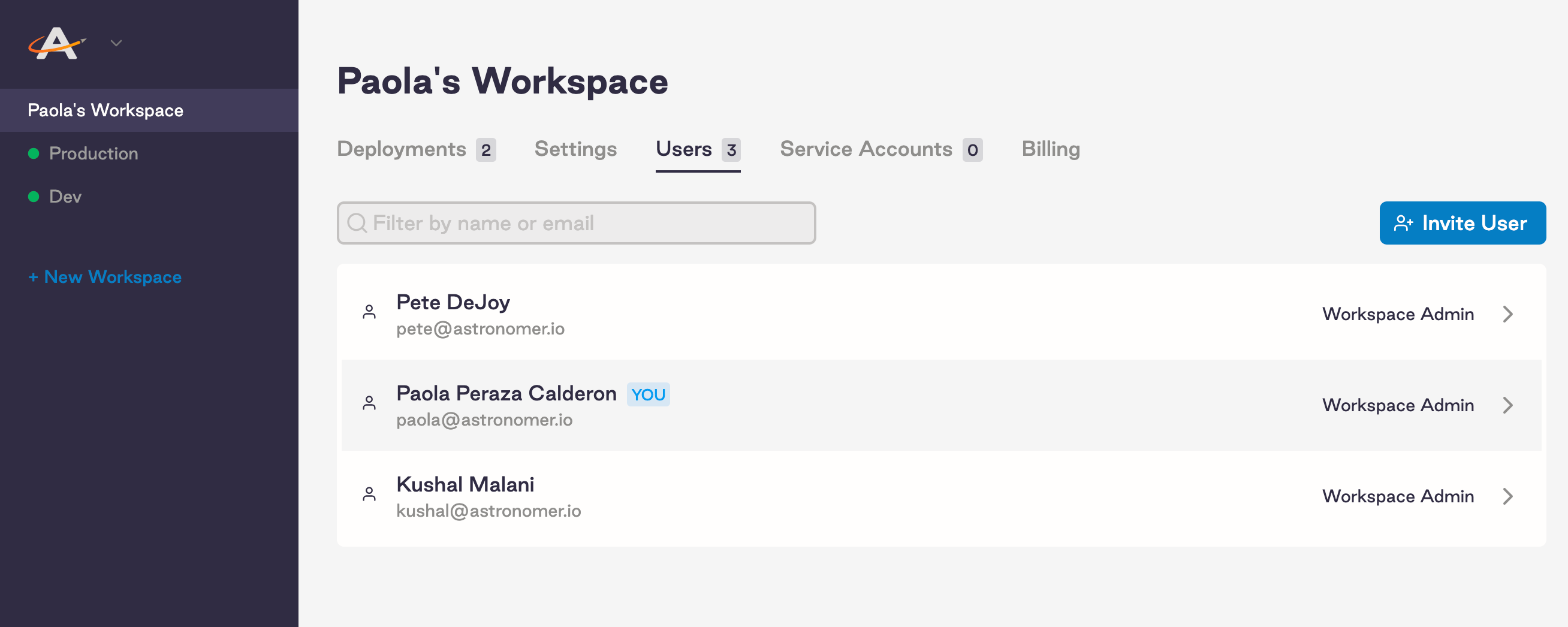
To view roles within a Workspace via the Software UI, navigate to **Workspace** > **Users**. All Workspace users have access to this view and can see the roles of other users.
If a user already exists on a Deployment before being invited via a Team, the user context with the most permissive role will be applied to the Deployment. For more information, read [Import IdP Groups](/docs/astro-private-cloud/v-0-36/import-idp-groups).
## View and edit user roles
### Workspace
#### View Workspace users
To view roles within a Workspace via the Software UI, navigate to **Workspace** > **Users**. All Workspace users have access to this view and can see the roles of other users.
 To list Workspace users using the Astro CLI, run:
```bash wrap theme={null}
astro workspace user list
```
This command will output the email addresses of all users in the Workspace alongside their ID and Workspace Role.
#### Edit Workspace user role
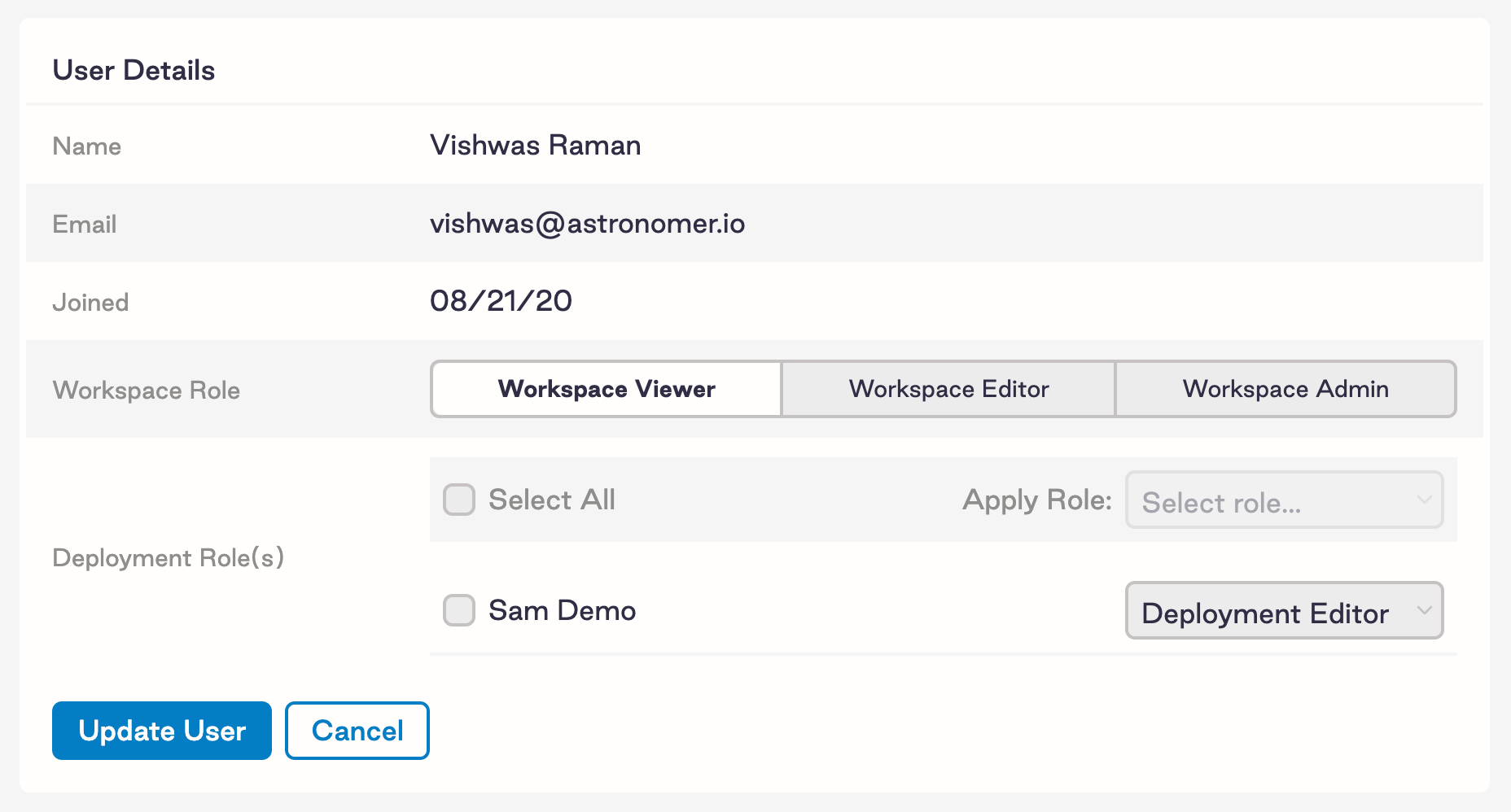
If you're a Workspace *Admin*, you can edit both Workspace and deployment-level permissions by navigating to **Workspace** > **Users** and clicking into an individual user.
To list Workspace users using the Astro CLI, run:
```bash wrap theme={null}
astro workspace user list
```
This command will output the email addresses of all users in the Workspace alongside their ID and Workspace Role.
#### Edit Workspace user role
If you're a Workspace *Admin*, you can edit both Workspace and deployment-level permissions by navigating to **Workspace** > **Users** and clicking into an individual user.
 To edit a user's role using the Astro CLI, run:
```bash wrap theme={null}
astro workspace user update --workspace-id= --role=
```
Only Workspace *Admins* can modify the role of another user in the Workspace.
#### Remove Workspace user
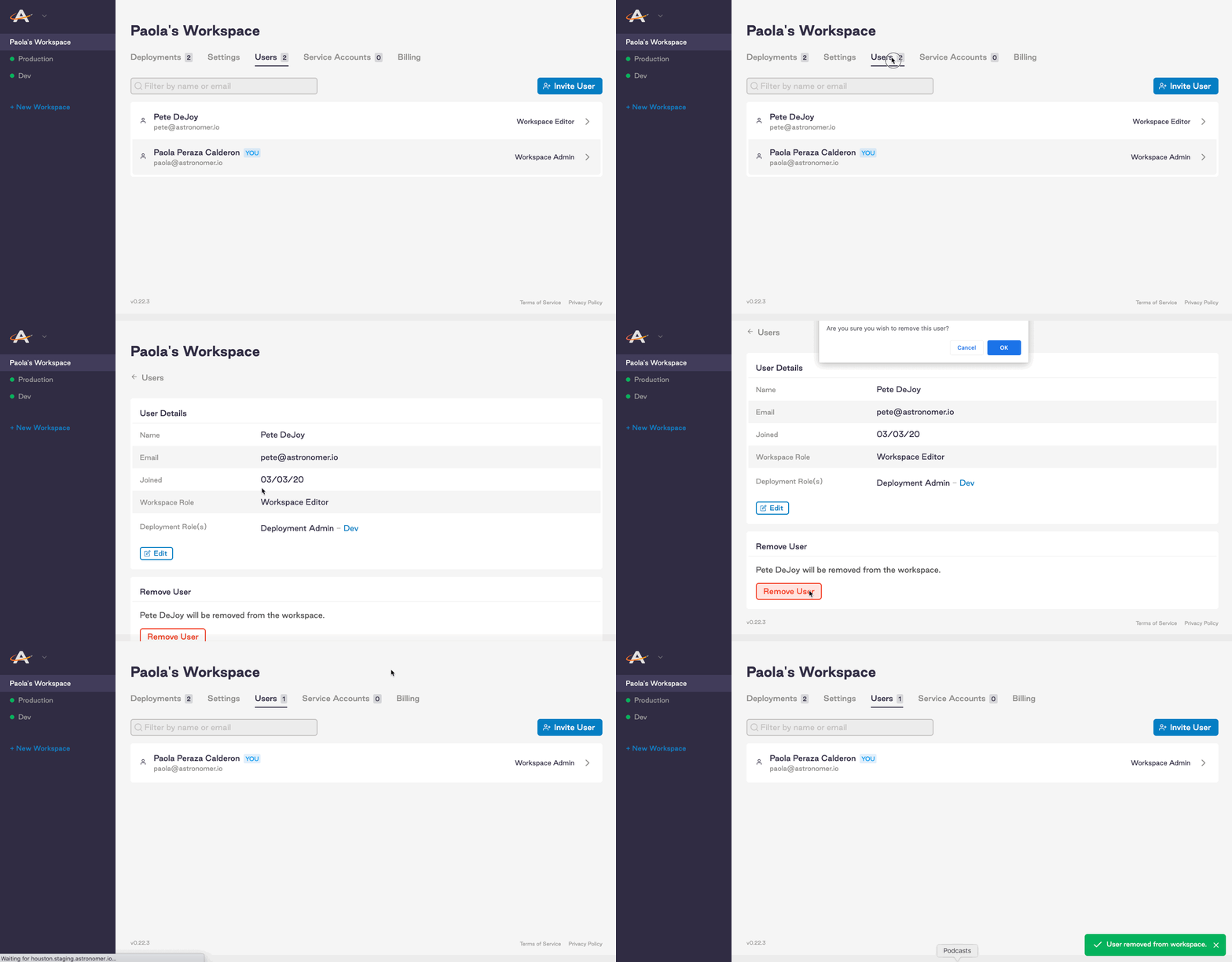
Workspace *Admins* can remove users from a Workspace by navigating to: **Workspace** > **Users** > **Individual User** > **Remove User**.
To edit a user's role using the Astro CLI, run:
```bash wrap theme={null}
astro workspace user update --workspace-id= --role=
```
Only Workspace *Admins* can modify the role of another user in the Workspace.
#### Remove Workspace user
Workspace *Admins* can remove users from a Workspace by navigating to: **Workspace** > **Users** > **Individual User** > **Remove User**.
 To remove a user from a Workspace via the Astro CLI, make sure you're first operating in that Workspace. Then, run:
```bash wrap theme={null}
astro workspace user remove
```
Only Workspace *Admins* can remove other Workspace users.
### Deployment
#### View Deployment users
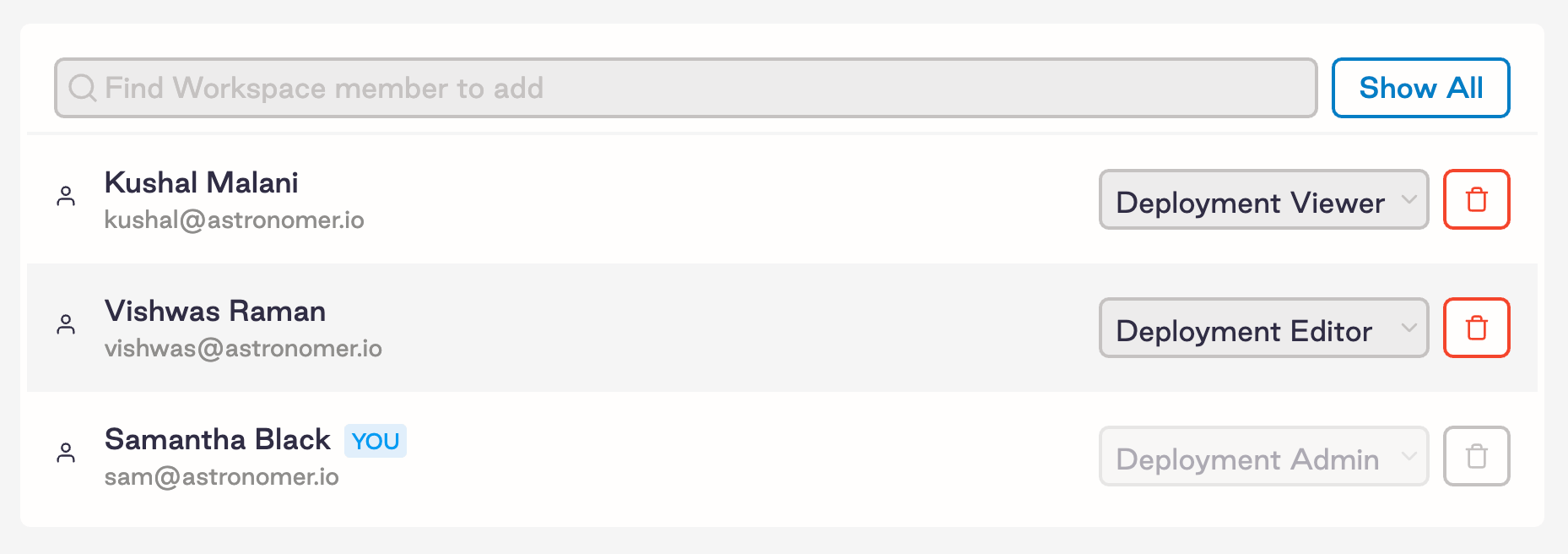
To list all users within a Deployment and their corresponding roles, navigate to **Workspace** > **Deployment** > **Access**. All Deployment users have access to this view and can see the roles of other users.
To remove a user from a Workspace via the Astro CLI, make sure you're first operating in that Workspace. Then, run:
```bash wrap theme={null}
astro workspace user remove
```
Only Workspace *Admins* can remove other Workspace users.
### Deployment
#### View Deployment users
To list all users within a Deployment and their corresponding roles, navigate to **Workspace** > **Deployment** > **Access**. All Deployment users have access to this view and can see the roles of other users.
 To list Deployment users via the Astro CLI, run:
```bash wrap theme={null}
astro deployment user list --deployment-id=
```
#### Edit Deployment user role
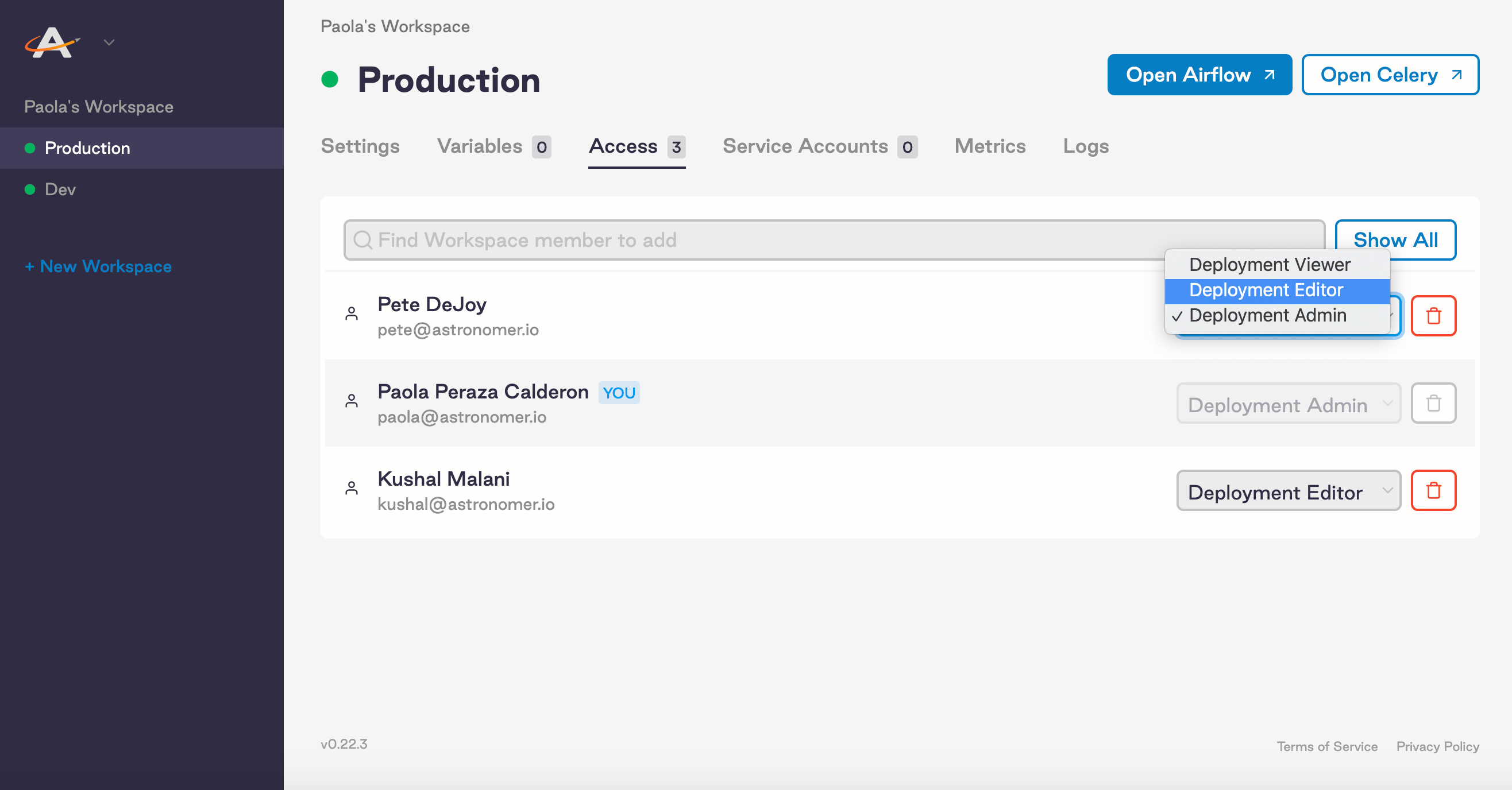
Deployment *Admins* can edit permissions using the dropdown menu in the **Access** tab in the Software UI.
To list Deployment users via the Astro CLI, run:
```bash wrap theme={null}
astro deployment user list --deployment-id=
```
#### Edit Deployment user role
Deployment *Admins* can edit permissions using the dropdown menu in the **Access** tab in the Software UI.
 To edit a user's role using the Astro CLI, run:
```bash wrap theme={null}
astro deployment user update --deployment-id= --role=
```
> **Note:** A deployment-level role cannot be edited while a Workspace invitation to that user is pending. If you invite a user to a Workspace, you will not be able to modify their permissions until they accept the Workspace invite.
#### Remove Deployment user
To delete a user from an Airflow Deployment via the Software UI, Deployment *Admins* can click on the red "wastebasket" icon within the **Access** tab shown in the screenshot above.
To delete a user from an Airflow Deployment using the Astro CLI, run:
```bash wrap theme={null}
astro deployment user remove --deployment-id=
```
## User permissions reference
### Workspace
#### Workspace Admin
Workspace *Admins* are the highest-tiered role at the Workspace level. Admins:
* Can manage users and their permissions in a Workspace.
* Can perform CRUD (create, read, update, delete) operations on the Workspace (e.g. delete the Workspace, change its name).
* Can create Airflow Deployments in the Workspace.
* Can perform CRUD operations on any Airflow Deployment within the Workspace.
* Can perform CRUD operations on any service account in the Workspace.
Every Workspace must have at least 1 Workspace *Admin*.
A Workspace *Admin* always has these permissions for any Deployment in the Workspace. Even if a Workspace admin also has a defined role with lower permissions like Deployment *Viewer*, Astronomer uses the permissions configured for the user at the Workspace level.
#### Workspace Editor
Below a Workspace *Admin*, an *Editor*:
* Can access and make changes to the Workspace in the **Settings** tab
* Can perform CRUD operations on any service account in the Workspace
* Can create Airflow Deployments in the Workspace
* Cannot manage other users in the Workspace
* Cannot delete the Workspace
#### Workspace Viewer
A Workspace *Viewer* is limited to read-only mode. *Viewers*:
* Can list users in a Workspace
* Can view all service accounts in the Workspace
* Cannot delete or modify the Workspace or its users
If a role is not set, newly invited users are Workspace *Viewers* by default.
### Deployment
#### Deployment Admin
Deployment *Admins* are the highest-tiered role. Admins:
* Can perform CRUD (create, read, update, delete) Astronomer operations on the Deployments, such as modify resources, add environment variables, push code, or delete the Deployment
* Can manage users and their permissions in the Deployment
* Can perform CRUD operations on any service account in the Workspace
* Can perform CRUD Airflow operations (push code, add Connections, clear tasks, delete DAGs etc.)
* Have full access to the **Admin** menu in the Airflow UI
* Have full access to modify and interact with DAGs in the Airflow UI
Every Deployment must have at least 1 Deployment *Admin*.
#### Deployment Editor
With fewer permissions than *Admins*, a Deployment *Editor*:
* Can access and make changes to the Deployment on Astronomer, such as modify resources, add environment variables, or push code
* Cannot delete the Deployment
* Can perform CRUD operations on any service account in the Deployment
* Cannot manage other users in the Deployment
* Has full access to modify and interact with DAGs in the Airflow UI
* Does NOT have access to the **Admin** menu in Airflow, which includes:
* Pools
* Configuration
* Users
* Connections
* Variables
* XComs
To edit a user's role using the Astro CLI, run:
```bash wrap theme={null}
astro deployment user update --deployment-id= --role=
```
> **Note:** A deployment-level role cannot be edited while a Workspace invitation to that user is pending. If you invite a user to a Workspace, you will not be able to modify their permissions until they accept the Workspace invite.
#### Remove Deployment user
To delete a user from an Airflow Deployment via the Software UI, Deployment *Admins* can click on the red "wastebasket" icon within the **Access** tab shown in the screenshot above.
To delete a user from an Airflow Deployment using the Astro CLI, run:
```bash wrap theme={null}
astro deployment user remove --deployment-id=
```
## User permissions reference
### Workspace
#### Workspace Admin
Workspace *Admins* are the highest-tiered role at the Workspace level. Admins:
* Can manage users and their permissions in a Workspace.
* Can perform CRUD (create, read, update, delete) operations on the Workspace (e.g. delete the Workspace, change its name).
* Can create Airflow Deployments in the Workspace.
* Can perform CRUD operations on any Airflow Deployment within the Workspace.
* Can perform CRUD operations on any service account in the Workspace.
Every Workspace must have at least 1 Workspace *Admin*.
A Workspace *Admin* always has these permissions for any Deployment in the Workspace. Even if a Workspace admin also has a defined role with lower permissions like Deployment *Viewer*, Astronomer uses the permissions configured for the user at the Workspace level.
#### Workspace Editor
Below a Workspace *Admin*, an *Editor*:
* Can access and make changes to the Workspace in the **Settings** tab
* Can perform CRUD operations on any service account in the Workspace
* Can create Airflow Deployments in the Workspace
* Cannot manage other users in the Workspace
* Cannot delete the Workspace
#### Workspace Viewer
A Workspace *Viewer* is limited to read-only mode. *Viewers*:
* Can list users in a Workspace
* Can view all service accounts in the Workspace
* Cannot delete or modify the Workspace or its users
If a role is not set, newly invited users are Workspace *Viewers* by default.
### Deployment
#### Deployment Admin
Deployment *Admins* are the highest-tiered role. Admins:
* Can perform CRUD (create, read, update, delete) Astronomer operations on the Deployments, such as modify resources, add environment variables, push code, or delete the Deployment
* Can manage users and their permissions in the Deployment
* Can perform CRUD operations on any service account in the Workspace
* Can perform CRUD Airflow operations (push code, add Connections, clear tasks, delete DAGs etc.)
* Have full access to the **Admin** menu in the Airflow UI
* Have full access to modify and interact with DAGs in the Airflow UI
Every Deployment must have at least 1 Deployment *Admin*.
#### Deployment Editor
With fewer permissions than *Admins*, a Deployment *Editor*:
* Can access and make changes to the Deployment on Astronomer, such as modify resources, add environment variables, or push code
* Cannot delete the Deployment
* Can perform CRUD operations on any service account in the Deployment
* Cannot manage other users in the Deployment
* Has full access to modify and interact with DAGs in the Airflow UI
* Does NOT have access to the **Admin** menu in Airflow, which includes:
* Pools
* Configuration
* Users
* Connections
* Variables
* XComs
 #### Deployment Viewer
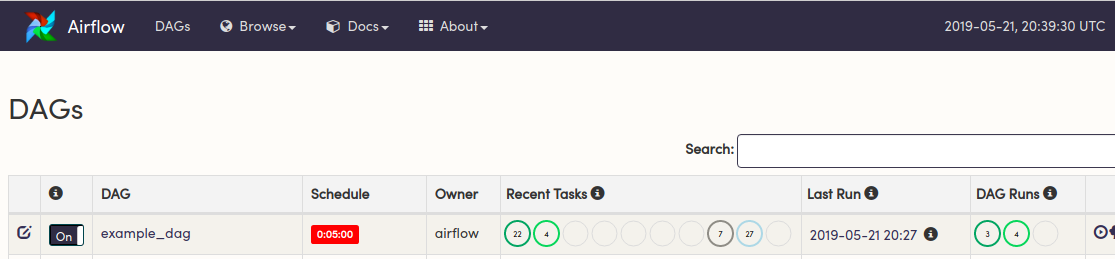
Deployment *Viewers* are limited to read-only mode. They can only:
* View Deployment users
* View the **Metrics** and **Logs** tab of the Software UI
* View information about DAGs and tasks in the Airflow UI
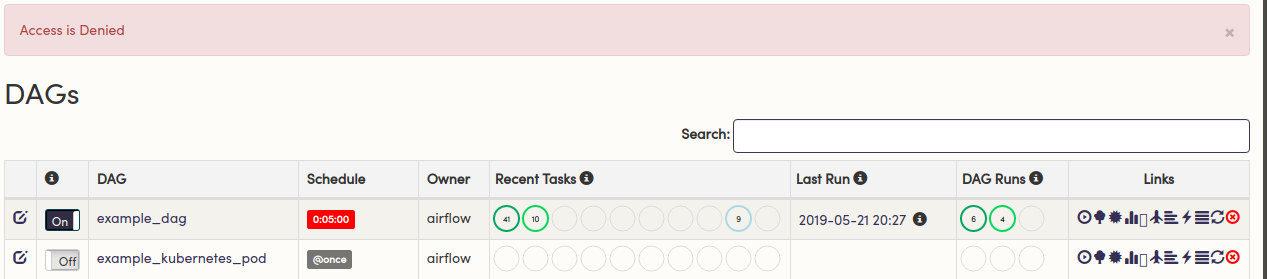
Deployment Viewers cannot deploy to, modify, or delete anything within an Airflow Deployment. Additionally, they cannot create or use service accounts to do so. Attempts to modify a Deployment in any way will result in a `403` and an `Access is Denied` message.
#### Deployment Viewer
Deployment *Viewers* are limited to read-only mode. They can only:
* View Deployment users
* View the **Metrics** and **Logs** tab of the Software UI
* View information about DAGs and tasks in the Airflow UI
Deployment Viewers cannot deploy to, modify, or delete anything within an Airflow Deployment. Additionally, they cannot create or use service accounts to do so. Attempts to modify a Deployment in any way will result in a `403` and an `Access is Denied` message.
 ## What's next
As an Astronomer Software user, you're free to customize all user permissions at the platform-level. For more information, read:
* [Manage Users on Astronomer Software](/docs/astro-private-cloud/v-0-36/manage-platform-users#customize-role-permissions)
* [Integrate an auth system](/docs/astro-private-cloud/v-0-36/integrate-auth-system)
## What's next
As an Astronomer Software user, you're free to customize all user permissions at the platform-level. For more information, read:
* [Manage Users on Astronomer Software](/docs/astro-private-cloud/v-0-36/manage-platform-users#customize-role-permissions)
* [Integrate an auth system](/docs/astro-private-cloud/v-0-36/integrate-auth-system)