> ## Documentation Index
> Fetch the complete documentation index at: https://astronomer.io/docs/llms.txt
> Use this file to discover all available pages before exploring further.
# Upgrade Astronomer Software
For Astronomer Software customers, new product features are regularly made available in stable and long-term support (LTS) releases as described in [Release and lifecycle policy](/docs/astro-private-cloud/v-0-34/release-lifecycle-policy). Patch versions of Astronomer Software with additional bug and security fixes are also released on a regular basis.
Follow this guide to upgrade to any version of Astronomer Software. For information on new features and changes, refer to [Software release notes](/docs/astro-private-cloud/v-0-34/release-notes). Find detailed information about the component image versions in each [Astronomer Software version](https://updates.astronomer.io/astronomer-software/releases/index.html).
A few notes before you get started:
* The upgrade process will not affect running Airflow tasks as long as `upgradeDeployments.enabled=false` is set in your upgrade script.
* Updates will not cause any downtime to Astronomer services, including the Software UI, the Astro CLI, and the Houston API.
* To avoid potential complications, perform Astronomer Software upgrades in order and include all minor versions in your upgrade sequence.
**Upgrading Kubernetes**
To avoid extended service disruptions, Astronomer recommends upgrading Astronomer Software to a compatible version before you upgrade Kubernetes. To view Astronomer Software and Kubernetes compatibility information, see [Version compatibility reference for Astronomer Software](/docs/astro-private-cloud/v-0-34/version-compatibility-reference#astronomer-software).
## Step 1: Review upgrade considerations
The [Upgrade considerations](/docs/astro-private-cloud/v-0-34/upgrade-astronomer#upgrade-considerations) section of this document contains upgrade information for specific Astronomer versions. Review these notes before starting the upgrade process. To avoid potential complications, perform Astronomer Software upgrades in order and include all minor versions in your upgrade sequence.
## Step 2: Check permissions
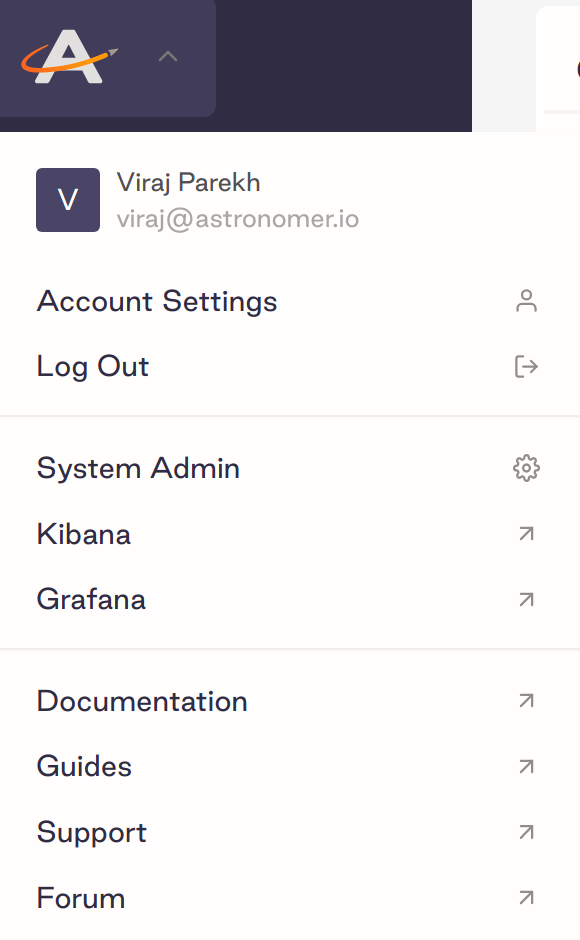
You need Astronomer System Admin permissions to complete version upgrades. To confirm that you're a System Admin, check that you have access to the **System Admin** menu in the Software UI:
 You also need permissions to create Kubernetes resources. To confirm that you have the required permissions, run the following commands:
```sh wrap theme={null}
kubectl auth can-i create pods --namespace
kubectl auth can-i create sa --namespace
kubectl auth can-i create jobs --namespace
```
If all commands return `yes`, then you have the appropriate Kubernetes permissions.
## Step 3: Back up your database
Before you perform an upgrade, back up your Astronomer database. To create a backup, follow the instructions provided by your cloud provider, or ask your organization's database administrator for assistance.
## Step 4: Check the status of your Kubernetes Pods
Then, ensure that all Kubernetes Pods in your Astronomer namespace are healthy by running:
```sh wrap theme={null}
kubectl get pods -n
```
All Pods should be in either the `Running` or `Completed` state. If any of your Pods are in a `CrashLoopBackOff` state or are otherwise unhealthy, make sure that is the expected behavior before you proceed.
## Step 5: Get a copy of your `values.yaml` file and confirm values
1. Run the following command to retrieve your current platform configuration:
```sh wrap theme={null}
helm get values -n > values.yaml
```
2. Review this configuration. If you see the line `"USER-SUPPLIED VALUES:"`, delete it.
3. Create a copy of `values.yaml` called `old_values.yaml`. Save this in case you need to roll back your upgrade.
## Step 6: Verify your current platform version
To verify your current version of Astronomer, run:
```sh wrap theme={null}
helm list --all-namespaces | grep astronomer
```
## Step 7: Run Astronomer's upgrade script
Review and run the script below to upgrade to the version of your choice.
```sh wrap theme={null}
#!/bin/bash
set -xe
RELEASE_NAME=
NAMESPACE=
ASTRO_VERSION=
helm repo add astronomer https://helm.astronomer.io
helm repo update
# upgradeDeployments false ensures that Airflow charts are not upgraded when this script is ran
# If you deployed a config change that is intended to reconfigure something inside Airflow,
# then you may set this value to "true" instead. When it is "true", then each Airflow chart will
# restart. Note that some stable version upgrades require setting this value to true regardless of your own configuration.
# If you are currently on Astronomer Software 0.25, 0.26, or 0.27, you must upgrade to version 0.28 before upgrading to 0.29. A direct upgrade to 0.29 from a version lower than 0.28 is not possible.
helm upgrade --namespace $NAMESPACE \
-f ./values.yaml \
--reset-values \
--version $ASTRO_VERSION \
--debug \
--timeout 20m \
--set astronomer.houston.upgradeDeployments.enabled=false \
$RELEASE_NAME \
astronomer/astronomer
```
Make sure to substitute the following 3 variables with your own values:
* ``
* ``
* ``
To upgrade to Astronomer Software v0.33.0, for example, set `ASTRO_VERSION=0.33.0`.
If you do not specify a patch version above, the script will automatically pull the latest Astronomer Software patch available in the [Astronomer Helm chart](https://github.com/astronomer/astronomer/releases). If you set `ASTRO_VERSION=0.26` for example, Astronomer v0.26.5 will be installed if it is the latest v0.26 patch available.
### Upgrade with ArgoCD
You can upgrade Astronomer with ArgoCD, which is an open source continuous delivery tool for Kubernetes, as an alternative to using `helm upgrade`.
Because ArgoCD doesn't support sync wave dependencies for [app of apps](https://argo-cd.readthedocs.io/en/stable/operator-manual/cluster-bootstrapping/#app-of-apps-pattern) structures, upgrading Astronomer requires some additional steps compared to the standard ArgoCD workflow:
1. Make sure `enableArgoCDAnnotation: true` and `astronomer.houston.upgradeDeployments.enabled=false` are set in your `values.yaml` file.
2. In your ArgoCD application, choose the version of Astronomer Software you want to upgrade to from `astronomer/astronomer`.
3. Sync the ArgoCD app with every component of the Astronomer platform selected. See [Sync (Deploy) the Application](https://argo-cd.readthedocs.io/en/stable/getting_started/#7-sync-deploy-the-application).
4. Stop the sync when you see that `astronomer-houston-db-migrations` has completed in the Argo UI.
5. Sync the application a second time, but this time clear `astronomer-alertmanager` in the Argo UI while keeping all other components selected. Wait for this sync to finish completely.
6. Sync the ArgoCD app a third time with all Astronomer platform components selected.
## Step 8: Confirm that the installation was successful
If the upgrade was successful, you should be able to:
* Log in to Astronomer at `https://app.`.
* See Workspaces and Airflow Deployments in the Software UI.
* Access the **Settings** tab for each of your Deployments in the Software UI.
* See metrics on the **Metrics** tab in the Software UI.
* Run `$ astro deploy` for an existing Deployment using the Astro CLI.
* Open the Airflow UI for each of your Deployments.
* Access task logs for your DAGs in the Airflow UI.
* Create a new Airflow Deployment that is healthy.
If there is a problem creating a new Airflow Deployment, check the commander logs to troubleshoot. Here is an example of what to look for:
```text wrap theme={null}
2022-04-14T05:10:45 INFO Calling commander method #updateDeployment
2022-04-14T05:10:48 INFO Response from #updateDeployment: {"result":{"message":"values don't meet the specifications of the schema(s) in the following chart(s):\nairflow:\ ... },"deployment":{}}
2022-04-14T05:10:48 INFO Deployment some-deployment successfully updated
```
Make changes as needed and rerun the upgrade command from Step 7. Do not continue to Step 8 until you have successfully created a new Airflow Deployment.
## Step 9: Upgrade the Astro CLI
Each Software version is compatible only with specific versions of the Astro CLI. Ensure that all users in your organization are using the latest compatible version of the Astro CLI for your Software version. See [Version compatibility reference](/docs/astro-private-cloud/v-0-34/version-compatibility-reference).
For standard upgrade steps, see [Upgrade the CLI](/docs/cli/v1.43/upgrade-cli). To upgrade from a pre-1.0 version of the CLI to version 1.0+, see [Upgrade to Astro CLI version 1.0+](/docs/astro-private-cloud/v-0-34/upgrade-astro-cli).
## Upgrade considerations
This topic contains information about upgrading to specific versions of Astronomer Software. This includes notes on breaking changes, database migrations, and other considerations that might depend on your use case.
To avoid extended service disruptions, Astronomer recommends upgrading Astronomer Software to a compatible version before you upgrade Kubernetes. To view Astronomer Software and Kubernetes compatibility information, see [Version compatibility reference for Astronomer Software](/docs/astro-private-cloud/v-0-34/version-compatibility-reference#astronomer-software).
If you are upgrading from an [unsupported version](/docs/astro-private-cloud/v-0-34/version-compatibility-reference) of Astronomer Software or Kubernetes, contact [Astronomer support](/docs/astro-private-cloud/v-0-34/support) before starting the upgrade process.
### Supported upgrade paths
If you're upgrading through multiple Astronomer Software versions in a single upgrade process, review the following table to ensure that you're following the correct upgrade path. If your combination of **Current version** and **Target version** isn't listed, you can upgrade directly from your current version to the target version.
| Current version | Target version | Upgrade path |
| --------------- | -------------- | ------------------------------- |
| 0.29 | 0.31 or later | 0.29 -> 0.30 -> 0.34.3 or later |
| 0.27 | 0.29 or later | 0.27 -> 0.28 -> 0.34.3 or later |
| 0.26 | 0.29 or later | 0.26 -> 0.28 -> 0.34.3 or later |
| 0.25 | 0.29 or later | 0.25 -> 0.28 -> 0.34.3 or later |
### Upgrade to Kubernetes 1.25
#### Deprecation of PodSecurityPolicy
In Kubernetes 1.25, [PodSecurityPolicies (PSPs)](https://kubernetes.io/blog/2021/04/06/podsecuritypolicy-deprecation-past-present-and-future/) were deprecated in favor of [Pod Security Standards](https://kubernetes.io/docs/concepts/security/pod-security-standards/). If you were using PSPs on your Astronomer Software installation, consider the following options for moving away from PSPs on Kubernetes 1.25:
* Run the following command to set a baseline Pod Security Standard for all Pods in your Astronomer namespace:
```sh wrap theme={null}
kubectl label --overwrite ns \
pod-security.kubernetes.io/enforce=baseline \
pod-security.kubernetes.io/enforce-version=v1.25
```
If you chose this option, complete the following additional setup to satisfy the baseline policy:
* [Export logs using container sidecars](/docs/astro-private-cloud/v-0-34/export-task-logs#export-logs-using-container-sidecars)
* [Use an external Elasticsearch instance for Airflow task log management](/docs/astro-private-cloud/v-0-34/export-task-logs#use-an-external-elasticsearch-instance-for-airflow-task-log-management)
* Implement Pod Security through a third-party Open Policy Agent tool such as [GateKeeper](https://open-policy-agent.github.io/gatekeeper/website/docs/).
### Upgrade to Kubernetes 1.24 (Azure only)
To use Kubernetes 1.24 and later on Azure, you must set `nginx.ingressAnnotations.service.beta.kubernetes.io/azure-load-balancer-health-probe-request-path: "/healthz"` in your `values.yaml` file. See [Apply a platform config change](/docs/astro-private-cloud/v-0-34/apply-platform-config).
### Upgrade to Kubernetes 1.22
If you're upgrading to Astronomer Software 0.29 or later and Kubernetes 1.22 at the same time, complete your upgrades in the following order:
1. Follow the standard Software upgrade procedure as described in this document.
2. For each Deployment, run the following command to upgrade the Deployment to use the latest version of the Airflow Helm chart:
```sh wrap theme={null}
kubectl exec -it `kubectl get pods -l component=houston --no-headers -n ` -n -- yarn run upgrade-deployments
```
3. Upgrade Kubernetes to version 1.22.
### Upgrade to Astronomer Software 0.35
#### Security issue with DAG-only deploys resolved in 0.35.1
Due to an issue with the [DAG-only Deploy](/docs/astro-private-cloud/v-0-34/deploy-dags#configure-dag-only-deploys-on-a-deployment) feature in Astronomer Software version 0.35.0, there is a risk that users could potentially access DAGs across different namespaces or Airflow deployments without proper permissions. This issue does not affect Deployments that do not use DAG-only deploys.
To address this issue, do not use DAG-only deploys if you use versions 0.35. Only enable DAG-only deploys when you are able to upgrade to version 0.35.1.
### Upgrade to Astronomer Software 0.34
#### Security issue with DAG-only deploys resolved in 0.34.3
Due to an issue with the [DAG-only Deploy](/docs/astro-private-cloud/v-0-34/deploy-dags#configure-dag-only-deploys-on-a-deployment) feature in Astronomer Software version 0.34.0-0.34.2, there is a risk that users could potentially access DAGs across different namespaces or Airflow deployments without proper permissions. This issue does not affect Deployments that do not use DAG-only deploys.
To address this issue, do not use DAG-only deploys if you use versions 0.34.0-0.34.2. Only enable DAG-only deploys when you are able to upgrade to version 0.34.3 or 0.35.1.
### Upgrade to Astronomer Software 0.32
#### Upgrade to Postgres 15
Astronomer Software uses Postgres 15 by default. If you are using an in-cluster database solution, Astronomer recommends that you configure Astronomer Software to stay on Postgres 11.18.0-1 when you upgrade to 0.32. To do so:
* Set `global.postgresql.image.tag=` in your `values.yaml` file.
* Complete the upgrade as documented.
You can then upgrade to Postgres 15 after the upgrade is complete. See [How to upgrade PostgreSQL in Docker and Kubernetes](https://www.cloudytuts.com/tutorials/docker/how-to-upgrade-postgresql-in-docker-and-kubernetes/).
#### Renamed feature flag in Helm configuration
The `astronomer.houston.config.deployments.sysAdminScalabilityImprovementsEnabled` flag has been deprecated and replaced with `astronomer.houston.config.deployments.performanceOptimizationModeEnabled` for improved performance across additional Software UI views.
If you set `sysAdminScalabilityImprovementsEnabled` in your `values.yaml` file, replace it with `performanceOptimizationModeEnabled` before upgrading. If you don't replace the key, the upgrade will fail.
### Upgrade to Astronomer Software 0.31
#### Upgrade Airflow Helm chart to 1.9.4 for all Deployments
If your Deployments are using version 1.9.3 or earlier of the Airflow Helm chart, their task logs will be missing when you upgrade to Astronomer Software 0.31. To upgrade your Deployments' Airflow Helm chart versions during your platform upgrade, ensure that you set ` --set astronomer.houston.upgradeDeployments.enabled=true` for your upgrade command like in the following example:
```zsh wrap theme={null}
helm upgrade --namespace $NAMESPACE \
-f ./values.yaml \
--reset-values \
--version $ASTRO_VERSION \
--debug \
--timeout 20m \
--set astronomer.houston.upgradeDeployments.enabled=true \
$RELEASE_NAME \
astronomer/astronomer
```
#### New default resource limits and requests
Astronomer Software 0.31 includes new default resource limits and requests on the following resources:
* Alertmanager
* Elasticsearch
* NATS
* PostgreSQL
* STAN
* Nginx
* Grafana
* Blackbox exporter
You might experience OOMKill errors or unexpected behavior after upgrading if you use resources beyond the new default limits. To minimize disruption, view resource usage for these components in [Grafana](/docs/astro-private-cloud/v-0-34/grafana-metrics) prior to upgrade and compare this usage to the default resource limits in the [Astronomer Helm chart](https://github.com/astronomer/astronomer/blob/v0.31.0/charts/astronomer/values.yaml).
If your current usage is expected and higher than the default resource limits, update the limits in your `values.yaml` file prior to upgrading to Astronomer Software 0.31.
### Upgrade to Astronomer Software 0.30
#### Do not run the 0.30 upgrade script with `--no-hooks`
Using the `--no-hooks` flag in [Step 7](#step-7-run-astronomer’s-upgrade-script) results in the upgrade script skipping a necessary database migration job. For almost all use cases, you should not specify this flag when upgrading to 0.30.
If you do specify the `--no-hooks` flag, the upgrade script will return a success message even though it failed, resulting in broken behavior in your upgraded environment.
#### PostgreSQL requirements for Astronomer Software 0.30
The `trgm` extension for PosgreSQL was enabled in Astronomer Software 0.30. Superuser permissions are required to run the extension. To apply PostgreSQL superuser permissions to an existing user, run the following SQL command:
```sql wrap theme={null}
`ALTER USER WITH SUPERUSER;`
```
If you're using Azure Database for PostgreSQL as your database backend, you need to enable the `pg_trgm` extension with the Azure portal or the Azure CLI before upgrading to Astronomer Software 0.30. To configure PostgreSQL extensions in Azure Database for PostgreSQL, see [PostgreSQL extensions in Azure Database for PostgreSQL](https://docs.microsoft.com/en-us/azure/postgresql/flexible-server/concepts-extensions).
If you don't enable the `pg_trgm` extension before upgrading Astronomer Software, the upgrade will fail.
### Upgrade to Astronomer Software 0.29
#### Kubernetes duplicate key removal bug in 0.29.3
There is an [unresolved Kubernetes bug](https://github.com/kubernetes/kubernetes/issues/65106) that occurs when upgrading Helm charts that include duplicate keys in an `env` array. If you have a Helm chart with duplicate keys and upgrade to Astronomer Software 0.29.3, all key-value pairs with the duplicate key are removed from your environment.
To preserve duplicate keys in your Helm chart, you can either reapply the values after upgrade or ensure that you use the `--reset-values` flag when running the upgrade script in Step 7.
#### Resync Astronomer's signing certificate
As part of the 0.29 release, Astronomer deprecated its usage of [kubed](https://appscode.com/products/kubed/) for performance and security reasons. Kubed was responsible for syncing Astronomer's signing certificate to Deployment namespaces and is now replaced by an in-house utility. While this change does not directly affect users, you need to run a one-time command to reset Astronomer's signing certificate as part of the upgrade process to 0.29.
When upgrading to 0.29 from any earlier minor version, run the following command between Steps 2 and 3 in the standard procedure to annotate the certificate secret:
```bash wrap theme={null}
kubectl -n annotate secret -houston-jwt-signing-certificate "astronomer.io/commander-sync"="platform=astronomer"
```
If you upgraded to Astronomer Software 0.29 without annotating this secret, run the following command to complete the synchronization:
```bash wrap theme={null}
kubectl create job -n --from=cronjob/-config-syncer upgrade-config-synchronization
```
### Upgrade to Astronomer Software 0.28
#### Version compatibility
Before upgrading to Astronomer Software 0.28, ensure that the following tools are running compatible versions:
* **Kubernetes**: Your version must be 1.19 or greater. If you need to upgrade Kubernetes, contact your cloud provider or your Kubernetes administrator.
* **Airflow images**: You must be using an Astronomer Certified Airflow image, and the version of your image must be 1.10.15 or greater.
For example, all of the following images would work for this upgrade:
* `quay.io/astronomer/ap-airflow:1.10.15-7-buster`
* `quay.io/astronomer/ap-airflow:2.0.0-3-buster-onbuild`
* `quay.io/astronomer/ap-airflow:2.0.2-buster-onbuild`
* `quay.io/astronomer/ap-airflow:2.2.2-onbuild`
* **Helm**: Your version must be 3.6 ≤ 3.8.
#### Modify `values.yaml` values
During Step 5 of the upgrade process, check your `values.yaml` file to see if you have any configuration listed under `astronomer.houston.config.deployments.helm`. You must update all key-value pairs in this section to be under `astronomer.houston.config.deployments.helm.airflow` instead.
For example, consider an existing `values.yaml` file that includes an override of `webserver.allowPodLogReading`:
```yaml wrap theme={null}
astronomer:
houston:
config:
deployments:
helm:
webserver:
allowPodLogReading: true
```
In this case, you need to modify the configuration to include an `airflow` key after `helm`:
```yaml wrap theme={null}
astronomer:
houston:
config:
deployments:
helm:
airflow: ## added this key as this config is coming from the subchart
webserver:
allowPodLogReading: true
```
Once you complete this change, compare any values under the `airflow` section with the [default values from airflow-chart](https://github.com/astronomer/airflow-chart/blob/master/values.yaml) and [open source Airflow chart](https://github.com/apache/airflow/blob/main/chart/values.yaml) to ensure that they are formatted correctly. Incorrectly formatted values for these configurations might result in an error during upgrade.
### Upgrading to Astronomer Software 0.25
#### Version compatibility
Before upgrading to 0.25, ensure that the following software is updated to the appropriate version:
* **Astronomer**: Your current Software version must be at least v0.23.
* **Kubernetes**: Your version must be 1.17 or 1.18. If you need to upgrade Kubernetes, contact your cloud provider's support or your Kubernetes administrator.
* **Airflow images**: You must be using an Astronomer Certified Airflow image, and the version of your image must be 1.10.5 or greater. In addition, your image should be in the following format:
```text wrap theme={null}
quay.io/astronomer/ap-airflow:---onbuild
```
For example, all of the following images would work for this upgrade:
```sh wrap theme={null}
quay.io/astronomer/ap-airflow:1.10.10-5-alpine3.10-onbuild
quay.io/astronomer/ap-airflow:2.0.0-3-buster-onbuild
quay.io/astronomer/ap-airflow:2.0.2-buster-onbuild
quay.io/astronomer/ap-airflow:1.10.5-9-buster
```
> **Note:** While `-onbuild` and `` are optional, we recommend including them for most upgrades. If you have your own build, test, and publish workflows that are layered on top of the Astronomer Airflow images, then removing `` is appropriate because images including `` are immutable.
* **Helm**: Your version must be 3.6 or greater.
#### Change to upgrade script
Upgrading to 0.25 requires a non-standard upgrade script. Ignore Step 4 in the standard upgrade process and run the following command instead:
```sh wrap theme={null}
kubectl apply -f https://raw.githubusercontent.com/astronomer/astronomer/v0.25.15-final/migrations/scripts/lts-to-lts/0.23-to-0.25/manifests/upgrade-0.23-to-0.25.yaml
```
You also need permissions to create Kubernetes resources. To confirm that you have the required permissions, run the following commands:
```sh wrap theme={null}
kubectl auth can-i create pods --namespace
kubectl auth can-i create sa --namespace
kubectl auth can-i create jobs --namespace
```
If all commands return `yes`, then you have the appropriate Kubernetes permissions.
## Step 3: Back up your database
Before you perform an upgrade, back up your Astronomer database. To create a backup, follow the instructions provided by your cloud provider, or ask your organization's database administrator for assistance.
## Step 4: Check the status of your Kubernetes Pods
Then, ensure that all Kubernetes Pods in your Astronomer namespace are healthy by running:
```sh wrap theme={null}
kubectl get pods -n
```
All Pods should be in either the `Running` or `Completed` state. If any of your Pods are in a `CrashLoopBackOff` state or are otherwise unhealthy, make sure that is the expected behavior before you proceed.
## Step 5: Get a copy of your `values.yaml` file and confirm values
1. Run the following command to retrieve your current platform configuration:
```sh wrap theme={null}
helm get values -n > values.yaml
```
2. Review this configuration. If you see the line `"USER-SUPPLIED VALUES:"`, delete it.
3. Create a copy of `values.yaml` called `old_values.yaml`. Save this in case you need to roll back your upgrade.
## Step 6: Verify your current platform version
To verify your current version of Astronomer, run:
```sh wrap theme={null}
helm list --all-namespaces | grep astronomer
```
## Step 7: Run Astronomer's upgrade script
Review and run the script below to upgrade to the version of your choice.
```sh wrap theme={null}
#!/bin/bash
set -xe
RELEASE_NAME=
NAMESPACE=
ASTRO_VERSION=
helm repo add astronomer https://helm.astronomer.io
helm repo update
# upgradeDeployments false ensures that Airflow charts are not upgraded when this script is ran
# If you deployed a config change that is intended to reconfigure something inside Airflow,
# then you may set this value to "true" instead. When it is "true", then each Airflow chart will
# restart. Note that some stable version upgrades require setting this value to true regardless of your own configuration.
# If you are currently on Astronomer Software 0.25, 0.26, or 0.27, you must upgrade to version 0.28 before upgrading to 0.29. A direct upgrade to 0.29 from a version lower than 0.28 is not possible.
helm upgrade --namespace $NAMESPACE \
-f ./values.yaml \
--reset-values \
--version $ASTRO_VERSION \
--debug \
--timeout 20m \
--set astronomer.houston.upgradeDeployments.enabled=false \
$RELEASE_NAME \
astronomer/astronomer
```
Make sure to substitute the following 3 variables with your own values:
* ``
* ``
* ``
To upgrade to Astronomer Software v0.33.0, for example, set `ASTRO_VERSION=0.33.0`.
If you do not specify a patch version above, the script will automatically pull the latest Astronomer Software patch available in the [Astronomer Helm chart](https://github.com/astronomer/astronomer/releases). If you set `ASTRO_VERSION=0.26` for example, Astronomer v0.26.5 will be installed if it is the latest v0.26 patch available.
### Upgrade with ArgoCD
You can upgrade Astronomer with ArgoCD, which is an open source continuous delivery tool for Kubernetes, as an alternative to using `helm upgrade`.
Because ArgoCD doesn't support sync wave dependencies for [app of apps](https://argo-cd.readthedocs.io/en/stable/operator-manual/cluster-bootstrapping/#app-of-apps-pattern) structures, upgrading Astronomer requires some additional steps compared to the standard ArgoCD workflow:
1. Make sure `enableArgoCDAnnotation: true` and `astronomer.houston.upgradeDeployments.enabled=false` are set in your `values.yaml` file.
2. In your ArgoCD application, choose the version of Astronomer Software you want to upgrade to from `astronomer/astronomer`.
3. Sync the ArgoCD app with every component of the Astronomer platform selected. See [Sync (Deploy) the Application](https://argo-cd.readthedocs.io/en/stable/getting_started/#7-sync-deploy-the-application).
4. Stop the sync when you see that `astronomer-houston-db-migrations` has completed in the Argo UI.
5. Sync the application a second time, but this time clear `astronomer-alertmanager` in the Argo UI while keeping all other components selected. Wait for this sync to finish completely.
6. Sync the ArgoCD app a third time with all Astronomer platform components selected.
## Step 8: Confirm that the installation was successful
If the upgrade was successful, you should be able to:
* Log in to Astronomer at `https://app.`.
* See Workspaces and Airflow Deployments in the Software UI.
* Access the **Settings** tab for each of your Deployments in the Software UI.
* See metrics on the **Metrics** tab in the Software UI.
* Run `$ astro deploy` for an existing Deployment using the Astro CLI.
* Open the Airflow UI for each of your Deployments.
* Access task logs for your DAGs in the Airflow UI.
* Create a new Airflow Deployment that is healthy.
If there is a problem creating a new Airflow Deployment, check the commander logs to troubleshoot. Here is an example of what to look for:
```text wrap theme={null}
2022-04-14T05:10:45 INFO Calling commander method #updateDeployment
2022-04-14T05:10:48 INFO Response from #updateDeployment: {"result":{"message":"values don't meet the specifications of the schema(s) in the following chart(s):\nairflow:\ ... },"deployment":{}}
2022-04-14T05:10:48 INFO Deployment some-deployment successfully updated
```
Make changes as needed and rerun the upgrade command from Step 7. Do not continue to Step 8 until you have successfully created a new Airflow Deployment.
## Step 9: Upgrade the Astro CLI
Each Software version is compatible only with specific versions of the Astro CLI. Ensure that all users in your organization are using the latest compatible version of the Astro CLI for your Software version. See [Version compatibility reference](/docs/astro-private-cloud/v-0-34/version-compatibility-reference).
For standard upgrade steps, see [Upgrade the CLI](/docs/cli/v1.43/upgrade-cli). To upgrade from a pre-1.0 version of the CLI to version 1.0+, see [Upgrade to Astro CLI version 1.0+](/docs/astro-private-cloud/v-0-34/upgrade-astro-cli).
## Upgrade considerations
This topic contains information about upgrading to specific versions of Astronomer Software. This includes notes on breaking changes, database migrations, and other considerations that might depend on your use case.
To avoid extended service disruptions, Astronomer recommends upgrading Astronomer Software to a compatible version before you upgrade Kubernetes. To view Astronomer Software and Kubernetes compatibility information, see [Version compatibility reference for Astronomer Software](/docs/astro-private-cloud/v-0-34/version-compatibility-reference#astronomer-software).
If you are upgrading from an [unsupported version](/docs/astro-private-cloud/v-0-34/version-compatibility-reference) of Astronomer Software or Kubernetes, contact [Astronomer support](/docs/astro-private-cloud/v-0-34/support) before starting the upgrade process.
### Supported upgrade paths
If you're upgrading through multiple Astronomer Software versions in a single upgrade process, review the following table to ensure that you're following the correct upgrade path. If your combination of **Current version** and **Target version** isn't listed, you can upgrade directly from your current version to the target version.
| Current version | Target version | Upgrade path |
| --------------- | -------------- | ------------------------------- |
| 0.29 | 0.31 or later | 0.29 -> 0.30 -> 0.34.3 or later |
| 0.27 | 0.29 or later | 0.27 -> 0.28 -> 0.34.3 or later |
| 0.26 | 0.29 or later | 0.26 -> 0.28 -> 0.34.3 or later |
| 0.25 | 0.29 or later | 0.25 -> 0.28 -> 0.34.3 or later |
### Upgrade to Kubernetes 1.25
#### Deprecation of PodSecurityPolicy
In Kubernetes 1.25, [PodSecurityPolicies (PSPs)](https://kubernetes.io/blog/2021/04/06/podsecuritypolicy-deprecation-past-present-and-future/) were deprecated in favor of [Pod Security Standards](https://kubernetes.io/docs/concepts/security/pod-security-standards/). If you were using PSPs on your Astronomer Software installation, consider the following options for moving away from PSPs on Kubernetes 1.25:
* Run the following command to set a baseline Pod Security Standard for all Pods in your Astronomer namespace:
```sh wrap theme={null}
kubectl label --overwrite ns \
pod-security.kubernetes.io/enforce=baseline \
pod-security.kubernetes.io/enforce-version=v1.25
```
If you chose this option, complete the following additional setup to satisfy the baseline policy:
* [Export logs using container sidecars](/docs/astro-private-cloud/v-0-34/export-task-logs#export-logs-using-container-sidecars)
* [Use an external Elasticsearch instance for Airflow task log management](/docs/astro-private-cloud/v-0-34/export-task-logs#use-an-external-elasticsearch-instance-for-airflow-task-log-management)
* Implement Pod Security through a third-party Open Policy Agent tool such as [GateKeeper](https://open-policy-agent.github.io/gatekeeper/website/docs/).
### Upgrade to Kubernetes 1.24 (Azure only)
To use Kubernetes 1.24 and later on Azure, you must set `nginx.ingressAnnotations.service.beta.kubernetes.io/azure-load-balancer-health-probe-request-path: "/healthz"` in your `values.yaml` file. See [Apply a platform config change](/docs/astro-private-cloud/v-0-34/apply-platform-config).
### Upgrade to Kubernetes 1.22
If you're upgrading to Astronomer Software 0.29 or later and Kubernetes 1.22 at the same time, complete your upgrades in the following order:
1. Follow the standard Software upgrade procedure as described in this document.
2. For each Deployment, run the following command to upgrade the Deployment to use the latest version of the Airflow Helm chart:
```sh wrap theme={null}
kubectl exec -it `kubectl get pods -l component=houston --no-headers -n ` -n -- yarn run upgrade-deployments
```
3. Upgrade Kubernetes to version 1.22.
### Upgrade to Astronomer Software 0.35
#### Security issue with DAG-only deploys resolved in 0.35.1
Due to an issue with the [DAG-only Deploy](/docs/astro-private-cloud/v-0-34/deploy-dags#configure-dag-only-deploys-on-a-deployment) feature in Astronomer Software version 0.35.0, there is a risk that users could potentially access DAGs across different namespaces or Airflow deployments without proper permissions. This issue does not affect Deployments that do not use DAG-only deploys.
To address this issue, do not use DAG-only deploys if you use versions 0.35. Only enable DAG-only deploys when you are able to upgrade to version 0.35.1.
### Upgrade to Astronomer Software 0.34
#### Security issue with DAG-only deploys resolved in 0.34.3
Due to an issue with the [DAG-only Deploy](/docs/astro-private-cloud/v-0-34/deploy-dags#configure-dag-only-deploys-on-a-deployment) feature in Astronomer Software version 0.34.0-0.34.2, there is a risk that users could potentially access DAGs across different namespaces or Airflow deployments without proper permissions. This issue does not affect Deployments that do not use DAG-only deploys.
To address this issue, do not use DAG-only deploys if you use versions 0.34.0-0.34.2. Only enable DAG-only deploys when you are able to upgrade to version 0.34.3 or 0.35.1.
### Upgrade to Astronomer Software 0.32
#### Upgrade to Postgres 15
Astronomer Software uses Postgres 15 by default. If you are using an in-cluster database solution, Astronomer recommends that you configure Astronomer Software to stay on Postgres 11.18.0-1 when you upgrade to 0.32. To do so:
* Set `global.postgresql.image.tag=` in your `values.yaml` file.
* Complete the upgrade as documented.
You can then upgrade to Postgres 15 after the upgrade is complete. See [How to upgrade PostgreSQL in Docker and Kubernetes](https://www.cloudytuts.com/tutorials/docker/how-to-upgrade-postgresql-in-docker-and-kubernetes/).
#### Renamed feature flag in Helm configuration
The `astronomer.houston.config.deployments.sysAdminScalabilityImprovementsEnabled` flag has been deprecated and replaced with `astronomer.houston.config.deployments.performanceOptimizationModeEnabled` for improved performance across additional Software UI views.
If you set `sysAdminScalabilityImprovementsEnabled` in your `values.yaml` file, replace it with `performanceOptimizationModeEnabled` before upgrading. If you don't replace the key, the upgrade will fail.
### Upgrade to Astronomer Software 0.31
#### Upgrade Airflow Helm chart to 1.9.4 for all Deployments
If your Deployments are using version 1.9.3 or earlier of the Airflow Helm chart, their task logs will be missing when you upgrade to Astronomer Software 0.31. To upgrade your Deployments' Airflow Helm chart versions during your platform upgrade, ensure that you set ` --set astronomer.houston.upgradeDeployments.enabled=true` for your upgrade command like in the following example:
```zsh wrap theme={null}
helm upgrade --namespace $NAMESPACE \
-f ./values.yaml \
--reset-values \
--version $ASTRO_VERSION \
--debug \
--timeout 20m \
--set astronomer.houston.upgradeDeployments.enabled=true \
$RELEASE_NAME \
astronomer/astronomer
```
#### New default resource limits and requests
Astronomer Software 0.31 includes new default resource limits and requests on the following resources:
* Alertmanager
* Elasticsearch
* NATS
* PostgreSQL
* STAN
* Nginx
* Grafana
* Blackbox exporter
You might experience OOMKill errors or unexpected behavior after upgrading if you use resources beyond the new default limits. To minimize disruption, view resource usage for these components in [Grafana](/docs/astro-private-cloud/v-0-34/grafana-metrics) prior to upgrade and compare this usage to the default resource limits in the [Astronomer Helm chart](https://github.com/astronomer/astronomer/blob/v0.31.0/charts/astronomer/values.yaml).
If your current usage is expected and higher than the default resource limits, update the limits in your `values.yaml` file prior to upgrading to Astronomer Software 0.31.
### Upgrade to Astronomer Software 0.30
#### Do not run the 0.30 upgrade script with `--no-hooks`
Using the `--no-hooks` flag in [Step 7](#step-7-run-astronomer’s-upgrade-script) results in the upgrade script skipping a necessary database migration job. For almost all use cases, you should not specify this flag when upgrading to 0.30.
If you do specify the `--no-hooks` flag, the upgrade script will return a success message even though it failed, resulting in broken behavior in your upgraded environment.
#### PostgreSQL requirements for Astronomer Software 0.30
The `trgm` extension for PosgreSQL was enabled in Astronomer Software 0.30. Superuser permissions are required to run the extension. To apply PostgreSQL superuser permissions to an existing user, run the following SQL command:
```sql wrap theme={null}
`ALTER USER WITH SUPERUSER;`
```
If you're using Azure Database for PostgreSQL as your database backend, you need to enable the `pg_trgm` extension with the Azure portal or the Azure CLI before upgrading to Astronomer Software 0.30. To configure PostgreSQL extensions in Azure Database for PostgreSQL, see [PostgreSQL extensions in Azure Database for PostgreSQL](https://docs.microsoft.com/en-us/azure/postgresql/flexible-server/concepts-extensions).
If you don't enable the `pg_trgm` extension before upgrading Astronomer Software, the upgrade will fail.
### Upgrade to Astronomer Software 0.29
#### Kubernetes duplicate key removal bug in 0.29.3
There is an [unresolved Kubernetes bug](https://github.com/kubernetes/kubernetes/issues/65106) that occurs when upgrading Helm charts that include duplicate keys in an `env` array. If you have a Helm chart with duplicate keys and upgrade to Astronomer Software 0.29.3, all key-value pairs with the duplicate key are removed from your environment.
To preserve duplicate keys in your Helm chart, you can either reapply the values after upgrade or ensure that you use the `--reset-values` flag when running the upgrade script in Step 7.
#### Resync Astronomer's signing certificate
As part of the 0.29 release, Astronomer deprecated its usage of [kubed](https://appscode.com/products/kubed/) for performance and security reasons. Kubed was responsible for syncing Astronomer's signing certificate to Deployment namespaces and is now replaced by an in-house utility. While this change does not directly affect users, you need to run a one-time command to reset Astronomer's signing certificate as part of the upgrade process to 0.29.
When upgrading to 0.29 from any earlier minor version, run the following command between Steps 2 and 3 in the standard procedure to annotate the certificate secret:
```bash wrap theme={null}
kubectl -n annotate secret -houston-jwt-signing-certificate "astronomer.io/commander-sync"="platform=astronomer"
```
If you upgraded to Astronomer Software 0.29 without annotating this secret, run the following command to complete the synchronization:
```bash wrap theme={null}
kubectl create job -n --from=cronjob/-config-syncer upgrade-config-synchronization
```
### Upgrade to Astronomer Software 0.28
#### Version compatibility
Before upgrading to Astronomer Software 0.28, ensure that the following tools are running compatible versions:
* **Kubernetes**: Your version must be 1.19 or greater. If you need to upgrade Kubernetes, contact your cloud provider or your Kubernetes administrator.
* **Airflow images**: You must be using an Astronomer Certified Airflow image, and the version of your image must be 1.10.15 or greater.
For example, all of the following images would work for this upgrade:
* `quay.io/astronomer/ap-airflow:1.10.15-7-buster`
* `quay.io/astronomer/ap-airflow:2.0.0-3-buster-onbuild`
* `quay.io/astronomer/ap-airflow:2.0.2-buster-onbuild`
* `quay.io/astronomer/ap-airflow:2.2.2-onbuild`
* **Helm**: Your version must be 3.6 ≤ 3.8.
#### Modify `values.yaml` values
During Step 5 of the upgrade process, check your `values.yaml` file to see if you have any configuration listed under `astronomer.houston.config.deployments.helm`. You must update all key-value pairs in this section to be under `astronomer.houston.config.deployments.helm.airflow` instead.
For example, consider an existing `values.yaml` file that includes an override of `webserver.allowPodLogReading`:
```yaml wrap theme={null}
astronomer:
houston:
config:
deployments:
helm:
webserver:
allowPodLogReading: true
```
In this case, you need to modify the configuration to include an `airflow` key after `helm`:
```yaml wrap theme={null}
astronomer:
houston:
config:
deployments:
helm:
airflow: ## added this key as this config is coming from the subchart
webserver:
allowPodLogReading: true
```
Once you complete this change, compare any values under the `airflow` section with the [default values from airflow-chart](https://github.com/astronomer/airflow-chart/blob/master/values.yaml) and [open source Airflow chart](https://github.com/apache/airflow/blob/main/chart/values.yaml) to ensure that they are formatted correctly. Incorrectly formatted values for these configurations might result in an error during upgrade.
### Upgrading to Astronomer Software 0.25
#### Version compatibility
Before upgrading to 0.25, ensure that the following software is updated to the appropriate version:
* **Astronomer**: Your current Software version must be at least v0.23.
* **Kubernetes**: Your version must be 1.17 or 1.18. If you need to upgrade Kubernetes, contact your cloud provider's support or your Kubernetes administrator.
* **Airflow images**: You must be using an Astronomer Certified Airflow image, and the version of your image must be 1.10.5 or greater. In addition, your image should be in the following format:
```text wrap theme={null}
quay.io/astronomer/ap-airflow:---onbuild
```
For example, all of the following images would work for this upgrade:
```sh wrap theme={null}
quay.io/astronomer/ap-airflow:1.10.10-5-alpine3.10-onbuild
quay.io/astronomer/ap-airflow:2.0.0-3-buster-onbuild
quay.io/astronomer/ap-airflow:2.0.2-buster-onbuild
quay.io/astronomer/ap-airflow:1.10.5-9-buster
```
> **Note:** While `-onbuild` and `` are optional, we recommend including them for most upgrades. If you have your own build, test, and publish workflows that are layered on top of the Astronomer Airflow images, then removing `` is appropriate because images including `` are immutable.
* **Helm**: Your version must be 3.6 or greater.
#### Change to upgrade script
Upgrading to 0.25 requires a non-standard upgrade script. Ignore Step 4 in the standard upgrade process and run the following command instead:
```sh wrap theme={null}
kubectl apply -f https://raw.githubusercontent.com/astronomer/astronomer/v0.25.15-final/migrations/scripts/lts-to-lts/0.23-to-0.25/manifests/upgrade-0.23-to-0.25.yaml
```